Introduzzjoni
This manual provides detailed instructions for the setup, operation, and maintenance of your Miroddi MF38 MagSafe Wallet. Designed for seamless integration with Apple iPhone 12, 13, 14, 15, and 16 series, this wallet combines secure card storage with advanced tracking capabilities through Apple's Find My network. Please read this manual thoroughly to ensure optimal performance and longevity of your device.
Karatteristiċi Ewlenin
- Integrazzjoni Sib Tiegħi ta' Apple: Easily locate your wallet using the Apple Find My network. Features include one-click setup, left-behind alerts, sound playback for nearby items, and directional mapping for distant items.
- Enhanced Magnetic Strength: Equipped with powerful magnets providing up to 20 N of force, ensuring a secure attachment to your MagSafe-compatible iPhone or case.
- Ample Card Storage: Designed to hold up to 7 cards and some cash, with a convenient thumb slot for quick access.
- Privacy Flap Design: A protective flap prevents cards from falling out and conceals sensitive information, enhancing security.
- Imblukkar tal-RFID: Integrated RFID blocking technology safeguards your credit cards from unauthorized scanning and demagnetization.
- Batterija fit-tul: The internal battery provides up to 5 months of use on a single 1.5-hour wireless charge.
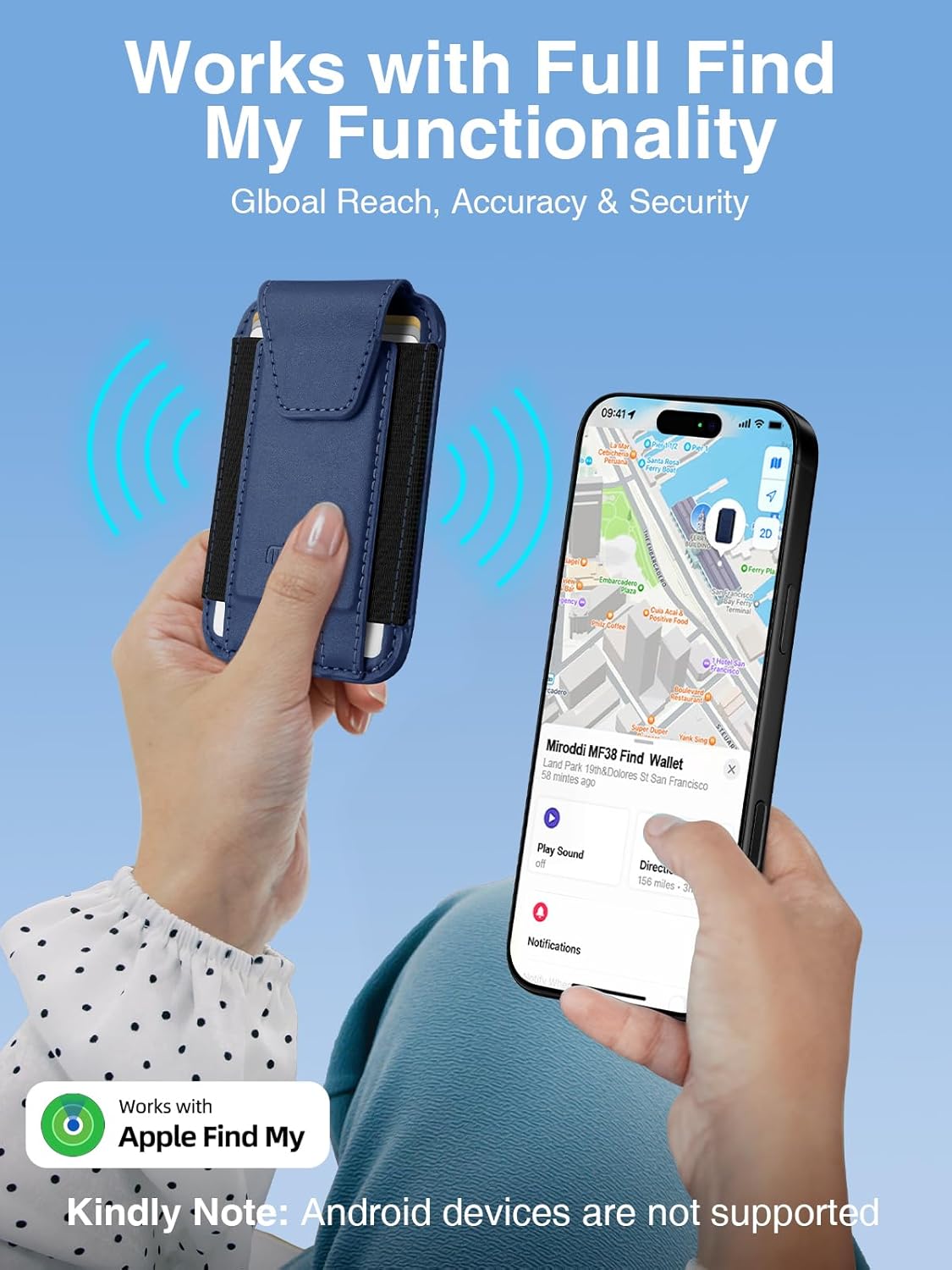
Image: The Miroddi MagSafe Wallet securely attached to an iPhone, demonstrating its integration with the Apple Find My app, displaying location on a map and options for locating the wallet.
Gwida ta' Setup
Pairing with Apple Find My:
- Ensure your iPhone is running the latest iOS version and has Bluetooth enabled.
- Press and hold the power button on the Miroddi MF38 wallet until it enters pairing mode (indicator light may flash).
- Iftaħ l-app "Sib Tiegħi" fuq l-iPhone tiegħek.
- Tap the "Items" tab, then tap the "+" icon and select "Add Other Item".
- Follow the on-screen instructions to complete the pairing process. Once paired, you can name your wallet and configure alerts.
- To set up "Left-behind alerts", navigate to the wallet's settings within the Find My app and enable the feature.
Iċċarġjar inizjali:
Before first use, it is recommended to fully charge your Miroddi MF38 wallet. Place the wallet on a compatible wireless charger. A full charge typically takes approximately 1.5 hours and provides up to 5 months of battery life.
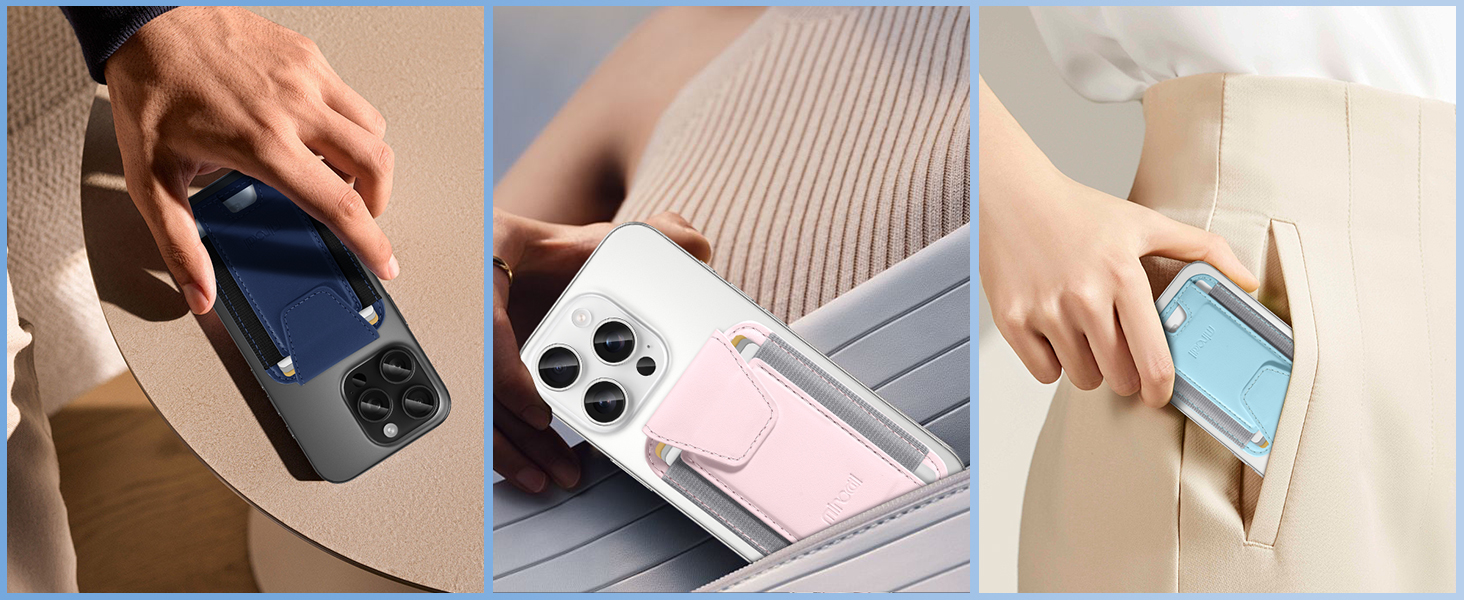
Image: A light blue Miroddi MagSafe Wallet placed on a white wireless charging pad, illustrating the charging process.
Istruzzjonijiet Operattivi
Attaching to your iPhone:
Align the Miroddi MF38 wallet with the MagSafe area on the back of your iPhone (iPhone 12 series or newer) or a MagSafe-compatible case. The strong magnets will securely snap the wallet into place. Ensure a firm connection before use.

Image: A hand demonstrating the simple magnetic attachment of the Miroddi MagSafe Wallet to the back of an iPhone.
Inserting and Accessing Cards:
Lift the privacy flap to reveal the card slots. You can store up to 7 cards and some folded cash. Use the thumb slot at the bottom to easily push cards out when needed. Close the privacy flap to secure your cards and protect your information.

Image: A hand inserting a credit card into the Miroddi MagSafe Wallet, highlighting the card storage capacity.
Using Find My Features:
- Locate on Map: Open the Find My app, go to the "Items" tab, and select your Miroddi MF38 wallet to see its last known location on a map.
- Daqq tal-Ħoss: If your wallet is nearby, tap "Play Sound" in the Find My app to emit an audible alert from the wallet, helping you pinpoint its exact location.
- Direzzjonijiet: For items further away, the Find My app can provide directions to the wallet's last reported location.
- Modalità mitlufa: If your wallet is lost, activate "Lost Mode" in the Find My app. This will lock the wallet, display a custom message and contact number on the screen of any Apple device that finds it, and provide location updates.
Video: An official product video demonstrating the Miroddi MagSafe Wallet's compatibility with Apple Find My, showing how to locate it and play a sound.
Manutenzjoni
Tindif:
To clean your Miroddi MF38 wallet, gently wipe it with a soft, damp cloth. Avoid using harsh chemicals or abrasive materials, as these may damage the leather finish or internal components. Ensure the wallet is completely dry before reattaching it to your iPhone or inserting cards.
Iċċarġjar:
Recharge the wallet wirelessly using a compatible MagSafe or Qi-certified wireless charger when the battery is low. The battery indicator in the Find My app will show the current charge level. Regular charging ensures continuous Find My functionality.
Issolvi l-problemi
- Wallet not connecting to Find My:
- Ensure the wallet is charged.
- Iċċekkja li l-Bluetooth huwa attivat fuq l-iPhone tiegħek.
- Try restarting your iPhone and the wallet (if applicable, by pressing its power button).
- If issues persist, try unpairing and re-pairing the wallet in the Find My app.
- Weak Magnetic Attachment:
- Ensure your iPhone or case is MagSafe compatible. Non-magnetic cases will not provide a secure hold.
- Check for any debris between the wallet and the iPhone/case that might interfere with the magnetic connection.
- Cards falling out:
- Ensure the privacy flap is securely closed.
- Avoid overfilling the wallet beyond its recommended capacity of 7 cards.
- Kwistjonijiet tal-iċċarġjar:
- Ensure you are using a compatible wireless charger.
- Verify the wallet is correctly positioned on the wireless charger.
- Check if the wireless charger itself is powered on and functioning correctly.
Speċifikazzjonijiet
| Brand | Miroddi |
| Numru tal-Mudell | MF38 |
| Materjal | Ġilda |
| Kulur | Dark Blue (as per current product) |
| Piż tal-oġġett | 2.89 uqija (madwar 82 gramma) |
| Dimensjonijiet tal-Pakkett | 4.57 x 3.31 x 0.75 pulzieri |
| Batterija | 1 batterija tal-jone tal-litju (inkluża) |
| Karatteristiċi Speċjali | Apple Find My compatible, RFID Protected, Magnetic Attachment, Privacy Flap |
| Kompatibilità | iPhone 12, 13, 14, 15, 16 Series (and Pro/Pro Max/Plus variants) with MagSafe or MagSafe-compatible cases. |

Image: A visual guide illustrating the compatibility of the Miroddi MagSafe Wallet with iPhone 12-16 series and official MagSafe cases, while showing incompatibility with other phone brands and non-magnetic cases.
Garanzija u Appoġġ
For information regarding warranty coverage, technical support, or service inquiries, please refer to the product packaging or contact Miroddi customer service directly through their official webis-sit jew il-bejjiegħ bl-imnut minn fejn inxtara l-prodott. Żomm il-prova tax-xiri tiegħek għal talbiet ta' garanzija.


