1. Introduzzjoni
This manual provides detailed instructions for the setup, operation, and maintenance of your GOODTEL G2 10-inch Android Tablet. Please read this manual thoroughly to ensure proper use and to maximize your device's performance and longevity.
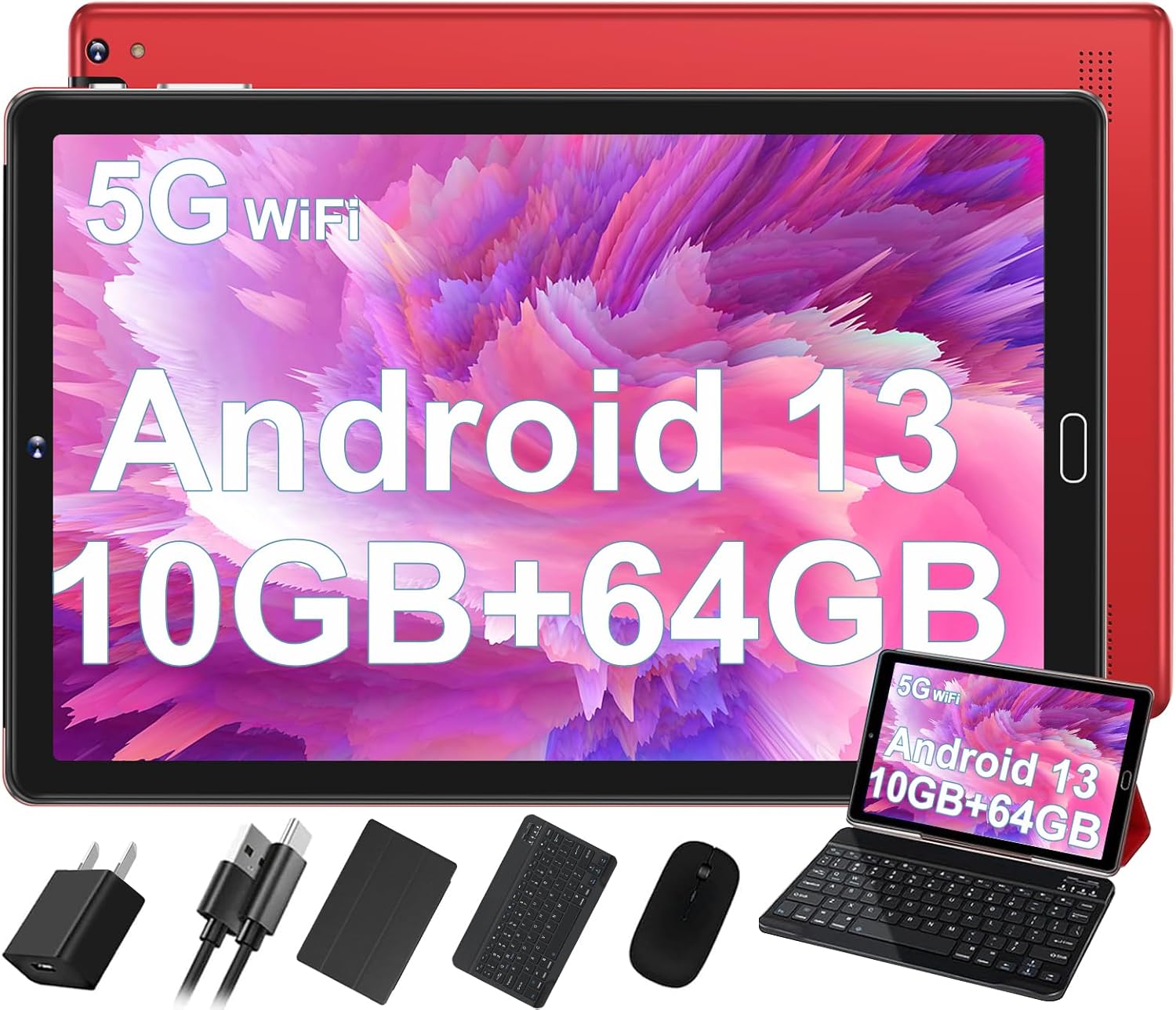
Image: The GOODTEL G2 10-inch Android Tablet displayed with its accompanying accessories, including a charger, USB cables, protective case, Bluetooth keyboard, and mouse, highlighting its versatility as a 2-in-1 device.
2. X'hemm fil-Kaxxa
Ivverifika li l-oġġetti kollha huma preżenti fil-pakkett:
- GOODTEL G2 10-inch Android Tablet
- Tastiera
- Ġurdien
- Kawża Protettiva
- Adapter OTG
- Protettur tal-iskrin
- Ċarġer tal
3. Prodott Aktarview
3.1 Komponenti Fiżiċi u Portijiet
Familiarize yourself with the tablet's physical layout and connection points.

Image: A detailed diagram illustrating the various ports and buttons on the GOODTEL G2 Tablet. This includes the volume controls, power button, 3.5mm headphone jack, Micro SD card slot, Type-C port for charging and OTG, the 8MP rear camera with flash, and the two stereo speakers.
- Buttuna tal-Qawwa: Agħfas u żomm biex tixgħel/titfi jew terġa' tibda. Agħfas qasir biex torqod/tqum.
- Buttuni tal-Volum: Aġġusta l-volum tal-awdjo.
- Jack tal-headphones ta' 3.5mm: Qabbad il-headphones bil-fili.
- Port tat-Tip-C: For charging the tablet and connecting OTG (On-The-Go) devices.
- Slott tal-Karta Mikro SD: Insert a MicroSD/TF card for expandable storage (supports up to 1TB).
- Kameras: Front (5MP) and Rear (8MP with flash) cameras for photos and video calls.
- Kelliema: Two stereo speakers for audio output.
4. Setup
4.1 L-Ewwel Tixgħel u l-Iċċarġjar
- Iċċarġja l-Pillola: Before first use, connect the tablet to the charger using the provided Type-C cable. Allow it to charge fully. The battery indicator on the screen will show charging status.
- Qawwa Mixgħul: Press and hold the Power button until the screen lights up and the GOODTEL logo appears.
4.2 Konfigurazzjoni Inizjali
Upon first power-on, you will be guided through the Android 13 setup wizard:
- Għażla tal-Lingwa: Agħżel il-lingwa ppreferuta tiegħek.
- Konnessjoni Wi-Fi: Agħżel in-netwerk Wi-Fi tiegħek u daħħal il-password biex tikkonnettja mal-internet.
- Kont Google: Idħol bil-kont tal-Google tiegħek jew oħloq wieħed ġdid. Dan huwa neċessarju biex tniżżel l-apps mill-Google Play Store u tissinkronizza d-dejta.
- Data u Ħin: Issettja d-data u l-ħin korretti, jew ħalli n-netwerk jissettjahom awtomatikament.
- Sigurtà: Issettja lock tal-iskrin (PIN, mudell, jew password) għas-sigurtà tal-apparat.
- Trasferiment tad-Data: You may have the option to transfer data from another device.
4.3 Aċċessorji tal-Konnessjoni
- Tastiera u maws:
- Kun żgur li t-tastiera u l-maws huma ċċarġjati jew li għandhom batteriji ġodda.
- Ixgħel it-tastiera u l-maws.
- Fuq it-tablet tiegħek, mur fuq Settings > Apparati konnessi > Bluetooth.
- Ippermetti l-Bluetooth u skennja għal apparati.
- Select the keyboard and mouse from the list of available devices to pair them.
- Kawża Protettiva: Insert the tablet into the provided protective case for protection and to use its stand functionality.
- Protettur tal-iskrin: Carefully apply the screen protector to the tablet screen, ensuring no dust or bubbles.
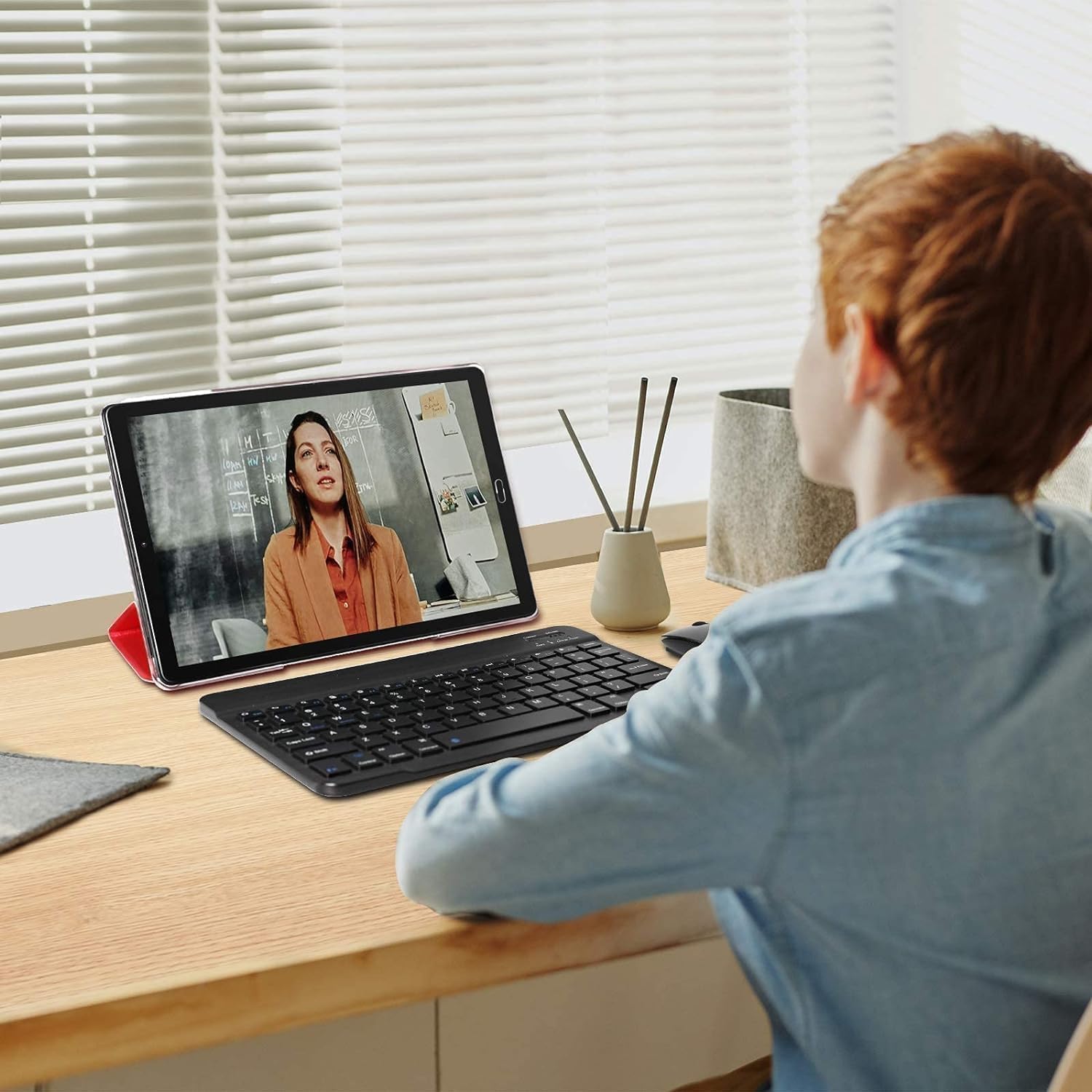
Image: A user interacting with the GOODTEL G2 tablet, which is placed in its protective case acting as a stand, connected to a Bluetooth keyboard and mouse, demonstrating its laptop-like functionality.
5. Istruzzjonijiet Operattivi
5.1 Sistema Operattiva Android 13
The GOODTEL G2 tablet runs on Android 13, offering enhanced privacy controls, improved security, and a user-friendly interface. Key features include:
- Dashboard tal-Privatezza: Monitor and manage app permissions for location, camera, and microphone access.
- Kontrolli tan-Notifika: Ippersonalizza kif u meta tirċievi n-notifiki.
- Materjal Inti: Dynamic theming that adapts the system's color palette to your wallpaper.
- Funzjonalità tal-Screen maqsum: Use two apps simultaneously by dragging one app to the side of the screen.

Image: The GOODTEL G2 Tablet showcasing its Android 13 interface with multiple application icons visible on the home screen, indicating a modern and functional operating system.
5.2 Memory and Storage Management
The tablet features 10GB RAM (4GB physical + 6GB expansion) and 64GB internal storage. Storage can be expanded up to 1TB using a MicroSD/TF card.
- Ħażna espansibbli: Insert a MicroSD card into the designated slot. You can configure it as internal storage (adoptable storage) or portable storage.
- Maniġer tal-Memorja: Access the built-in Memory Manager in Settings to receive suggestions for freeing up space, such as cleaning junk files, deleting duplicates, or managing large downloaded files.

Image: A visual representation of the tablet's memory specifications, indicating 10GB RAM and 64GB ROM, alongside an illustration of a MicroSD card being inserted into the tablet for storage expansion.
5.3 Konnettività
- Wi-Fi: Supports both 2.4G and 5G Wi-Fi networks for stable and fast internet access. Connect via Settings > Netwerk u internet > Wi-Fi.
- Bluetooth 5.0: For connecting wireless peripherals like headphones, speakers, keyboards, and mice. Pair devices via Settings > Apparati konnessi > Bluetooth.
- GPS: Built-in AGPS for precise positioning and navigation. Ensure location services are enabled in Settings > Post.
5.4 Wiri u Awdjo
The 10-inch IPS display offers a resolution of 1280x800 pixels. It includes features designed for eye comfort.
- Modalità tal-Kura tal-Għajnejn: Reduces harmful blue light and adjusts color temperature for comfortable viewing, especially in low light. Access this feature in Settings > Wiri.
- Kelliema Stereo: Enjoy clear audio with the tablet's dual stereo speakers.

Image: A close-up of the GOODTEL G2 tablet screen, held by hands, displaying a high-resolution image of colorful roses, demonstrating the clarity and vibrant color reproduction of its 10-inch IPS display.
5.5 Funzjonalità tal-Kamera
The tablet is equipped with a 5MP front camera and an 8MP rear camera with flash.
- Teħid ta' Ritratti/Vidjows: Iftaħ l-app tal-Kamera biex taqbad stampi u tirrekordja vidjows.
- Sejħiet bil-vidjo: Use the front camera for video conferencing and calls through compatible applications.

Immaġni: Wirja ta' kollaġġasinexample photographs, including portraits and a person in water, illustrating the capabilities of the tablet's 5MP front and 8MP rear cameras for capturing moments.
5.6 Ġestjoni tal-batterija
The tablet is powered by a 6000 mAh battery, designed for extended use.
- Iċċarġjar: Use the provided charger and Type-C cable. Avoid using unapproved chargers to prevent damage.
- Ottimizzazzjoni tal-Batterija: Android 13 includes power-saving features. You can further optimize battery life by adjusting screen brightness, disabling unused connectivity features (Wi-Fi, Bluetooth, GPS), and closing background applications.

Image: A graphic highlighting the 6000mAh battery capacity of the GOODTEL G2 Tablet and its Type-C charging port, emphasizing long battery life and modern charging convenience.
5.7 Multi-functionality
The GOODTEL G2 can function as both a tablet and a laptop when paired with its accessories.
- Modalità Pillola: Ideal for media consumption, browsing, and casual gaming.
- Modalità tal-Laptop: Attach the keyboard and mouse for productivity tasks, document editing, and more efficient navigation.
- Kontroll tal-Ġenituri: Utilize built-in parental control features to manage content access and screen time for children.

Image: A series of vignettes showing individuals using the GOODTEL G2 tablet for diverse purposes, including watching movies, engaging in entertainment, participating in video calls, performing work tasks, and facilitating learning, demonstrating its versatility.
6. Manutenzjoni
- Tindif: Uża drapp artab u mingħajr suf biex tnaddaf l-iskrin u l-qafas. Evita materjali li joborxu jew kimiċi ħarxa.
- Aġġornamenti tas-Software: Iċċekkja u installa regolarment aġġornamenti tas-sistema biex tiżgura prestazzjoni u sigurtà ottimali. Mur fuq Settings > Sistema > Aġġornament tas-sistema.
- Ġestjoni tal-Ħażna: Neħħi l-cache perjodikament, ħassar dak li mhux meħtieġ files, and uninstall unused apps to maintain sufficient storage space.
- Kundizzjonijiet Ambjentali: Avoid exposing the tablet to extreme temperatures, direct sunlight, dust, or moisture.
7 Issolvi l-problemi
| Ħruġ | Soluzzjoni Possibbli |
|---|---|
| It-tablet ma jixgħelx. | Ensure the tablet is fully charged. Connect the charger and wait a few minutes before attempting to power on again. If unresponsive, perform a force restart by holding the Power button for 10-15 seconds. |
| Tablet freezes or is unresponsive. | Force restart the tablet by holding the Power button for 10-15 seconds. Close background applications. Check for system updates. If the issue persists, consider a factory reset (backup data first). |
| Ma tistax tikkonnettja mal-Wi-Fi. | Ensure Wi-Fi is enabled in settings. Check if the Wi-Fi password is correct. Restart your router and the tablet. Try connecting to a different Wi-Fi network if available. |
| L-apparat Bluetooth mhux qed jiġi mqabbla. | Ensure Bluetooth is enabled on both the tablet and the accessory. Make sure the accessory is in pairing mode. Move the devices closer together. Restart Bluetooth on the tablet. |
| Slow performance or low storage. | Use the Memory Manager to clean junk files. Uninstall unused apps. Transfer large files to a MicroSD card or cloud storage. Clear app caches. |
| Il-batterija tiskula malajr. | Reduce screen brightness. Disable Wi-Fi, Bluetooth, and GPS when not in use. Close background apps. Check battery usage in settings to identify power-hungry apps. |
8. Speċifikazzjonijiet
| Karatteristika | Dettall |
|---|---|
| Brand | GOODTEL |
| Isem tal-Mudell | G2 |
| Sistema Operattiva | Android 13 |
| Proċessur | 2 GHz Octa-Core |
| RAM | 10GB (Espansjoni ta' 4GB + 6GB) |
| Ħażna Interna (ROM) | 64GB |
| Ħażna espansibbli | MicroSD/TF sa 1TB |
| Daqs tal-Iskrin | 10.1 pulzieri |
| Riżoluzzjoni tal-Iskrin | 1280 x 800 IPS |
| Kamera ta' wara | 8MP |
| Kamera ta' Quddiem | 5MP |
| Konnettività bla fili | WiFi 5G (802.11ac), Bluetooth 5.0 |
| GPS | AGPS |
| Portijiet | 1x Type-C, 1x 3.5mm AUX Headphone Jack, 1x SD Card Port |
| Kapaċità tal-batterija | 6000 mAh |
| Piż tal-oġġett | 2.88 liri |
| Dimensjonijiet tal-Prodott | 0.31 x 6.3 x 10.24 pulzieri |
9. Garanzija u Appoġġ
For warranty information and technical support, please refer to the documentation included with your purchase or contact GOODTEL customer service. Keep your proof of purchase for warranty claims.
For further assistance, visit the official GOODTEL support webis-sit jew ikkuntattja l-kanali tas-servizz tal-klijenti tagħhom.


