1. Introduzzjoni
This manual provides comprehensive instructions for the MEETION BTM001 Wireless Mouse. It covers setup, operation, maintenance, and troubleshooting to ensure optimal performance and user experience. Please read this manual thoroughly before using the device.
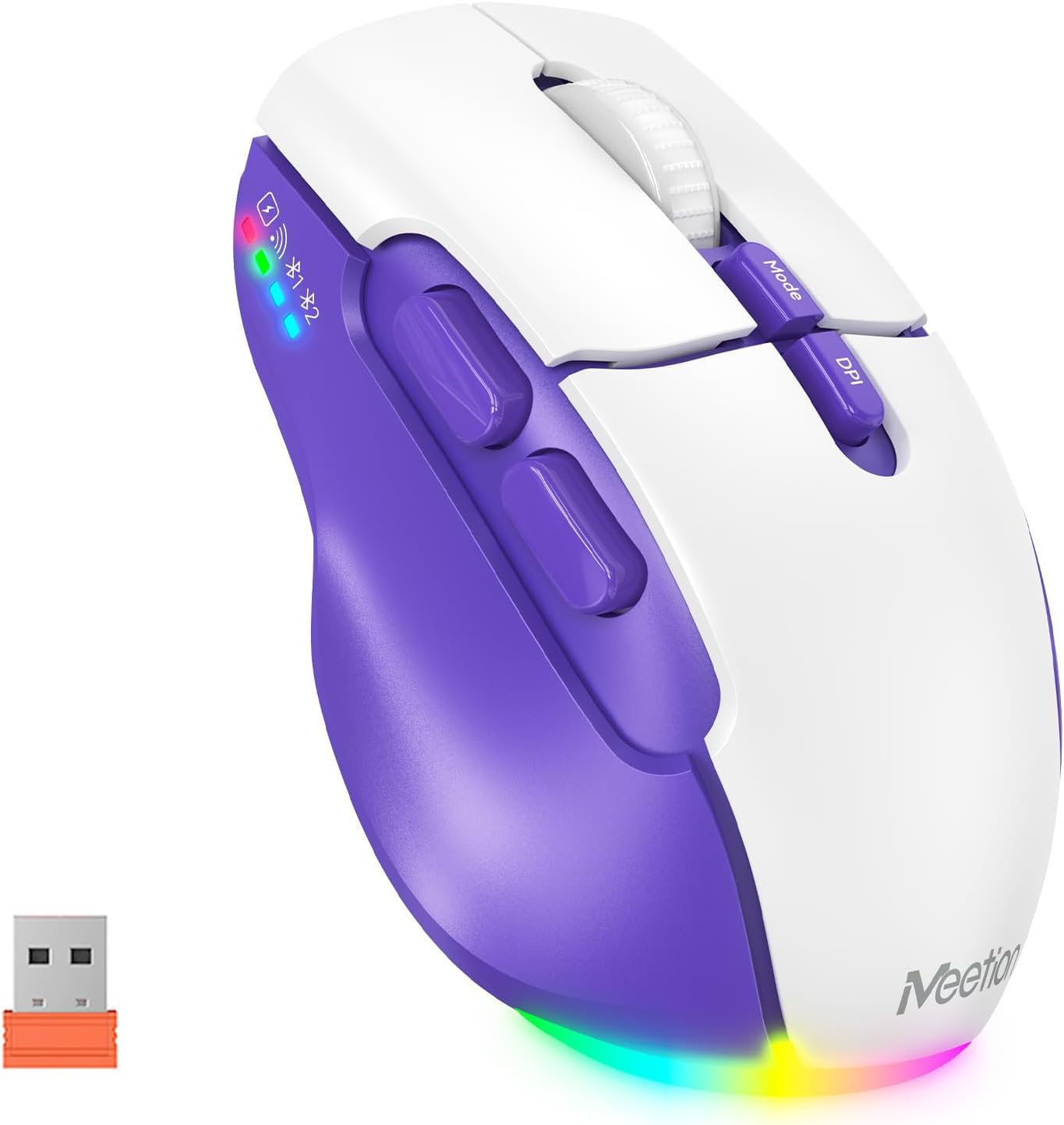
Image 1.1: The MEETION BTM001 Wireless Mouse, showcasing its purple and white design along with the included USB receiver.
2. Prodott Aktarview
The MEETION BTM001 is an ergonomic wireless mouse designed for versatile use across multiple devices. It features dual connectivity options (USB 2.4GHz and Bluetooth), adjustable DPI settings, and a rechargeable battery.
2.1 Karatteristiċi ewlenin
- Konnettività Doppju: Supports 2.4GHz USB wireless and dual Bluetooth (BT1, BT2) for seamless switching between up to three devices.
- DPI aġġustabbli: Four DPI settings (800, 1200, 1600, 2400) for precise cursor control.
- Batterija rikarikabbli: Built-in lithium polymer battery, rechargeable via USB-C, with support for use while charging.
- Disinn Ergonomiku: Contoured shape with supportive finger rests for comfortable extended use.
- Klikks Siekta: Designed for quiet operation to minimize disturbance.
- Dawl RGB: Bottom lighting for aesthetic enhancement, with an option to toggle on/off.
2.2 Komponenti

Image 2.1: Detailed diagram illustrating the various buttons and ports on the MEETION BTM001 Wireless Mouse, including the Left Button, Right Button, Scroll Wheel, Forward Button, Backward Button, Mode Switching Button, DPI Speed Switch Button, Type-C Charging Port, Power Switch (ON/OFF), Tail Light Switch, and USB Receiver compartment.
- Buttuna tax-Xellug: Funzjoni standard tal-ikklikkjar tax-xellug.
- Buttuna tal-lemin: Funzjoni standard tal-ikklikkjar tal-lemin.
- Scroll Wheel: For vertical scrolling. Can be tilted right for auto-scroll mode.
- Buttuna 'l quddiem: Jinnaviga 'l quddiem ġewwa web browsers jew file esploraturi.
- Buttuna b'lura: Jinnaviga lura ġewwa web browsers jew file esploraturi.
- Buttuna tal-Bdil tal-Modalità: Cycles between 2.4GHz USB, Bluetooth 1, and Bluetooth 2 connections.
- DPI Speed Switch Button: Adjusts cursor sensitivity (800/1200/1600/2400 DPI).
- Port tal-Iċċarġjar tat-Tip C: For recharging the mouse battery.
- Swiċċ tal-Enerġija (ON/OFF): Turns the mouse power on or off.
- Tail Light Switch: Toggles the RGB bottom lighting on or off.
- Riċevitur USB: Stores the 2.4GHz USB dongle.
3. Setup
The MEETION BTM001 mouse offers flexible connectivity options. Follow these steps to connect your mouse to your device.

Image 3.1: Visual guide for connecting the mouse via USB receiver or Bluetooth to various devices like laptops, desktops, tablets, and smartphones.
3.1 2.4GHz USB Wireless Connection
- Locate the USB receiver stored in the compartment on the bottom of the mouse.
- Plug the USB receiver into an available USB-A port on your computer or device. If your device only has USB-C ports, use a suitable adapter (not included).
- Turn on the mouse using the Power Switch on the bottom.
- Press the Mode Switching Button until the indicator light for 2.4GHz (often represented by a Wi-Fi-like icon) is active.
- Il-maws għandu jikkonnettja awtomatikament.
3.2 Konnessjoni Bluetooth (BT1 / BT2)
The mouse supports two separate Bluetooth connections, allowing you to pair with two different Bluetooth-enabled devices.
- Turn on the mouse using the Power Switch on the bottom.
- Press the Mode Switching Button to select either Bluetooth 1 (BT1) or Bluetooth 2 (BT2). The corresponding indicator light will flash.
- On your device (laptop, tablet, smartphone), go to Bluetooth settings and enable Bluetooth.
- Fittex għal new devices. The mouse should appear as "MEETION BTM001" or similar.
- Select the mouse to pair. The indicator light on the mouse will stop flashing and remain solid once connected.
- Repeat these steps for the second Bluetooth channel (BT2) if you wish to connect to another device.
3.3 Tibdil bejn Apparati
To switch between connected devices (USB, BT1, BT2), simply press the Mode Switching Button on the top of the mouse. The indicator lights will show which connection is currently active.

Image 3.2: The MEETION BTM001 mouse demonstrating its ability to connect and switch between a laptop, tablet, and desktop computer using both Bluetooth and 2.4GHz USB connections.
4. Istruzzjonijiet Operattivi
4.1 Adjusting DPI (Cursor Speed)
The mouse offers four adjustable DPI settings to control cursor sensitivity. Press the Buttuna tal-Iswiċċ tal-Veloċità DPI located on the top of the mouse to cycle through the settings:
- 800 DPI (Slowest)
- 1200 DPI (Standard)
- 1600 DPI (Faster)
- 2400 DPI (Fastest)

Image 4.1: Illustration of the four adjustable DPI settings (800, 1200, 1600, 2400) and the DPI button on the MEETION BTM001 mouse.
4.2 Buttuni tal-Ġnub
The Forward and Backward buttons on the left side of the mouse provide quick navigation in web browsers, file explorers, and other applications that support these functions.
4.3 Scroll Wheel Functions
- Vertical Scrolling: Rotate the scroll wheel up or down.
- Auto-Scroll Mode: Push the scroll wheel to the right to activate auto-scroll. You can adjust the scrolling speed by moving the mouse slightly up or down while in this mode. Push the scroll wheel again or click any button to exit auto-scroll.
4.4 Kontroll tad-Dawl RGB
The mouse features a customizable RGB backlight at its base. To toggle the lighting on or off, use the Iswiċċ tad-Dawl tad-Dnub located on the bottom of the mouse.
5. Iċċarġjar u Batterija
The MEETION BTM001 mouse is equipped with a rechargeable lithium polymer battery.
5.1 Iċċarġjar tal-Maws
- Connect the included USB-C charging cable to the Type-C Charging Port on the front of the mouse.
- Ipplaggja t-tarf l-ieħor tal-kejbil ma' sors ta' enerġija USB (eż., port USB tal-kompjuter, adapter tal-ħajt USB).
- Il-maws jista' jintuża waqt li jkun qed jiċċarġja.

Image 5.1: The MEETION BTM001 mouse connected to a power source via its USB-C charging cable, indicating its rechargeable capability.
5.2 Battery Saving Features
To conserve battery life, the mouse incorporates intelligent power-saving features:
- Modalità Standby: After approximately 20 minutes of inactivity, the mouse will enter standby mode.
- Modalità Auto-Sleep: If left inactive for an extended period, the mouse will enter a deeper auto-sleep mode.
- To reactivate the mouse from standby or auto-sleep, simply move the mouse or click any button.

Image 5.2: Illustration depicting the mouse's power states: Working, Standby (after 20 minutes), Auto Sleep, and how to activate it by clicking.
6. Manutenzjoni
To ensure the longevity and optimal performance of your MEETION BTM001 Wireless Mouse, follow these maintenance guidelines:
- Tindif: Uża drapp artab u niexef biex timsaħ il-wiċċ tal-maws. Għal ħmieġ iebes, nixxef ftit.ampLaħlaħ id-drapp bl-ilma jew b'soluzzjoni ħafifa tat-tindif. Evita kimiċi ħarxa jew materjali li joborxu.
- Kura tas-Sensor: Żomm is-senser ottiku fil-qiegħ tal-maws nadif u ħieles mit-trab jew mill-fdalijiet biex tiżgura traċċar preċiż.
- Ħażna: Meta ma tkunx qed tużah għal perjodi twal, itfi l-maws biex tikkonserva l-ħajja tal-batterija. Aħżnu f'post frisk u niexef 'il bogħod mix-xemx diretta u minn temperaturi estremi.
- Evita Qtar: Ipproteġi l-maws minn waqgħat u impatti, li jistgħu jagħmlu ħsara lill-komponenti interni.
7 Issolvi l-problemi
If you encounter issues with your MEETION BTM001 Wireless Mouse, refer to the following troubleshooting steps:
| Problema | Kawża Possibbli | Soluzzjoni |
|---|---|---|
| Mouse not responding/pointer not moving | Low battery; Mouse is off; Incorrect connection mode; USB receiver not connected; Bluetooth not paired. | Charge the mouse; Turn on the mouse; Press the Mode button to select the correct connection (USB, BT1, BT2); Ensure USB receiver is securely plugged in; Re-pair Bluetooth. |
| Konnessjoni dewmien jew intermittenti | Interferenza; Distanza mir-riċevitur/apparat; Batterija baxxa. | Move closer to the receiver/device; Ensure no large metal objects are between mouse and receiver; Charge the mouse; Try a different USB port. |
| L-issettjar tad-DPI mhux qed jinbidel | DPI button not pressed correctly. | Ensure a firm press on the DPI Speed Switch Button. |
| Dawl RGB mhux qed jaħdem | Tail Light Switch is off. | Toggle the Tail Light Switch on the bottom of the mouse. |
| Il-maws mhux qed jiċċarġja | Charging cable faulty; USB power source not active. | Try a different USB-C cable; Try a different USB port or wall adapter. |
8. Speċifikazzjonijiet
| Karatteristika | Dettall |
|---|---|
| Numru tal-Mudell | BTM001 |
| Teknoloġija tal-Konnettività | 2.4GHz Wireless (USB), Bluetooth 5.2/3.0 |
| Teknoloġija ta 'Sejbien tal-Moviment | Ottiċi |
| Settings DPI | 800, 1200, 1600, 2400 |
| Tip ta 'batterija | Polimer tal-litju (inkluż) |
| Port tal-Iċċarġjar | USB Tip-Ċ |
| Karatteristiċi Speċjali | Ergonomic Design, LED Lights, Lightweight, Portable, Rechargeable |
| Piż tal-oġġett | 6.4 uqija (madwar 181g) |
| Dimensjonijiet tal-Pakkett | 5.24 x 3.74 x 2.05 pulzieri |
| Kompatibilità | Windows, macOS, Android, iOS |
9. Garanzija u Appoġġ
For warranty information and customer support, please refer to the documentation included with your purchase or visit the official MEETION websit. Żomm il-prova tax-xiri tiegħek għal kwalunkwe talba ta' garanzija.


