Introduzzjoni
This manual provides instructions for setting up and operating your Xbox Fire TV Stick 4K Max and Wireless Controller Bundle. This bundle allows you to stream content and access cloud gaming via Xbox Game Pass Ultimate directly on your television, without the need for a dedicated gaming console.
X'inhu Inkluż
Your bundle includes the following components:
- Amazon Fire TV Stick 4K Max
- Fire TV Stick Voice Remote
- Xbox Wireless Controller (Robot White Core)
- USB Type-C Cable (for controller)
- AA Batteries (for controller)
- Power Adapter (for Fire TV Stick)
- HDMI Extender (for Fire TV Stick)
- Digital Code for 1 Month of Xbox Game Pass Ultimate (for new members only)

Image: The bundle components including the Fire TV Stick 4K Max, its remote, the Xbox Wireless Controller, and a Game Pass Ultimate card.
Setup Istruzzjonijiet
1. Fire TV Stick 4K Max Installation
- Plug the Fire TV Stick 4K Max directly into an available HDMI port on your television. If space is limited, use the included HDMI extender.
- Connect the power adapter to the Fire TV Stick and then to a wall outlet.
- Ixgħel it-televiżjoni tiegħek u agħżel l-input HDMI korrett.
- Follow the on-screen instructions to set up your Fire TV Stick, including connecting to your Wi-Fi network. Ensure you have a stable internet connection, preferably Wi-Fi 6E for optimal performance.
2. Xbox Wireless Controller Setup
- Insert the included AA batteries into the Xbox Wireless Controller.
- Turn on the controller by pressing the Xbox button.
- On your Fire TV Stick, navigate to Settings > Kontrolluri u Apparat Bluetooth > Kontrolluri tal-Xbox Wireless > Żid Kontrollur Ġdid.
- Agħfas u żomm il- Par button on the top of the Xbox Wireless Controller until the Xbox button flashes rapidly.
- Select the controller from the list on your Fire TV screen to complete pairing.
3. Activating Xbox Game Pass Ultimate
- Locate the digital code for 1 month of Xbox Game Pass Ultimate provided with your purchase. This code is typically sent via email.
- Visit the official Xbox website or use the Xbox app on your Fire TV Stick to redeem the code. An Xbox account is required.
- This offer is valid for new Xbox Game Pass members only.
Istruzzjonijiet Operattivi
Using the Fire TV Stick 4K Max
- Use the Fire TV Voice Remote to navigate the Fire TV interface, launch apps, and search for content.
- Agħfas il- Leħen button on the remote to use Alexa for voice commands.
- Access streaming services like Netflix, Prime Video, Disney+, and more through their respective apps.
Accessing Xbox Cloud Gaming
- Ensure your Xbox Wireless Controller is paired and connected.
- From the Fire TV home screen, search for and open the Xbox app.
- Sign in with your Xbox account that has an active Game Pass Ultimate subscription.
- Browse the library of available cloud games. Select a game to begin streaming.
- A strong and stable internet connection is crucial for a smooth cloud gaming experience.

Image: Screenshot of the Xbox app interface on a television, showing various game titles available for cloud streaming.

Image: A television displaying the game Fallout 76, with the Xbox Wireless Controller and Fire TV Stick positioned in front, illustrating cloud gaming in action.
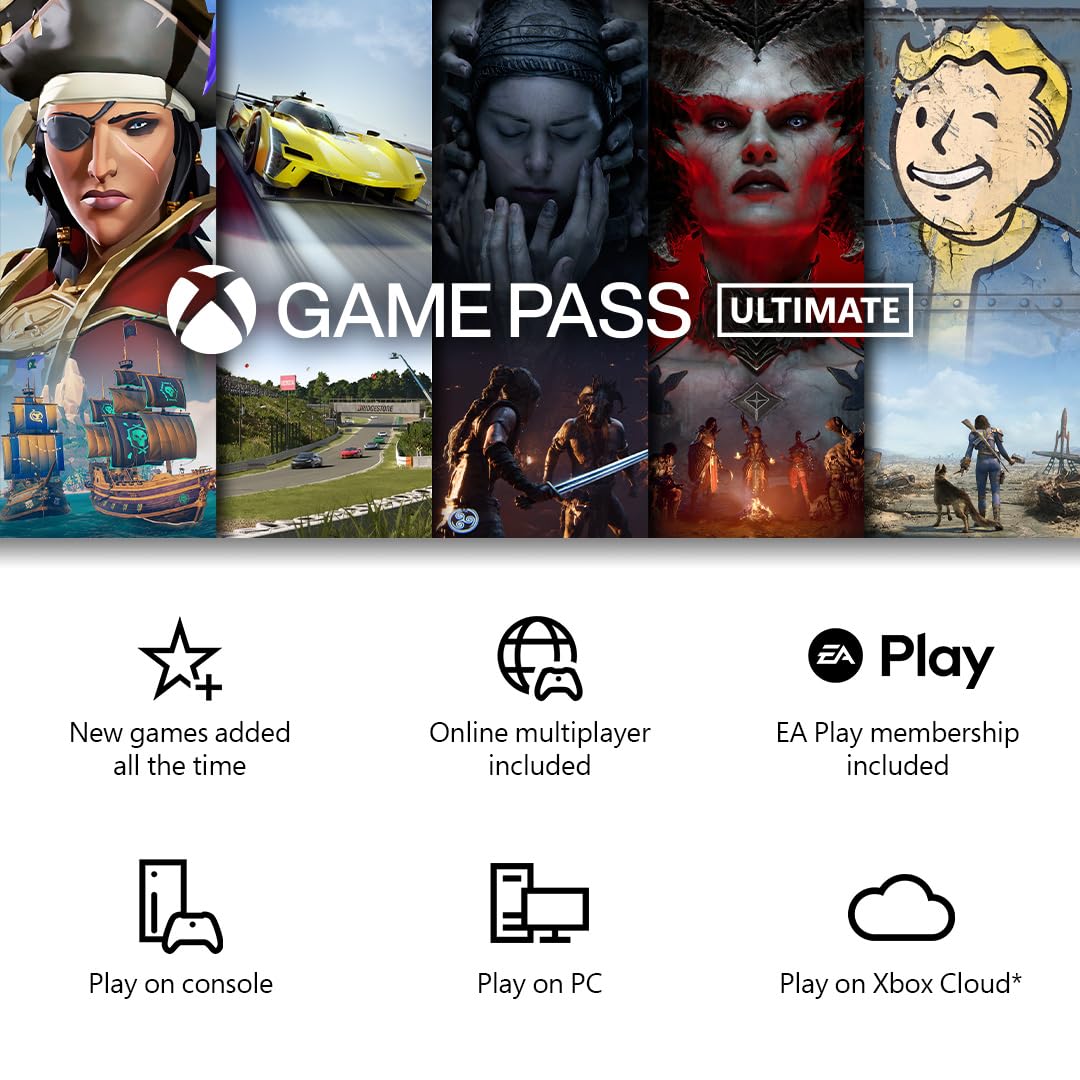
Image: A graphic detailing the benefits of Xbox Game Pass Ultimate, including new games, online multiplayer, EA Play, and options to play on console, PC, or Xbox Cloud.
Manutenzjoni
- Keep the Fire TV Stick and controller clean by wiping them with a soft, dry cloth.
- Evita li tesponi l-apparati għal temperaturi estremi, dawl tax-xemx dirett, jew umdità.
- Ensure proper ventilation for the Fire TV Stick to prevent overheating.
- Replace controller batteries when indicated by the device or when performance degrades.
Issolvi l-problemi
- No Power to Fire TV Stick: Kun żgur li l-adapter tal-enerġija huwa konness sew kemm mal-apparat kif ukoll ma' sokit tal-ħajt li jaħdem.
- L-ebda stampa fuq it-TV: Verify the Fire TV Stick is plugged into an HDMI port and your TV is set to the correct HDMI input. Try a different HDMI port or the HDMI extender.
- Il-Kontrollur Mhux Qed Jikkonnettja:
- Check if the controller batteries are charged or replaced.
- Ensure the controller is in pairing mode (Xbox button flashing rapidly).
- Re-attempt pairing through the Fire TV Stick settings.
- Poor Cloud Gaming Performance (Lag/Stuttering):
- Verify your internet connection speed. Cloud gaming requires a high-speed, stable connection.
- Reduce network congestion by limiting other internet activities on your network.
- Consider using an Ethernet adapter for your Fire TV Stick for a more stable connection, if available.
- Ensure your Wi-Fi router is within close proximity to the Fire TV Stick.
- Game Pass Ultimate Code Issues: Confirm the code was entered correctly and that you are a new Game Pass member, as this offer is typically for new subscribers only.
Speċifikazzjonijiet
| Numru tal-Mudell tal-Oġġett | FTV4KMAX |
| Storage (Fire TV Stick) | 16GB |
| Konnettività bla fili | Wi-Fi 6E |
| Konnettività tal-Kontrollur | Bluetooth |
| Manifattur | Xbox |
| Data ta' Rilaxx | 13 ta’ Lulju, 2024 |
Informazzjoni dwar Garanzija
This product is covered by a limited warranty provided by the manufacturer. For detailed warranty terms and conditions, please refer to the documentation included with your product or visit the official Xbox support websit. Żomm il-prova tax-xiri tiegħek għal talbiet ta' garanzija.
Appoġġ għall-Klijent
For further assistance, technical support, or warranty inquiries, please contact:
- Appoġġ għall-Xbox: Żur support.xbox.com
- Amazon Fire TV Support: Żur amazon.com/devicesupport


