1. Introduzzjoni
Thank you for choosing the Rii Wireless Keyboard and Mouse Combo. This product is designed to provide a reliable and comfortable wireless input solution for your computer. This manual will guide you through the setup, operation, and maintenance of your new device.
2. Kontenut tal-Pakkett
- Wireless Mouse ×1
- Tastiera bla fili ×1
- USB Receiver ×1 (stored in the keyboard battery compartment)
- Manwal għall-Utent ×1
Note: AAA batteries for the keyboard and mouse are not included and must be purchased separately.
3. Speċifikazzjonijiet
| Karatteristika | Dettall |
|---|---|
| Brand | ara |
| Kulur | ABJAD |
| Teknoloġija tal-Konnettività | 2.4G Wireless |
| Karatteristika Speċjali | Disinn Ergonomiku |
| Apparati Kompatibbli | Windows XP / VISTA / 7 /8 /10; Mac OS; Chrome OS; Linux (Laptop, Desktop PC) |
| Dimensjonijiet tal-Prodott (Tastiera) | 17.3 x 4.9 pulzieri (43.9 x 12.5 ċm) |
| Dimensjonijiet tal-Prodott (Maws) | 3.92 x 2.38 x 1.3 pulzieri (10 x 6 x 3.5 ċm) |
| Piż tal-oġġett | 12.3 ounces (for the combo) |
| DPI tal-ġurdien | 1000 |
4. Istruzzjonijiet ta' Setup
4.1. Installazzjoni tal-batterija
- Għat-Tastiera: Open the battery compartment on the back of the keyboard. Insert 1 AAA battery (not included), ensuring correct polarity.
- Għall-Ġurdien: Open the battery compartment on the bottom of the mouse. Insert 2 AAA batteries (not included), ensuring correct polarity.

Figura 1: Battery compartments for the keyboard (1x AAA) and mouse (2x AAA). The USB receiver is located in the keyboard's battery slot.
4.2. Konnessjoni tar-Riċevitur USB
- Locate the USB receiver. It is stored in the battery compartment of the keyboard.
- Ipplaggja r-riċevitur USB f'port USB disponibbli fuq il-kompjuter tiegħek.
- The keyboard and mouse are designed for plug-and-play functionality and should connect automatically. No additional drivers are typically required.
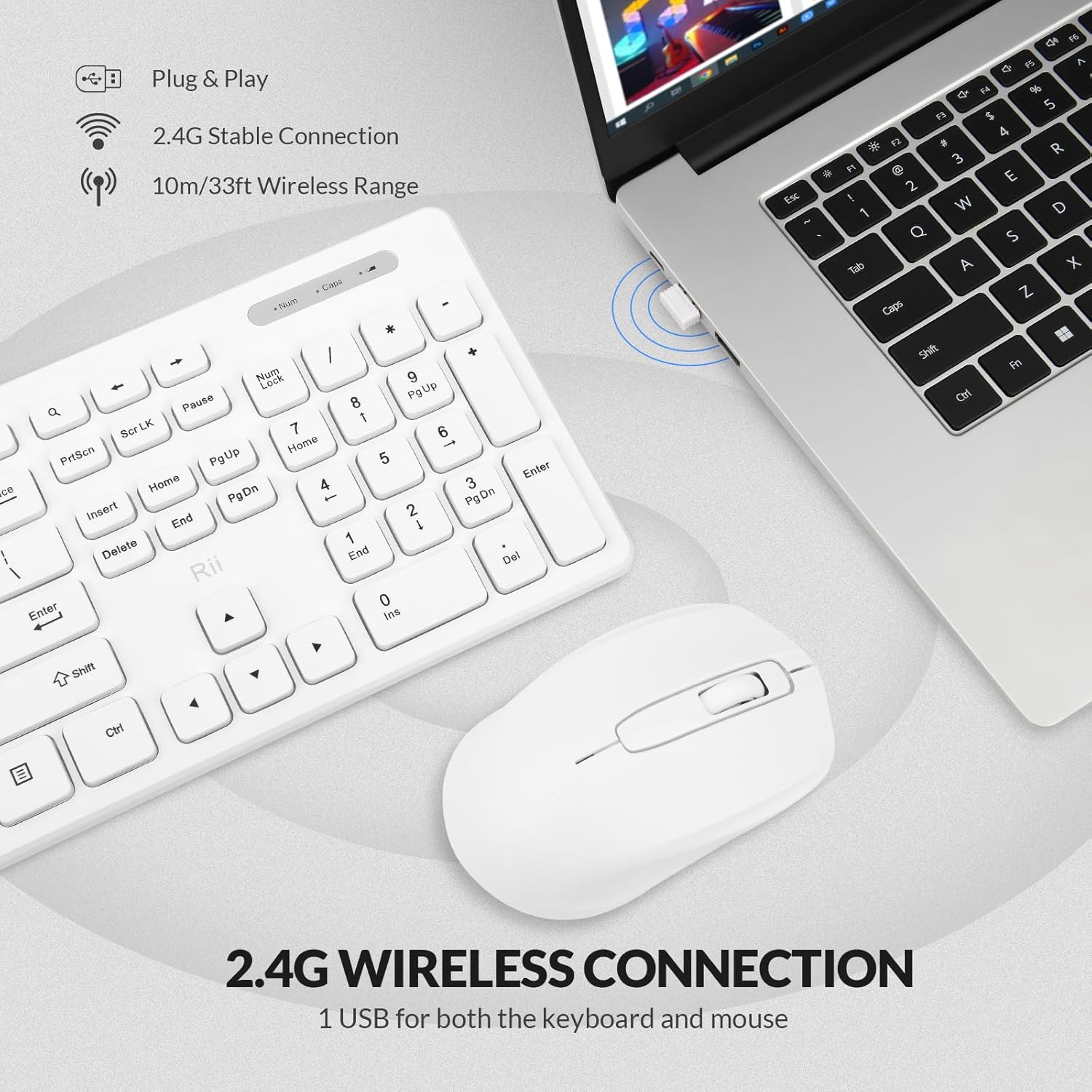
Figura 2: The 2.4G wireless USB receiver plugged into a laptop, enabling connection for both the keyboard and mouse.
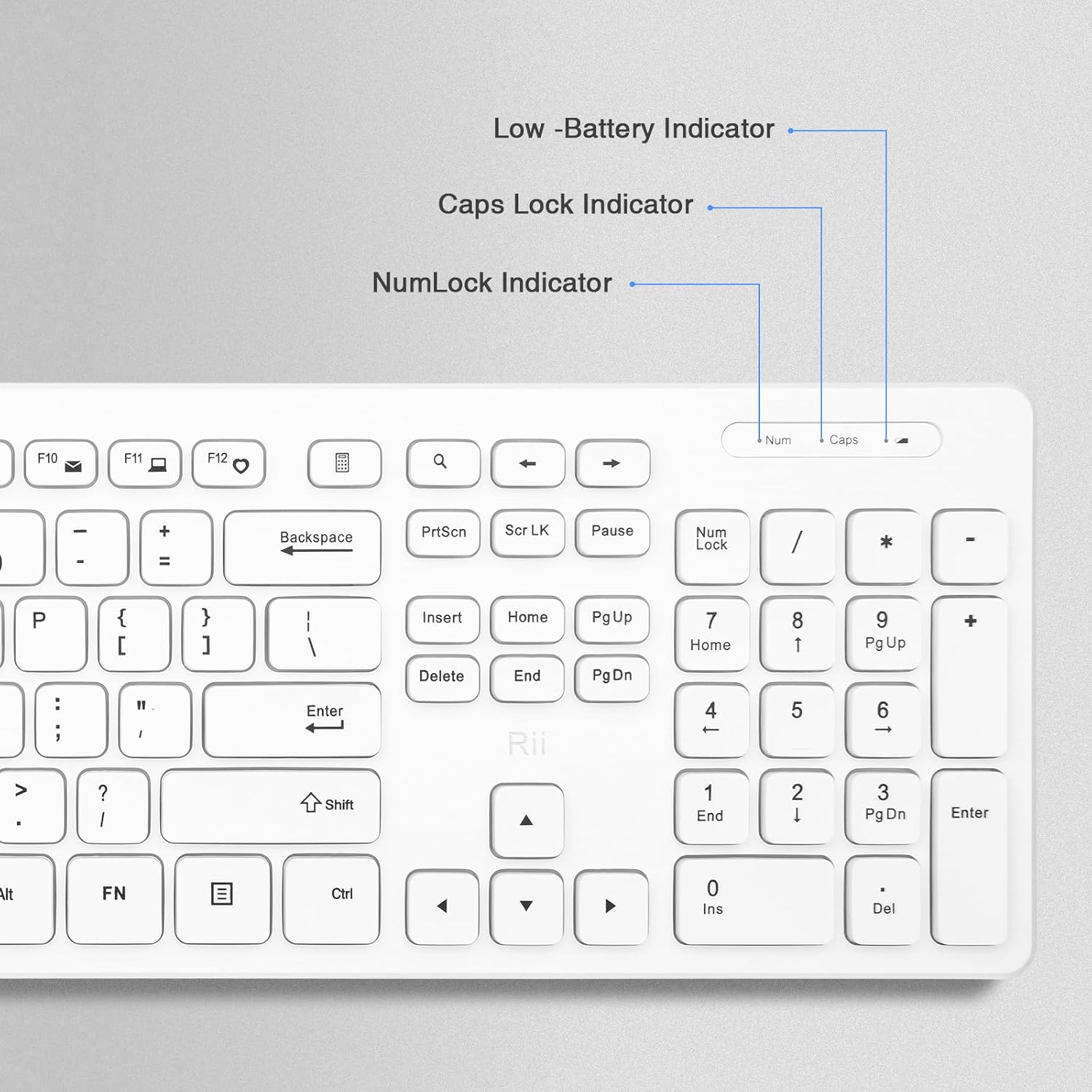
Figura 3: The Rii wireless keyboard and mouse, emphasizing the simple plug-and-play setup with a single USB receiver.
5. Istruzzjonijiet Operattivi
5.1. Użu tat-Tastiera
- Disinn Standard: The keyboard features a standard full-size layout with 104 keys, including a numeric keypad.
- Ċwievet tal-Funzjoni: It includes 12 easy-to-reach function keys (F1-F12) for quick access to various commands.
- Dwal indikaturi: The keyboard has indicator lights for Num Lock, Caps Lock, and a Low Battery warning.

Figura 4: Detail of the keyboard's indicator lights for Num Lock, Caps Lock, and Low Battery status.
5.2. Użu tal-Maws
- Traċċar Ottiku: The mouse uses optical tracking for smooth and precise cursor movement on various surfaces.
- Twaqqif DPI: The mouse has a fixed DPI of 1000 for balanced sensitivity.
- Disinn Ergonomiku: The slim and ergonomic design provides comfortable use and reduces fatigue.
- Modalità Auto Sleep: The mouse features an auto-sleep mode to conserve battery life. To wake it up, simply click any button (moving it will not wake it).

Figura 5: Sploda view of the Rii mouse, detailing its features including the scroll wheel, buttons, LED indicator, power switch, and battery compartment.
6. Manutenzjoni
- Tindif: Uża drapp artab u niexef biex tnaddaf it-tastiera u l-maws. Għal ħmieġ iebes, neħħi ftit drapp.amp Jista' jintuża drapp, iżda kun żgur li ma tidħolx umdità fl-apparati.
- Sostituzzjoni tal-batterija: Replace batteries when the low battery indicator on the keyboard illuminates, or when mouse movement becomes erratic. Always use fresh AAA batteries.
- Ħażna: When not in use for extended periods, remove batteries to prevent leakage and store the USB receiver in the keyboard's battery compartment.
7 Issolvi l-problemi
7.1. Connection Issues (Keyboard & Mouse)
If your keyboard or mouse cannot be connected to your computer, try the following steps:
- Neħħi l-batteriji kemm mit-tastiera kif ukoll mill-maws.
- Skonnettja r-riċevitur USB mill-kompjuter tiegħek.
- Reinstall the batteries into the keyboard and mouse, ensuring correct polarity.
- Plug the USB receiver back into a different USB port on your computer.
- To pair the keyboard: Agħfas fit-tul il- ESC ċavetta u l- K ċavetta fl-istess ħin.
- To pair the mouse: Long press the Scroll button and the Right button simultaneously.
7.2. Mouse Not Waking Up
If the mouse enters sleep mode, it will not wake up by simply moving it. Click any button on the mouse to reactivate it.
7.3. Konnessjoni Intermittenti
Ensure the USB receiver is within the recommended 10m/33ft wireless range and there are no significant obstructions between the devices and the receiver.
8. Garanzija u Appoġġ
Rii provides friendly customer service and a worry-free 1-year product service for this keyboard and mouse kit. If you encounter any problems during use, please contact our support team for assistance. We are committed to helping you resolve any issues promptly.
For support, please refer to the contact information provided with your purchase or visit the official Rii websit.
9. Riżorsi Addizzjonali
9.1. Stampi tal-Prodott


9.2. Vidjows tal-Prodott
Ma kien hemm l-ebda vidjow uffiċjali tal-prodott mill-bejjiegħ disponibbli għall-inkorporazzjoni bbażat fuq il-kriterji pprovduti.


