1. Introduzzjoni
This manual provides detailed instructions for the installation, operation, and maintenance of your AZDOME GS63H 4K WiIFi Dash Cam. Please read this manual thoroughly before using the device to ensure proper function and safety.

Image 1.1: AZDOME GS63H Dash Cam, showing the device, its suction mount, a smartphone displaying the companion app, and the included 128GB SD card.
2. Kontenut tal-Pakkett
Iċċekkja li l-oġġetti kollha elenkati hawn taħt huma preżenti fil-pakkett tiegħek:
- AZDOME GS63H Dash Cam
- Bracket tal-Ġbid
- 128GB Karta tal-Memorja
- Kejbil tal-Enerġija (Ċarġer tal-Karozza)
- USB Data Cable
- Manwal għall-Utent

Image 2.1: The included 128GB SD card, designed for fast data transfer speeds, compatible with the AZDOME GS63H dash cam.
3. Prodott Aktarview u Karatteristiċi
The AZDOME GS63H is a 4K WiIFi Dash Cam designed to record driving footage. Key features include:
- Reġistrazzjoni 4K UHD: Captures video at 2880x2160P resolution for detailed footage.
- Wifi inkorporat: Allows connection to a smartphone via the AZDOME app for video management.
- GPS inkorporat: Records driving speed, route, latitude, and longitude data.
- Super Night Vision: Equipped with WDR (Wide Dynamic Range) and a SONY IMX335 sensor for clear recording in low-light conditions.
- Reġistrazzjoni Loop: Awtomatikament jissostitwixxi l-eqdem files meta l-karta tal-memorja tkun mimlija.
- G-Sensor: Detects sudden movements or collisions and locks the current video file biex tevita li tiġi kitba fuqha.
- Monitoraġġ tal-Parkeġġ: Records automatically when motion or impact is detected while parked (requires hard-wire kit, sold separately).
- Sejbien tal-Moviment: Initiates recording when movement is detected in front of the camera.

Image 3.1: Visual representation of the AZDOME GS63H dash cam's core features, including 4K Ultra HD video, WiFi connectivity, GPS, and various recording modes.
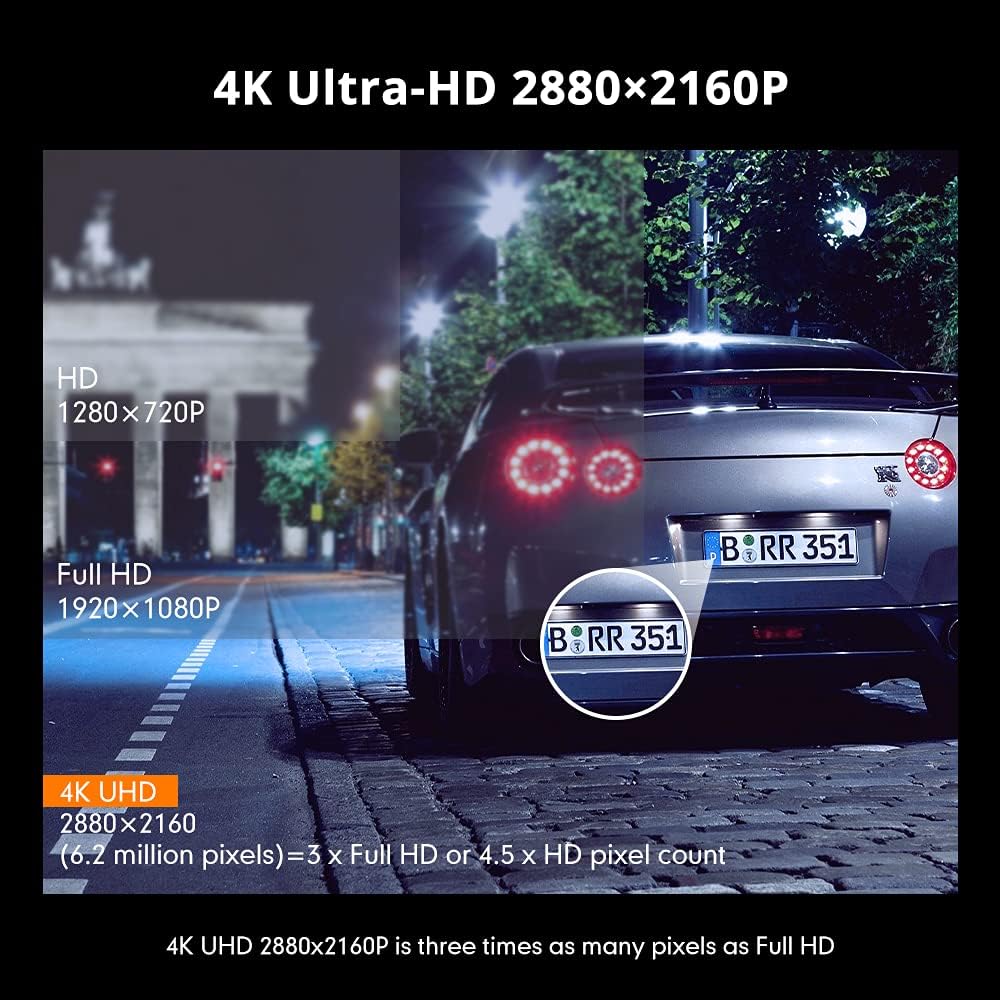
Image 3.2: Comparison illustrating the higher detail of 4K Ultra-HD (2880x2160P) resolution compared to Full HD (1920x1080P) and HD (1280x720P).
4. Setup
4.1. Immuntar tad-Dash Cam
- Naddaf iż-żona tal-windskrin fejn bi ħsiebek twaħħal id-dash cam.
- Attach the suction bracket to the dash cam.
- Agħfas it-tazza tal-ġbid sew mal-windskrin u aqleb il-lieva biex twaħħalha.
- Aġġusta l-angolu tal-kamera biex tiżgura viżjoni ċara view tat-triq.
4.2. Id-Daħħal tal-Kard SD
- Kun żgur li l-kamera tad-daxxbord tkun mitfija.
- Locate the SD card slot on the side of the dash cam.
- Insert the 128GB SD card with the gold contacts facing the back of the camera until it clicks into place.
- Biex tneħħiha, imbotta l-karta bil-mod 'il ġewwa sakemm toħroġ 'il barra.
4.3. Qawwa tal-Konnessjoni
- Qabbad il-ċarġer tal-karozza mal-port tad-dħul tal-enerġija tad-dash cam.
- Ipplaggja t-tarf l-ieħor tal-ċarġer tal-karozza fis-sokit tal-enerġija ta' 12V tal-vettura tiegħek (sokit tal-lajter tas-sigaretti).
- Id-dash cam tixgħel awtomatikament u tibda tirrekordja meta l-ignition tal-vettura tinxtegħel.
5. Istruzzjonijiet Operattivi
5.1. Reġistrazzjoni Bażika
Once powered on, the dash cam will automatically start recording. The recording indicator light will flash. Videos are saved in segments (loop recording) to the SD card.
5.2. Navigazzjoni fil-menu
Use the physical buttons on the dash cam to navigate through the menu options. Refer to the on-screen icons for specific functions such as video playback, settings, and mode switching.
5.3. WiFi Connection and AZDOME App
The built-in WiFi allows you to connect your smartphone to the dash cam for live view, video playback, download, and settings adjustment.
- Download the 'AZDOME' app from the Apple App Store or Google Play Store.
- On the dash cam, enable WiFi mode (refer to the dash cam's display for the WiFi icon).
- On your smartphone, go to WiFi settings and connect to the AZDOME dash cam's WiFi network (SSID and password will be displayed on the dash cam screen).
- Open the AZDOME app to access the dash cam's functions.

Image 5.1: Illustration of the built-in WiFi functionality, showing the AZDOME app on a smartphone connected to the dash cam for video management.
5.4. Traċċar GPS
The integrated GPS module records your driving route, speed, and coordinates. This data can be viewed using the dedicated AZDOME GPS Player software on a computer.
- Download the AZDOME GPS Player from the official AZDOME websit.
- Transfer recorded video files mill-kard SD għall-kompjuter tiegħek.
- Iftaħ il-video files using the AZDOME GPS Player to view synchronized video and GPS data (route map, speed, etc.).

Image 5.2: A laptop screen displaying the AZDOME GPS Player interface, showing a recorded video alongside a map with the tracked driving route and speed information.
5.5. Advanced Recording Modes
- G-Sensor: When a sudden impact or collision is detected, the G-Sensor automatically locks the current video file, u jipprevjeni li jiġi miktub fuqu minn reġistrazzjoni f'linja.
- Monitoraġġ tal-Parkeġġ: If connected to a hard-wire kit (sold separately), the dash cam can detect motion or impact while the vehicle is parked and automatically start recording for a short duration.
- Sejbien tal-Moviment: When enabled, the camera will start recording if it detects movement in its field of view while stationary.
- WDR (Medda Dinamika Wiesgħa): This feature enhances video quality in challenging lighting conditions by balancing bright and dark areas of the image.

Image 5.3: Visual explanation of the dash cam's multifunctional capabilities, including Motion Detection, WDR for balanced exposure, G-Sensor for impact detection, and Parking Monitor.
6. Manutenzjoni
6.1. Formattjar tal-Karta SD
It is recommended to format the SD card regularly (e.g., once a month) to ensure optimal performance and prevent data corruption. Formatting can be done through the dash cam's menu settings.
6.2. Tindif tal-Apparat
Uża drapp artab u niexef biex tnaddaf il-lenti u l-qafas tad-dash cam. Evita li tuża prodotti tat-tindif jew solventi li joborxu li jistgħu jagħmlu ħsara lill-apparat.
7 Issolvi l-problemi
- Il-kamera tad-daxxbord ma tixgħelx: Ensure the power cable is securely connected to both the dash cam and the vehicle's 12V power outlet. Check if the vehicle's power outlet is functioning.
- Ir-reġistrazzjoni tieqaf bla mistenni: Format the SD card. Ensure the SD card is a high-speed card (Class 10 or higher).
- Il-kwalità tal-vidjow hija fqira: Clean the camera lens. Ensure the protective film has been removed from the lens. Check video resolution settings.
- Problemi bil-konnessjoni tal-WiFi: Ensure the dash cam's WiFi is enabled. Keep the smartphone within 9 feet (3 meters) of the dash cam.
- Id-dejta tal-GPS mhux qed tirreġistra: Kun żgur li l-kamera tad-daxxbord għandha viżibilità ċara view of the sky for GPS signal reception.
8. Speċifikazzjonijiet
| Karatteristika | Speċifikazzjoni |
|---|---|
| Brand | AZDOME |
| Isem tal-Mudell | GS63H |
| Riżoluzzjoni tal-Qbid tal-Vidjo | 2160p (4K UHD) |
| Teknoloġija tal-Konnettività | Wi-Fi |
| Tip ta' Memorja Flash | SD (Supports up to 128GB) |
| Tip ta 'Immuntar | Suction Mount |
| Metodu ta' Kontroll | App |
| Tip ta 'Servizz tal-Vettura | Karozza |
| Komponenti Inklużi | Memory Card, Suction Bracket |
9. Garanzija u Appoġġ
For warranty information and technical support, please refer to the official AZDOME website or contact AZDOME customer service directly. Keep your purchase receipt as proof of purchase.


