Introduzzjoni
This manual provides detailed instructions for the installation, operation, maintenance, and troubleshooting of your ESSGOO Portable CarPlay Display. This 9-inch screen offers wireless Apple CarPlay and Android Auto connectivity, intelligent brightness adjustment, mirror link functionality, and voice control, enhancing your in-car infotainment experience.

Figure 1: The ESSGOO Portable CarPlay Display showcasing its user interface with various application icons for phone, music, maps, and messages.
Setup u Installazzjoni
The ESSGOO Portable CarPlay Display is designed for user-friendly installation, typically completed within minutes without the need for professional tools or extensive technical knowledge.
Kontenut tal-Pakkett
Qabel tibda l-installazzjoni, ivverifika li l-komponenti kollha huma preżenti fil-pakkett:
- Portable CarPlay Display Unit
- Sticker Bracket
- Suction Cup Bracket
- Reverse Adapter Cable (if applicable)
- Cable AUX
- Kejbil tal-Enerġija tal-Lajter tas-Sigaretti
- Manwal għall-Utent
- Siegla tonda
- Additional Sticker
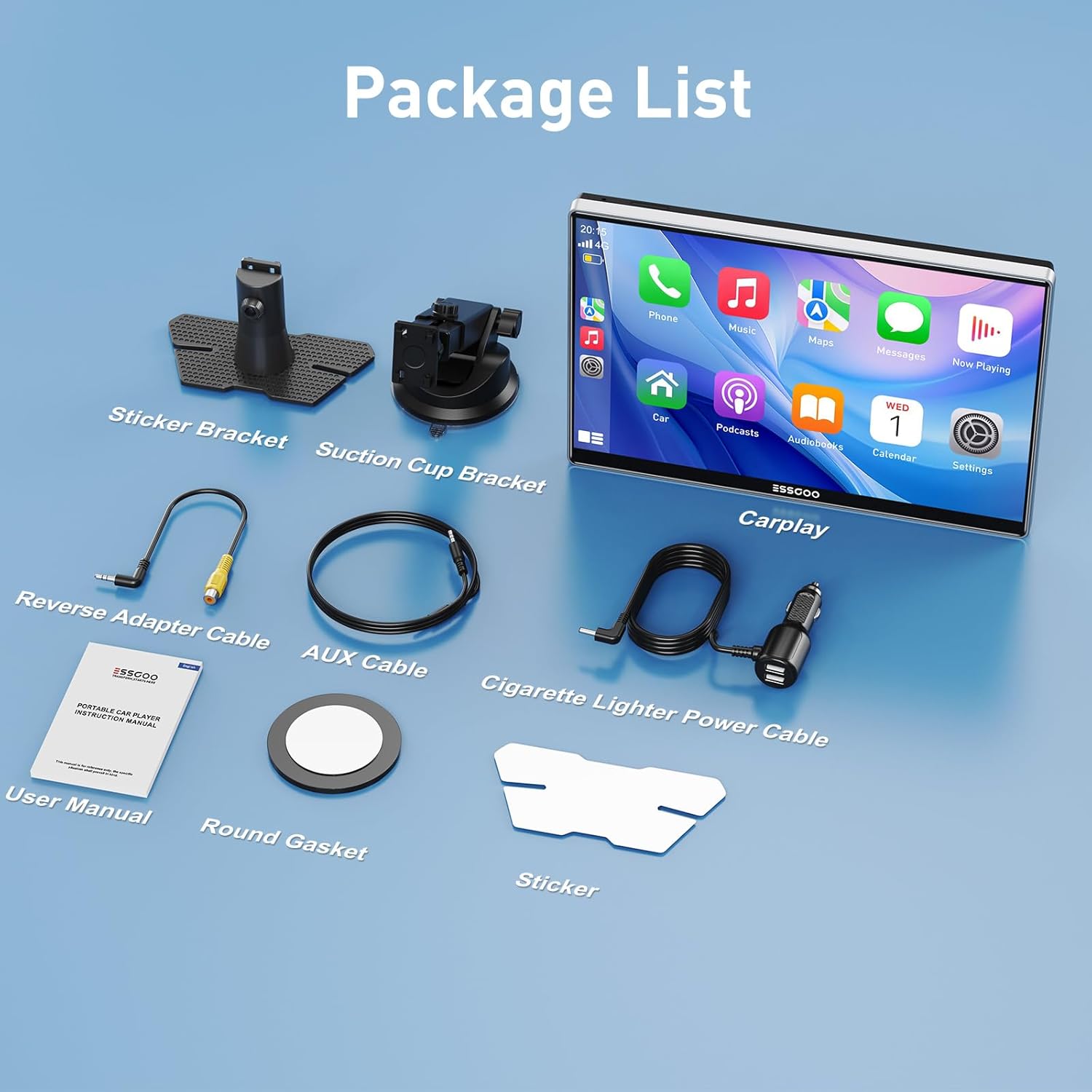
Figura 2: Aktarview of the items included in the product package, ensuring all necessary components are available for installation.
Immuntar tal-Wiri
Choose between the sticker bracket or the suction cup bracket for mounting the display on your dashboard or windshield. Ensure the chosen location does not obstruct your view jew jinterferixxu mal-kontrolli tal-vettura.
- Agħżel il-Post tal-Immuntar: Identify a flat, clean surface on your dashboard or windshield.
- Waħħal il-Bracket:
- For Suction Cup: Press the suction cup firmly onto the surface and engage the lever to secure.
- For Sticker Bracket: Peel off the protective film from the adhesive pad and firmly press the bracket onto the desired surface for at least 30 seconds.
- Waħħal id-Displej: Slide the display unit onto the chosen bracket until it clicks securely into place. Adjust the angle for optimal viewing.
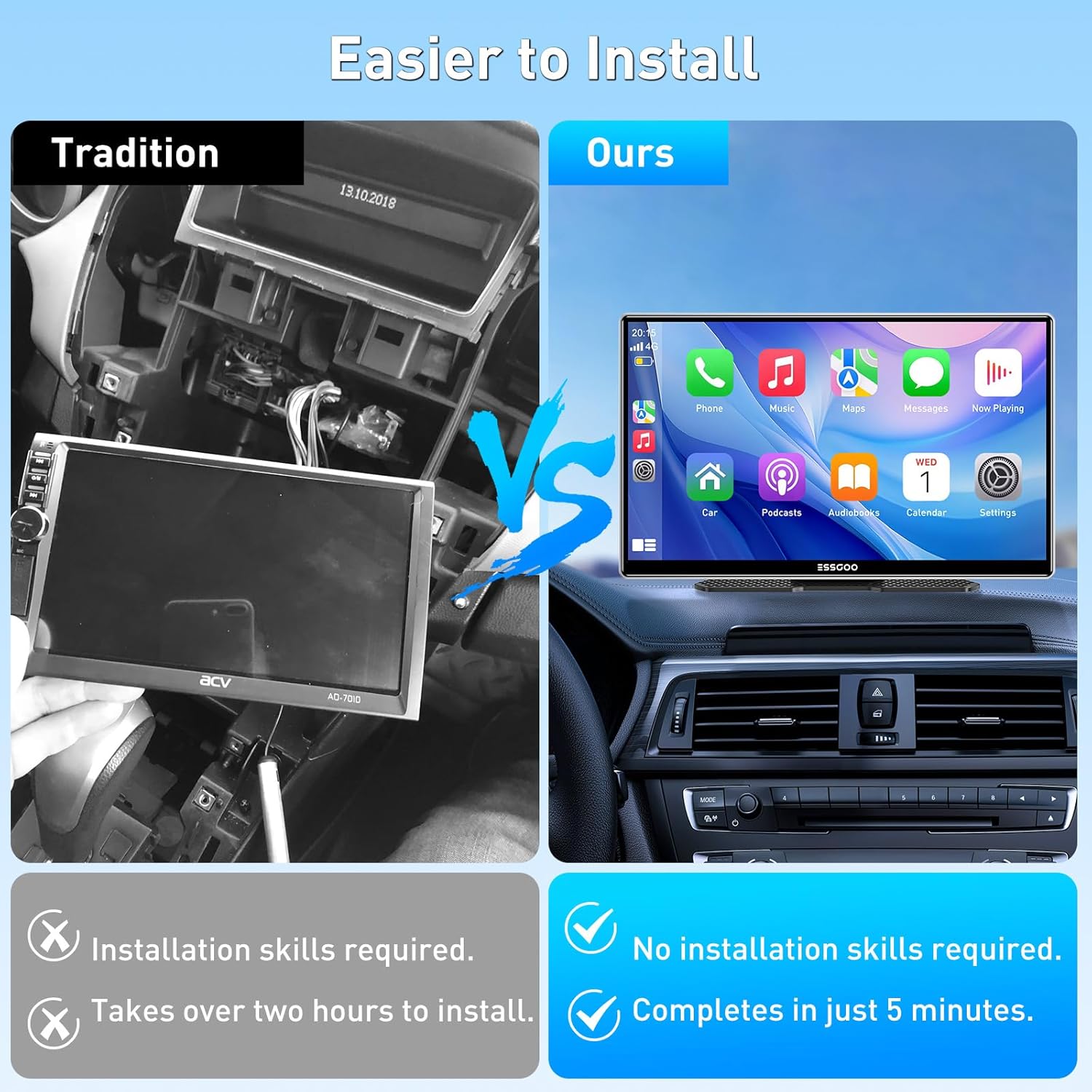
Figure 3: This image illustrates the simplicity of installing the ESSGOO portable display compared to the complex process of installing a traditional car stereo system.
Konnessjoni tal-Enerġija
Connect the display to your vehicle's power source using the provided cigarette lighter power cable.
- Insert the small end of the cigarette lighter power cable into the power input port on the display unit.
- Insert the larger end of the cigarette lighter power cable into your vehicle's 12V cigarette lighter socket.
- The display should power on automatically.

Figure 4: The cigarette lighter power cable not only powers the display but also provides dual USB ports for charging other devices.
Konnessjoni tal-Ħruġ tal-Awdjo
You can output audio from the display to your car's speakers via AUX cable or FM transmission.
- Konnessjoni AUX: Connect one end of the provided AUX cable to the display's AUX output and the other end to your car's AUX input jack. Select AUX as the audio source on your car's stereo.
- Trażmissjoni FM: On the display, select the FM Transmitter option and choose an unused FM frequency. Tune your car's FM radio to the same frequency to receive audio from the display.

Figure 5: This illustration demonstrates the various audio output options, including AUX cable connection for stable audio and FM transmission for wireless audio to your car's speakers.
Istruzzjonijiet Operattivi
Wireless CarPlay & Android Auto
The display supports wireless Apple CarPlay (iOS 7 and above) and Android Auto (Android 11 and above; Google 8 versions). Ensure Bluetooth and Wi-Fi are enabled on your smartphone.
- Power on the display unit.
- On your smartphone, enable Bluetooth and Wi-Fi.
- Fittex għal the display's Bluetooth name (usually "CarPlay" or similar) and pair.
- Once paired, the display will automatically connect to CarPlay or Android Auto.
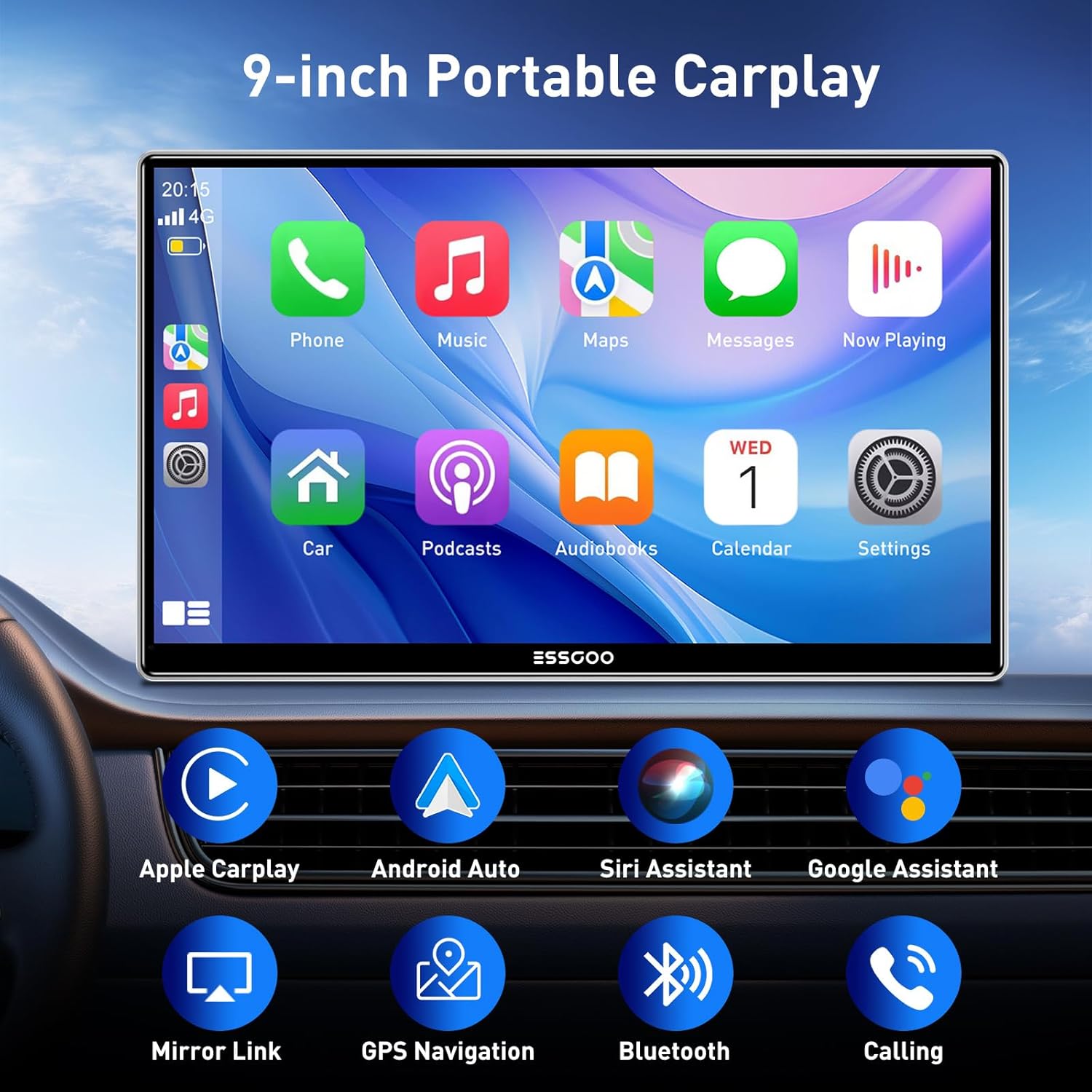
Figure 6: The display's home screen highlights key features such as wireless CarPlay and Android Auto, along with voice assistant integration and other connectivity options.
Intelligent Brightness Adjustment
The display features a smart light sensor that automatically adjusts screen brightness based on ambient lighting conditions, ensuring optimal visibility day or night.
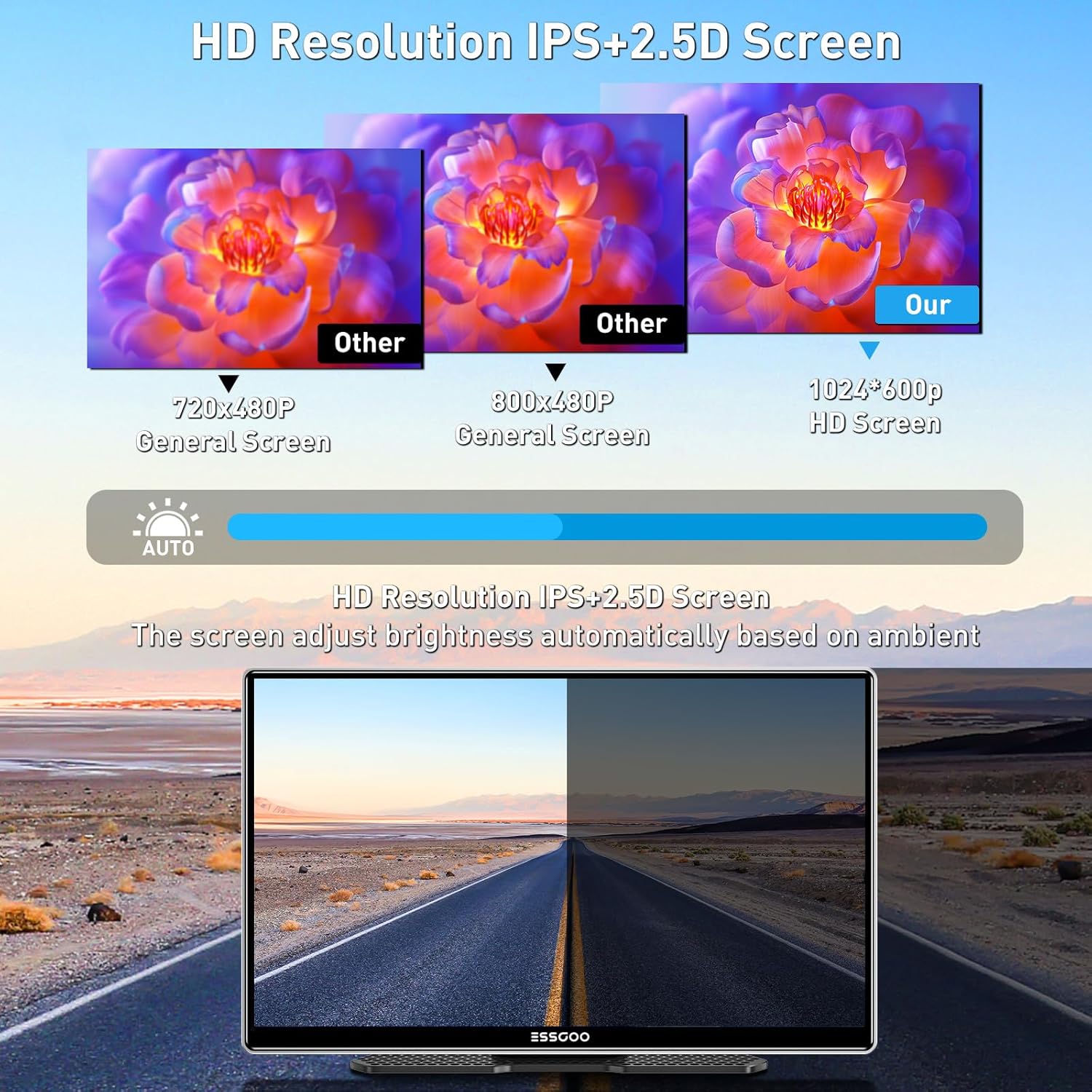
Figure 7: The display's light-sensing technology automatically adjusts screen brightness for clear visibility in varying light environments.
Mirror Link / Airplay
Utilize the Mirror Link (for Android) or Airplay (for iOS) function to cast your smartphone's screen directly to the display. This allows you to view videos, photos, and other content from your phone on the larger screen. Note: Netflix is not supported for mirroring.

Figure 8: The Mirror Link feature allows seamless casting of content from your smartphone to the 9-inch display for an enhanced viewing esperjenza.
Voice Control (Siri & Google Assistant)
Access Siri or Google Assistant directly through the display for hands-free control. This feature allows you to make calls, send messages, get directions, and control music using voice commands, promoting safer driving.

Figure 9: Voice assistants like Siri and Google Assistant integrate with the display, enabling hands-free operation for navigation, communication, and more.
Navigation and Media Playback
Use your preferred navigation apps (e.g., Google Maps, Apple Maps) directly on the large screen. Enjoy music and other media through connected apps or via FM/AUX output to your car's speakers.

Figure 10: Real-time online map navigation is supported, allowing you to plan and follow your journey using popular map applications.

Figure 11: Play your favorite music through the music app on your phone, enjoying a musical journey even while navigating.
Manutenzjoni
Proper maintenance ensures the longevity and optimal performance of your ESSGOO Portable CarPlay Display.
- Tindif tal-Iskrin: Uża drapp artab u mingħajr suf biex timsaħ l-iskrin bil-mod. Għal tbajja' persistenti, nixxef ftit.ampNaddaf id-drapp bl-ilma jew b'prodott tat-tindif li ma jagħmilx ħsara lill-iskrin. Evita materjali li joborxu jew kimiċi ħarxa.
- Tindif Ġenerali: Żomm l-unità ħielsa mit-trab u l-fdalijiet. Uża pinzell artab jew arja kkompressata biex tnaddaf madwar il-buttuni u l-portijiet.
- Temperatura: Avoid exposing the device to extreme temperatures (very hot or very cold) for extended periods, as this can affect performance and lifespan.
- Ħażna: Jekk se taħżen l-apparat għal żmien twil, skonnettjah mill-elettriku u aħżnu f'post frisk u niexef.
Issolvi l-problemi
This section addresses common issues you might encounter with your ESSGOO Portable CarPlay Display.
| Problema | Kawża Possibbli | Soluzzjoni |
|---|---|---|
| Id-displej ma jixgħelx. | L-ebda enerġija mis-sokit tal-lajter tas-sigaretti; konnessjoni maħlula. | Check if the cigarette lighter socket is working. Ensure the power cable is securely plugged into both the display and the car's socket. |
| Il-CarPlay/Android Auto mingħajr fili jiskonnettja ta' spiss. | Interference; unstable Bluetooth/Wi-Fi connection; outdated phone OS. | Ensure no other devices are interfering with Bluetooth/Wi-Fi. Try forgetting the device on your phone and re-pairing. Update your phone's operating system to the latest version (iOS 7+, Android 11+). Restart both the display and your phone. |
| L-ebda awdjo jew kwalità tal-awdjo fqira. | Incorrect audio output setting; loose AUX cable; FM interference. |
|
| Screen is too dim or too bright. | Automatic brightness adjustment issue; manual setting needed. | The display has an intelligent light sensor. If it's not adjusting correctly, check for any obstructions on the sensor. You can also manually adjust brightness settings in the display's menu. |
| Mirror Link/Airplay not working. | Incorrect settings; app incompatibility (e.g., Netflix). | Ensure your phone and the display are on the same Wi-Fi network (if applicable for mirroring). Verify that the app you are trying to mirror is supported (Netflix is not supported). Restart both devices. |
Speċifikazzjonijiet tal-Prodott
| Karatteristika | Dettall |
|---|---|
| Daqs tal-Iskrin | 9 pulzier (23 ċm djagonali) |
| Teknoloġija tal-Konnettività | Wireless Apple CarPlay, Wireless Android Auto, Mirror Link/Airplay, Bluetooth, Auxiliary (AUX), FM Transmitter |
| Apparati Kompatibbli | Mobile Phones (iOS 7+, Android 11+, Google 8 versions) |
| Tip ta' Kontrollur | Touch Screen, Voice Control (Siri, Google Assistant) |
| Input tal-Enerġija | 12-24V (Suitable for various vehicle types including cars, trucks, buses, caravans, camps) |
| Modalità tal-Ħruġ tal-Awdjo | Stereo |
| Tip ta' Output Awdjo | AUX, FM |
| Kodifikazzjoni tal-vidjo | H.264, H.265/HEVC |
| Piż tal-oġġett | 2.88 liri |
| Dimensjonijiet tal-Pakkett | 11.5 x 7.99 x 4.8 pulzieri |
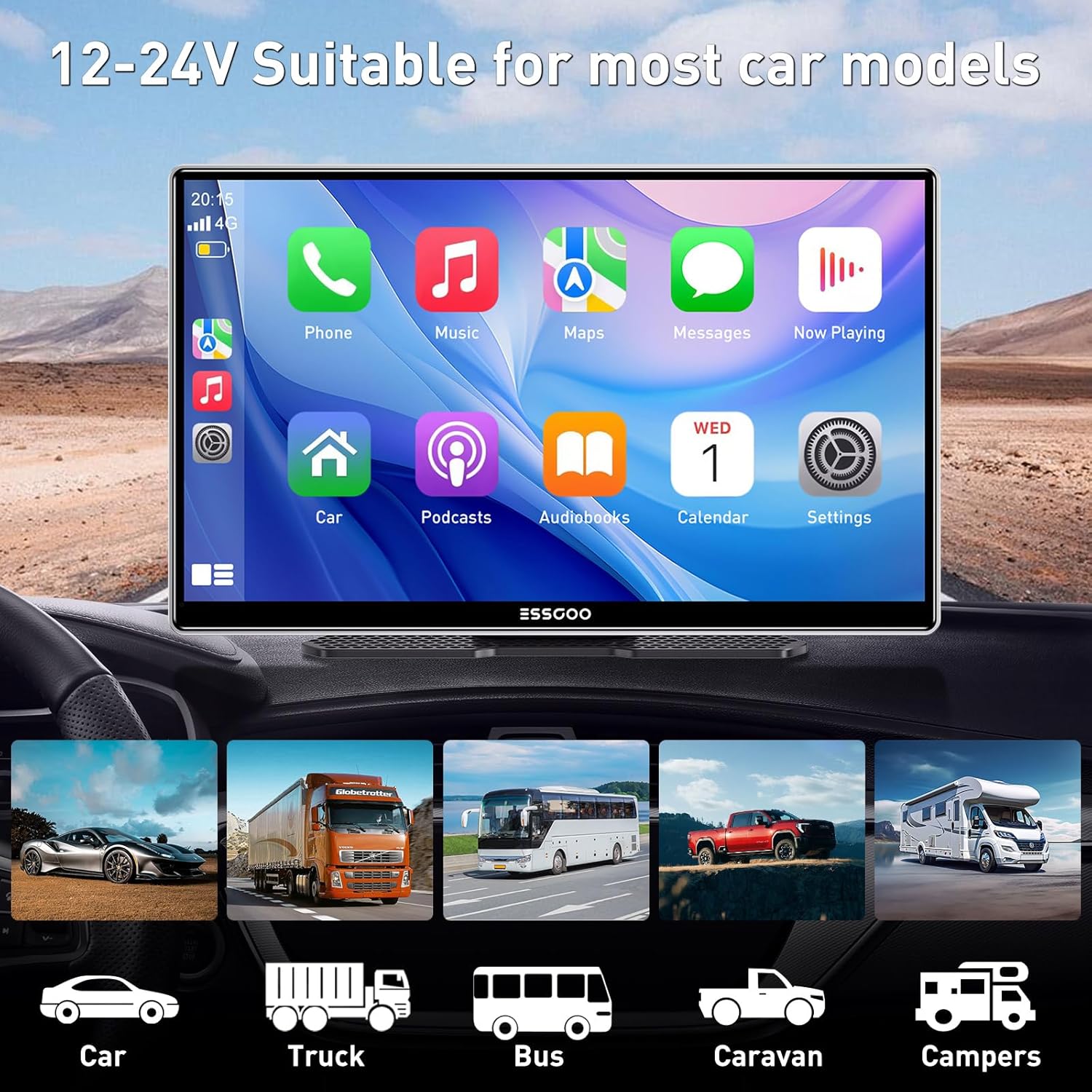
Figure 12: The display is compatible with a wide range of vehicles operating on 12-24V systems, including cars, trucks, and recreational vehicles.
Garanzija u Appoġġ
ESSGOO is committed to providing reliable products and excellent customer service.
- Garanzija ta 'Sena: Your ESSGOO Portable CarPlay Display is covered by a one-year warranty from the date of purchase, protecting against manufacturing defects and unforeseen issues.
- Garanzija ta' Flus Lura fi żmien 30 Jum: Jekk m'intix sodisfatt bix-xiri tiegħek, tista' tkun eliġibbli għal rifużjoni fi żmien 30 jum.
- Appoġġ għall-Klijent 24/7: For any questions, technical assistance, or warranty claims, please contact ESSGOO customer support. Refer to the contact information provided with your product packaging or visit the official ESSGOO websit.


