Introduzzjoni
The johgee Smart Sprinkler Timer 2 Zone is a WiFi-enabled water timer designed for garden hoses, offering intelligent control over your irrigation system. It features two independent outlets, rain delay functionality, and can be programmed and managed remotely via a smartphone application. This device is compatible with Alexa and Google Assistant for convenient voice control, helping you optimize water usage and maintain a healthy garden.
This manual provides detailed instructions for setting up, operating, maintaining, and troubleshooting your Smart Sprinkler Timer.
Gwida ta' Setup
Kontenut tal-Pakkett
- Smart Sprinkler Timer (2 Zone)
- WiFi Hub (2.4 GHz WiFi only)
- Manwal għall-Utent
Installazzjoni
Before installation, ensure you have two 1.5V alkaline batteries for the timer. The timer is designed for outdoor use and has an IP55 waterproof rating.

Figure 1: Smart Sprinkler Timer and WiFi Hub components.
1. Daħħal Batteriji: Open the battery compartment on the timer and insert two 1.5V alkaline batteries, ensuring correct polarity.
2. Qabbad mal-Faucet: Screw the Smart Sprinkler Timer onto your outdoor water faucet. Ensure the 3mm O-ring is properly seated for a watertight seal. The 360° rotating connector allows for flexible positioning.

Figura 2: Dettaljat view of the Smart Sprinkler Timer's components, including the 3mm O-ring, 360° rotating connector, water inlet, stainless steel filter, outlet, and battery compartment.
3. Qabbad Manek: Attach your garden hoses to the two independent outlets (Zone A and Zone B) at the bottom of the timer.
App Pairing and Gateway Association
The Smart Sprinkler Timer requires the WiFi Hub for remote control. Follow these steps to pair the devices with the Smart Life APP:
Video 1: Demonstrates the process of connecting the Smart Sprinkler Timer to the WiFi gateway and pairing it with the mobile application.
1. Niżżel l-APP tal-Ħajja Intelliġenti: Download and install the Smart Life APP from your device's app store (Android or iOS).
2. Add WiFi Hub:
- Open the Smart Life APP and click "Add Device" or the "+" icon.
- Select "Electrical" > "Socket (Wi-Fi)" or search for "Gateway".
- Plug in the WiFi Hub. Long press the button on the hub until the indicator light blinks rapidly.
- Confirm the indicator is blinking in the app and proceed to connect to your 2.4 GHz WiFi network.

Figure 3: Step-by-step guide for pairing the irrigation gateway with the app (Steps 1-4).

Figure 4: Step-by-step guide for pairing the irrigation gateway with the app (Steps 5-8).

Figure 5: Step-by-step guide for pairing the irrigation gateway with the app (Steps 9-12).

Figure 6: Step-by-step guide for pairing the irrigation gateway with the app (Steps 13-16).
3. Add Smart Sprinkler Timer:
- Once the WiFi Hub is added, long press the timer button on the Smart Sprinkler Timer until its indicator light flickers.
- In the Smart Life APP, navigate to the WiFi Hub's settings and select "Add new device" or "Associate Bluetooth device".
- The app will discover the timer. Confirm and add the "Bluetooth Water Timer".
- Once added, the timer will be associated with the gateway, allowing remote control.
You can add multiple Smart Sprinkler Timers (up to 4 recommended for system stability) to the same WiFi Hub to create an intelligent irrigation ecosystem.

Figure 7: Diagram illustrating how multiple water timers can be linked to a single gateway to build a smart irrigation system.
Operating Your Smart Sprinkler Timer
App Remote Control
Manage your watering schedules from anywhere, anytime using the Smart Life APP. You can set watering frequency and duration for each of the two independent zones.

Figure 8: Smart Sprinkler Timer connected to a water faucet with WiFi hub and smartphone app showing remote control.
Watering Modes
The timer supports two primary irrigation modes:
- Modalità ta' Irrigazzjoni b'Ħin Limitat: Customize up to 5 watering procedures per outlet with adjustable durations.
- Modalità Spray: Flexibly adjust runtime and interval time for misting applications.
Both modes support weekly cycle frequencies, allowing for efficient water management.

Figure 9: Comparison of irrigation mode (sprinkler) and mist mode (fine spray) for different watering needs.

Figure 10: Smartphone app displaying timed irrigation schedule settings for the Smart Sprinkler Timer.
Funzjoni Dewmien tax-Xita
The app can automatically detect local weather conditions. You can set a rain delay for 24, 48, or 72 hours to prevent unnecessary watering during rainy periods, conserving water and saving costs.
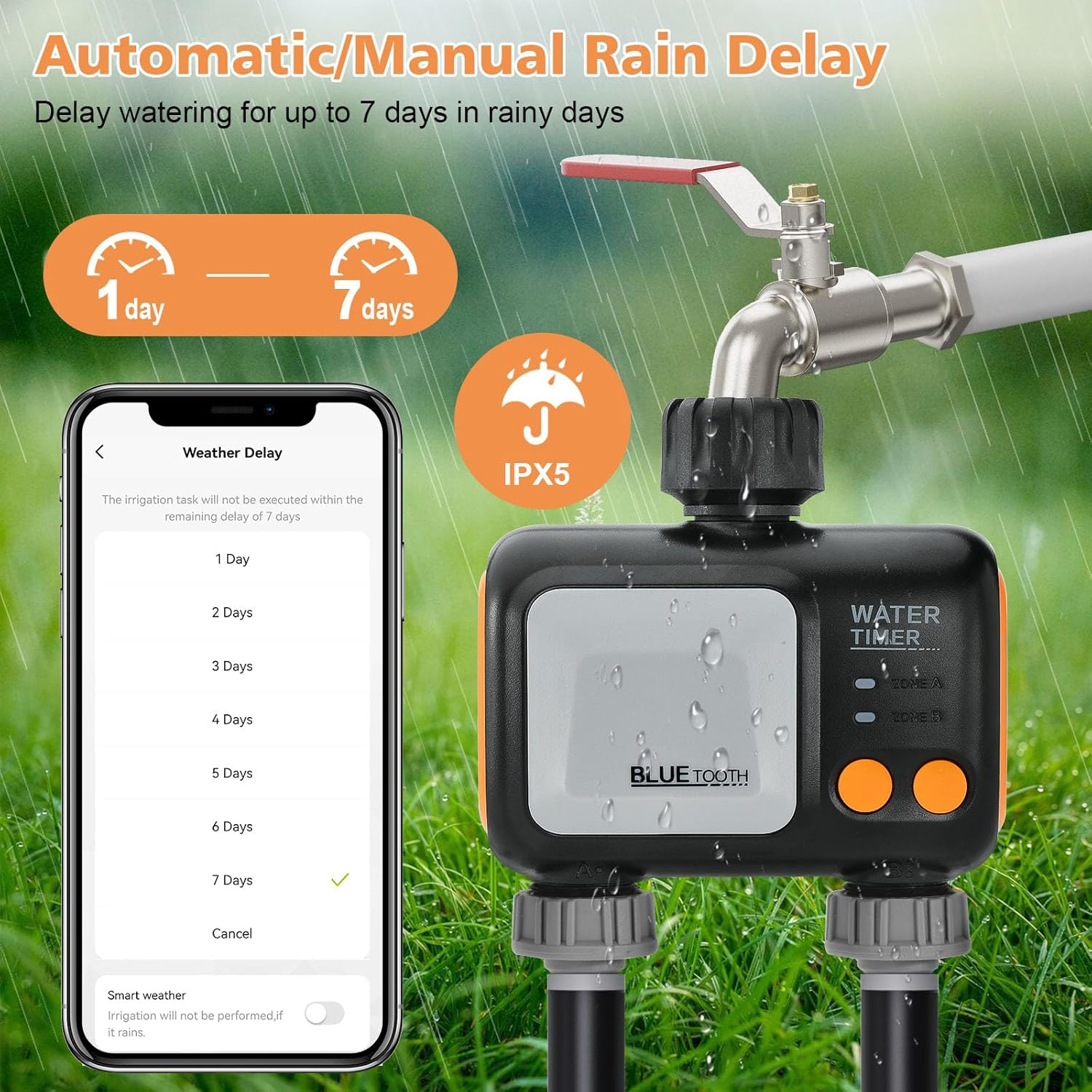
Figure 11: Smartphone app interface showing options to set rain delay for 1 to 7 days, with an IPX5 waterproof rating icon.

Figure 12: The rain delay feature automatically skips watering schedules on rainy and snowy days.
Kontroll tal-Vuċi
The Smart Sprinkler Timer works with Alexa and Google Assistant, allowing you to control your irrigation plan with simple voice commands.

Figure 13: Control your Smart Sprinkler Timer with voice commands via Alexa or Google Assistant.
Storja tat-tisqija
The Smart Life APP provides a separate watering log page that details the start time, duration, and end time of each watering session, allowing you to track your irrigation history.

Figure 14: Track your watering history with detailed logs in the app.
Modalità Manwali
In addition to app control, the timer features a manual mode for more flexible, on-demand watering schedules directly from the device.
Manutenzjoni u Kura
- Sostituzzjoni tal-batterija: Replace the two 1.5V alkaline batteries when the battery indicator in the app shows low power or the device stops responding.
- Tindif: Periodically check and clean the stainless steel filter at the water inlet to prevent blockages and ensure optimal water flow.
- Klassifikazzjoni li ma jgħaddix ilma minnha: The timer has an IP55 waterproof rating, making it resistant to water jets from any direction. However, avoid submerging the device.
- Winterization: In freezing temperatures, disconnect the timer from the faucet and store it indoors to prevent damage from ice expansion.
Issolvi l-problemi
| Ħruġ | Kawża Possibbli | Soluzzjoni |
|---|---|---|
| Device not connecting to Wi-Fi / frequently disconnects. | Incorrect Wi-Fi band (only 2.4 GHz supported), weak Wi-Fi signal, interference, or device pairing issue. | Ensure your Wi-Fi network is 2.4 GHz. Move the WiFi Hub closer to your router. Re-pair the WiFi Hub and Smart Sprinkler Timer following the setup guide. Check for firmware updates in the app. |
| Watering duration is limited to 59 minutes. | This is a design limitation of the app's watering duration setting (minutes/seconds format). | For longer watering periods, consider setting multiple schedules back-to-back or using the manual mode for extended durations. |
| Plastic threaded connection leaks or fails. | Over-tightening, cross-threading, or manufacturing defect. | Ensure the connection is hand-tightened only. Do not use tools. Check the O-ring for proper seating and damage. If the issue persists, contact customer support. |
| Timer not watering according to schedule. | Incorrect schedule settings, low battery, rain delay activated, or timer disconnected from hub. | Verify schedule settings in the app. Check battery level. Disable rain delay if not needed. Ensure the timer is connected to the WiFi Hub. |
Speċifikazzjonijiet tal-Prodott
| Karatteristika | Dettall |
|---|---|
| Brand | johgee |
| Numru tal-Mudell | 626-wifi-hub |
| Kulur | Blu |
| Materjal | Plastik |
| Dimensjonijiet tal-Prodott | 4.8"D x 2.2"W x 5"H |
| Piż tal-oġġett | 1.1 Liri |
| Numru ta' Settings | 4 (referring to modes/programs) |
| Klassifikazzjoni li ma jgħaddix ilma minnha | IP55 |
| Konnettività | 2.4 GHz WiFi (via Hub), Bluetooth (for timer-hub communication) |
| Sors tal-Enerġija | 2 x 1.5V AA Alkaline Batteries (for timer) |
| Kompatibilità | Smart Life APP (Android/iOS), Amazon Alexa, Google Assistant |
Garanzija u Appoġġ għall-Klijent
For warranty information, technical support, or any inquiries regarding your johgee Smart Sprinkler Timer, please refer to the manufacturer's official website or contact their customer service department. Contact details are typically provided on the product packaging or the manufacturer's websit.


