1. Introduzzjoni
This manual provides comprehensive instructions for the installation, operation, and maintenance of your DieseRC Smart WiFi 2-Channel Relay Module with Bluetooth Transmitter. This device allows for remote control of various electrical appliances via Wi-Fi, Bluetooth, and voice commands through compatible smart home systems.

Image 1.1: The DieseRC Smart WiFi 2-Channel Relay Module and its accompanying Bluetooth remote control.
2. Prodott Aktarview
The DieseRC Smart WiFi Relay Module is designed for versatile control of electrical devices. It features two independent relays, Wi-Fi connectivity for app control, Bluetooth for remote control, and compatibility with voice assistants.
2.1 Karatteristiċi ewlenin
- Konnettività Wireless: Supports 2.4 GHz Wi-Fi for remote control via the eWelink app.
- Kontroll Bluetooth: Includes a Bluetooth transmitter for local remote operation.
- Kontroll tal-Vuċi: Kompatibbli ma' Amazon Alexa u Google Home għal tħaddim mingħajr idejn.
- Dual Relays: Two independent 10A relays with Normally Open (NO), Common (COM), and Normally Closed (NC) terminals.
- Flexible Power Input: Operates on DC 5V or DC 7V-48V.
- Disinn kompatt: Dimensions of 60x32x17 mm (2.4x1.3x0.7 inches) for easy integration.
- Modi Operattivi Multipli: Configurable as toggle mode or inching mode.
2.2 Identifikazzjoni tal-Komponent

Immaġni 2.1: Dettaljata view of the relay module showing terminals and indicators.
- NO (Normally Open) Pin: Contact is open when the relay is de-energized.
- COM (Common) Pin: Common terminal for the relay contact.
- NC (Normally Closed) Pin: Contact is closed when the relay is de-energized.
- Relay Indicator Light: Illuminates when the corresponding relay is active.
- Open the key / Pairing button: Used for pairing with the eWelink app and Bluetooth remote.
- WiFi Network Indicator Light: Juri l-istatus tal-konnessjoni Wi-Fi.
- Input USB 5V/0.5A: Micro USB port for 5V DC power input.
- +V / -V Terminals: Screw terminals for DC 7V-48V power input.
3. Speċifikazzjonijiet
| Karatteristika | Speċifikazzjoni |
|---|---|
| Numru tal-Mudell | EW748 |
| Brand | DieseRC |
| Dimensjonijiet (L x W x H) | 60 x 32 x 17 mm (2.4 x 1.3 x 0.7 pulzieri) |
| Piż | 118 grammi (madwar) |
| Input Voltage | DC 5V (via USB) or DC 7V-48V (via screw terminals) |
| Klassifikazzjoni kurrenti | 10A per relay |
| Tip ta' Kuntatt | Normally Open (NO), Common (COM), Normally Closed (NC) |
| Konnettività bla fili | Wi-Fi 2.4GHz, Bluetooth |
| Kompatibilità tal-App | eWelink (Android & iOS) |
| Kompatibilità tal-Assistent tal-Vuċi | Amazon Alexa, Google Home |
| Modi Operattivi | Toggle Mode, Inching Mode |
| Ċertifikazzjoni | CE |
4. Setup
4.1 L-Ixgħel tal-Modulu
The module can be powered in two ways:
- USB 5V: Connect a standard Micro USB cable to the USB port on the module and a 5V/0.5A power adapter.
- DC 7V-48V: Connect the positive (+) and negative (-) wires of your DC power supply to the corresponding +V and -V screw terminals on the module. Ensure correct polarity.

Image 4.1: Powering the module via USB 5V or DC 7V-48V terminals.
4.2 eWelink App Installation and Pairing
- Download the eWelink App: Skennja l-kodiċi QR hawn taħt jew żur http://app.coolkit.cc/dl.html to download the eWelink app for your Android or iOS device.
- Irreġistra/Idħol: Open the eWelink app and create an account or log in if you already have one.
- Daħħal il-Mod tat-Tqabbil: Power on the DieseRC module. Press and hold the "Open the key / Pairing button" on the module for approximately 5-7 seconds until the Wi-Fi indicator light blinks rapidly.
- Żid Apparat fl-App: In the eWelink app, tap the "+" icon to add a new device. Follow the on-screen instructions to select "Quick Pairing Mode" or "Compatible Pairing Mode" as needed.
- Qabbad mal-Wi-Fi: Enter your 2.4GHz Wi-Fi network name (SSID) and password when prompted. The module does not support 5GHz Wi-Fi.
- Tqabbil Komplet: Once connected, the Wi-Fi indicator light on the module will stop blinking and remain solid. The device will appear in your eWelink app.

Image 4.2: QR code for eWelink app download.
4.3 Bluetooth Remote Pairing
The included Bluetooth remote control (RM2.4G) is pre-paired with the module. If re-pairing is necessary:
- Kun żgur li l-modulu huwa mixgħul.
- Press and hold the pairing button on the module until the Wi-Fi indicator light blinks.
- Press any button on the Bluetooth remote. The module's indicator light should confirm successful pairing.
5. Istruzzjonijiet Operattivi
5.1 eWelink App Control
Once paired, you can control the module from anywhere using the eWelink app:
- Open the eWelink app and select your device.
- You will see virtual buttons for each relay (e.g., Channel 1, Channel 2). Tap to toggle the relay on/off.
- The app allows for scheduling, timers, and sharing control with family members.

Image 5.1: Remote control of devices via the eWelink app.
5.2 Kontroll tal-Vuċi (Alexa/Google Home)
To enable voice control, link your eWelink account with Amazon Alexa or Google Home:
- Iftaħ l-app Alexa jew Google Home.
- Innaviga għal "Ħiliet u Logħob" (Alexa) jew "Jaħdem ma' Google" (Google Home).
- Fittex għal "eWelink" and enable the skill/service.
- Link your eWelink account using your credentials.
- Discover devices. Your DieseRC module will appear.
- Issa tista' tuża kmandi bil-vuċi bħal:
- "Alexa, turn on Channel 1."
- "Hey Google, turn off Channel 2."

Image 5.2: Voice control integration with smart home assistants.
5.3 Kontroll mill-bogħod Bluetooth
Use the included Bluetooth remote for local control:
- Press buttons 1 or 2 to control the respective relays.
- "ALL ON" and "ALL OFF" buttons control both relays simultaneously.
6. Modi ta' Operazzjoni
The module supports two main operating modes, configurable via the eWelink app:
- Toggle Mode: Each press of the button (app, voice, or remote) will switch the relay state (ON to OFF, or OFF to ON). This is suitable for lights or devices that need to stay on until manually turned off.
- Inching Mode (Momentary): The relay will turn ON for a set duration (e.g., 0.5 seconds) after a button press, then automatically turn OFF. This is ideal for momentary actions like garage door openers or electric locks. The duration can be configured in the eWelink app.

Image 6.1: The module can be configured to act as a momentary switch (push button) or a toggle switch (rocker switch).
7. Dijagrammi tal-Wajers
Importanti: Ensure power is disconnected before performing any wiring. If you are unsure about electrical wiring, consult a qualified electrician.
7.1 Relay Contact Configuration

Image 7.1: Illustration of NO, COM, and NC terminals for each relay.
- NO (Normally Open) to COM: The circuit is open when the relay is off and closes when the relay is on.
- NC (Normally Closed) to COM: The circuit is closed when the relay is off and opens when the relay is on.
7.2 EżampXenarji tal-Wajers
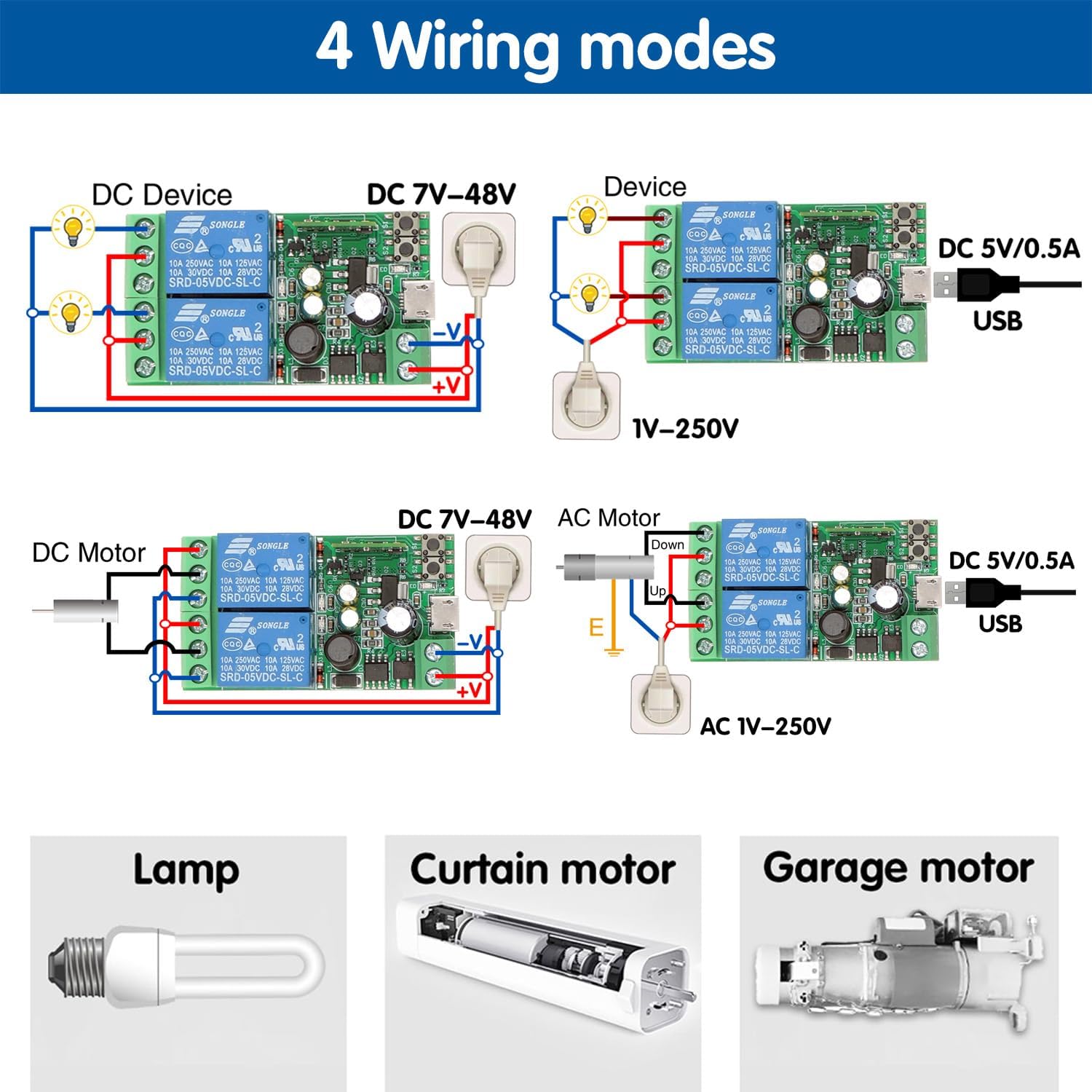
Image 7.2: Various wiring configurations for different applications.
- DC Device (DC 7V-48V): Connect the DC power supply to the module's +V and -V terminals. Connect the device's power input to the relay's COM and NO terminals.
- AC Device (1V-250V): Power the module via USB 5V. Connect the AC power source to the device and route one of the AC lines through the relay's COM and NO terminals.
- DC Motor (DC 7V-48V): For controlling a DC motor, two relays can be used for forward/reverse or on/off control, depending on the motor type and desired functionality.
- Garage Door/Curtain Motor: The module can be integrated into existing control circuits for garage doors or curtain motors, typically using the inching mode to simulate a momentary button press.
For specific applications, refer to the device's wiring requirements and ensure compatibility with the relay's specifications (10A, 250VAC/30VDC).
8. Manutenzjoni
- Keep the module in a dry environment, away from moisture and extreme temperatures.
- Do not expose the module to direct sunlight or corrosive substances.
- Iċċekkja l-konnessjonijiet tal-wajers regolarment għas-sigurtà.
- Ensure the power supply matches the module's specifications.
- Periodically check for eWelink app updates to ensure optimal performance and security.
9 Issolvi l-problemi
- Il-modulu mhux qed jixgħel:
- Check power connections (USB 5V or DC 7V-48V).
- Ensure the power adapter provides sufficient voltage and current (at least 0.5A).
- Ma tistax tikkonnettja mal-Wi-Fi:
- Ensure your Wi-Fi network is 2.4GHz. The module does not support 5GHz.
- Iċċekkja li l-password tal-Wi-Fi tiegħek hija korretta.
- Place the module closer to your Wi-Fi router during pairing.
- Reset the module by holding the pairing button until the Wi-Fi indicator blinks rapidly, then try pairing again.
- Il-kontroll tal-app mhux qed jaħdem:
- Iċċekkja l-konnessjoni tal-internet tiegħek.
- Ensure the module's Wi-Fi indicator is solid, indicating a stable connection.
- Restart the eWelink app.
- Il-kontroll tal-vuċi mhux qed jirrispondi:
- Verify that your eWelink account is correctly linked to Alexa/Google Home.
- Ensure the device is discovered in your Alexa/Google Home app.
- Iċċekkja l-kmandi tal-vuċi tiegħek għall-eżattezza.
- Bluetooth remote not working:
- Kun żgur li l-kontroll remot għandu batteriji li jaħdmu.
- Re-pair the remote with the module as described in Section 4.3.
10. Garanzija u Appoġġ
For warranty information and technical support, please refer to the product packaging or contact DieseRC customer service through the retailer where the product was purchased. You can also visit the official DieseRC websit għal aktar għajnuna.


