1. Introduzzjoni
Grazzi tax-xiriasing the ECHTPower Wireless Pro Controller. This manual provides detailed instructions on how to set up, operate, and maintain your controller. Please read this manual carefully before use to ensure optimal performance and longevity of your device.

Immaġni: Quddiem view of the ECHTPower Wireless Pro Controller. The controller is black with illuminated joysticks, standard ABXY buttons, a D-pad, and central function buttons.
2. Karatteristiċi tal-prodott
- Kompatibilità Multi-Pjattaforma: Supports Nintendo Switch, PC, Android, and iOS devices.
- Vibrant RGB Lighting: Customizable RGB light effects around the joysticks.
- Funzjoni TURBO: Enables rapid-fire for selected buttons, reducing finger fatigue.
- Buttuni ta' wara programmabbli: Two customizable M1/M2 buttons on the rear for enhanced control.
- 4-Level Vibration Adjustment: Adjustable dual motor vibration for immersive feedback.
- Sensur tal-Ġiroskopju ta' 6 Assi: Provides precise motion control for compatible games.
- Batterija ta' Kapaċità Għolja: Built-in 1000mAh rechargeable battery for extended playtime.
- Triggers tal-Effett Hall: Offers smooth and durable trigger performance.
- Wake-up Function: Allows waking up the console from sleep mode.

Image: The controller showcasing its colorful RGB lights around the joysticks, enhancing the gaming atmosphere.

Immaġni: Wara view of the controller, highlighting the M1 and M2 programmable back buttons and their mapping capabilities.

Image: An illustration of the controller's internal vibration motors, demonstrating the 4-level vibration adjustment feature.

Immaġni: Dettaljata view of the controller's Hall Effect Triggers, emphasizing their smooth operation and durability.
3. Kontenut tal-Pakkett
- ECHTPower Wireless Pro Controller x 1
- Cable tal-Iċċarġjar USB-C x 1
- Manwal għall-Utent x 1
4. Setup
4.1 Konnessjoni man-Nintendo Switch
- On the Nintendo Switch HOME Menu, select "Controllers" > "Change Grip/Order".
- Press and hold the Home button on the ECHTPower controller for 3-5 seconds until the LED indicators start flashing rapidly.
- Ladarba jkun imqabbad, l-LED(s) tal-plejer korrispondenti fuq il-kontrollur se jixegħlu b'mod solidu.
- To wake up the Switch console from sleep mode, press the Home button on the controller.
4.2 Konnessjoni mal-PC (Windows)
- Konnessjoni bil-fili: Connect the controller to your PC using the USB-C cable. The controller will be recognized as an XInput device.
- Konnessjoni bla fili (Bluetooth):
- Kun żgur li l-PC tiegħek għandu l-Bluetooth attivat.
- Press and hold the Home button on the controller for 3-5 seconds until the LED indicators flash rapidly.
- On your PC, go to Bluetooth settings and search for new devices. Select "Pro Controller" or similar from the list.
- Ladarba jkunu mqabbla, l-indikaturi LED isiru solidi.
4.3 Konnessjoni ma' Apparati Android/iOS
- Ensure Bluetooth is enabled on your Android/iOS device.
- Press and hold the Home button on the controller for 3-5 seconds until the LED indicators flash rapidly.
- On your device, go to Bluetooth settings and search for new devices. Select "Pro Controller" or similar from the list.
- Ladarba jkunu mqabbla, l-indikaturi LED isiru solidi.
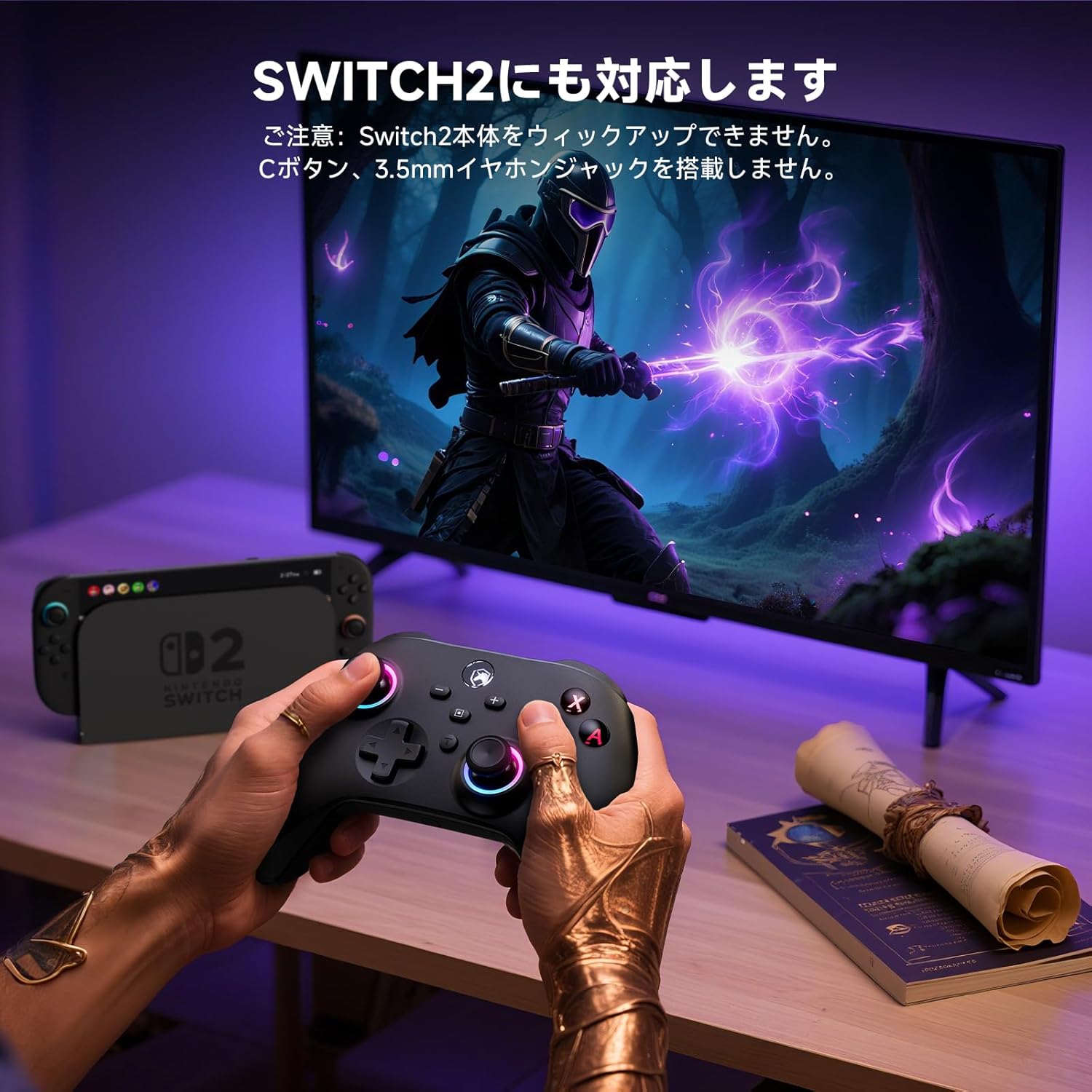
Image: A user playing a game with the controller, demonstrating its compatibility with various platforms, including the Switch 2. Note: This controller does not feature a C button or a 3.5mm headphone jack.
5. Istruzzjonijiet Operattivi
5.1 Kontrolli Bażiċi
The controller features standard gaming buttons including ABXY, D-pad, Left/Right Joysticks, L/R, ZL/ZR, Home, Screenshot, Plus (+), Minus (-), and T (TURBO) buttons.
5.2 Funzjoni TURBO
The TURBO function allows a button to be pressed repeatedly as long as it is held down, which can be useful in certain games to reduce manual input.
- Issettjar tat-TURBO: Press and hold the button you wish to set for TURBO (e.g., A button), then press the 'T' button once. The button will now activate TURBO mode.
- Adjusting TURBO Speed: While holding the 'T' button, move the Right Joystick Up or Down to cycle through different TURBO speeds (Slow, Medium, Fast).
- Clearing TURBO: To clear TURBO for a specific button, press and hold the TURBO-enabled button, then press the 'T' button twice. To clear all TURBO settings, press and hold the 'T' button for 5 seconds.

Image: A close-up of the controller's 'T' (TURBO) button, illustrating its rapid-fire capability to reduce operational fatigue during gameplay.
5.3 Programming Back Buttons (M1/M2)
The M1 and M2 back buttons can be programmed to replicate other button inputs for convenience.
- Daħħal il-Mod ta 'Programmar: Press and hold the 'M' button (located between M1 and M2) for 3 seconds until the LED indicators start flashing slowly.
- Select Back Button: Press either M1 or M2. The LED will flash rapidly.
- Assign Input: Press the button you want to assign (e.g., A, B, X, Y, L, LT, R, RT, +).
- Ħruġ mill-Modalità tal-Ipprogrammar: Press the 'M' button again. The LED will stop flashing and return to solid, indicating the setting is saved.
- Clear Back Button Assignment: To clear a specific back button, enter programming mode, select the back button (M1 or M2), then press the 'M' button again.
5.4 Aġġustament tal-Vibrazzjoni
The controller offers 4 levels of vibration intensity: 0% (off), 30%, 70%, and 100%.
- To adjust vibration intensity, press and hold the 'T' button, then press the Left Joystick Up or Down.
- The vibration intensity will cycle through the four levels. Release the buttons when the desired level is reached.
5.5 RGB Light Adjustment
The RGB lights around the joysticks can be adjusted.
- To change the RGB light mode or color, press and hold the 'T' button, then press the Right Joystick Left or Right.
- The lights will cycle through different colors and effects.
- To turn off the RGB lights, continue cycling until they are off.
6. Iċċarġjar u Batterija
Il-kontrollur huwa mgħammar b'batterija rikarikabbli ta' 1000mAh.
- Kapaċità tal-batterija: 1000mAh
- Ħin tal-Iċċarġjar: Madwar 2-3 sigħat
- Ħin ta' Użu: Up to 8 hours on a full charge (may vary based on vibration and RGB light usage).
To charge the controller, connect it to a USB power source (e.g., Switch dock, PC, USB wall adapter) using the provided USB-C cable. The LED indicators will flash during charging and turn off or become solid when fully charged, depending on the controller's state.

Image: An illustration showing the controller's internal 1000mAh battery and its charging/usage specifications.
7. Manutenzjoni
- Tindif: Use a soft, dry cloth to clean the controller. Do not use chemical solvents or abrasive cleaners.
- Ħażna: Aħżen il-kontrollur f'post frisk u niexef 'il bogħod mix-xemx diretta u minn temperaturi estremi.
- Kura tal-batterija: To prolong battery life, avoid fully discharging the controller frequently. If not used for an extended period, charge it at least once every three months.
8 Issolvi l-problemi
- Controller does not connect:
- Kun żgur li l-kontrollur ikun iċċarġjat.
- Make sure the console/device's Bluetooth is enabled and in pairing mode.
- Try resetting the controller by inserting a pin into the small reset hole on the back.
- Remove previous pairings from your device's Bluetooth settings and try pairing again.
- Dewmien jew skonnessjoni fl-input:
- Kun żgur li m'hemm l-ebda interferenzi elettromanjetiċi qawwija fil-qrib.
- Move closer to the console/device.
- Ensure the controller's battery is not low.
- Buttons or joysticks not responding:
- Try resetting the controller.
- Kun żgur li l-kontrollur huwa konness sew.
- Jekk il-kwistjoni tippersisti, ikkuntattja l-appoġġ tal-klijent.
9. Speċifikazzjonijiet
| Parametru | Valur |
|---|---|
| Mudell | ECHTPower Wireless Pro Controller |
| Konnettività | Bluetooth, USB-C (Wired) |
| Kompatibilità | Nintendo Switch, PC, Android, iOS |
| Kapaċità tal-batterija | 1000mAh |
| Ħin tal-Iċċarġjar | 2-3 sigħat |
| Ħin ta 'Użu | Sa 8 sigħat |
| Vibrazzjoni | Dual Motor, 4-level adjustable |
| Sensor tal-Moviment | 6-Assi Gyro |
| Karatteristiċi Speċjali | RGB Lights, TURBO Function, Programmable Back Buttons, Hall Effect Triggers, Wake-up Function |
10. Garanzija u Appoġġ
ECHTPower products come with a standard warranty. For detailed warranty information, please refer to the warranty card included in your package or visit our official website. If you encounter any issues or have questions regarding your ECHTPower Wireless Pro Controller, please contact our customer support team:
- Email: support@echtpower.com
- Websit: www.echtpower.com
Jekk jogħġbok żomm il-mudell tal-prodott tiegħek u l-informazzjoni tax-xiri lesti meta tikkuntattja l-appoġġ.


