1. Introduzzjoni
This manual provides detailed instructions for the MUNBYN Upgraded Android 13 Bar Code Scanner, Model IPDA086. This device is a robust handheld mobile computer designed for efficient inventory and logistic management in various environments, including warehousing, manufacturing, and retail. It features an advanced Android 13 operating system, Wi-Fi 6 connectivity, and a durable design for reliable performance.
2. Karatteristiċi tal-prodott
- Android 13 Version: The device operates on Android 13, offering strengthened privacy protections, enhanced customization options, and superior compatibility. This ensures data security and optimal work outcomes throughout the scanner's lifespan.
- Esperjenza Mtejba tal-Utent: Equipped with Wi-Fi 6, this scanner provides data transfer speeds up to three times faster than Wi-Fi 5, facilitating seamless team collaboration and efficient training. This can significantly improve warehouse operations and increase work efficiency.
- Rugged & Compact Design: Featuring a Zebra SE4710 scanner engine, the device ensures swift and accurate barcode scanning, even for damaged or unclear codes. It comes with a pre-installed scanner application (infowedge) and boasts an IP65 rating for protection against water immersion and dust. A hand strap belt is included to prevent accidental drops, and it offers robust drop protection from heights up to 1.8 meters (5.91 feet).
- Durable and Clear Display: The scanner features a large 5.5-inch touch screen, providing clear visibility even outdoors due to excellent sunlight readability. The display is reinforced with impact-resistant Corning Gorilla Glass and includes an additional replaceable protector to extend the PDA's lifespan and maintain reliability.
- Excellent & Suitable Performance: This Android handheld scanner is powered by an exceptional CPU, the Qualcomm Snapdragon 6115 1.8GHz Octa-core, coupled with 3GB RAM and 32GB storage. It is compatible with inventory management software such as Odoo and Zoho Inventory.

Figura 2.1: Quddiem u wara view of the MUNBYN Upgraded Android 13 Bar Code Scanner, highlighting its robust design and integrated scanning capabilities.

Figure 2.2: Visual representation of the Android 13 system upgrade, emphasizing faster data transfer, low power consumption, and enhanced security and privacy protection.

Figure 2.3: Illustration of Wi-Fi 6 and Bluetooth 5.1 capabilities, demonstrating stable, barrier-free, and high-speed data loading for improved operational efficiency.
3. X'hemm fil-Kaxxa
Upon unboxing your MUNBYN Bar Code Scanner, verify that all components are present:
- MUNBYN Bar Code Scanner (IPDA086)
- Manwal għall-Utent / Gwida tal-Bidu Mgħaġġel
- Protettur tal-iskrin
- Kejbil tal-Iċċarġjar USB (Tip Ċ)
- Adapter tal-Enerġija
- Hand Strap Belt
- Batterija (installata minn qabel jew separata)
Video 3.1: An unboxing video demonstrating the contents included with the MUNBYN IPDA101 (similar to IPDA086) package, showing the device, manual, cables, and accessories.

Figure 3.2: A visual overview of the items typically found inside the product packaging, including the scanner, charging accessories, and documentation.
4. Setup
4.1. Installazzjoni tal-batterija
If the battery is not pre-installed, follow these steps:
- Sib il-kompartiment tal-batterija fuq wara tal-apparat.
- Neħħi bil-mod il-qoxra tal-batterija.
- Daħħal il-batterija, waqt li tiżgura li l-kuntatti jkunu allinjati sew.
- Ibdel l-għatu tal-batterija b'mod sikur.
4.2. Iċċarġjar Inizjali
Before first use, fully charge the device:
- Connect the USB Type-C cable to the device's charging port.
- Qabbad it-tarf l-ieħor tal-kejbil mal-adapter tal-enerġija pprovdut.
- Ipplaggja l-adapter tal-enerġija f'iżbokk tal-ħajt.
- L-indikatur tal-iċċarġjar se jixgħel. Ħalli l-apparat jiċċarġja sakemm l-indikatur juri ċarġ sħiħ.
4.3. Tixgħil / Mitfi
- Biex Tixgħel: Press and hold the Power button until the MUNBYN logo appears on the screen.
- Biex Tifi: Agħfas u żomm il-buttuna tal-Enerġija sakemm jidher il-menu tal-għażliet tal-enerġija, imbagħad agħżel 'Itfi'.
Figure 4.1: The device booting up, displaying the Android 13 interface, indicating successful power-on after battery installation.
5. Istruzzjonijiet Operattivi
5.1. Scanning Barcodes
The device is equipped with a Zebra SE4710 scanner engine for efficient barcode reading.
- Open the pre-installed scanning application (e.g., Infowedge) or your preferred inventory management software.
- Point the scanner's red light beam at the barcode you wish to scan. Ensure the entire barcode is within the beam's range.
- Press the dedicated scan button (typically a yellow button on the side or back) to activate the scanner.
- A successful scan will usually be indicated by an audible beep and/or a visual confirmation on the screen.
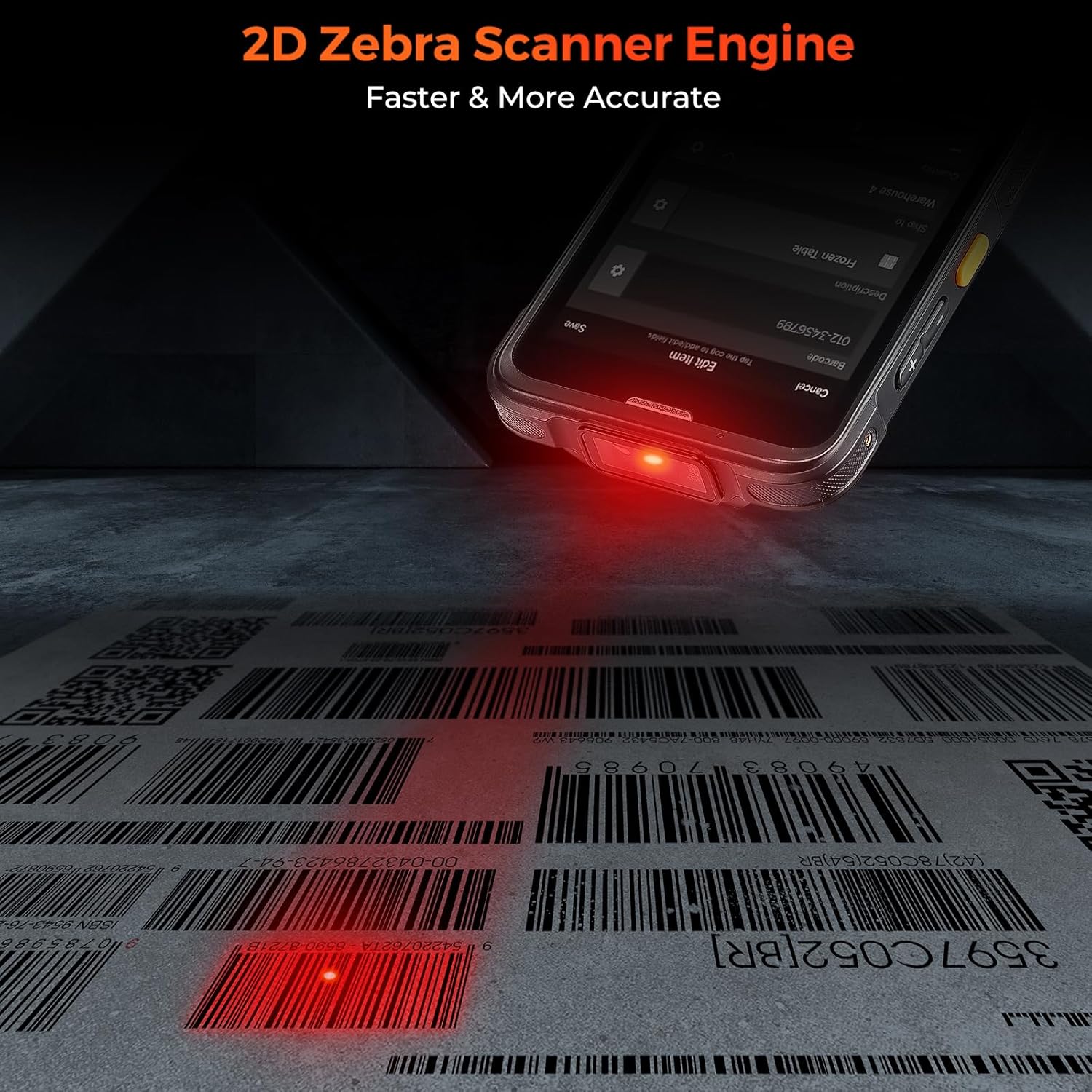
Figure 5.1: The device actively scanning a 2D barcode, demonstrating the red laser beam from the Zebra SE4710 scanner engine for fast and accurate data capture.
5.2. Konnettività Wi-Fi u Bluetooth
To connect to Wi-Fi or Bluetooth networks:
- Innaviga lejn Settings fuq l-apparat.
- Agħżel Netwerk u internet għall-Wi-Fi jew Apparati konnessi għall-Bluetooth.
- Toggle Wi-Fi or Bluetooth On.
- Select the desired network or device from the list and enter credentials if prompted.
5.3. Screen Casting Function
The device supports screen casting to synchronize data and manage information easily on a larger display.
- Ensure your external display (e.g., TV, monitor) supports screen mirroring or casting.
- On the scanner, go to Settings > Apparati konnessi > Preferenzi ta' konnessjoni > Cast.
- Select your external display from the list of available devices.
- Segwi kwalunkwe struzzjonijiet fuq l-iskrin biex tistabbilixxi l-konnessjoni.

Figure 5.2: A user demonstrating the screen casting feature, where the scanner's display is mirrored onto a laptop screen, facilitating data synchronization and management.
6. Manutenzjoni
6.1. Tindif tal-Apparat
Biex tinżamm prestazzjoni u iġjene ottimali:
- Uża drapp ratba u mingħajr ħelu ftit dampmaħsul bl-ilma jew b'tindif ħafif u mhux abrażiv.
- Wipe the screen and exterior surfaces gently.
- Avoid using harsh chemicals, aerosols, or abrasive materials.
- Kun żgur li l-ebda likwidu ma jidħol fil-portijiet jew fil-fetħiet.
6.2. Kura tal-batterija
Proper battery care extends the device's lifespan:
- Evita temperaturi estremi, kemm sħan kif ukoll kesħin, għax jistgħu jnaqqsu l-prestazzjoni tal-batterija.
- Iċċarġja l-batterija regolarment; evita li tħalliha tiċċarġja kompletament ta’ spiss.
- Jekk taħżen l-apparat għal perjodu estiż, iċċarġja l-batterija sa madwar 50% qabel ma taħżnu.
6.3. Drop Protection and Durability
The device is designed for rugged use, but proper handling is still recommended:
- Always use the provided hand strap belt to secure the device during operation.
- While the device is drop-resistant up to 1.8 meters, avoid intentional drops or impacts.
- Ensure all port covers are securely closed to maintain IP65 water and dust resistance.

Figure 6.1: The device showcasing its upgraded quality features, including the wrist strap for secure handling, IP65 water and dust resistance, and robust 1.8m+ drop protection.
7 Issolvi l-problemi
This section addresses common issues you might encounter with your MUNBYN Bar Code Scanner.
| Problema | Kawża Possibbli | Soluzzjoni |
|---|---|---|
| L-apparat ma jixgħelx. | Low battery; Battery not installed correctly; System crash. | Charge the device; Reinstall battery; Perform a forced restart (hold power button for 10-15 seconds). |
| Cannot scan barcodes. | Scanner engine not activated; Barcode damaged/unclear; Incorrect scanning application settings. | Ensure scanning app is open and active; Try scanning a different barcode; Check Infowedge or app settings. |
| Wi-Fi/Bluetooth connection issues. | Out of range; Incorrect password; Network interference. | Move closer to the access point/device; Re-enter password; Restart Wi-Fi/Bluetooth on both devices. |
| L-apparat huwa bil-mod jew ma jirrispondix. | Too many apps running; Low storage; Software glitch. | Close background apps; Clear cache/uninstall unused apps; Restart device. |
If the issue persists after attempting these solutions, please contact MUNBYN customer support for further assistance.
8. Speċifikazzjonijiet
| Karatteristika | Dettall |
|---|---|
| Numru tal-Mudell | IPDA086 |
| Sistema Operattiva | Android 13 |
| Proċessur | Qualcomm Snapdragon 6115 1.8GHz Octa-core |
| Memory (RAM + Storage) | 3GB RAM + 32GB Ħażna |
| Wiri | 5.5-inch Touch Screen, Corning Gorilla Glass |
| Magna tal-Iskaner | Zebra SE4710 (1D/2D/QR) |
| Konnettività | Wi-Fi 6, Bluetooth 5.1, 4G LTE (Sim Card), NFC, USB Cable |
| Klassifikazzjoni tad-Durabilità | IP65 (Water & Dust Resistant), 1.8m Drop Protection |
| Batterija | 1 batterija tal-jone tal-litju meħtieġa |
| Piż tal-oġġett | 10.1 uqija |
| Dimensjonijiet tal-Pakkett | 7.95 x 4.13 x 3.9 pulzieri |
9. Garanzija u Appoġġ
MUNBYN is committed to providing reliable products and excellent customer service.
9.1. Informazzjoni dwar Garanzija
The product is typically covered by a manufacturer's warranty. For specific warranty terms and conditions, please refer to the documentation included with your purchase or contact MUNBYN customer support directly. Protection plans may also be available for extended coverage.
9.2. Appoġġ għall-Klijent
For any technical assistance, troubleshooting not covered in this manual, or repair services, please contact MUNBYN customer support. MUNBYN offers a local U.S. Repair Center for effortless, fast, and convenient service, often within 3 business days. They also provide 24/7/365 online support.
You can reach MUNBYN support through their official website or the contact information provided in your product packaging. They can also assist with testing your applications before bulk purchases.

Figure 9.1: Information regarding MUNBYN's local U.S. repair center, highlighting fast and convenient service for product maintenance and repairs.


