1. Introduzzjoni
Thank you for choosing the DYONDER 2.4 GHz Wireless Game Controller. This manual provides detailed instructions on how to set up, operate, and maintain your new controller. Please read this manual thoroughly before use to ensure optimal performance and longevity of your device.

Image: The DYONDER 2.4 GHz Wireless Game Controller in blue, shown alongside its compact USB wireless dongle.
2. Kontenut tal-Pakkett
Jekk jogħġbok ivverifika li l-oġġetti kollha huma preżenti fil-pakkett tiegħek:
- 1 x DYONDER 2.4 GHz Wireless Game Controller (Blue)
- 1 x 2.4 GHz USB Wireless Receiver
- 1 x USB Data Cable
- 1 x Manwal ta 'Istruzzjoni
3. Prodott Aktarview
Familiarize yourself with the various components and buttons of your DYONDER wireless controller:

Image: A detailed diagram illustrating the various buttons and ports on the DYONDER wireless controller, including the Left Joystick, Home Button, View Button, Menu Button, X/Y/A/B Buttons, Right Joystick, Share Button, Arrow Button (D-pad), RT Button, RB Button, USB Charging Port, Signal Search Button, and LT Button.
- Joystick tax-Xellug: Għall-kontroll direzzjonali.
- Buttuna tad-dar: Access console/PC dashboard.
- View Buttuna: Contextual menu or map.
- Buttuna tal-menu: Game menu or options.
- X/Y/A/B Buttons: Buttuni ta' azzjoni.
- Joystick tal-lemin: For camera control or aiming.
- Buttuna Share: Aqbad screenshots jew klipps tal-vidjow.
- Arrow Button (D-pad): Input direzzjonali.
- RT (Right Trigger) & LT (Left Trigger): Analog triggers for precise input.
- RB (Right Bumper) & LB (Left Bumper): Digital buttons.
- Port tal-Iċċarġjar tal-USB: For connecting the data cable.
- Signal Search Button: For pairing.
4. Setup
4.1 Installazzjoni tal-batterija
The controller requires AA batteries (not included). It also supports rechargeable batteries (not included). To install:
- Open the battery compartment cover on the back of the controller.
- Daħħal żewġ batteriji AA, waqt li tiżgura l-polarità korretta (+/-).
- Agħlaq l-għatu tal-kompartiment tal-batterija sew.
4.2 Konnessjoni mat-Tagħmir Tiegħek
The DYONDER controller uses 2.4 GHz wireless technology for a stable connection.
- Insert the included 2.4 GHz USB wireless receiver into an available USB port on your Xbox console (Xbox One, Xbox Series X/S, Xbox One S/X) or PC (Windows 7/8/10/11).
- Turn on the controller by pressing the Home button. The controller will automatically search for the receiver.
- Once connected, the indicator light on the controller will become solid, indicating a successful pairing.
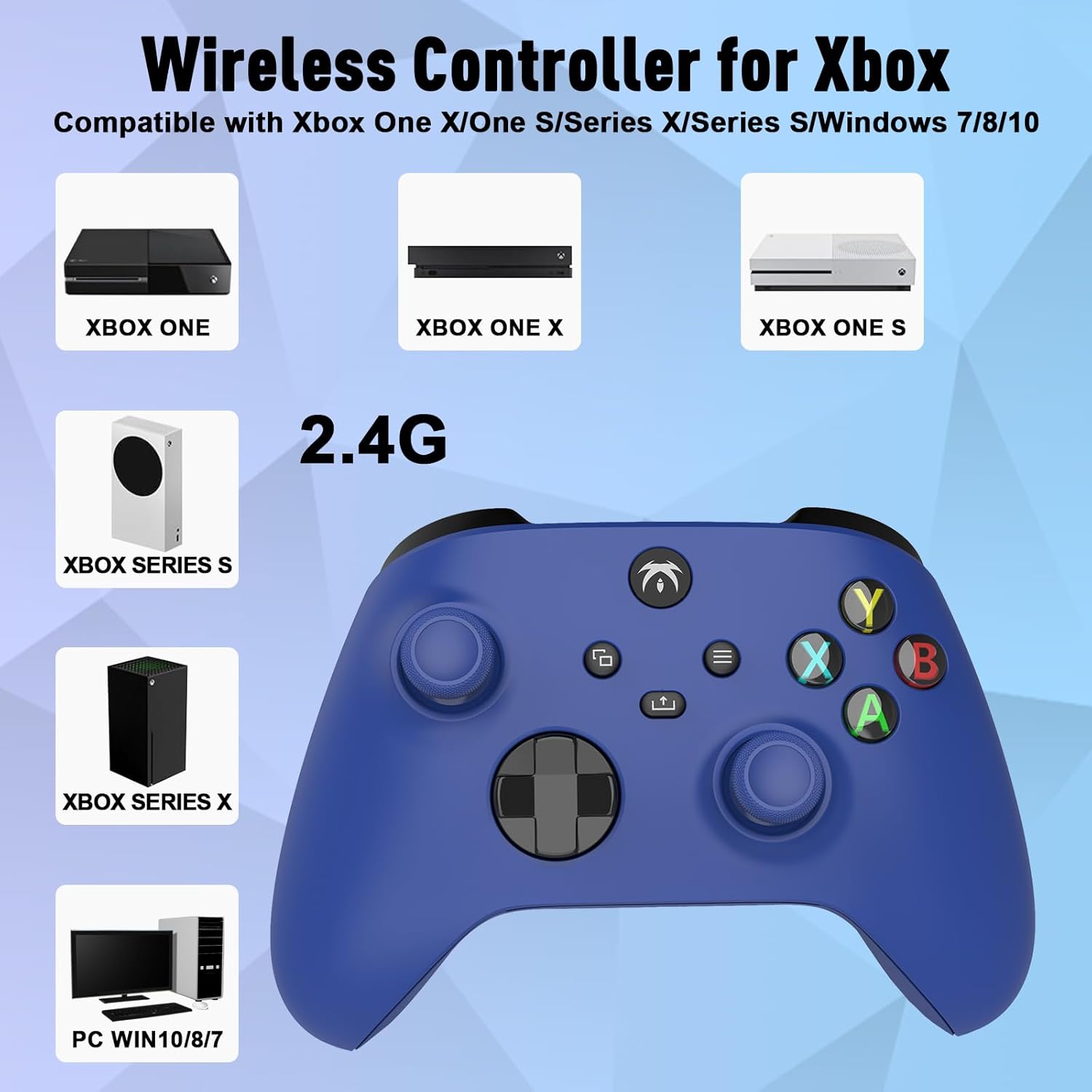
Image: An illustration demonstrating the broad compatibility of the DYONDER wireless controller with Xbox One, Xbox One X, Xbox One S, Xbox Series S, Xbox Series X, and PC (Windows 7/8/10/11) via its 2.4G wireless connection.
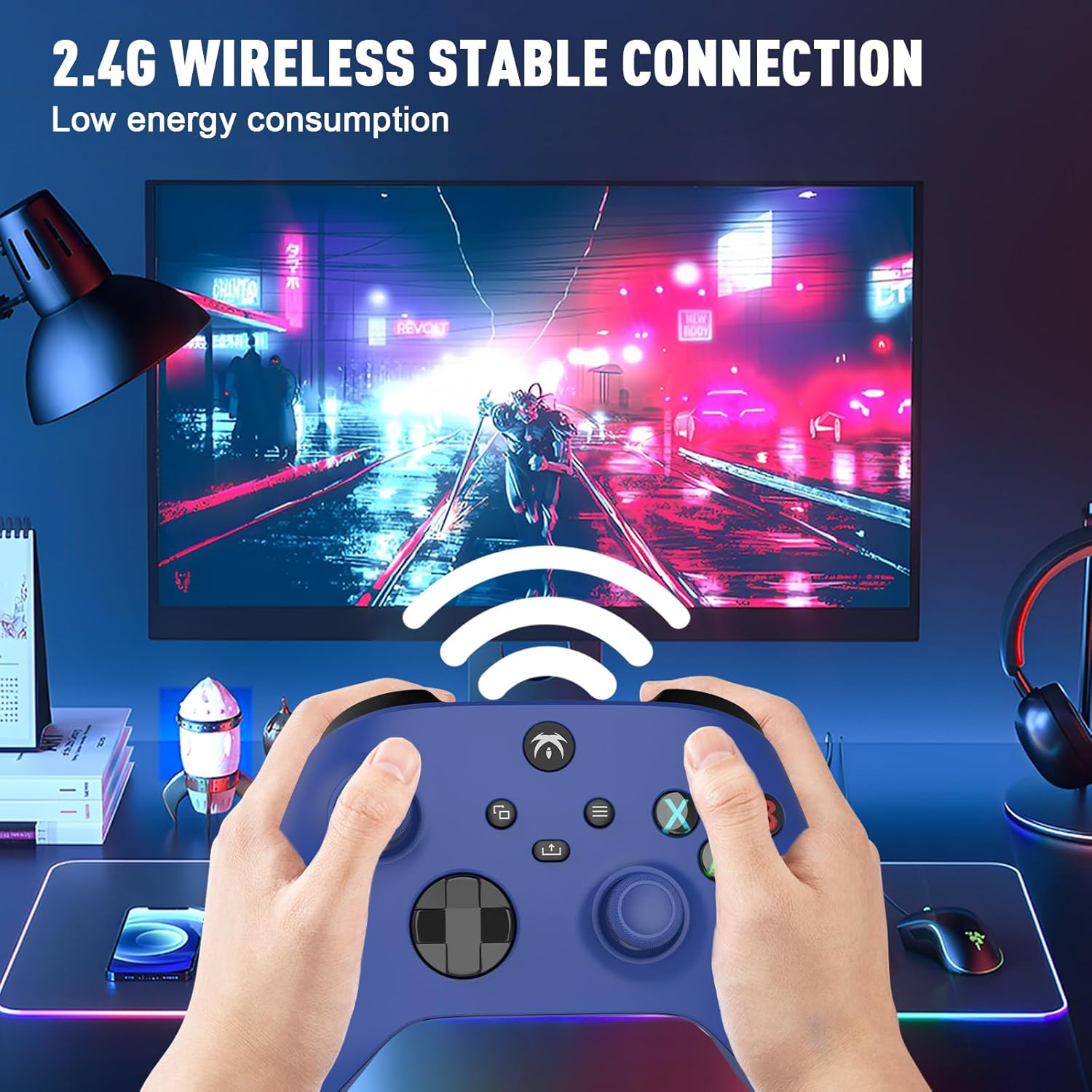
Image: A user holding the DYONDER wireless controller, demonstrating its 2.4G wireless stable connection while playing a game on a monitor, highlighting low energy consumption.
5. Istruzzjonijiet Operattivi
5.1 Kompatibilità
The DYONDER wireless controller is designed for powerful compatibility with a range of gaming platforms, including:
- Xbox wieħed
- Xbox Serje X|S
- Xbox One S/X
- Xbox Elite Controller Series
- Xbox Core
- PS3
- PC (Windows 11/10/8/7)
5.2 Hall Linear Triggers
Experience enhanced precision and control with the Hall linear triggers. These triggers provide increased sensitivity and speed control, particularly beneficial for racing games where precise acceleration and braking are crucial.
5.3 Dual Vibration Motors
The controller is equipped with dual motor vibration feedback, offering an immersive gaming experience. The motors provide varied vibration intensities and directions, enhancing realism in gameplay, such as impacts, explosions, or terrain changes.

Image: A visual representation highlighting the Dual Vibration feature for an immersive gaming experience and the Hall Trigger for precise linear control, especially in racing games.
5.4 Jack ta 'l-Awdjo ta' 3.5mm
The integrated 3.5mm headphone jack allows you to connect your compatible audio device directly to the controller. This feature provides convenience for in-game audio and communication with other players without needing to connect to the console.

Image: The DYONDER controller featuring its 3.5mm audio jack, with a headphone cable plugged in, emphasizing direct audio connectivity.
5.5 Share Button Functionality
The dedicated Share button allows you to easily capture and share your gaming moments. Press the Share button to take screenshots or record game clips, preserving your best plays.

Immaġni: Close-up view of the controller's central buttons, highlighting the Share button and a pop-up indicating "Game clip recorded," demonstrating its functionality.
6. Manutenzjoni
To ensure the longevity and optimal performance of your DYONDER wireless controller, follow these maintenance guidelines:
- Tindif: Uża drapp artab u niexef biex timsaħ il-kontrollur. Għal ħmieġ iebes, nixxef ftit.ampLaħlaħ id-drapp bl-ilma. Evita li tuża kimiċi ħarxa jew prodotti tat-tindif li joborxu.
- Ħażna: Aħżen il-kontrollur f'post frisk u niexef 'il bogħod mix-xemx diretta u minn temperaturi estremi.
- Kura tal-batterija: If the controller will not be used for an extended period, remove the batteries to prevent leakage and damage.
- Evita Qtar: Ipproteġi l-kontrollur minn waqgħat u impatti, li jistgħu jagħmlu ħsara lill-komponenti interni.
7 Issolvi l-problemi
If you encounter issues with your DYONDER wireless controller, refer to the following common problems and solutions:
| Problema | Kawża Possibbli | Soluzzjoni |
|---|---|---|
| Il-kontrollur ma jixgħelx. | Batteriji baxxi jew mejta; installazzjoni ħażina tal-batterija. | Ibdel il-batteriji b'oħrajn ġodda, waqt li tiżgura l-polarità korretta. |
| Controller does not connect to console/PC. | USB receiver not properly inserted; interference; out of range. | Ensure receiver is fully inserted. Move closer to the receiver. Try a different USB port. Re-pair the controller by pressing the Signal Search button on the controller and receiver (if applicable). |
| Dewmien fl-input jew konnessjoni mitlufa. | Interference from other wireless devices; low battery. | Move controller closer to receiver. Ensure no strong wireless interference sources nearby. Replace batteries. |
| Il-vibrazzjoni ma taħdimx. | Vibration feature disabled in game settings; software issue. | Check in-game settings to ensure vibration is enabled. Restart the console/PC and controller. |
| Il-buttuni jew il-joysticks ma jirrispondux. | Dirt/debris under buttons; internal hardware issue. | Clean around buttons. If issue persists, contact customer support. |
8. Speċifikazzjonijiet
| Karatteristika | Dettall |
|---|---|
| Brand | DYONDER |
| Isem tal-Mudell | DYONDER 2.4 GHz Wireless Game Controller |
| Kulur | Blu |
| Teknoloġija tal-Konnettività | 2.4 GHz Wireless |
| Apparati Kompatibbli | PC (Windows 7/8/10/11), Xbox One, Xbox Series X, Xbox Series S, PS3 |
| Tip ta' Kontrollur | Gamepad |
| Numru ta' Buttuni | 17 |
| Karatteristiċi Speċjali | Wireless, Dual Vibration, Hall Linear Triggers, 3.5mm Audio Jack |
| Sors tal-Enerġija | 2 x AA Batteries (not included) or Rechargeable Batteries (not included) |
9. Garanzija u Appoġġ
For warranty information and customer support, please refer to the documentation provided with your purchase or contact DYONDER customer service through the retailer where the product was purchased. Please retain your proof of purchase for any warranty claims.


