1. Introduzzjoni
This manual provides detailed instructions for the setup, operation, and maintenance of your ULar Wi-Fi Mini Camera (Model Q). This compact camera is designed for indoor surveillance, offering 1080p video resolution, Wi-Fi connectivity for real-time viewing, and motion detection capabilities.
X'hemm fil-Kaxxa
- DIY Mini Camera
- Cable USB
- Manwal għall-Utent
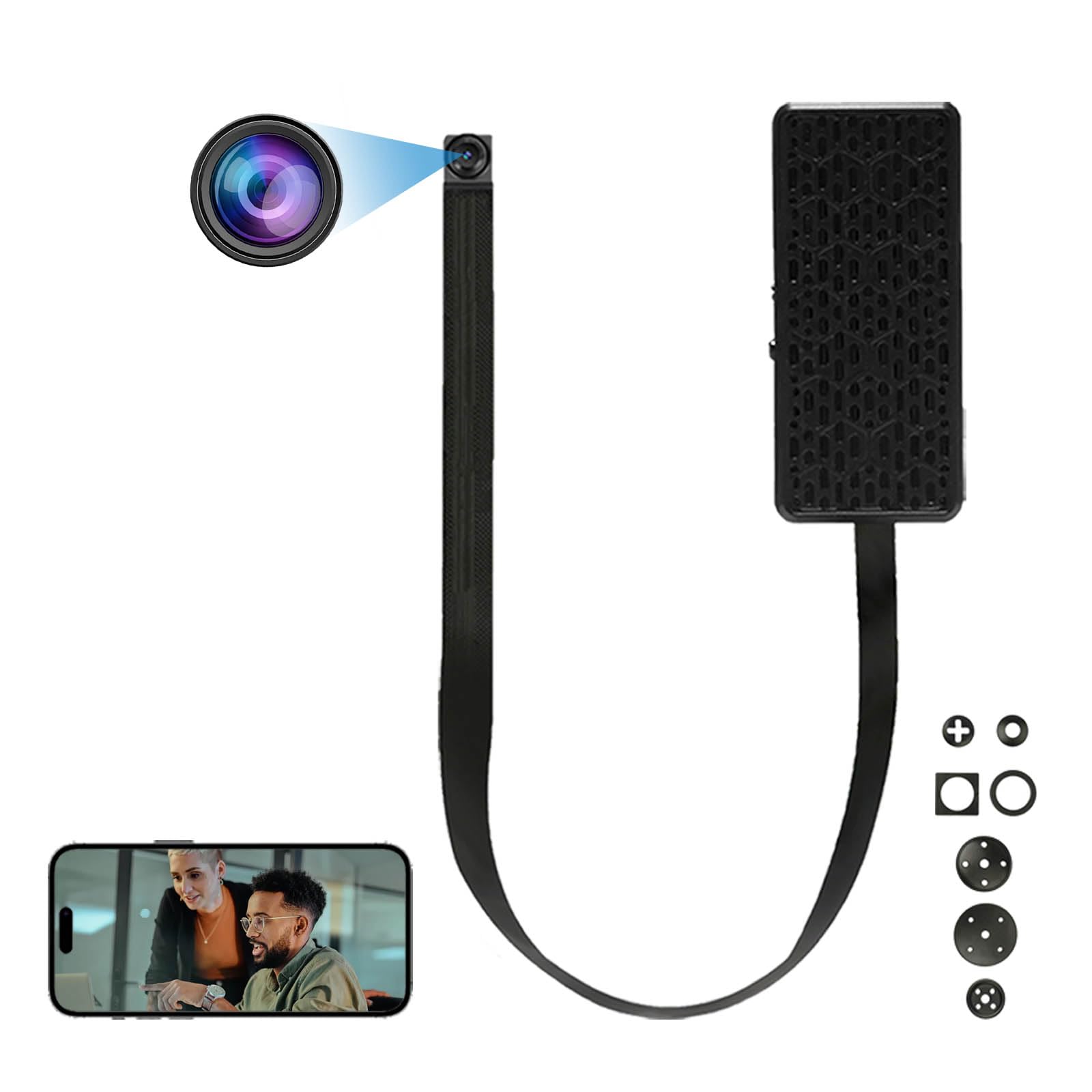
Immaġni 1.1: Fuqview of ULar Wi-Fi Mini Camera features.
2. Setup
2.1 Kif Tixgħel il-Kamera
The ULar Wi-Fi Mini Camera does not contain an internal battery. It requires continuous power to operate. Connect the camera using the provided USB cable to a USB power adapter (not included) or a power bank.
2.2 Daħħal Micro SD Card
For video recording and storage, a Micro SD card (not included) is required. The camera supports up to a 128GB Micro SD card. Locate the SD card slot on the camera and gently insert the card until it clicks into place. Ensure the card is inserted in the correct orientation.
2.3 Konnessjoni Wi-Fi u Konfigurazzjoni tal-App
To enable real-time viewing and access camera settings, connect the camera to your smartphone or tablet via a dedicated application. Refer to the specific instructions provided within the camera's packaging for downloading and installing the correct app. Follow the in-app instructions to connect the camera to your local Wi-Fi network.

Immaġni 2.1: Remot viewing of the camera feed via a mobile application.
3. Istruzzjonijiet Operattivi
3.1 Ħin Reali Viewing
Once the camera is connected to your Wi-Fi network and linked to the mobile app, you can access the live video feed from anywhere with an internet connection. Open the app and select your camera to view il-foo fil-ħin realitage.
3.2 Ir-reġistrazzjoni
The camera records video to the inserted Micro SD card. Recording modes (e.g., continuous, motion-activated) can typically be configured within the mobile application. Please note that this camera does not support audio recording.
3.3 DIY Integration
The mini lens design allows for integration into various objects for discreet placement. Ensure the lens has an unobstructed view of the area you wish to monitor. Common placements include toys, bags, flower pots, or photo frames.

Immaġni 3.1: Eż.amples of multi-scenario DIY camera integration.
4. Sejbien ta 'Moviment
The camera features built-in motion detection technology. When motion is detected within the camera's field of view, it can trigger recording and send instant push alerts to your connected mobile device. This feature is useful for security monitoring.
4.1 Konfigurazzjoni ta' Sejbien ta' Moviment
Motion detection settings, including sensitivity and alert preferences, can be adjusted within the mobile application. Refer to the app's specific instructions for detailed configuration steps.
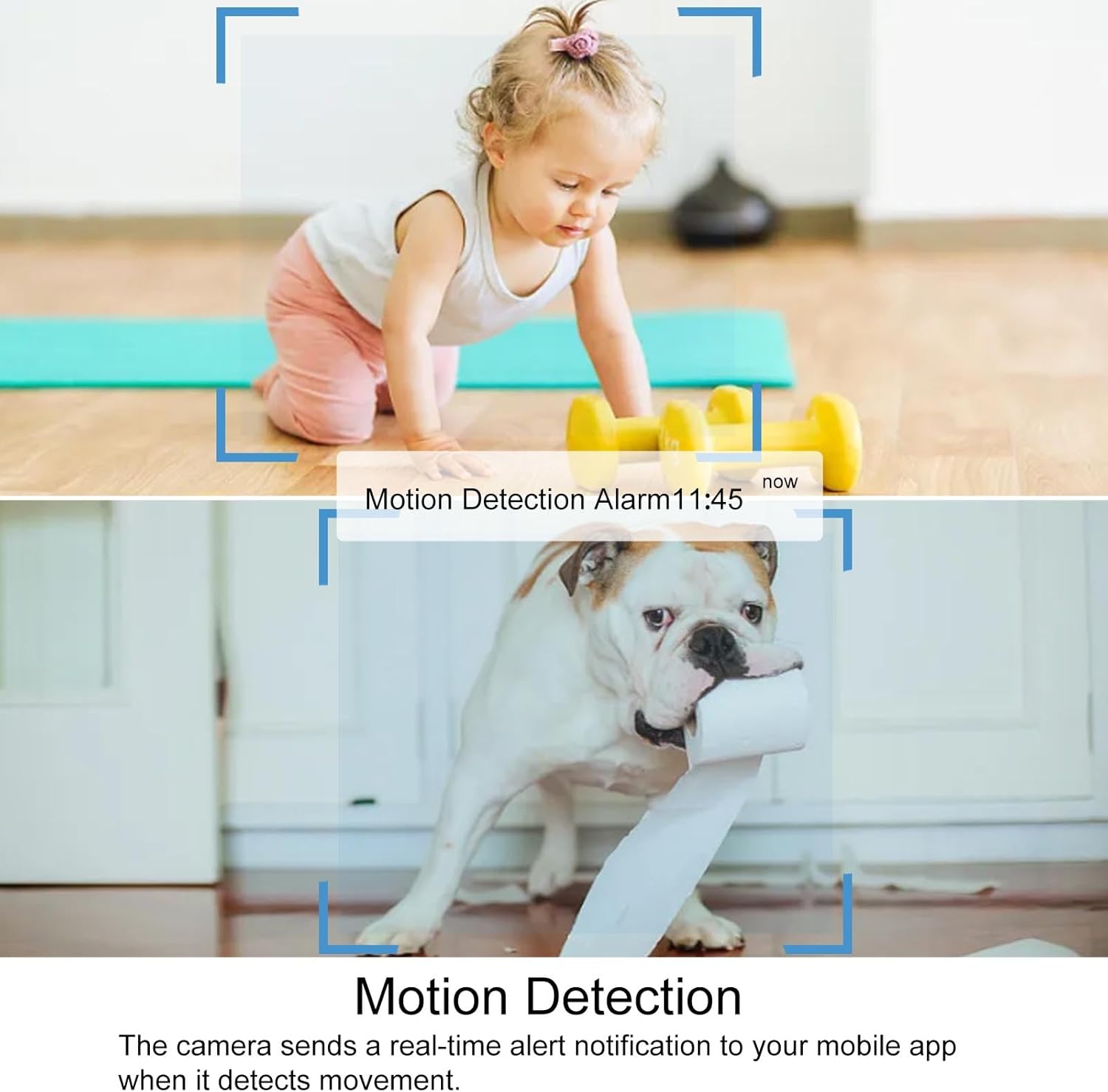
Image 4.1: Visual representation of motion detection triggering an alarm notification.
5. Loop Recording
The camera supports loop recording, which means that when the Micro SD card is full, the camera will automatically overwrite the oldest video files with new ones. This ensures continuous recording without manual intervention to clear storage space.
5.1 Enabling Loop Recording
Loop recording is typically enabled by default or can be configured within the camera's settings in the mobile application. Ensure a Micro SD card is inserted for this feature to function.
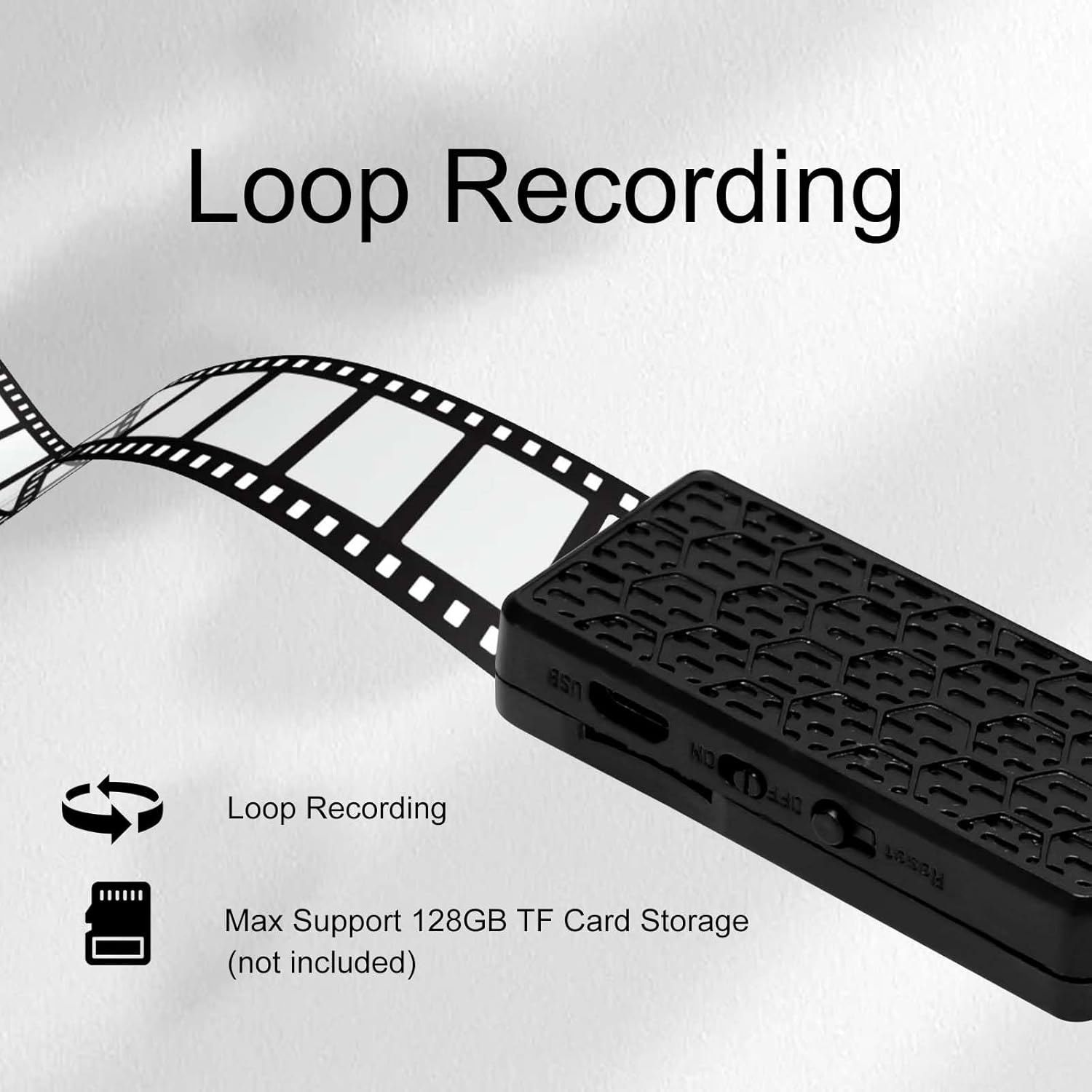
Image 5.1: The camera supports loop recording and up to 128GB TF card storage.
6. Manutenzjoni
6.1 Tindif
To clean the camera lens and body, use a soft, dry cloth. Avoid using liquid cleaners or abrasive materials, as these can damage the camera components.
6.2 Ħażna
When not in use, store the camera in a cool, dry place away from direct sunlight and extreme temperatures. Remove the Micro SD card if the camera will be stored for an extended period.
6.3 Aġġornamenti tal-Firmware
Periodically check the mobile application for any available firmware updates for your camera. Keeping the firmware updated ensures optimal performance and access to new features.
7 Issolvi l-problemi
If you encounter issues with your ULar Wi-Fi Mini Camera, please refer to the following common troubleshooting steps:
- Il-Kamera Ma Tixgħel: Ensure the USB cable is securely connected to both the camera and a working USB power source. Verify the power adapter or power bank is functional.
- "Device is Offline" Error:
- Check your Wi-Fi router to ensure it is powered on and broadcasting a signal.
- Verify the camera is within range of your Wi-Fi network.
- Restart the camera by unplugging and re-plugging the USB power cable.
- Restart your mobile application.
- If the issue persists, try re-pairing the camera with the app and Wi-Fi network according to the initial setup instructions.
- No Recording to SD Card:
- Ensure a Micro SD card is properly inserted into the camera.
- Verify the SD card is not full (though loop recording should manage this).
- Format the SD card through the camera's app settings (this will erase all data on the card).
- Try a different Micro SD card to rule out card malfunction.
- Kwalità Fqira tal-Vidjo: Ensure the camera lens is clean and free from obstructions. Check your Wi-Fi signal strength, as a weak signal can affect streaming quality.
8. Speċifikazzjonijiet
| Karatteristika | Speċifikazzjoni |
|---|---|
| Isem tal-Mudell | DIY Mini Camera (Model Q) |
| Brand | ULar |
| Riżoluzzjoni tal-Qbid tal-Vidjo | 1080p |
| Teknoloġija tal-Konnettività | Wi-Fi |
| Sors tal-Enerġija | Plug-in (USB) |
| Apparati Kompatibbli | Smartphone |
| Appoġġ Massimu tal-Karta SD | 128GB (Micro SD, not included) |
| Użu fuq ġewwa/barra | Ġewwa |
| Sejbien tal-Moviment | Iva |
| Reġistrazzjoni Awdjo | Nru |
| Dimensjonijiet tal-Prodott | 2.16 x 0.9 x 0.3 pulzieri |
9. Garanzija u Appoġġ
For warranty information and technical support, please refer to the documentation included with your purchase or visit the official ULar websit. Żomm l-irċevuta tax-xiri tiegħek għal pretensjonijiet ta' garanzija.


