1. Introduzzjoni
This manual provides comprehensive instructions for the Zowietek M12 4K NDI HX3 POV Webcam Camera. It details the camera's features, setup procedures, operational guidelines, maintenance tips, and troubleshooting information. Please read this manual thoroughly before using the device to ensure proper functionality and longevity.

Image 1.1: The Zowietek M12 4K NDI HX3 POV Webcam Camera, a compact black camera with '4K' branding and the Zowietek logo, featuring a lens on the front face.
2. Prodott Aktarview
2.1 Karatteristiċi ewlenin
- 4K UHD CMOS Sensor: Equipped with a back-illuminated stacked 1/2.3'' 8MP sensor for clear, color-accurate video with enhanced low-light performance.
- NDI|HX3 Support: Enables 4K high-quality video streaming over IP networks in real-time with low latency. Integrates seamlessly into NDI environments via a single network cable, requiring no PC for standalone streaming.
- Riżultati Simultanji: Provides simultaneous 4K HDMI, 3G-SDI, and NDI|HX3 outputs.
- Lenti interkambjabbli: Features native M12 mounts, supporting direct installation of the included 4K 8MP non-distortion lens.
- ZowieUI Control: Full control via PC, phones, or tablets using the exclusive ZowieUI web interface. Allows configuration of focus, white balance, auto exposure, color temperature, H.265/H.264, bitrate, audio, tally, OSD, and vertical/portrait streaming.
- Immuntar flessibbli: Gyroscope detection and three 1/4" tripod mounts allow versatile mounting and automatic orientation correction, including vertical video output.
- Disinn kompatt: Miniature metal enclosure with a one-piece precision aluminum sandblasted front housing.
- TRS Stereo Audio Input: Plug-and-play audio input for studio-grade sound.

Image 2.1: An illustration highlighting the key features of the Zowietek M12 4K POV Camera, including NDI|HX3 support, Sony CMOS sensor, 4K quality, PoE, SDI, interchangeable lens, Type-C, live video preview, tally light, and HDMI outputs.
2.2 X'hemm fil-Kaxxa
Iċċekkja li l-oġġetti kollha huma preżenti fl-imballaġġ:
- 1 x Zowietek M12 4K POV Camera
- 1 x 4K 8MP M12 Lens
- 1 x Gwida Quick Start
- 1 x Muntatura taż-Żarbun Kiesaħ
- 1 x USB Type-C Cable
- 1 x USB Type-C 25W PD Charger
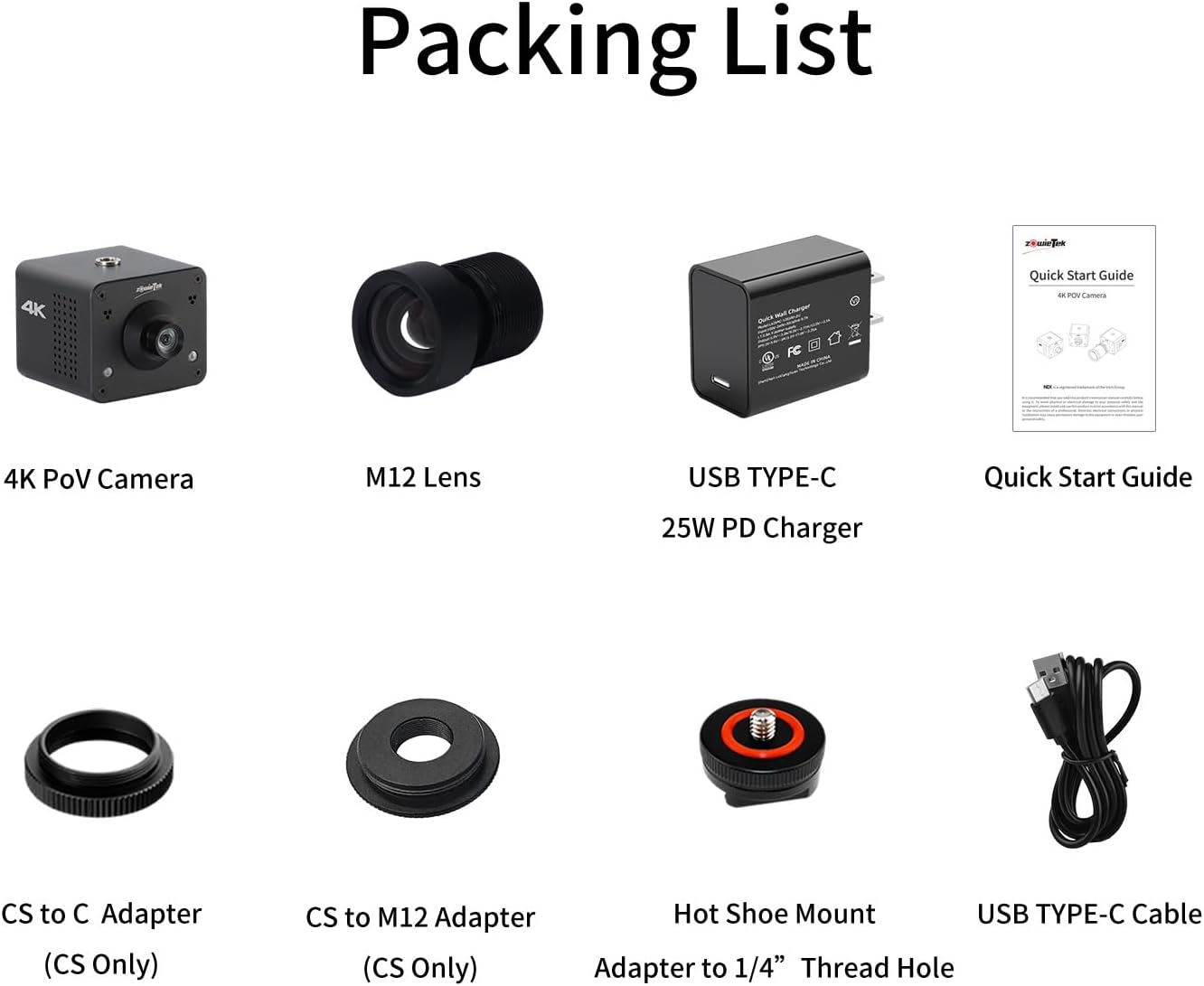
Image 2.2: A visual representation of the Zowietek M12 camera's packing list, showing the camera, M12 lens, USB Type-C charger, quick start guide, and USB Type-C cable.
3. Setup
3.1 Konnessjonijiet Fiżiċi
The Zowietek M12 camera offers multiple connectivity options for power, video, and control.
- Provvista tal-Enerġija: The camera can be powered via Power over Ethernet (PoE) through the LAN port or by connecting the included USB Type-C 25W PD Charger to the USB-C port.
- Konnessjoni tan-Netwerk: Connect an Ethernet cable to the LAN/PoE/NDI port for network access, NDI streaming, and IP control.
- Output tal-vidjo:
- HDMI: Connect an HDMI cable to the HDMI OUT port for direct video output to a monitor or capture device.
- SDI: Connect an SDI cable to the SDI OUT port for professional video output.
- Input Awdjo: Connect an external microphone or audio source to the TRS Stereo Audio Input jack.
- Kontroll: The camera supports IP control via the network.

Image 3.1: A diagram illustrating the triple output capabilities of the Zowietek M12 camera, showing connections for video (SDI or HDMI or NDI), power (Type-C Charger/PoE), control (IP/RS422/RS232), and network cable for PoE, NDI, IP control, tally, and low latency A/V transmission.

Image 3.2: A detailed diagram showing the dimensions and port layout of the Zowietek M12 camera, including LAN/PoE/NDI, HDMI, Menu button, Power Indicator Light, USB-C Charger port, Audio Input, and SDI port.

Image 3.3: An illustration demonstrating the Power over Ethernet (PoE) capability of the Zowietek M12 camera, showing an Ethernet cable providing both data and power.
3.2 Initial Configuration (ZowieUI)
The ZowieUI web interface allows for comprehensive control and configuration of the camera.
- Qabbad man-Netwerk: Ensure the camera is connected to your network via the LAN port.
- Access ZowieUI: Iftaħ a web browser on a PC, tablet, or phone connected to the same network. Enter the camera's IP address in the browser's address bar. The IP address can typically be found using a network scanner tool or by checking your router's connected devices list.
- Idħol: Enter the default username and password (refer to the Quick Start Guide for default credentials).
- Ikkonfigura Settings: Within ZowieUI, you can adjust various parameters including:
- Video settings (resolution, frame rate, bitrate, H.265/H.264 encoding)
- Image settings (focus, white balance, auto exposure, color temperature)
- Settings tal-awdjo
- Network settings (IP address, NDI configuration)
- OSD (On-Screen Display) settings
- Kontroll tad-dawl tally

Image 3.4: A visual representation of the ZowieUI web interface, showing how the camera can be controlled from a PC, tablet, or phone, with various settings and live preview għażliet.

Image 3.5: A system configuration diagram illustrating how the Zowietek M12 camera integrates into a network for streaming to platforms like YouTube, Twitch, and Facebook, with connections for monitors, encoders, and NDI-supported devices.
4. Istruzzjonijiet Operattivi
4.1 Video Outputs and Streaming
The Zowietek M12 camera supports multiple video output formats for diverse applications.
- HDMI & SDI: Connect directly to monitors, video switchers, or recorders using HDMI or SDI cables for high-quality local video feeds.
- NDI|HX3: For IP-based workflows, the NDI|HX3 output allows the camera to be discovered and used by NDI-compatible software and hardware on your network. This enables low-latency streaming and integration into professional broadcast setups.
- RTSP/RTMP(s)/SRT: The camera supports various streaming protocols for direct live streaming to platforms like YouTube, Twitch, and other content delivery networks without requiring an external encoder. Configure these settings via the ZowieUI.

Image 4.1: A depiction of the Zowietek M12 camera being used as a webcam with NDI|HX3, mounted on a monitor, suitable for video conferencing applications like Zoom, Skype, and Microsoft Teams.
4.2 Lens Interchangeability
The M12 mount allows for easy lens changes, providing flexibility for different shooting scenarios. The camera comes with a 4K 8MP non-distortion M12 lens.
- Tneħħi l-Lenti: Gently unscrew the installed M12 lens counter-clockwise.
- Installing a New Lens: Carefully screw in the desired M12 lens clockwise until secure. Avoid overtightening.
- Aġġustament tal-Focus: After changing lenses, adjust the focus manually as needed through the ZowieUI or by physically rotating the lens barrel if it supports manual focus.

Immaġni 4.2: Illustrazzjoni li turiasing the interchangeable lens design of the Zowietek M12 camera, depicting the camera alongside various M12 lenses that can be swapped.
4.3 Vertical and Portrait Streaming
The camera's gyroscope detection and flexible mounting options enable vertical video output, ideal for mobile platforms and social media content.
- Immuntar: Mount the camera at a 90-degree angle using one of the three 1/4" tripod mounts. The camera will automatically detect the orientation.
- Konfigurazzjoni: Ensure vertical streaming is enabled or configured as desired within the ZowieUI settings.
4.4 Tally Light
The integrated tally light provides visual indication of the camera's live status, which is useful in multi-camera productions.
- Indikazzjoni ta' l-Istatus: The tally light illuminates to indicate when the camera's feed is live or on-air.
- Kontroll: Tally light behavior can be configured via the ZowieUI.

Immaġni 4.3: Close-up view of the Zowietek M12 camera highlighting its tally lights, which indicate the camera's operational status.
5. Manutenzjoni
Proper maintenance ensures the longevity and optimal performance of your Zowietek M12 camera.
- Tindif: Uża drapp artab u niexef biex tnaddaf il-korp tal-kamera. Għal-lenti, uża drapp u soluzzjoni speċjalizzati għat-tindif tal-lentijiet. Evita materjali li joborxu jew kimiċi ħarxa.
- Aġġornamenti tal-Firmware: Periodically check the Zowietek website for firmware updates. Firmware updates can improve performance, add new features, and resolve bugs. Follow the instructions provided with the firmware update package carefully.
- Ħażna: When not in use, store the camera in a cool, dry place, away from direct sunlight and extreme temperatures. Use the original packaging or a protective case.
- Ġestjoni tas-Sħana: The camera is designed with a built-in smart cooling fan. Ensure adequate ventilation around the camera during operation to prevent overheating.
6 Issolvi l-problemi
This section addresses common issues you might encounter with your Zowietek M12 camera.
| Problema | Kawża Possibbli | Soluzzjoni |
|---|---|---|
| Ebda dawl indikatur tal-qawwa | L-ebda provvista tal-enerġija jew kejbil difettuż. | Ensure the USB-C charger is properly connected and powered, or that the Ethernet cable is connected to a PoE-enabled switch/injector. Test with a different cable or power source. |
| No video output (HDMI/SDI) | Incorrect cable connection, display issue, or incompatible hardware. | Check HDMI/SDI cable connections. Ensure the display device is on and set to the correct input. Note that the SDI signal of ZowieCam (hardware before 4.1.13) may not be compatible with ATOMAS SHOGUN INFERNO, SHOGUN ULTRA, or Blackmagic Decklink Quad 2. |
| Camera not found on network (NDI/ZowieUI) | Network configuration issue, incorrect IP address, or firewall. | Ensure the camera is connected to the same network as your control device. Verify network settings (DHCP/Static IP). Disable any firewalls temporarily to check for interference. Use an NDI discovery tool to locate the camera. |
| Grainy or unstable video | Insufficient lighting, incorrect camera settings, or network bandwidth issues. | Ensure adequate lighting in the shooting environment. Adjust exposure, gain, and white balance settings in ZowieUI. For NDI/streaming, check network bandwidth and reduce video bitrate if necessary. |
| Camera feels hot during operation | Normal operation, or insufficient ventilation. | The camera has a built-in cooling fan and may feel warm, which is normal. Ensure it is placed in an area with good airflow and not enclosed. If overheating persists or causes performance issues, contact support. |
| Lens focus is difficult to adjust | Tight lens mechanism. | Apply gentle, firm pressure when rotating the lens barrel. If it remains excessively stiff or causes damage, contact support. |
7. Speċifikazzjonijiet
| Karatteristika | Speċifikazzjoni |
|---|---|
| Brand | Zowietek |
| Numru tal-Mudell | M12 (30631-011) |
| Sensor | 1/2.3'' 8MP CMOS |
| Riżoluzzjoni tal-Qbid tal-Vidjo | 4K |
| Lenti | Interchangeable M12 mount, 4K 8MP Non-distortion M12 Lens included |
| Qasam ta View (FOV) | D/H/V (90° 77.5° 61°) |
| Teknoloġija tal-Konnettività | Ethernet (PoE), HDMI, SDI, USB Type-C |
| Output tal-vidjo | HDMI, 3G-SDI, NDI|HX3 |
| Protokolli ta' Streaming | NDI|HX3, RTSP, RTMP(s), SRT |
| Format awdjo appoġġjat | AAC, MP3, WAV (PCMA) |
| Karatteristiċi Speċjali | Built-in Smart Cooling Fan, Remote Control/ZowieUI, Tally Light, 12X digital zoom, Gyroscope detection for auto orientation |
| Piż tal-oġġett | 9.3 uqija (263 gramma) |
| Dimensjonijiet tal-Prodott | 2.05 x 2.18 x 1.87 pulzieri (5.2 x 5.5 x 4.7 ċm) |
| Kulur | Iswed |
8. Garanzija u Appoġġ
Zowietek is committed to providing high-quality products and customer satisfaction. For any technical assistance, warranty claims, or product inquiries, please contact Zowietek customer support.
- Appoġġ għall-Klijent: Zowietek aims to respond to customer inquiries within 24 hours and provide satisfactory solutions.
- Riżorsi onlajn: Visit the official Zowietek website for the latest drivers, firmware updates, FAQs, and additional support documentation.


