1. Introduzzjoni
Thank you for choosing the Mecer 23.8 Inch Full HD LED Monitor. This manual provides essential information for setting up, operating, and maintaining your monitor. Please read it thoroughly before use to ensure proper functionality and longevity of your device.
This monitor features a 23.8-inch Full HD (1920 x 1080) display, offering crisp and clear visuals. It incorporates TFT LED panel technology for energy efficiency and vibrant colors, with a 16:9 aspect ratio suitable for widescreen viewing. Connectivity options include VGA and HDMI, making it compatible with various devices. Built-in speakers provide basic audio, and wide 178° viewing angles ensure comfortable use. With a 2ms response time, it is suitable for general computing and multimedia consumption.
2. Informazzjoni dwar is-Sigurtà
- Sors tal-Enerġija: Uża biss l-adapter tal-enerġija li jiġi mal-monitor. Kun żgur li s-sokit tal-enerġija huwa ertjat sew.
- Ventilazzjoni: Timblokkax il-fetħiet tal-ventilazzjoni. Ħalli biżżejjed spazju madwar il-monitor għal fluss tal-arja xieraq biex tevita li jisħon iżżejjed.
- Pjazzament: Poġġi l-monitor fuq wiċċ stabbli u ċatt. Evita li tpoġġih fid-dawl tax-xemx dirett, ħdejn sorsi ta’ sħana, jew f’ambjenti b’ħafna trab jew umdità.
- Tindif: Disconnect the power cord before cleaning. Use a soft, dry cloth for the screen and a slightly damp cloth for the casing. Evita li tuża prodotti tat-tindif jew solventi li joborxu.
- Espożizzjoni għal Likwidu: Keep liquids away from the monitor. If liquid enters the monitor, disconnect power immediately and contact qualified service personnel.
- Żarmar: Tippruvax tiżżarma jew issewwi l-monitor int stess. Irreferi għal kull manutenzjoni lil persunal tas-servizz kwalifikat.
3. Kontenut tal-Pakkett
Jekk jogħġbok iċċekkja l-kontenut tal-pakkett biex tiżgura li l-oġġetti kollha huma preżenti:
- Mecer 23.8 Inch LED Monitor
- Stand tal-Monitor (Bażi u Għonq)
- Adapter tal-Enerġija u Cable
- Cable HDMI
- Kejbil VGA
- Manwal għall-Utent (dan id-dokument)
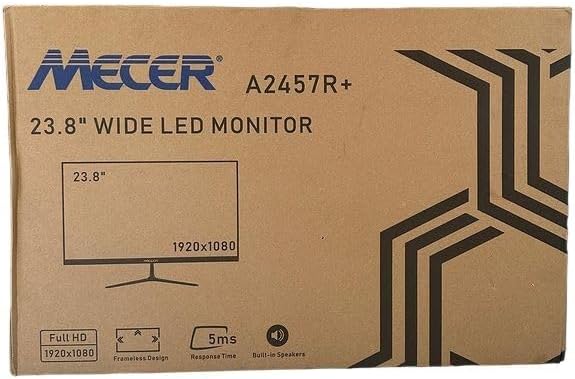
Stampa 3.1: The monitor packaging box, indicating the model A2457R+ and key features like 23.8" display, Full HD 1920x1080 resolution, frameless design, 5ms response time, and built-in speakers.
4. Setup
4.1. L-Immuntar tal-Istand tal-Monitor
- Oħroġ il-monitor u l-komponenti tal-istand mill-imballaġġ bir-reqqa.
- Waħħal l-għonq tal-istand mal-pannell tal-monitor billi tallinja t-tabs u timbotta sew sakemm tikklikkja f'postu.
- Attach the stand base to the stand neck, securing it with the provided screw (usually hand-tightened).
- Poġġi l-monitor immuntat fuq wiċċ stabbli u ċatt.

Stampa 4.1: Quddiem view of the Mecer 23.8 Inch LED Monitor with its stand assembled, ready for connection.
4.2. Konnessjoni ma' Kompjuter
The monitor supports both HDMI and VGA connections. Choose the appropriate cable for your computer.
- Konnessjoni HDMI: Connect one end of the HDMI cable to the HDMI port on your computer's graphics card and the other end to the HDMI port on the monitor. HDMI transmits both video and audio signals.
- Konnessjoni VGA: Connect one end of the VGA cable to the VGA port on your computer's graphics card and the other end to the VGA port on the monitor. VGA transmits only video signals.

Stampa 4.2: Wara view of the Mecer 23.8 Inch LED Monitor, showing the input ports including HDMI and VGA, as well as the power input.
4.3. Konnessjoni tal-Enerġija
- Connect the power adapter cable to the DC IN port on the back of the monitor.
- Ipplaggja l-adapter tal-enerġija f'iżbokk tal-ħajt.
5. Istruzzjonijiet Operattivi
5.1. Tixgħil / Mitfi
Press the power button, typically located on the bottom right side or rear of the monitor, to turn the monitor on or off. The power indicator light will illuminate when the monitor is on.
5.2. Għażla tas-Sors tal-Input
If you have multiple devices connected, you may need to manually select the input source. Use the monitor's control buttons (usually located near the power button) to navigate to the input selection menu and choose between HDMI or VGA.
5.3. Menu tal-Wiri fuq l-Iskrin (OSD).
The OSD menu allows you to adjust various display settings. Use the monitor's control buttons to:
- Aċċess għall-menu OSD.
- Navigate through menu options (e.g., Brightness, Contrast, Color Settings, Input Source).
- Adjust values or select options.
- Ħruġ mill-menu OSD.
Is-settings aġġustabbli komuni jinkludu:
- Luminożità/Kuntrast: Aġġusta l-luminanza ġenerali u d-differenza bejn iż-żoni mdawla u dawk mudlama.
- Settings tal-Kulur: Adjust color temperature, RGB values, or select preset color modes.
- Proporzjon tal-aspett: Change between 16:9, 4:3, or other available options.
- Awdjo: Adjust volume for the built-in speakers.
5.4. Kelliema Inkorporati
The monitor includes built-in speakers for basic audio output. If using an HDMI connection, audio will be transmitted automatically. For VGA connections, ensure your computer's audio output is configured correctly. Adjust the volume through the OSD menu or your computer's operating system.
6. Manutenzjoni
6.1. Tindif tal-Monitor
- Dejjem aqla’ l-monitor mill-plagg tal-elettriku qabel ma tnaddaf.
- Skrin: Imsaħ l-iskrin bil-mod b'ċarruta ratba u mingħajr suf. Għal marki persistenti, nixxef bil-modampNaddaf id-drapp bl-ilma jew b'prodott speċjalizzat għat-tindif tal-iskrin (kun żgur li ma fihx alkoħol u ammonja) u imsaħ bir-reqqa. Tisprejjax likwidu direttament fuq l-iskrin.
- Casing: Uża drapp artab u niexef biex timsaħ il-monitor casing. Jekk meħtieġ, ftit damp Jista' jintuża drapp, segwit minn drapp niexef.
6.2. Ħażna
Jekk se taħżen il-monitor għal perjodu estiż, skonnettja l-kejbils kollha, ippakkjah fl-imballaġġ oriġinali tiegħu (jekk disponibbli), u aħżnu f'post frisk u niexef 'il bogħod mix-xemx diretta u minn temperaturi estremi.
7 Issolvi l-problemi
Jekk tiltaqa' ma' problemi bil-monitor tiegħek, irreferi għall-problemi u s-soluzzjonijiet komuni li ġejjin:
- Ebda Qawwa:
- Ensure the power cable is securely connected to the monitor and the wall outlet.
- Ivverifika li s-sokit tal-enerġija qed jaħdem billi tqabbad apparat ieħor.
- Check if the power adapter is working correctly.
- Ebda Sinjal:
- Ensure the video cable (HDMI or VGA) is securely connected to both the monitor and the computer.
- Verify that the correct input source is selected on the monitor (via the OSD menu).
- Iċċekkja jekk il-kompjuter tiegħek hu mixgħul u qed joħroġ sinjal tal-vidjo.
- Ipprova kejbil tal-vidjow differenti jekk disponibbli.
- L-Immaġni hija Ċajpra jew Distorta:
- Kun żgur li r-riżoluzzjoni tal-monitor hija ssettjata għar-riżoluzzjoni nattiva tiegħu (1920 x 1080) fis-settings tal-wiri tal-kompjuter tiegħek.
- Adjust the monitor's OSD settings for brightness, contrast, and sharpness.
- For VGA connections, use the 'Auto Adjust' function in the OSD menu if available.
- No Audio from Built-in Speakers:
- Kun żgur li l-volum tal-monitor mhux immut jew issettjat baxx wisq fil-menù tal-OSD.
- Iċċekkja s-settings tal-output tal-awdjo tal-kompjuter tiegħek biex tiżgura li l-monitor intgħażel bħala l-apparat tal-plejbek.
- If using VGA, ensure your computer's audio is routed to an external speaker system, as VGA does not carry audio.
8. Speċifikazzjonijiet
| Karatteristika | Speċifikazzjoni |
|---|---|
| Brand | Mecer |
| Numru tal-Mudell | A2457R+ |
| Daqs tal-Wiri | 23.8 Pulzier |
| Riżoluzzjoni | 1920 x 1080 Pixels (Full HD) |
| Tip ta 'Wiri | LED (TFT LED Panel) |
| Proporzjon ta' l-aspett | 16:9 |
| Ħin ta' Rispons | 2 Millisekondi |
| Riffriskar Rata | 75 Hz |
| Viewing Angoli | 178° Orizzontali / 178° Vertikali |
| Konnettività | 1x HDMI, 1x VGA |
| Kelliema Inkorporati | Iva |
| Kulur | Iswed |
| Dimensjonijiet tal-Prodott (P x W x H) | 560D x 42W x 410H millimetres |
| Karatteristiċi Speċjali | High performance intelligent multi-frequency scanning, Micro Computer digital technology control, no radiation, no glare, Comply with VESA DPMS international power saving regulation, Support DDC 1/2B and Windows PNP Plug and Play |
9. Garanzija u Appoġġ
This Mecer monitor comes with a Garanzija Limitata ta' Sena mid-data tax-xiri. Jekk jogħġbok żomm il-prova tax-xiri tiegħek għal talbiet ta' garanzija.
For technical support, service, or warranty inquiries, please contact your retailer or the authorized Mecer service center in your region. Do not attempt to repair the product yourself, as this may void your warranty.


