1. Introduzzjoni
Thank you for choosing the TECKNET Tri-Mode Wireless Mouse. This mouse offers versatile connectivity options (Bluetooth 5.0, Bluetooth 3.0, and 2.4G wireless) allowing seamless switching between up to two devices. Designed for comfort and efficiency, it features adjustable DPI settings for precise control and silent clicks for a quiet working environment. This manual provides detailed instructions for setup, operation, and maintenance to ensure optimal performance.
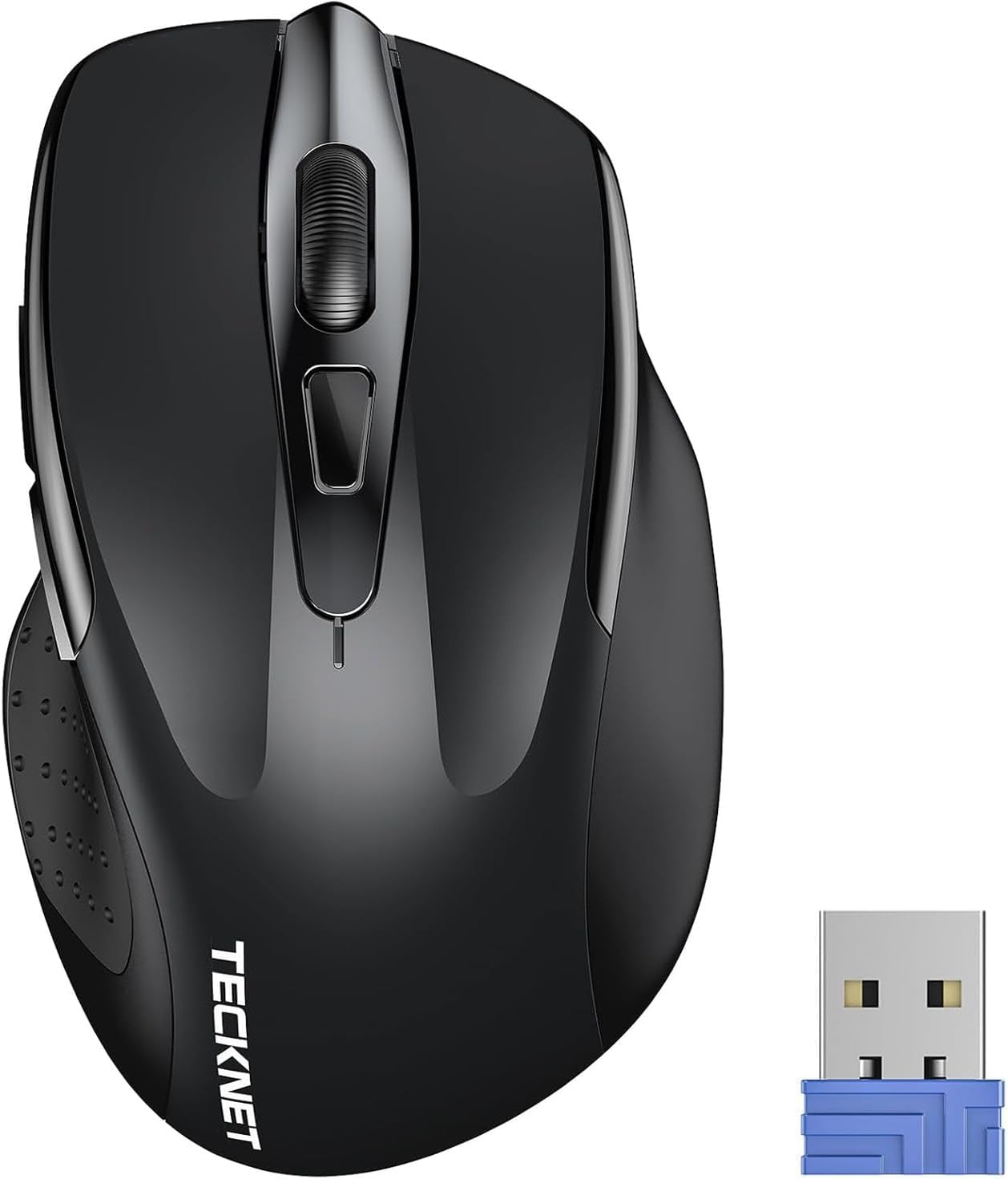
Image 1.1: TECKNET Tri-Mode Wireless Mouse and 2.4G USB Receiver.

Image 1.2: Mouse Diagram with Button Functions and USB Receiver Location.
2. Kontenut tal-Pakkett
Jekk jogħġbok iċċekkja l-pakkett għall-oġġetti li ġejjin:
- TECKNET Tri-Mode Wireless Mouse
- 2.4G USB Receiver (stored in the battery compartment)
- Manwal għall-Utent
Nota: AAA batteries are not included and must be purchased separately.
3. Gwida ta' Setup
3.1. Installazzjoni tal-batterija
- Iftaħ l-għatu tal-kompartiment tal-batterija li jinsab fuq in-naħa ta’ taħt tal-maws.
- Daħħal żewġ batteriji AAA, waqt li tiżgura l-polarità korretta (+/-).
- Agħlaq l-għatu tal-kompartiment tal-batterija.

Immaġni 3.1: Installazzjoni tal-Batterija.
3.2. Konnessjoni permezz tal-Modalità Wireless 2.4G
- Locate the 2.4G USB receiver inside the mouse's battery compartment.
- Remove the USB receiver and plug it into an available USB port on your computer.
- Slide the mode switch on the bottom of the mouse to the "2.4G" position.
- Il-maws għandu jikkonnettja awtomatikament mal-kompjuter tiegħek. L-indikatur LED aħdar se jixgħel fil-qosor.
3.3. Connecting via Bluetooth Mode (BT 5.0 / BT 3.0)
- Slide the mode switch on the bottom of the mouse to the "BT" position.
- Press and hold the Bluetooth pairing button (usually located near the mode switch) for 3-5 seconds until the blue LED indicator starts flashing. This indicates the mouse is in pairing mode.
- Fuq l-apparat tiegħek (kompjuter, tablet, smartphone), mur fis-settings tal-Bluetooth u fittex apparati ġodda.
- Select "TECKNET Mouse" (or similar name) from the list of available devices to pair.
- Once paired, the blue LED indicator will stop flashing and remain solid for a few seconds before turning off.
3.4. Switching Between Modes/Devices
The mouse supports connecting to two devices simultaneously (one via 2.4G, one via Bluetooth). Use the mode switch on the bottom of the mouse to select your desired connection:
- 2.4G: Connects to the device with the USB receiver.
- BT: Connects to the paired Bluetooth device.

Image 3.2: Easy Switching Between 2.4G and Bluetooth Devices.
4. Istruzzjonijiet Operattivi
4.1. Aġġustament tad-DPI
The mouse features 6 adjustable DPI levels (800/1200/1600/2400/3200/4800) to suit your precision needs. Press the DPI switch button, located behind the scroll wheel, to cycle through the DPI settings. Each press changes the cursor speed, allowing for precise control on various surfaces.

Image 4.1: DPI Adjustment Levels.
4.2. Karatteristika ta' Klikk Sieket
The left, right, and middle click buttons are designed for silent operation, reducing click noise by up to 90%. This feature is ideal for quiet environments such as libraries, offices, or home settings where minimizing disturbance is important.

Image 4.2: Silent Click Operation.
4.3. Karatteristiċi ta' Iffrankar tal-Enerġija
The mouse is equipped with an automatic sleep function to conserve battery life. If the mouse is inactive for a period, it will enter sleep mode. To wake it up, simply click any button. The battery life can extend up to 30 months, depending on usage and environmental conditions.

Image 4.3: Automatic Sleep Mode and Activation.
4.4. Indikatur LED
The LED indicator on the mouse provides important status information:
- Dawl aħmar: Indicates low battery or DPI change.
- Dawl Blu: Indicates Bluetooth mode or pairing.
- Dawl aħdar: Indicates 2.4G mode.

Image 4.4: LED Indicator Meanings.
4.5. Kompatibilità
The TECKNET Tri-Mode Wireless Mouse is compatible with a wide range of operating systems:
- Windows 11/10/8/7/XP/Vista
- Mac OS
- Linux
- Android
- iOS (10.4 or higher, via BT 5.0 mode)

Image 4.5: Broad Operating System Compatibility.
5. Manutenzjoni
5.1. Tindif
Biex iżżomm prestazzjoni ottimali, naddaf il-maws tiegħek regolarment:
- Use a soft, dry cloth to wipe the exterior of the mouse.
- Għal ħmieġ iebes, neħħi ftitampLaħlaħ id-drapp bl-ilma jew b'soluzzjoni ħafifa tat-tindif. Evita kimiċi ħarxa.
- Do not allow liquids to enter the mouse.
5.2. Sostituzzjoni tal-batterija
When the red LED indicator flashes or the mouse performance degrades, it's time to replace the batteries:
- Iftaħ il-kompartiment tal-batterija.
- Neħħi l-batteriji AAA qodma.
- Insert two new AAA batteries, observing correct polarity.
- Agħlaq il-kompartiment.
6 Issolvi l-problemi
| Problema | Kawża Possibbli | Soluzzjoni |
|---|---|---|
| Il-ġurdien ma jirrispondix | Low battery; Incorrect mode selected; USB receiver not connected; Bluetooth not paired. | Replace batteries; Check mode switch (2.4G/BT); Re-insert USB receiver; Re-pair Bluetooth. |
| Il-moviment tal-cursor huwa irregolari jew bil-mod | Low battery; Dirty sensor; Mouse used on unsuitable surface; DPI setting too low. | Replace batteries; Clean optical sensor; Use a mouse pad or suitable surface; Adjust DPI setting. |
| Ma nistax nqabbad permezz tal-Bluetooth | Mouse not in pairing mode; Device's Bluetooth is off; Interference. | Ensure mouse is in BT pairing mode (flashing blue LED); Turn on Bluetooth on your device; Move closer to the device; Try pairing again. |
| 2.4G connection unstable | USB receiver too far; Interference from other wireless devices. | Move mouse closer to the USB receiver; Plug receiver into a different USB port; Avoid placing receiver near other wireless devices. |
7. Speċifikazzjonijiet
- Ditta: TECNET
- Numru tal-Mudell: 5056243612529
- Teknoloġija tal-Konnettività: Bluetooth (5.0/3.0), 2.4G Wireless (USB Receiver)
- Livelli DPI: 800, 1200, 1600, 2400, 3200, 4800 (Adjustable)
- Numru ta' Buttuni: 3 (Left, Right, Scroll Wheel/Middle Click) + DPI Switch + Forward/Backward buttons (if applicable to model)
- Orjentazzjoni tal-Idejn: Ambidestru
- Sors tal-Enerġija: 2 x Batteriji AAA (mhux inklużi)
- Ħajja tal-batterija: Sa 30 xahar (skont l-użu)
- Piż: 71.4 Gramm
- Karatteristiċi Speċjali: Ergonomic Design, Portable, Silent Click
- Sistemi Operattivi Kompatibbli: Windows, Mac OS, Linux, Android, iOS (10.4+)
8. Garanzija u Appoġġ
TECKNET provides a 36-il xahar garanzija for this product (for registered users). If you encounter any issues during the use of your wireless mouse, please contact our professional customer service team for assistance. Our support team is dedicated to resolving any problems you may experience.
For warranty claims or technical support, please visit the official TECKNET websit jew ikkuntattja lill-bejjiegħ bl-imnut tiegħek.


