1. Prodott Aktarview
The Brother DCP-L2680DW is a versatile multi-function mono laser printer designed for efficient printing, scanning, and copying. This device offers high-speed monochrome printing, automatic duplex printing, and various connectivity options including Ethernet, USB, and Wi-Fi.
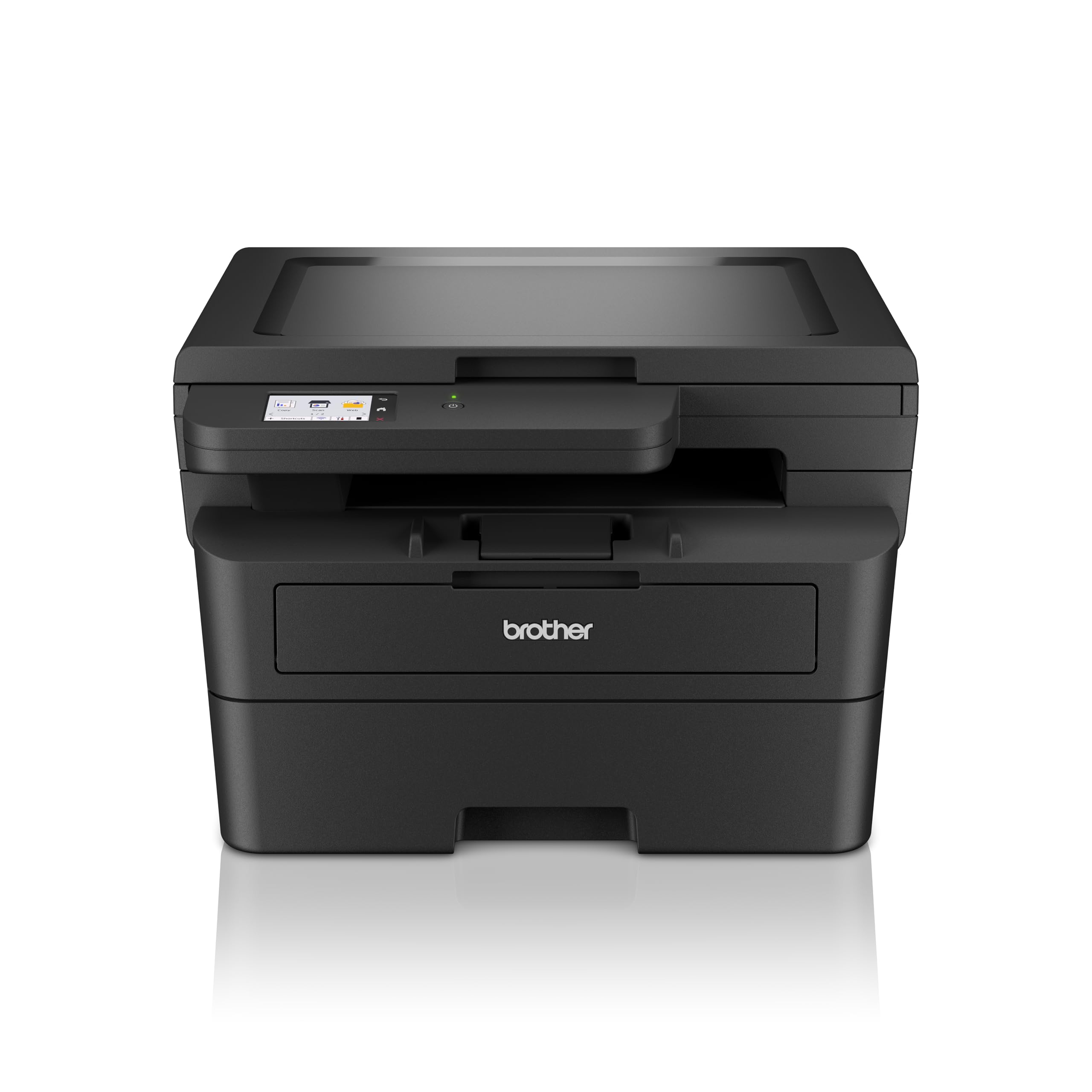
Stampa 1.1: Quddiem view of the Brother DCP-L2680DW printer.
Karatteristiċi ewlenin:
- Print, Scan, Copy: Integrated functionality for diverse office tasks.
- Up to 36 ppm: Fast monochrome printing speed.
- Automatic 2-sided (Duplex) Print: Saves paper and time.
- Stampar mobbli: Print directly from compatible mobile devices.
- Konnettività: Supports Ethernet, USB, and Wi-Fi connections.
- 2.7" Touchscreen Colour LCD Display: Intuitive control panel for easy navigation.
2. Setup Inizjali
Follow these steps to set up your Brother DCP-L2680DW printer for the first time.
2.1 Kif Tneħħi l-Printer mill-Ippakkjar
- Neħħi b'attenzjoni l-istampatur mill-ippakkjar tiegħu.
- Neħħi t-tejps protettivi u l-materjali tal-ippakkjar kollha minn barra u minn ġewwa l-istampatur.
- Place the printer on a stable, flat surface with adequate ventilation.
2.2 Installazzjoni tal-Kartuċċa tat-Toner u l-Unità tat-Tanbur
- Iftaħ il-qoxra ta' quddiem tal-istampatur.
- Neħħi l-unità tat-tanbur u l-assemblaġġ tal-iskartoċċ tat-toner mill-borża protettiva tagħha.
- Daħħal il-kartriġ tat-toner sew fl-unità tat-tanbur sakemm jissakkar f'postu.
- Slide the drum unit and toner cartridge assembly back into the printer until it clicks.
- Agħlaq il-qoxra ta' quddiem.
2.3 Tagħbija tal-Karta
- Iġbed it-trej tal-karta 'l barra kompletament.
- Aġġusta l-gwidi tal-karta biex jaqblu mad-daqs tal-karta li qed tgħabbi.
- Load paper into the tray, ensuring it is flat and below the maximum paper mark.
- Imbotta t-trej tal-karta bil-mod lura fil-printer.
2.4 Connecting Power and Initial Power On
- Qabbad il-korda tal-enerġija mal-istampatur u mbagħad ma' sokit elettriku ertjat.
- Agħfas il-buttuna tal-enerġija biex tixgħel l-istampatur.
- Follow the on-screen instructions on the LCD display to select your language and region.
2.5 Konnessjoni ma' Kompjuter/Netwerk
The DCP-L2680DW supports USB, Ethernet, and Wi-Fi connectivity.
- Konnessjoni USB: Qabbad kejbil USB mill-istampatur mal-kompjuter tiegħek.
- Konnessjoni Ethernet: Qabbad kejbil Ethernet mill-istampatur mar-router jew is-swiċċ tan-netwerk tiegħek.
- Konnessjoni Wi-Fi: On the printer's control panel, navigate to Network settings, then WLAN, and follow the instructions to connect to your wireless network.
After connecting, install the printer drivers from the official Brother support websit (www.brother.com) or the included installation CD (if applicable).
3. Istruzzjonijiet Operattivi
This section covers basic operations of your multi-function printer.
3.1 Stampar ta' Dokumenti
- Kun żgur li l-istampatur ikun mixgħul u konness mat-tagħmir tiegħek.
- Iftaħ id-dokument li tixtieq tipprintja fuq il-kompjuter jew l-apparat mobbli tiegħek.
- Agħżel l-għażla tal-istampar mill-applikazzjoni tiegħek.
- Choose the Brother DCP-L2680DW from the list of available printers.
- Aġġusta s-settings tal-istampar (eż., numru ta' kopji, daqs tal-karta, stampar duplex) kif meħtieġ.
- Ikklikkja "Ipprintja".
3.2 Skennjar ta' Dokumenti
- Poġġi d-dokument wiċċ 'l isfel fuq il-ħġieġ tal-iskaner.
- Fuq il-pannell tal-kontroll tal-istampatur, agħżel "Scan".
- Choose your desired scan destination (e.g., PC, Email, USB).
- Aġġusta s-settings tal-iskannjar bħar-riżoluzzjoni, il-modalità tal-kulur, u file format.
- Agħfas "Start" biex tibda tiskennja.
3.3 Ikkupjar ta' Dokumenti
- Poġġi d-dokument wiċċ 'l isfel fuq il-ħġieġ tal-iskaner.
- Fuq il-pannell tal-kontroll tal-istampatur, agħżel "Kopja".
- Enter the number of copies required using the numeric keypad or arrow buttons.
- Adjust copy settings (e.g., reduce/enlarge, quality) if necessary.
- Agħfas "Start" biex tibda tikkopja.
4. Manutenzjoni
Manutenzjoni regolari tiżgura prestazzjoni ottimali u lonġevità tal-istampatur tiegħek.
4.1 Sostituzzjoni tal-Kartriġ tat-Toner
When the "Toner Low" or "Replace Toner" message appears on the display:
- Iftaħ il-qoxra ta 'quddiem.
- Neħħi l-unità tat-tanbur u l-assemblaġġ tal-iskartoċċ tat-toner.
- Press the green lock lever and pull the toner cartridge out of the drum unit.
- Unpack a new toner cartridge and shake it gently side to side several times.
- Insert the new toner cartridge firmly into the drum unit until it locks.
- Żerżaq l-unità tat-tanbur u l-assemblaġġ il-ġdid tal-iskartoċċ tat-toner lura fil-printer.
- Agħlaq il-qoxra ta' quddiem.
4.2 Sostituzzjoni tal-Unità tat-Tanbur
The drum unit is a consumable item that needs replacement after a certain number of pages. The printer will indicate when replacement is due.
- Follow steps 1-3 from "Replacing the Toner Cartridge" to remove the old toner and drum unit.
- Unpack a new drum unit.
- Insert the existing toner cartridge into the new drum unit until it locks.
- Żerżaq l-unità tanbur il-ġdida u l-assemblaġġ tal-iskartoċċ tat-toner lura fil-printer.
- Agħlaq il-qoxra ta' quddiem.
- Reset the drum counter via the printer's menu (refer to the on-screen instructions or full manual for specific steps).
4.3 Tindif tal-Istampatur
- Barra: Imsaħ il-barra tal-istampatur b'ċarruta ratba u mingħajr suf. Tużax prodotti tat-tindif jew solventi li joborxu.
- Ħġieġ tal-iskaner: Use a soft, dry cloth or a cloth dampened with glass cleaner (non-ammonia based) to clean the scanner glass.
5 Issolvi l-problemi
Din it-taqsima tindirizza kwistjonijiet komuni li tista' tiltaqa' magħhom mal-istampatur tiegħek.
5.1 Ġammijiet tal-karti
If a paper jam occurs, the printer's display will show an error message and indicate the location of the jam.
- Itfi l-istampatur u aqla l-korda tad-dawl.
- Open the indicated cover or tray.
- Iġbed il-karta mblukkata 'l barra b'attenzjoni fid-direzzjoni tal-mogħdija tal-karta. Evita li tiċrita l-karta.
- Kun żgur li l-frammenti kollha tal-karti jitneħħew.
- Close all covers and plug in the power cord, then turn on the printer.
5.2 Kwistjonijiet ta' Kwalità tal-Istampar
- Stampi Sbiaditi: Iċċekkja l-livell tal-iskartoċċ tat-toner. Ibdel jekk ikun baxx.
- Strixxi jew Tikek: Clean the drum unit. Refer to the full user manual for detailed cleaning instructions for the drum unit's corona wire.
- Densità Irregolari: Ensure the paper type setting matches the paper loaded in the tray.
5.3 Problemi ta' Konnettività
- USB: Kun żgur li l-kejbil tal-USB huwa konness sew kemm mal-istampatur kif ukoll mal-kompjuter. Ipprova port jew kejbil USB differenti.
- Ethernet: Verify the Ethernet cable is properly connected to the printer and the network device. Check network settings on the printer.
- Wi-Fi: Confirm the printer is connected to the correct wireless network. Restart your router and the printer. Ensure the printer is within range of the Wi-Fi signal.
6. Speċifikazzjonijiet
Detailed technical specifications for the Brother DCP-L2680DW printer.

Image 6.1: Dimensions of the Brother DCP-L2680DW printer (H: 272mm, W: 410mm, D: 399mm).
| Karatteristika | Speċifikazzjoni |
|---|---|
| Brand | Brother |
| Isem tal-Mudell | DCP-L2680DW |
| Teknoloġija tal-Konnettività | Ethernet, USB, Wi-Fi |
| Teknoloġija tal-Istampar | Laser |
| Output Printer | Monokromu |
| Veloċità Massima tal-Istampar Monokromatiku | 36 ppm |
| Piż tal-oġġett | 9 Kilogrammi |
| Dimensjonijiet tal-Prodott (P x W x H) | 41D x 27.2W x 39.9H ċentimetri |
| Tip ta' Skaner | Flatbed |
| Tip ta 'Wiri | LCD |
| Riżoluzzjoni | 1200 x 1200 dpi |
| Metodu ta' Kontroll | Mess |
| Kapaċità Massima tal-Folja | 250 folja |
| Stampar fuq żewġ naħat | Iva (Duplex Awtomatiku) |
7. Informazzjoni dwar Garanzija
The Brother DCP-L2680DW printer comes with a 3-year onsite warranty. Please retain your proof of purchase for warranty claims. For detailed terms and conditions, refer to the warranty documentation included with your product or visit the official Brother websit.
8. Appoġġ għall-Klijent
For further assistance, technical support, or product-related information, please contact Brother customer service.

Image 8.1: Brother customer support contact details.
Informazzjoni ta' Kuntatt:
- Numri bla ħlas:
- 1-800-222-422 (Għal utenti tal-MTNL u l-BSNL)
- 1-800-209-8904 (Għal Oħrajn u l-Mowbajls kollha)
- Appoġġ bl-Email: customercare@brother.in
- Appoġġ WhatsApp: 7045 450 450
- Chatbot: Disponibbli fuq www.brother.in
- Websit: www.brother.in
Support hours are typically Monday to Friday: 8:30 AM - 6:30 PM, and Saturday: 9:00 AM - 6:00 PM (local time).


