1. Introduzzjoni
This manual provides detailed instructions for the setup, operation, and maintenance of your KTC 32-Inch 2K QHD IPS Monitor, model H32T13. Please read this manual thoroughly before using the monitor to ensure proper functionality and to prevent damage.
The KTC H32T13 monitor features a 32-inch IPS panel with 2K QHD (2560x1440) resolution, a 100Hz refresh rate, and support for FreeSync/G-Sync technologies. It is designed for both office productivity and gaming, offering vibrant colors, wide viewing angles, and eye-care features.
2. X'hemm fil-Kaxxa
Ivverifika li l-komponenti kollha huma preżenti fil-pakkett:
- KTC 32-Inch 2K QHD IPS Monitor (H32T13)
- Stand tal-Monitor (Bażi u Għonq)
- Cable HDMI
- Korda tal-Enerġija
- Adapter tal-Enerġija
- Tornavit
- Manwal għall-Utent (dan id-dokument)

Image: Contents of the KTC H32T13 monitor package.
3. Prodott Aktarview
The KTC H32T13 monitor is designed for a superior visual experience. Key features include:
- 32-inch QHD (2560x1440) IPS Panel: Delivers crisp, detailed images with accurate colors and wide viewangoli.
- Rata ta' Aġġornar ta' 100Hz: Provides smoother motion for gaming and fast-paced content.
- FreeSync/G-Sync Compatibility: Reduces screen tearing and stuttering for a fluid gaming experience.
- Appoġġ HDR: Enhances contrast and color for more realistic visuals.
- Teknoloġija tal-Kura tal-Għajnejn: Features Flicker-Free and Low Blue Light modes to reduce eye strain during prolonged use.
- Konnettività versatili: Equipped with multiple HDMI 2.0 and DisplayPort 1.4 inputs.
- Disinn Ergonomiku: Offers tilt adjustment and VESA mount compatibility for flexible positioning.
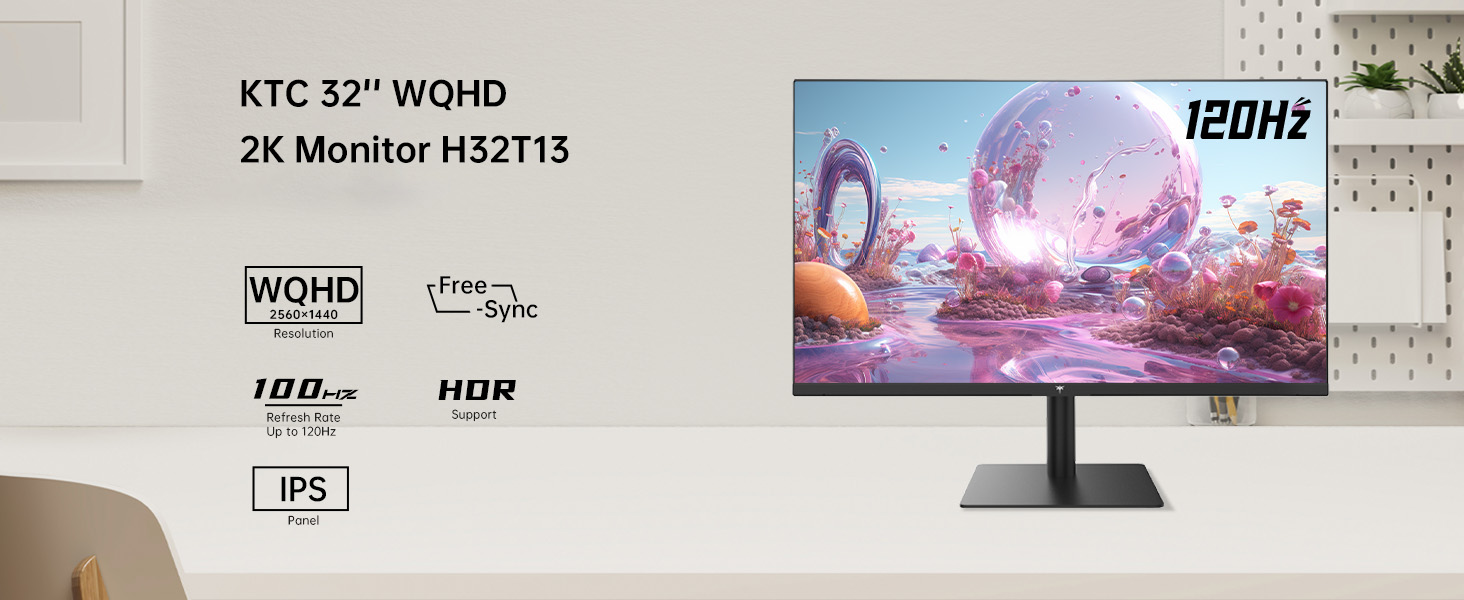
Image: KTC H32T13 monitor showcasing its key display technologies.

Image: The 32-inch screen size of the KTC H32T13 monitor.
4. Setup
4.1 Armar tal-Istand
- Oħroġ il-monitor u l-komponenti tal-istand mill-imballaġġ bir-reqqa.
- Attach the stand neck to the monitor panel using the provided screws and screwdriver.
- Waħħal il-bażi tal-istand mal-għonq tal-istand.
- Poġġi l-monitor immuntat fuq wiċċ stabbli u ċatt.
4.2 Immuntar VESA (Mhux obbligatorju)
The monitor supports VESA 100mm x 100mm mounting. If you wish to use a VESA-compatible arm or wall mount (not included), remove the stand and attach the VESA mount according to its instructions.

Immaġni: Wara view of the monitor with VESA 100x100mm mounting points.
4.3 Konnessjoni ma 'Kompjuter
- Kun żgur li kemm il-monitor kif ukoll il-kompjuter tiegħek huma mitfija.
- Qabbad tarf wieħed tal-kejbil HDMI pprovdut ma' port HDMI fuq il-karta grafika tal-kompjuter tiegħek.
- Connect the other end of the HDMI cable to one of the HDMI 2.0 ports on the monitor. Alternatively, use a DisplayPort cable to connect to a DP 1.4 port for higher refresh rates and FreeSync/G-Sync functionality.
- Connect the power adapter to the monitor's DC input and then plug the power cord into a power outlet.
- Ixgħel il-kompjuter tiegħek, imbagħad ixgħel il-monitor.

Image: Monitor connectivity ports (DC, HDMI 1, HDMI 2, DP 1).
5. Istruzzjonijiet Operattivi
5.1 Power On/Off
Agħfas il-buttuna tal-qawwa li tinsab fuq il-monitor biex tixgħelu jew titfih. Id-dawl indikatur tal-qawwa jixgħel meta l-monitor ikun mixgħul.
5.2 Għażla tas-Sors tal-Input
Use the OSD (On-Screen Display) menu buttons to navigate and select your desired input source (HDMI 1, HDMI 2, or DisplayPort).
5.3 Adjusting Display Settings (OSD Menu)
The OSD menu allows you to customize various display settings. Typically, buttons are located on the back or bottom of the monitor. Refer to the quick start guide for specific button functions.
- Luminożità/Kuntrast: Aġġusta l-luminanza ġenerali u l-proporzjon tal-kuntrast.
- Settings tal-Kulur: Modify color temperature, gamma, and individual RGB levels. The monitor supports 1.07 billion colors and 103% sRGB.
- Modalità Stampa: Agħżel minn modi predefiniti ottimizzati għal kontenut differenti (eż., Standard, Logħba, Film, Test).
- Rata ta' Aġġornar: The monitor supports up to 100Hz. Ensure your graphics card settings are configured to match.
- FreeSync/G-Sync: Enable this feature in the OSD menu and your graphics card control panel for adaptive synchronization.
- Eye Care Modes: Activate Flicker-Free and Low Blue Light modes to reduce eye strain.
- HDR: Enable HDR for compatible content and devices.

Image: Monitor displaying enhanced colors and brightness with HDR enabled.

Image: Visual comparison of FreeSync/G-Sync enabled and disabled, demonstrating smoother gameplay.

Image: IPS panel advantages in brightness and color over VA panels.
5.4 Aġġustamenti Fiżiċi
The monitor stand allows for tilt adjustment from -5° to 15° to optimize your viewangolu tal-ing.

Image: Monitor tilt adjustment range and eye care features.
Vidjo: Fuqview of the KTC 2K IPS Office Monitor, highlighting its features and suitability for office use. This video demonstrates the monitor's visual quality and design.
6. Manutenzjoni
6.1 Tindif tal-Monitor
- Dejjem itfi l-monitor u aqla’ l-korda tal-enerġija qabel ma tnaddaf.
- Uża ċarruta ratba u mingħajr ħelu dampMaħsul bl-ilma jew b'tindif tal-iskrin ħafif u mhux abrażiv.
- Imsaħ l-iskrin bil-mod biex tneħħi t-trab u t-tbajja’. Evita li tapplika pressjoni diretta fuq l-iskrin.
- Tużax alkoħol, prodotti tat-tindif ibbażati fuq l-ammonja, jew materjali li joborxu, għax dawn jistgħu jagħmlu ħsara lill-wiċċ tal-iskrin.
- Naddaf il-monitor casinNaddaf b'ċarruta ratba u niexfa.
6.2 Ħażna
Jekk taħżen il-monitor għal perjodu estiż, kun żgur li jkun mitfi, skonnettjat, u maħżun f'post frisk u niexef 'il bogħod mix-xemx diretta u minn temperaturi estremi. Uża l-imballaġġ oriġinali jekk disponibbli għall-aħjar protezzjoni.
7 Issolvi l-problemi
| Problema | Kawża Possibbli | Soluzzjoni |
|---|---|---|
| L-ebda immaġni fuq l-iskrin | Monitor not powered on; Incorrect input source; Loose video cable; Computer in sleep mode. | Ensure power is connected and monitor is on. Select correct input source. Check video cable connections. Wake up computer. |
| L-immaġni hija mċajpra jew distorta | Incorrect resolution; Faulty video cable; Graphics driver issues. | Set display resolution to 2560x1440. Try a different video cable. Update graphics drivers. |
| L-iskrin jitteptep jew jitqatta’ | Refresh rate mismatch; FreeSync/G-Sync not enabled or incompatible. | Ensure refresh rate is set to 100Hz. Enable FreeSync/G-Sync in monitor OSD and graphics card settings. Use DisplayPort for FreeSync/G-Sync. |
| L-ebda ħoss mill-headphones | Headphones not connected properly; Audio output not set to monitor. | Check headphone connection. Set monitor as default audio output in your computer's sound settings. |
| Buttuni ma jirrispondux | OSD lock enabled; Temporary software glitch. | Check if OSD lock is active (refer to quick start guide). Power cycle the monitor. |
8. Speċifikazzjonijiet
| Karatteristika | Dettall |
|---|---|
| Numru tal-Mudell | H32T13 |
| Daqs tal-Iskrin | 32 Pulzier |
| Tip ta' Panel | IPS |
| Riżoluzzjoni | 2560 x 1440 (QHD Wide 1440p) |
| Proporzjon ta' l-aspett | 16:9 |
| Riffriskar Rata | 100Hz |
| Luminożità | 350 Candela (typ.) |
| Gamut tal-Kulur | 103% sRGB |
| Profond tal-Kulur | 1.07 biljun Kulur |
| Appoġġ HDR | Iva |
| Sinkronizzazzjoni Adattiva | FreeSync/G-Sync Compatible |
| Konnettività | 2x HDMI 2.0, 1x DisplayPort 1.4 |
| Aġġustament tal-Mejjel | -5° sa 15° |
| Muntatura VESA | 100mm x 100mm |
| Karatteristiċi tal-Kura tal-Għajnejn | Flicker-Free, Eye Protection Mode (Low Blue Light) |
| Dimensjonijiet tal-Prodott | 5.31 x 32.48 x 21.2 pulzieri |
| Piż tal-oġġett | 18.81 liri |
9. Garanzija u Appoġġ
9.1 Informazzjoni dwar Garanzija
KTC products are covered by a limited warranty. Please refer to the warranty card included in your product packaging or visit the official KTC websit għal termini u kundizzjonijiet dettaljati tal-garanzija. Żomm il-prova tax-xiri tiegħek għal talbiet ta' garanzija.
9.2 Appoġġ għall-Klijent
For technical assistance, troubleshooting not covered in this manual, or warranty inquiries, please contact KTC customer support through the following channels:
- Appoġġ onlajn: Visit the KTC official website for FAQs, driver downloads, and support contact forms.
- Appoġġ bl-Email: Refer to your warranty card or the KTC websit għall-indirizz elettroniku ta' appoġġ xieraq.
- Appoġġ tal-Amazon: If purchased via Amazon, you can contact the seller directly through your Amazon order history for assistance.
Image: Steps to contact KTC customer support via Amazon.


