Introduzzjoni
L-AZDOME M27 Dash Cam huwa apparat ta' reġistrazzjoni ta' vetturi b'definizzjoni għolja ddisinjat biex jaqbad immaġni ċara.tage of your journeys and provide security monitoring. Featuring 2K QHD resolution, built-in WiFi, and essential safety functions like G-Sensor and Parking Monitor, it offers reliable performance for your driving needs.
X'hemm fil-Kaxxa

Image: All components included in the AZDOME M27 Dash Cam package.
- AZDOME M27 2K Dash Cam x1
- Sticky Mount x1
- USB Car Charger x1
- Type-C USB Power Cable (3.5m/12ft) x1
- Double-sided Tape x1
- Film Elettrostatiku x2
- Cable Clip x5
- Pry Tool x1
- Manwal għall-Utent x1
Gwida ta' Setup
1. Prepare the Micro SD Card
Before first use, insert a Class 10 or U3 speed Micro SD card (up to 128GB, not included) into the dash cam. It is crucial to format the SD card directly within the dash cam for optimal performance. Reformat the card monthly to maintain recording efficiency.
2. Installa d-Dash Cam
- Naddaf iż-żona tal-windskrin fejn se titwaħħal il-kamera tad-dashboard.
- Applika film elettrostatiku fuq iż-żona magħżula fuq il-windskrin. Dan jgħin biex jitneħħa faċilment u jipprevjeni r-residwi.
- Attach the sticky mount to the electrostatic film.
- Slide the dash cam onto the sticky mount until it clicks into place.
- Route the USB power cable from the dash cam to the USB car charger, tucking the cable along the windshield edge and dashboard using the pry tool and cable clips for a neat installation.
- Plug the USB car charger into your vehicle's cigarette lighter socket.

Image: The AZDOME M27 Dash Cam installed in a vehicle, showing its connection to the mobile application.
3. Ixgħel u Setup Inizjali
Once connected to power, the dash cam will automatically turn on and begin recording. Follow the on-screen prompts to set the date, time, and other preferences. Ensure the SD card is formatted when prompted.
4. Connect to WiFi and AZDOME App
The AZDOME M27 features built-in WiFi for easy access to recordings and settings via your smartphone. Download the official AZDOME app from the App Store (iOS) or Google Play Store (Android).
- Enable WiFi on your dash cam through the settings menu.
- On your smartphone, connect to the dash cam's WiFi network (SSID and password will be displayed on the dash cam screen).
- Open the AZDOME app to view foo ħajtage, playback recordings, download files, u aġġusta l-issettjar.
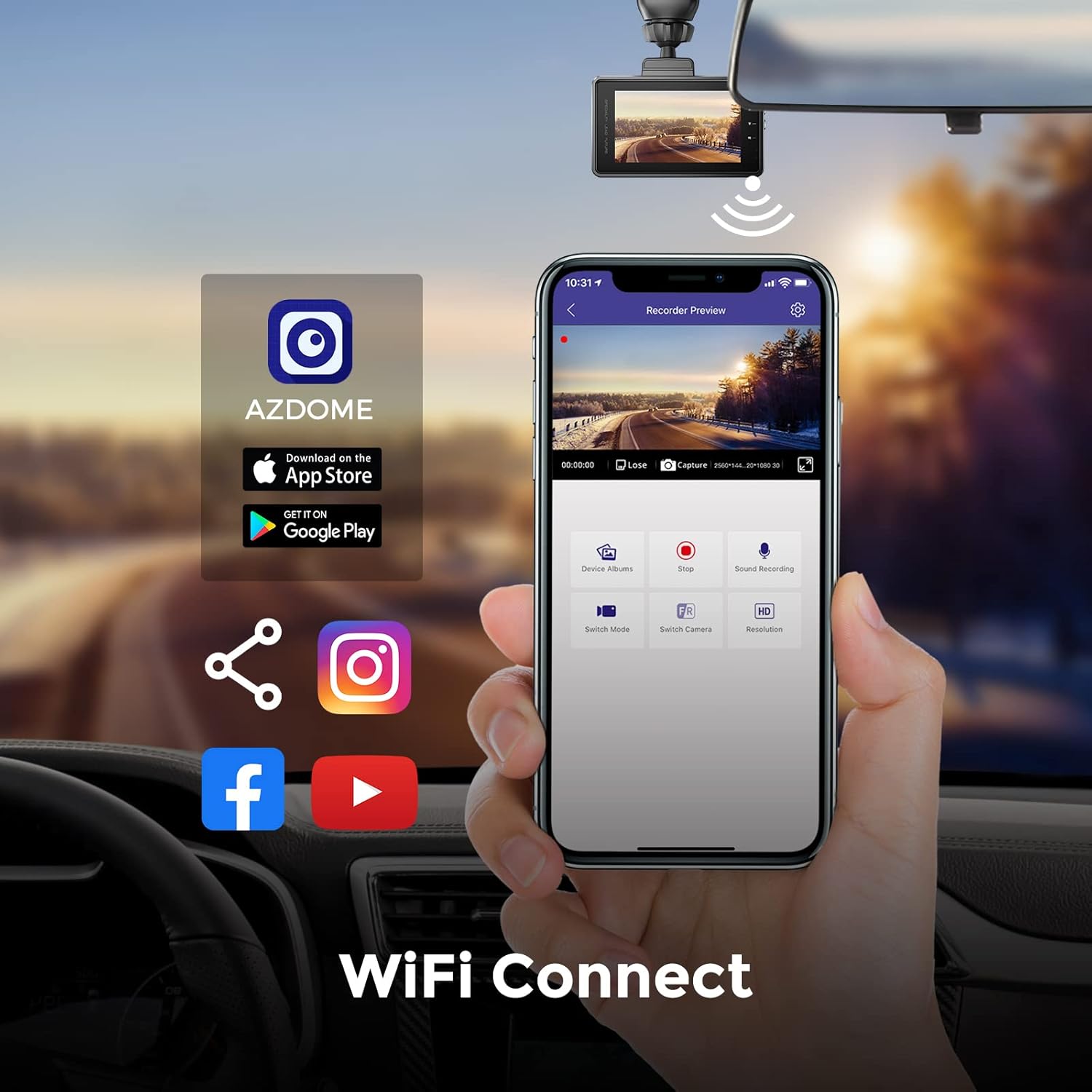
Image: The AZDOME mobile application interface, demonstrating WiFi connectivity for managing dash cam footage and settings.
Istruzzjonijiet Operattivi
Reġistrazzjoni Awtomatika
The dash cam automatically starts recording when connected to power and the vehicle ignition is turned on. It will save video segments in a continuous loop.
Loop Recording
The loop recording feature ensures continuous recording by overwriting the oldest unlocked files when the SD card is full. This prevents the need for manual deletion of old footage.
G-Sensor & Emergency Lock
The built-in G-Sensor detects sudden impacts or collisions. When an event is detected, the current video segment is automatically locked and protected from being overwritten by loop recording. This ensures critical evidence is preserved.

Image: Visual representation of the 24-hour loop recording and G-Sensor collision lock features, highlighting automatic footagprotezzjoni.
Super Night Vision
Equipped with an F1.8 large aperture, the AZDOME M27 enhances exposure in low-light conditions, providing clear and detailed video footage even at night. This ensures visibility of road signs and license plates.

Image: Demonstration of the dash cam's Super Night Vision, capturing clear details like license plates in dark environments.
24H Parking Monitor
For continuous surveillance when your vehicle is parked, the 24H Parking Monitor feature can be activated. This requires a hardwire kit (sold separately) to provide constant power to the dash cam. When enabled, the dash cam will record incidents even when the car is off.
Firxa Dinamika Wiesgħa (WDR)
The WDR technology optimizes video quality in varying light conditions, ensuring balanced exposure in both bright and dark areas of the frame. This helps capture crucial details without overexposure or underexposure.
Manutenzjoni
Ġestjoni tal-Kard SD
To ensure reliable recording and prevent data corruption, it is recommended to reformat your Micro SD card monthly using the dash cam's format function. This helps clear fragmented files and maintain optimal performance.
Konsiderazzjonijiet tat-Temperatura
The AZDOME M27 is built with a supercapacitor, allowing it to withstand extreme temperatures from -4°F to 158°F (-20°C to 70°C). This makes it suitable for various climates. Due to the supercapacitor design, the dash cam requires constant external power to operate; it does not have a built-in battery for standalone operation.
Tindif
Gently wipe the lens and screen with a soft, lint-free cloth. Avoid using abrasive cleaners or solvents that could damage the device.
Issolvi l-problemi
- Dash Cam does not turn on: Ensure the USB car charger is securely plugged into the vehicle's power outlet and the dash cam. Verify the vehicle's power outlet is functional. The dash cam requires constant external power.
- "Please Insert a memory Card" message: This indicates that no SD card is detected or the inserted card is not recognized. Ensure the SD card is properly inserted. If it is, try reformatting the card via the dash cam's settings or try a different compatible (Class 10 U3, up to 128GB) SD card.
- Video footage hija mċajpra jew mhux ċara: Check if the protective film has been removed from the lens. Clean the lens with a soft cloth. Ensure the windshield area where the camera is mounted is clean.
- Dash Cam frequently restarts or freezes: This can often be resolved by reformatting the SD card. If the issue persists, try a different compatible SD card. Ensure the power connection is stable.
- Problemi bil-konnessjoni tal-WiFi: Ensure the AZDOME app is updated to the latest version. Confirm you are connecting to the correct WiFi network broadcast by the dash cam. Try restarting both the dash cam and your smartphone.
- Il-Monitor tal-Parkeġġ mhux qed jaħdem: The 24H Parking Monitor requires a hardwire kit (sold separately) for continuous power. Ensure the hardwire kit is correctly installed and connected.
Speċifikazzjonijiet
| Isem tal-Mudell | M27 |
| Brand | AZDOME |
| Riżoluzzjoni tal-Qbid tal-Vidjo | 2K (2560x1440P) |
| Wiri | Skrin IPS ta '3 pulzieri |
| Apertura tal-Lenti | F1.8 |
| Qasam ta View | 150° (Quddiem) |
| Appoġġ għall-Ħażna | Up to 128GB Micro SD Card (Class 10, U3 recommended) |
| Konnettività | Built-in WiFi (APP control) |
| Karatteristiċi Speċjali | WDR, Night Vision, Parking Monitor (requires hardwire kit), G-Sensor, Loop Recording, Super Capacitor |
| Temperatura operattiva | -4°F sa 158°F (-20°C sa 70°C) |
| Dimensjonijiet tal-Prodott | 4.76 x 6.3 x 2.52 pulzieri |
| Piż tal-oġġett | 13.4 uqija |
Garanzija u Appoġġ
AZDOME products typically come with a manufacturer's warranty. For specific warranty details, technical support, or service inquiries, please refer to the official AZDOME website or contact their customer support directly. Please note that arbitrary disassembly is not covered under warranty.
Għal aktar informazzjoni, żur il- AZDOME Store on Amazon.


