Introduzzjoni
This manual provides instructions for setting up, operating, maintaining, and troubleshooting your MERCUSYS Halo H1500X AX1500 WiFi 6 Mesh System. Please read this manual carefully to ensure proper use and optimal performance of your device.

Image: The MERCUSYS Halo H1500X AX1500 WiFi 6 Mesh System, showing two white cube-shaped units and their retail packaging.
Setup
Setting up your Halo H1500X Mesh System is designed to be straightforward using the MERCUSYS application.
1. Tneħħija tal-kaxxa u Tqegħid
- Unpack all components: Halo units, power adapters, and Ethernet cable.
- Place the primary Halo unit near your existing modem or router.
- Place the secondary Halo unit(s) in areas requiring extended Wi-Fi coverage, ensuring they are within range of another Halo unit for optimal mesh connectivity.
2. Konnessjoni tal-Ħardwer
- Connect the Primary Halo Unit:
- Connect one end of the provided Ethernet cable to a LAN port on your existing modem/router.
- Connect the other end of the Ethernet cable to any Gigabit port on the primary Halo unit.
- Connect the power adapter to the primary Halo unit and plug it into a power outlet.
- Stenna li l-indikatur LED fuq l-unità Halo jixgħel blu solidu, u dan jindika li hija lesta għas-setup.
- Connect Secondary Halo Unit(s):
- Connect the power adapter to each secondary Halo unit and plug them into power outlets.
- Place them in desired locations. They will automatically connect to the mesh network once the primary unit is configured.
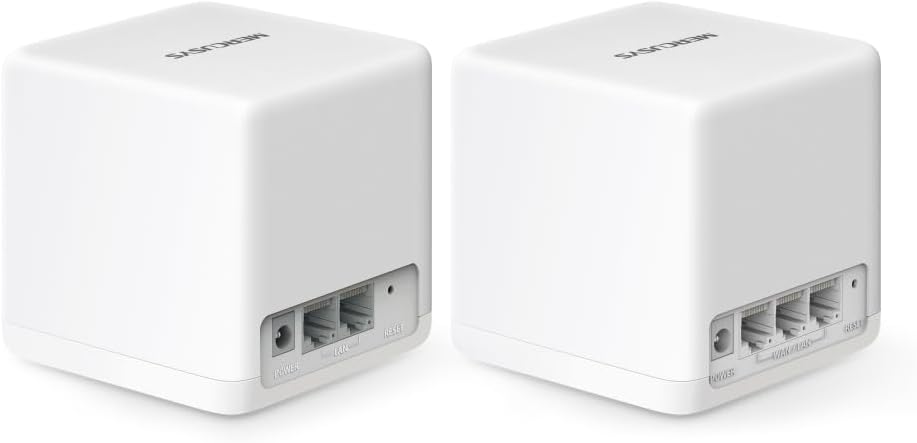
Immaġni: Wara view of two Halo H1500X units, highlighting the power input and three Gigabit Ethernet ports on each device.
3. App-Guided Configuration
- Download the MERCUSYS app from your mobile device's app store.
- Open the app and follow the on-screen instructions to create a MERCUSYS ID or log in.
- Select your Halo model and follow the step-by-step guide to configure your mesh network, including setting up your Wi-Fi name (SSID) and password.
Tħaddim tas-Sistema tal-Malja Tiegħek
The MERCUSYS Halo H1500X system provides seamless whole-home Wi-Fi coverage with advanced features.
Whole-Home Wi-Fi Coverage
The Halo H1500X (2-pack) is designed to cover up to 350 m² (approximately 3767 sq ft), eliminating Wi-Fi dead zones. Devices automatically switch to the strongest signal as you move around your home, ensuring a continuous connection with a single network name and password.

Image: A diagram showing two Halo units providing seamless Wi-Fi coverage throughout a house, indicating extended range and elimination of dead zones.
High-Speed Wi-Fi 6 Performance
Leveraging Wi-Fi 6 technology, the system delivers speeds up to 1500 Mbps (1201 Mbps on 5 GHz and 574 Mbps on 2.4 GHz). This enables responsive gaming, smooth 8K video streaming, and efficient data handling for over 150 connected devices simultaneously.

Image: Icons illustrating key Wi-Fi 6 features: 4x Longer OFDM Symbol for increased coverage and speed, MU-MIMO for simultaneous device connections, OFDMA for greater network capacity, 1024-QAM for boosted raw speeds, and BSS Color for reduced network congestion.
Portijiet Gigabit Ethernet
Each Halo unit is equipped with three Gigabit Ethernet ports, allowing for high-speed wired connections to devices such as smart TVs, gaming consoles, and desktop computers.
Network Security and Management
- Encryption WPA3: Secures your network with the latest Wi-Fi security protocol.
- Kontrolli tal-Ġenituri: Manage internet access for children's devices.
- Kwalità tas-Servizz (QoS): Prioritize network traffic for specific devices or applications to ensure optimal performance for critical tasks.
- Antivirus: Provides an additional layer of protection for your network.
- MERCUSYS App: Use the app for remote management and control of your network settings.
Manutenzjoni
Regular maintenance helps ensure the longevity and optimal performance of your MERCUSYS Halo H1500X system.
Aġġornamenti tal-Firmware
- Check for and install firmware updates regularly via the MERCUSYS app. Updates often include performance improvements, security patches, and new features.
Tindif
- Gently wipe the exterior of the Halo units with a soft, dry cloth.
- Evita li tuża cleaners likwidi jew materjali li joborxu.
- Ensure ventilation openings are clear of dust to prevent overheating.
Jibda mill-ġdid is-Sistema
- Periodically restarting your Halo units (e.g., once a month) can help clear temporary issues and improve network stability. Unplug the power adapter, wait 10 seconds, and then plug it back in.
Issolvi l-problemi
This section addresses common issues you might encounter with your MERCUSYS Halo H1500X system.
Ebda Konnessjoni tal-Internet
- Iċċekkja Kejbils: Ensure the Ethernet cable from your modem/router is securely connected to the primary Halo unit's Gigabit port.
- Status tal-Modem/Router: Verify that your modem or existing router is working correctly and has an active internet connection.
- Irristartja l-Apparati: Power cycle your modem/router, then the primary Halo unit, and finally any secondary Halo units.
- Verifika tal-App: Use the MERCUSYS app to check the status of your network and follow any suggested troubleshooting steps.
Secondary Halo Unit Not Connecting
- Prossimità: Ensure the secondary unit is placed within a reasonable range of another active Halo unit.
- Qawwa: Confirm the secondary unit is powered on and its LED indicator is behaving as expected (e.g., pulsing blue during connection, solid blue when connected).
- Irrisettja: If a secondary unit fails to connect, try resetting it to factory defaults (refer to the app or quick start guide for specific instructions) and re-add it through the MERCUSYS app.
Sinjal Wi-Fi Dgħajjef jew Veloċitajiet Baxxi
- Pjazzament: Adjust the placement of your Halo units to minimize obstructions (thick walls, large appliances) and ensure optimal signal distribution.
- Interferenza: Keep Halo units away from devices that emit strong electromagnetic interference (e.g., microwaves, cordless phones).
- Device Roaming: If devices are not seamlessly switching between Halo units, ensure your device's Wi-Fi adapter supports fast roaming protocols. Sometimes, temporarily disconnecting and reconnecting Wi-Fi on your device can force it to connect to the closer Halo unit.
- Backhaul bil-fili: For critical areas or larger homes, consider using an Ethernet cable to connect Halo units (wired backhaul) for a more stable and faster connection between them.
Difficulty with Specific Devices (e.g., Sonos)
- Kompatibbiltà tan-Netwerk: Some older or specialized devices may have specific network requirements. Check the device's manual for recommended Wi-Fi settings.
- 2.4 GHz vs. 5 GHz: If a device struggles to connect, try temporarily disabling one of the Wi-Fi bands on the Halo system (if the app allows) to force the device onto the other band, then re-enable both.
- Firmware: Ensure both your Halo system and the problematic device have the latest firmware.
Speċifikazzjonijiet
| Karatteristika | Dettall |
|---|---|
| Brand | MERCUSYS |
| Isem tal-Mudell | Halo H1500X (pakkett ta' 2) |
| Wi-Fi Standard | 802.11ax (Wi-Fi 6) |
| Klassi ta' Banda ta' Frekwenza | Doppju Banda (2.4 GHz u 5 GHz) |
| Veloċità Massima tal-Wi-Fi | AX1500 Mbps (1201 Mbps on 5 GHz, 574 Mbps on 2.4 GHz) |
| Portijiet Ethernet | 3 x Gigabit ports per unit |
| Kopertura (pakkett ta' 2) | Up to 350 m² (approx. 3767 sq ft) |
| Apparati Max Konnessi | Up to 150+ devices |
| Karatteristiċi Speċjali | QoS, Parental Controls, Antivirus, WPA3 Encryption |
| Sistema Operattiva | Linux |
| Apparati Kompatibbli | Game Console, Personal Computer, Laptop, Smartphone, Tablet |
| Kulur | Abjad |
| Manifattur | TP-Link |
| Pajjiż ta' Oriġini | Iċ-Ċina |
Informazzjoni dwar Garanzija
The MERCUSYS Halo H1500X AX1500 WiFi 6 Mesh System comes with a garanzija ta 'senaJekk jogħġbok żomm il-prova tax-xiri tiegħek għal talbiet ta' garanzija. Għal termini u kundizzjonijiet dettaljati tal-garanzija, irreferi għall-websajt uffiċjali ta' MERCUSYS. websit jew ikkuntattja l-appoġġ tal-klijent.
Appoġġ
For further assistance, technical support, or to access the latest resources, please refer to the following:
- MERCUSYS App: The app provides guided setup, network management, and access to support resources.
- Official MERCUSYS Websit: Visit the official MERCUSYS website for FAQs, updated manuals, firmware downloads, and contact information for customer support.


