Introduzzjoni
This user manual provides comprehensive instructions for the installation, operation, and maintenance of your Kolink Unity Arena Mid-Tower PC Case. Please read this manual carefully before beginning assembly to ensure proper setup and to maximize the performance and longevity of your system. Keep this manual for future reference.
Prodott Overview
The Kolink Unity Arena is a mid-tower PC case designed for high-performance gaming systems. It features a borderless glass side panel for an unobstructed view of internal components and comes with four pre-installed Kolink Umbra X ARGB/PWM fans for efficient cooling and customizable lighting. The spacious interior supports E-ATX motherboards and large graphics cards up to 420mm, including NVIDIA RTX 40 series. It also accommodates up to three radiators for advanced liquid cooling solutions and includes a dedicated half PSU shroud for clean cable management.

Immaġni: Quddiem ix-xellug view of the Kolink Unity Arena PC case, showcasing the borderless glass side panel and three pre-installed RGB fans on the front.
- Mid-Tower Design: Optimized for a balance of size and component compatibility.
- Borderless Glass Panels: Provides an uninterrupted view of your internal hardware.
- Extensive Hardware Support: Compatible with E-ATX motherboards and GPUs up to 420mm, including NVIDIA RTX 40 series.
- Tkessiħ Avvanzat: Supports up to three radiators and includes four pre-installed Kolink Umbra X ARGB/PWM fans.
- Dedicated PSU Shroud: A half power supply shroud helps maintain a clean and organized interior.
Speċifikazzjonijiet
| Brand | Kolink |
| Isem tal-Mudell | Unity Arena |
| Numru tal-Mudell | UNITYARENABLK |
| Kulur | Iswed |
| Tip ta' Każ | Torri tan-Nofs |
| Materjal | Azzar Liga |
| Kompatibbiltà tal-motherboard | ATX estiż |
| Karatteristiċi Speċjali | RGB Lighting, Pre-installed Fans |
| Apparati Kompatibbli | High-performance gaming components |
| Użi Rakkomandati | Logħob |
| Tip ta' Immuntar tal-Provvista tal-Enerġija | Mount tal-qiegħ |
| Metodu tat-tkessiħ | Arja |
| Daqs tal-fann | 120 Millimetru |
Setup u Installazzjoni
Follow these steps to properly set up and install your components into the Kolink Unity Arena PC case.
1. Spakkjar u Preparazzjoni
- Neħħi l-kaxxa tal-PC mill-imballaġġ tagħha bir-reqqa.
- Poġġi l-kaxxa fuq wiċċ stabbli u ċatt.
- Identify the accessory box, which contains screws, zip ties, and other small parts.
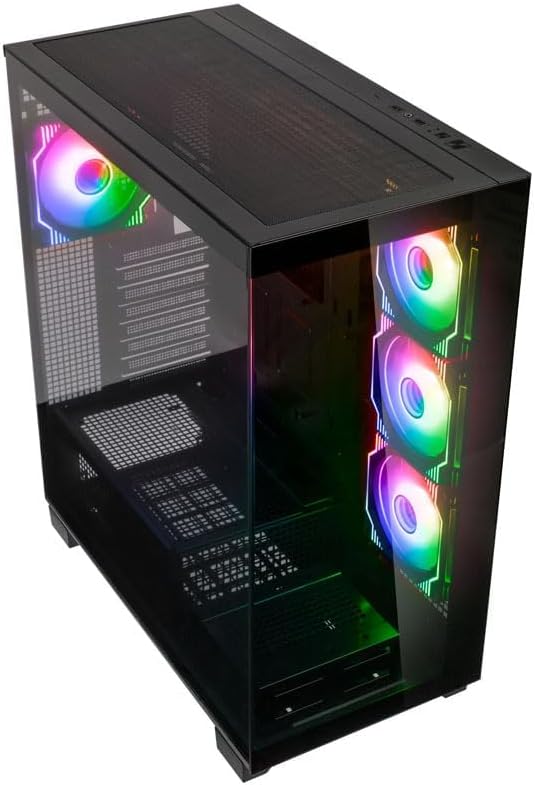
Immaġni: Angled top-front view of the Kolink Unity Arena PC case, highlighting the top ventilation and the illuminated RGB fans visible through the front glass panel.
2. Removing Panels
- Glass Side Panel: The borderless glass side panel is typically secured with thumbscrews at the rear. Unscrew these and carefully slide or lift the panel off. Place it on a soft, non-abrasive surface to prevent scratches.
- Solid Side Panel: The solid right-side panel (behind the motherboard tray) is also usually secured with thumbscrews. Remove these to access the cable management area.
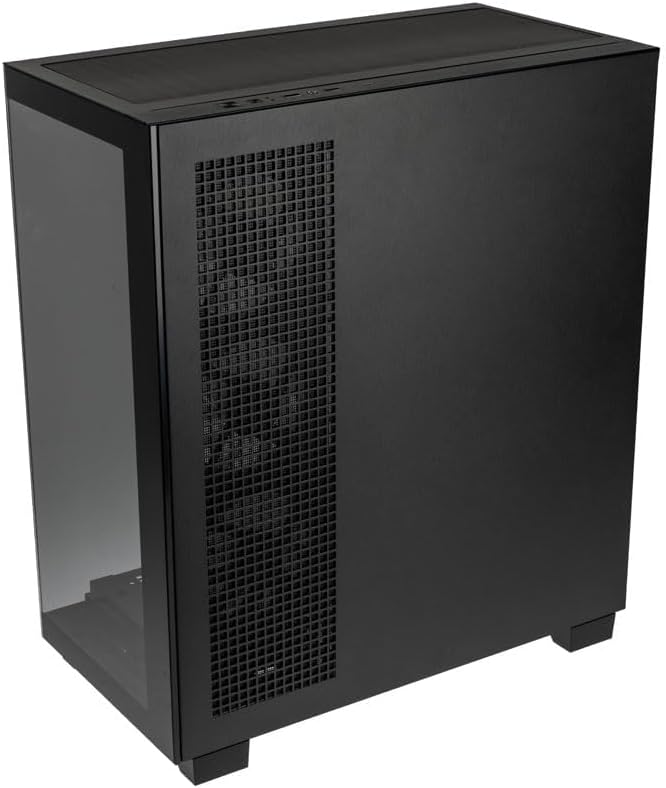
Immaġni: Wara-lemin view of the Kolink Unity Arena PC case, showing the solid right side panel and the rear exhaust fan area.
3. Installazzjoni tal-Motherboard
- Install the I/O shield (if not pre-attached to your motherboard).
- Align your E-ATX or smaller motherboard with the standoffs inside the case.
- Waħħal il-motherboard bil-viti xierqa mill-kit tal-aċċessorji.

Immaġni: Intern view of the Kolink Unity Arena PC case from the front, displaying the motherboard tray, the three front-mounted fans, and the PSU shroud at the bottom.
4. Installazzjoni tal-Karta tal-Grafika (GPU)
- Neħħi l-għata meħtieġa tas-slott tal-PCIe minn wara l-kaxxa.
- Daħħal il-karta grafika tiegħek fl-islott primarju tal-PCIe fuq il-motherboard.
- Waħħal il-GPU bil-viti. Il-kaxxa tappoġġja GPUs sa 420mm fit-tul.
5. Storage Device Installation (HDDs/SSDs)
Refer to the case's internal layout for specific drive bay locations and mounting mechanisms. Typically, 2.5" SSDs mount on the back of the motherboard tray, and 3.5" HDDs are installed in a drive cage near the PSU shroud.
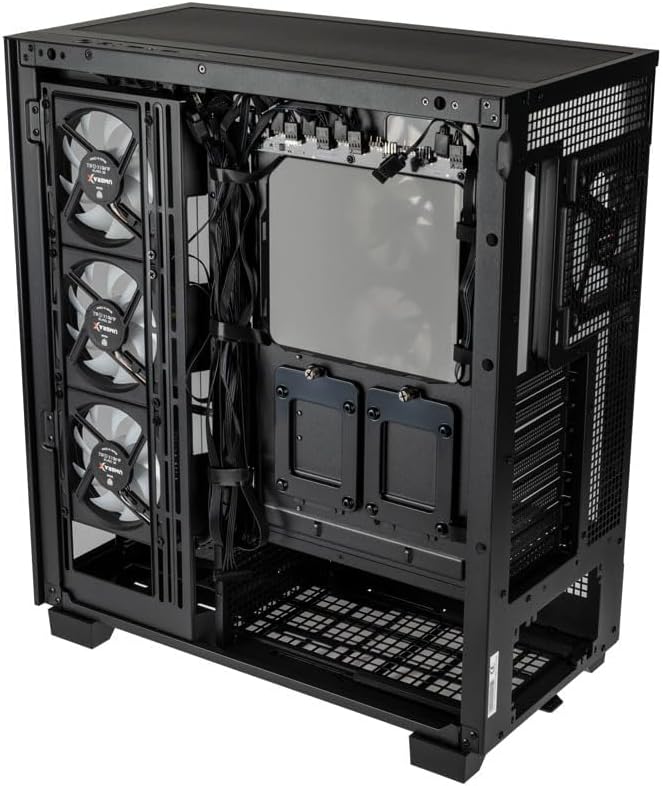
Immaġni: Intern ta' wara view of the Kolink Unity Arena PC case, focusing on the cable management area behind the motherboard tray and drive mounts.
6. Installazzjoni tal-Unità tal-Provvista tal-Enerġija (PSU)
- Mount your ATX power supply into the dedicated half PSU shroud at the bottom rear of the case.
- Secure it with screws from the rear of the case.
7. Installazzjoni tal-Fann u r-Radjatur
- The case comes with four pre-installed Kolink Umbra X ARGB/PWM fans.
- Additional fans or radiators can be installed at the top, front, or rear depending on your cooling needs. The case supports up to three radiators.

Immaġni: Close-up of the three pre-installed Kolink Umbra X fans mounted at the front of the Kolink Unity Arena PC case, highlighting their design.
8. Connecting Front I/O
Connect the front panel cables (USB, audio, power switch, reset switch, LED indicators) to the corresponding headers on your motherboard. Refer to your motherboard manual for exact header locations.

Immaġni: Close-up of the top I/O panel of the Kolink Unity Arena PC case, featuring USB ports, audio jacks, and power/reset buttons.
9. Ġestjoni tal-Kejbil
Uża l-qtugħ tar-rotta tal-kejbils u l-punti ta' rbit wara t-trej tal-motherboard biex torganizza l-kejbils. Dan itejjeb il-fluss tal-arja u l-estetika.
Istruzzjonijiet Operattivi
Tixgħel
Once all components are installed and connected, ensure the power supply switch is in the 'ON' position. Press the power button on the front I/O panel to start your system.
Kontroll tad-Dawl RGB
The pre-installed Kolink Umbra X fans feature ARGB lighting. The case includes a built-in controller with a SATA power input. Connect this controller to your power supply. If your motherboard does not support ARGB control, you can typically manage the lighting effects using the reset button on the front I/O panel, which often doubles as an RGB mode switch when connected to the case's controller.
Manutenzjoni
Manutenzjoni regolari tgħin biex tiżgura prestazzjoni ottimali u testendi l-ħajja tal-komponenti tal-PC tiegħek.
- Filtri tat-Trab: The Kolink Unity Arena case is equipped with dust filters. Periodically remove and clean these filters (e.g., top, front, bottom) to prevent dust buildup inside the case. Use compressed air or wash them gently with water and allow them to dry completely before reinstallation.
- Tindif ta 'ġewwa: With the system powered off and unplugged, carefully open the side panels and use compressed air to remove dust from internal components, especially heatsinks and fan blades.
- Tindif tal-Fann: Gently clean the blades of the pre-installed fans with a soft brush or compressed air to maintain efficient airflow.
Issolvi l-problemi
If you encounter issues during or after assembly, consider the following common troubleshooting steps:
- Is-Sistema Mhux Tixgħel:
- Kun żgur li l-kejbil tal-enerġija huwa konness sew kemm mal-PSU kif ukoll mas-sokit tal-ħajt.
- Iċċekkja li s-swiċċ tal-PSU jinsab fil-pożizzjoni 'ON'.
- Check all power connections to the motherboard (24-pin ATX, 8-pin CPU) and GPU.
- Ikkonferma li l-kejbil tas-swiċċ tal-enerġija tal-pannell ta' quddiem huwa konness sew mal-header tal-motherboard.
- Fans Not Spinning / RGB Not Working:
- Check fan power connections to the motherboard or fan controller.
- Ensure ARGB cables are properly connected to the motherboard's ARGB header or the case's integrated controller.
- If using the case's controller, verify it is receiving SATA power.
- L-ebda Output tal-Wiri:
- Ensure your monitor cable is connected to the graphics card, not the motherboard's integrated graphics port (unless you are using integrated graphics).
- Erġa' poġġi l-karta grafika fl-islott PCIe tagħha.
- Check GPU power connections.
Garanzija u Appoġġ
For warranty information, please refer to the documentation provided with your purchase or contact your retailer. Kolink's official website may also provide details regarding product support and warranty terms.
- Disponibbiltà ta' Spare Parts: Informazzjoni mhux disponibbli.
- Aġġornamenti tas-Softwer Garantiti Sa: Informazzjoni mhux disponibbli.
For technical assistance or further inquiries, please visit the official Kolink support websit jew ikkuntattja lid-dipartiment tas-servizz tal-konsumatur tagħhom.


