1. Introduzzjoni
The GTMEDIA 12-inch Triple Screen Extender is designed to enhance your productivity and visual experience by providing a multi-screen setup for your laptop. Featuring dual 11.6-inch IPS FHD displays with 1920x1080 resolution, fine image quality, realistic colors, and HDR technology, it offers detailed and layered visuals. This portable monitor is ideal for various applications including multi-person meetings, coding, stock analysis, travel work, academic research, and video editing.

Image: Close-up of the GTMEDIA 11.6-inch FHD 1080P IPS screen highlighting its display specifications.
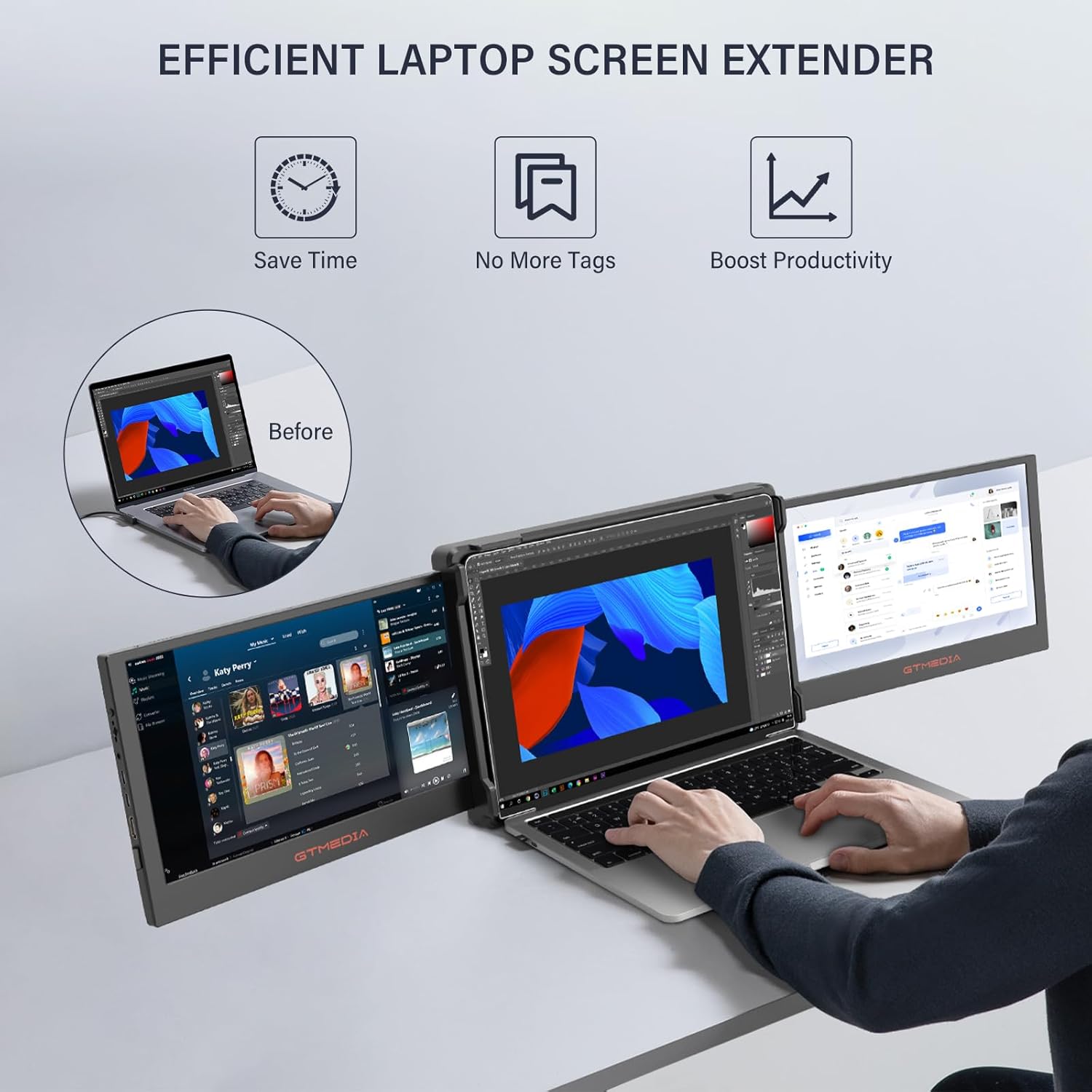
Image: An efficient laptop screen extender setup, demonstrating increased productivity.
2. X'hemm fil-Kaxxa
The package includes all necessary components to get your triple screen extender operational:
- 1 x GTMEDIA Triple Screen Extender Unit
- 2 x Type-C Cables
- 1 x USB-A għal USB-C Cable
- 1 x Cable HDMI
- 1 x Manwal għall-Utent
- 1 x Qoxra Smart
- 1 x Portable Monitor Stand

Immaġni: L-oġġetti kollha inklużi fl-imballaġġ tal-prodott.
3. Setup
The GTMEDIA Triple Screen Extender is designed for easy attachment and setup with laptops ranging from 13.0 to 17.3 inches. No additional accessories are required for mounting.
3.1 Attaching to Your Laptop
The extender features a retractable mounting bracket. Simply extend the bracket to fit the top edge of your laptop screen and secure it in place. The rubberized ends of the bracket ensure a secure fit without damaging your laptop.

Image: Retractable stand for 13" to 17.3" laptops, showing how it attaches and rotates.
3.2 Kejbils tal-Konnessjoni
Connect the extender to your laptop using the provided cables. Depending on your laptop's ports, you can use:
- Għażla 1: Two full-featured Type-C connections (for laptops with dual Type-C ports supporting video output and power delivery).
- Għażla 2: One full-featured Type-C connection and one HDMI + USB-A connection (for laptops with one Type-C and one HDMI/USB-A port).
- Għażla 3: Two HDMI + two USB-A connections (for laptops requiring separate HDMI for video and USB-A for power).

Image: Various connection methods for the triple screen extender.
3.3 Configuring Display Settings
Once connected, your operating system should detect the new displays. You may need to adjust display settings to extend or mirror your desktop across the three screens. Refer to your operating system's display settings for detailed configuration options.
Video: A short demonstration of the GTMEDIA 11.6-inch Portable Dual Monitor, showcasing its setup and functionality with a laptop.
4. Modi Operattivi
The GTMEDIA Triple Screen Extender supports multiple display modes to suit your workflow:
- Modalità Estiża: Expand your desktop across all three screens for maximum workspace.
- Modalità Duplikata: Mirror your main laptop screen onto the external displays, ideal for presentations.
- Modalità Vertikali: Rotate the external screens for a vertical orientation, beneficial for coding or document viewing.
- Single Two-Screen Modes: Use one external screen in conjunction with your laptop, or both external screens independently.
The monitors offer a 178° viewing angle, ensuring clear visuals from various perspectives. The screens also support 195-degree rotation, allowing you to adjust the angle as needed for different usage scenarios or sharing content with others.

Image: Visual representation of Extended, Duplicated, and Presentation display modes.

Image: Triple screen setup showing diverse content for enhanced multitasking.

Image: Triple screen setup optimized for gaming, showing immersive visuals.

Image: Triple screen setup for data analysis and creative tasks.
5. Karatteristiċi tal-Awdjo
The triple screen laptop monitor extender includes built-in dual speakers, providing clear and immersive sound. This enhances your audio experience whether you are watching videos, playing games, or participating in video conferences. The advanced IPS screen also features blue light protection, reducing eye strain during prolonged use.

Image: Built-in surround speakers for an enhanced audio experience.
6. Portabbiltà
Designed for convenience, the GTMEDIA portable monitor is foldable and easy to store and carry. Its compact design allows it to fit into most backpacks, making it suitable for professionals, students, and anyone needing an expanded workspace on the go.

Image: The GTMEDIA triple screen extender being easily carried in a bag.

Image: Portable design of the GTMEDIA monitor.
7. Speċifikazzjonijiet
| Karatteristika | Speċifikazzjoni |
|---|---|
| Dimensjonijiet tal-Prodott | 12.37 x 8.39 x 1.5 pulzieri |
| Piż tal-oġġett | 5 liri |
| Manifattur | GT MEDIA |
| ASIN | B0CPXK4S5W |
| Numru tal-mudell tal-oġġett | 116 |
| Batteriji | 1 Batteriji tal-Ion tal-litju meħtieġa. |
| Daqs tal-wiri tal-iskrin wieqaf | 11.6 Pulzier |
| Proporzjon ta' l-aspett | 16:9 |
| Voltage | 5 Volts |
| Riżoluzzjoni | 1920 x 1080 Pixel (FHD 1080p) |
| Luminożità tal-immaġni | 300 nits |
| Portijiet USB totali | 2 |
| Deskrizzjoni tal-wiċċ tal-iskrin | Tleqq |
8 Issolvi l-problemi
If you encounter any issues with your GTMEDIA Triple Screen Extender, please refer to the following common troubleshooting steps:
- Ebda Display: Ensure all cables are securely connected to both the extender and your laptop. Verify that your laptop's USB-C ports support video output (DisplayPort Alternate Mode) and power delivery. Check your laptop's display settings to ensure the external monitors are detected and configured for 'Extend' or 'Duplicate' mode.
- Skrin li jteptep: Try using different cables or connecting to different ports on your laptop. Ensure your laptop's graphics drivers are up to date. Reduce the display resolution if necessary.
- Ebda Ħsejjes: Check your laptop's audio output settings to ensure the GTMEDIA monitors are selected as the output device. Adjust the volume on both your laptop and the extender.
- Kwistjonijiet ta' Enerġija: Ensure sufficient power is supplied to the extender. If using USB-A for power, ensure your laptop's USB-A ports provide enough power, or use an external power adapter if available.
- Riżoluzzjoni Mhux Korretta: Adjust the display resolution in your laptop's display settings to the recommended 1920x1080 for optimal clarity.
For further assistance, please consult the manufacturer's support resources.
9. Manutenzjoni
To ensure the longevity and optimal performance of your GTMEDIA Triple Screen Extender, follow these maintenance guidelines:
- Tindif: Uża drapp artab u mingħajr suf biex timsaħ bil-mod l-iskrin u l-uċuħ ta' barra. Għal tbajja' persistenti, nixxef ftit.ampNaddaf id-drapp bl-ilma jew b'tindif li ma jagħmilx ħsara lill-iskrin. Evita kimiċi ħarxa jew materjali li joborxu.
- Ħażna: When not in use, fold the extender and place it in its smart cover or a protective case to prevent scratches and damage. Store in a cool, dry place away from direct sunlight and extreme temperatures.
- Immaniġġjar: Handle the extender with care. Avoid dropping it or applying excessive force to the screens or hinges. When connecting or disconnecting cables, grasp the plug, not the cable itself, to prevent damage.
- Ġestjoni tal-Kejbil: Keep cables organized and untangled to prevent wear and tear. Avoid bending cables sharply.
10. Garanzija u Appoġġ
For information regarding the product warranty, including coverage details and duration, please refer to the warranty card included in your product packaging or visit the official GTMEDIA website. For technical support, product registration, or service inquiries, please contact GTMEDIA customer service through the channels provided in your user manual or on the official websit.