Introduzzjoni
This manual provides comprehensive instructions for the installation, setup, and operation of your BrosTrend AX1800 M.2 WiFi 6 and Bluetooth 5.2 Combo Card. This internal computer networking card is designed to enhance your laptop's wireless capabilities, offering high-speed WiFi 6 connectivity and advanced Bluetooth 5.2 features.
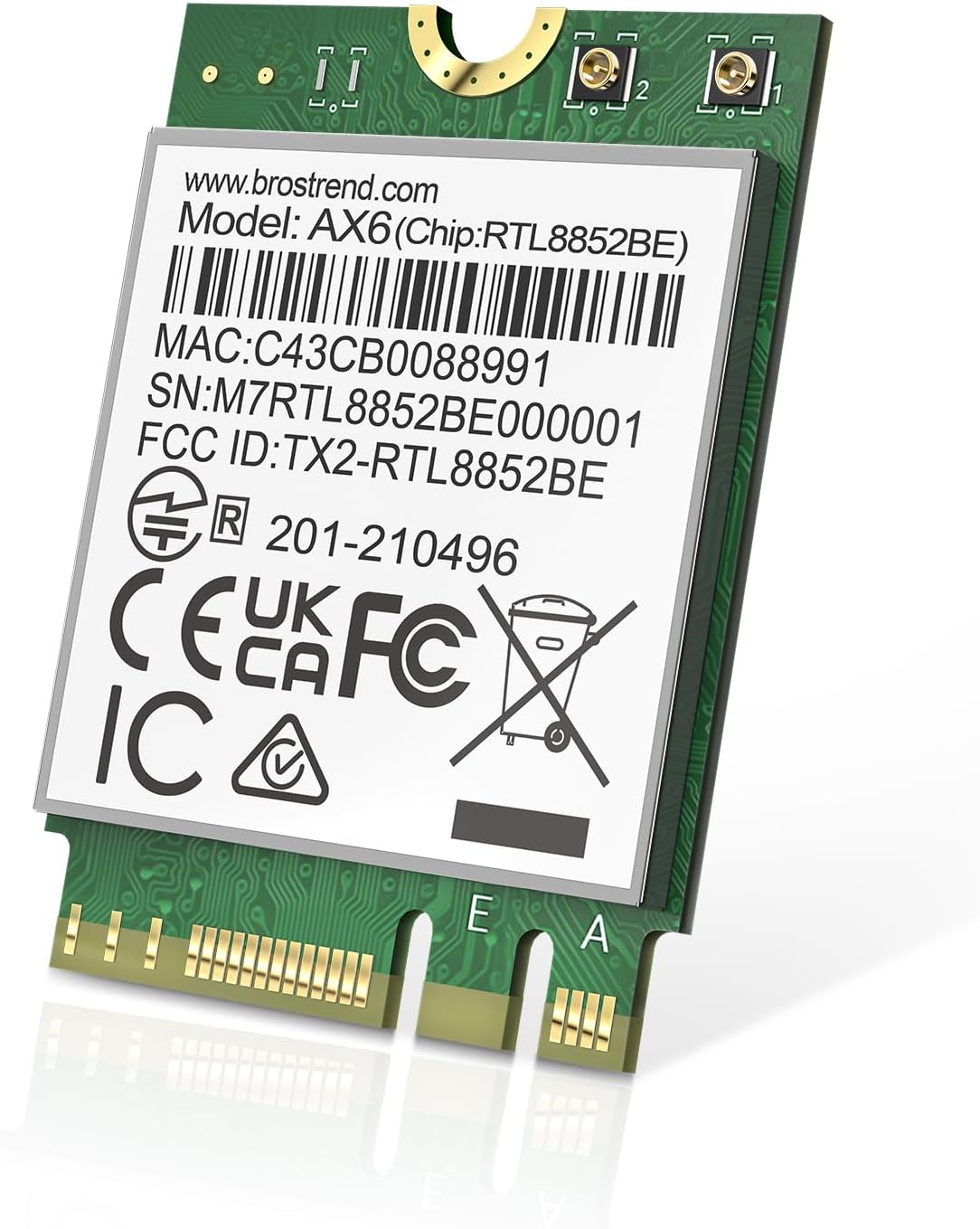
Image: The BrosTrend AX1800 M.2 WiFi 6 and Bluetooth 5.2 Combo Card, a compact internal network adapter.
Kontenut tal-Pakkett
Ivverifika li l-pakkett tiegħek fih l-oġġetti li ġejjin:
- 1 x M.2 WiFi 6 / Bluetooth Combo Card
- 1 x Gwida ta 'Installazzjoni Mgħaġġla
- 2 x Screws (one spare)
- 1 x tornavit

Image: A visual representation of the BrosTrend AX1800 M.2 WiFi 6 / Bluetooth Combo Card, quick installation guide, two screws, and a screwdriver included in the package.
Setup
1. Driver Installation (Pre-installation)
It is recommended to download and install the necessary drivers before physically installing the M.2 card. This ensures your system recognizes the new hardware immediately upon boot-up.
- Visit the official BrosTrend websit: www.brostrend.com.
- Navigate to the support or download section for the AX1800 M.2 WiFi 6 / Bluetooth Combo Card.
- Download the latest WiFi and Bluetooth drivers compatible with your operating system (Windows 10/11).
- Extract the downloaded .zip files and run the setup.exe for both WiFi and Bluetooth drivers.
- After successful driver installation, shut down your laptop completely before proceeding with physical installation.
Video: Instructions on how to download and install the WiFi driver for the M.2 WiFi Card from the BrosTrend websit.

Image: A laptop screen displaying the BrosTrend website, highlighting the section for downloading drivers for the M.2 WiFi 6 / Bluetooth Combo Card.
2. Installazzjoni Fiżika
Follow these steps to physically install the M.2 WiFi 6 and Bluetooth Combo Card into your laptop:
- Ipprepara l-Laptop Tiegħek: Ensure your laptop is completely powered off and disconnected from any power source. Remove the base cover of your laptop to access the internal components.
- Sib is-Slott tal-M.2: Identify the M.2 slot on your laptop's motherboard. If an existing M.2 network card is present, you will need to remove it.
- Remove Existing Card (if any):
- Carefully disconnect the antenna cables from the existing network card.
- Unscrew the retaining screw that secures the card to the motherboard.
- Gently slide and lift the existing network card out of the M.2 slot.
- Installa Karta Ġdida:
- Align the BrosTrend AX1800 M.2 WiFi 6 / Bluetooth Combo Card with the M.2 slot. The card is NGFF M.2 2230 form factor, compatible with Key A and Key E slots.
- Gently slide the new card into the slot until it is fully seated.
- Secure the card with the provided screw.
- Reconnect the antenna cables to the new network card. The MHF4 / IPEX4 connectors allow flexible connection to either antenna port.
- Erġa' arma l-Laptop: Carefully replace the base cover of your laptop and secure it with all screws.
- Qawwa Mixgħul: Connect your laptop to power and turn it on.
Video: A visual guide demonstrating the physical installation process of the M.2 AX1800 WiFi 6 and Bluetooth Combo Card into a laptop.

Image: The BrosTrend AX1800 M.2 WiFi 6 card shown installed within a laptop, illustrating its compact size and placement.

Image: A close-up of the BrosTrend M.2 WiFi 6 card, detailing its NGFF M.2 2230 form factor and compatibility with Key A and Key E slots.

Image: The MHF4 / IPEX4 antenna connectors on the BrosTrend WiFi card, designed for connecting existing laptop antennas.
Istruzzjonijiet Operattivi
1. Konnessjoni ma' Netwerk WiFi
After successful installation and driver setup, your laptop should detect available WiFi networks.
- Click the network icon on your taskbar (usually located in the bottom-right corner).
- Select the desired WiFi network from the list.
- Ikklikkja "Qabbad".
- Enter the WiFi password when prompted and click "Next".
- After a short while, the network status will change to "Connected".

Image: A person engaged in a video call on a laptop, demonstrating the smooth connectivity provided by the BrosTrend WiFi card.
2. Tqabbil tal-Bluetooth
The BrosTrend AX1800 card supports Bluetooth 5.2, offering faster speeds and broader range compared to older standards. To pair a Bluetooth device:
- Ensure Bluetooth is enabled on your laptop (check Windows Settings > Devices > Bluetooth & other devices).
- Poġġi l-apparat Bluetooth tiegħek fil-modalità ta 'tqabbil.
- On your laptop, click "Add Bluetooth or other device" and select "Bluetooth".
- Agħżel it-tagħmir tiegħek mil-lista u segwi kwalunkwe struzzjonijiet fuq l-iskrin biex tlesti t-tqabbil.

Image: An illustration showing a laptop wirelessly connected to multiple Bluetooth 5.2 devices such as a mouse, earphones, speaker, keyboard, smartphone, tablet, printer, and game controller.
Manutenzjoni
To ensure optimal performance and security, regularly check for and install the latest drivers for your BrosTrend AX1800 M.2 WiFi 6 and Bluetooth 5.2 Combo Card. Drivers can be found on the official BrosTrend websit.
Keep your laptop's internal components clean from dust to prevent overheating, which can affect network card performance.
Issolvi l-problemi
- No WiFi or Bluetooth after installation:
- Ensure drivers are correctly installed. Re-download and install if necessary.
- Verify the card is properly seated in the M.2 slot and the retaining screw is secure.
- Check that antenna cables are securely connected to the card.
- Confirm your laptop's BIOS/UEFI settings do not disable the M.2 slot or wireless functionality.
- Slow WiFi speeds:
- Ensure you are connected to a WiFi 6 compatible router.
- Check for interference from other devices or networks.
- Aġġorna l-firmware tar-router tiegħek.
- Verify that your laptop's power settings are not limiting wireless adapter performance.
- Apparat Bluetooth mhux qed jitqabbad:
- Kun żgur li l-apparat Bluetooth jinsab fil-modalità ta' tqabbil u fil-firxa tiegħu.
- Check if other Bluetooth devices are interfering.
- Restart both your laptop and the Bluetooth device.
Speċifikazzjonijiet
| Karatteristika | Dettall |
|---|---|
| Numru tal-Mudell | AX1800 M.2 WiFi 6 / Bluetooth Combo Card |
| WiFi Standard | WiFi 6 (IEEE 802.11ax) |
| Rata ta' Trasferiment tad-Data | Sa 1800 Mbps (1201 Mbps fuq 5GHz, 574 Mbps fuq 2.4GHz) |
| Verżjoni Bluetooth | Bluetooth 5.2 |
| Fattur tal-Formola | NGFF M.2 2230 (Key A and Key E slots) |
| Sistemi Operattivi Kompatibbli | Windows 10/11 (64-bit), Linux (kernel 6.5 or higher) |
| Dimensjonijiet | 1.18 x 0.87 x 0.08 pulzieri |
| Piż tal-oġġett | 0.882 uqija (25 Grammi) |
| Teknoloġiji Ewlenin | UL/DL MU-MIMO, OFDMA, 1024-QAM, WPA3, TWT |

Image: A person using a laptop, illustrating the benefits of WiFi 6 technologies like UL/DL MU-MIMO, OFDMA, and 1024-QAM for low-latency connections.

Image: A close-up of the Realtek chip, emphasizing its role in boosting WiFi and Bluetooth performance and ensuring universal compatibility.

Image: An illustration depicting WPA3, the latest security protocol, providing enhanced protection for personal data and public networks.

Image: A diagram illustrating how TWT (Target Wake Time) technology helps extend laptop battery life by optimizing data transmissions with the WiFi router.
Garanzija
The BrosTrend AX1800 M.2 WiFi 6 and Bluetooth 5.2 Combo Card comes with a Lifetime Protection. For detailed warranty terms and conditions, please refer to the official BrosTrend websit jew ikkuntattja l-appoġġ tal-klijent.
Appoġġ
For further assistance, technical support, or to download the latest drivers and firmware, please visit the official BrosTrend websit:
You can also find FAQs and additional resources on their support pages.


