1. Introduzzjoni
The Logitech Folio Touch is a versatile keyboard case designed for the iPad Air (4th and 5th generation), offering four distinct use modes: Type, Sketch, View, and Read. It integrates a high-precision trackpad and a laptop-like keyboard, enhancing productivity and control. This manual provides detailed instructions for setup, operation, maintenance, and troubleshooting to ensure optimal performance of your device.

Image 1.1: The Logitech Folio Touch Keyboard Case with an iPad Air in typing mode, showcasing its integrated keyboard and trackpad.
2. Kontenut tal-Pakkett
Ivverifika li l-oġġetti kollha huma preżenti fil-pakkett tiegħek:
- Logitech Folio Touch iPad Keyboard Case
- USB Cable (for potential accessory charging, though the case itself is powered by iPad Smart Connector)
3. Prodott Aktarview
The Folio Touch case is engineered for comprehensive functionality and protection. Key components include a full-size keyboard, a precision trackpad, and a durable case with an integrated kickstand.

Image 3.1: Labeled diagram illustrating key features of the Folio Touch, including the Apple Pencil (2nd Gen) storage, backlit keys with iPadOS shortcuts, high-precision trackpad, military-grade drop protection, Logitech Crayon storage, and secure magnetic latch.
4. Setup u Konnessjoni
The Logitech Folio Touch connects and powers instantly via the iPad's Smart Connector, eliminating the need for batteries or Bluetooth pairing.
- Waħħal l-iPad: Align your iPad Air (4th or 5th Gen) with the case and gently press it into place. Ensure the Smart Connector on the iPad aligns with the corresponding pins on the case.
- Konnessjoni Instantanja: The case will automatically power on and pair with your iPad via the Smart Connector. No manual pairing or charging is required for the keyboard.

Immaġni 4.1: Close-up view of the Smart Connector, demonstrating how the case powers and pairs with the iPad with a single click.
5. Modi u Karatteristiċi Operattivi
The Folio Touch offers four versatile modes to adapt to your tasks:
- Modalità tat-Tip: Position the iPad upright with the keyboard extended for comfortable typing. The adjustable kickstand provides 40 degrees of viewangoli.
- Modalità Skeċċ: Fold the keyboard back and adjust the kickstand to a low angle, ideal for drawing or writing with Apple Pencil or Logitech Crayon.
- View Modalità: Fold the keyboard back and use the kickstand to prop up the iPad for watching videos or presentations. The keyboard is completely out of the way.
- Modalità Aqra: Fold the keyboard completely behind the iPad, transforming the case into a comfortable reading device.

Image 5.1: Visual representation of the foldable keyboard, illustrating how it transitions between typing, viewing, and reading/sketching modes for ultimate versatility.

Immaġni 5.2: Eż.amples of the Folio Touch in various use cases: typing documents, sketching designs, viewing media, and reading comfortably.
5.1 Karatteristiċi tat-Tastiera
The keyboard features large, well-spaced keys with a scissor mechanism for a comfortable and accurate typing experience. It includes a full row of iPadOS shortcut keys for quick access to media controls, brightness levels, and more.
- Ċwievet retroilluminati: The keys are backlit and automatically adjust to your environment. Brightness levels can be manually adjusted for optimal visibility in low-light conditions.

Immaġni 5.3: Stampa minn fuq view of the keyboard and iPad, emphasizing the laptop-like feel, backlit keys, and dedicated iPadOS shortcuts.

Immaġni 5.4: Stampa dettaljata view of the backlit keys, demonstrating their illumination for typing in various lighting conditions.
5.2 Trackpad Functionality
The large, high-precision trackpad provides enhanced control and navigation within iPadOS applications like Notes, Pages, Numbers, and Keynote. It supports familiar multi-touch gestures such as swipe, tap, pinch, and scroll for seamless interaction.

Image 5.5: A hand interacting with the high-precision trackpad, illustrating its use for enhanced control and navigation.
6. Protection and Design
The Folio Touch case is built to protect your iPad Air. It meets military drop test standards (MIL STD 810G), safeguarding the front, back, and corners from bumps and scratches. The case also features a secure magnetic latch.
- Ħażna ta' Aċċessorji: A dedicated space is included for stowing your Logitech Crayon while on the go. The design also allows Apple Pencil to magnetically attach to the iPad without removing the case.
7. Kompatibilità
The Logitech Folio Touch iPad Keyboard Case is specifically designed for:
- iPad Air (4th Generation)
- iPad Air (5th Generation)
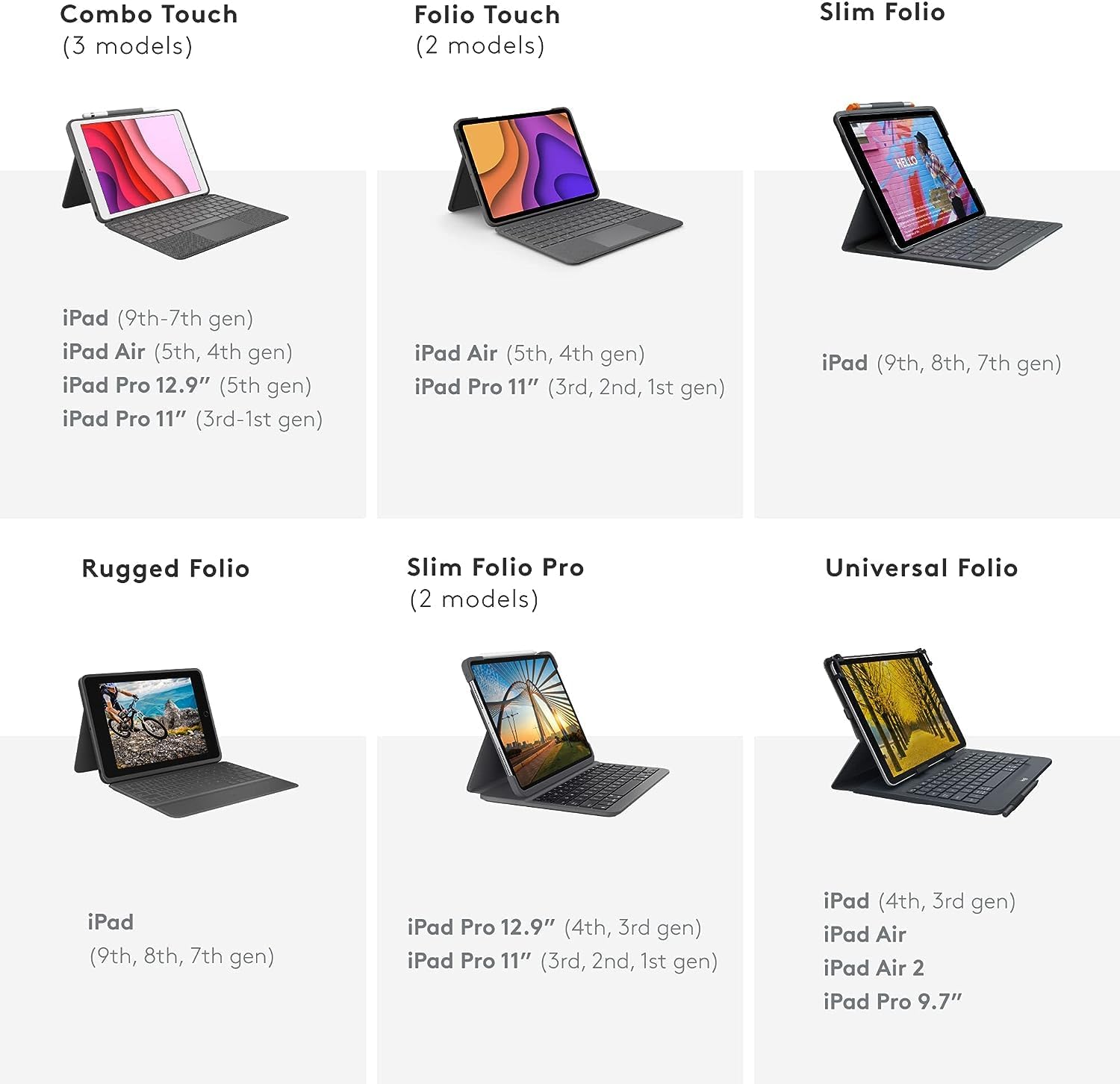
Image 7.1: A compatibility chart detailing various Logitech keyboard case models and the specific iPad generations they support, including the Folio Touch for iPad Air (4th and 5th Gen).
8. Kura u Manutenzjoni
To ensure the longevity and optimal performance of your Logitech Folio Touch keyboard case, follow these care guidelines:
- Tindif: Uża artab, damp cloth to wipe the exterior of the case. Avoid abrasive cleaners or solvents. For the keyboard, use a soft, dry brush or compressed air to remove dust and debris between keys.
- Ħażna: When not in use, store the case in a clean, dry environment away from extreme temperatures and direct sunlight.
- Immaniġġjar: Avoid excessive force when attaching or detaching your iPad. Do not bend the keyboard or apply undue pressure to the trackpad.
9 Issolvi l-problemi
If you encounter issues with your Logitech Folio Touch, refer to the following common solutions:
- It-Tastiera jew it-Trackpad Mhux Jirrispondu:
- Ensure your iPad is correctly seated and aligned with the Smart Connector pins on the case.
- Remove the iPad from the case and reattach it firmly to re-establish the connection.
- Erġa 'ibda l-iPad tiegħek.
- Id-Dawl ta' Wara Mhux Jaħdem jew Mhux Ċar:
- Check your iPad's display brightness settings, as the keyboard backlight often adjusts automatically.
- Use the dedicated backlight brightness keys on the keyboard to manually adjust the illumination.
- Iċ-Ċwievet Jibqgħu Mwaħħlin jew Mhux qed Jirreġistraw:
- Naddaf madwar u taħt iċ-ċwievet affettwati bl-użu ta' arja kkompressata biex tneħħi kwalunkwe debris.
If problems persist, contact Logitech customer support for further assistance.
10. Speċifikazzjonijiet Tekniċi
| Dimensjonijiet tal-Pakkett | 13.54 x 10.35 x 1.26 pulzieri |
| Piż tal-oġġett | 1.65 liri |
| Manifattur | Logitech |
| ASIN | B0CNY5GD8H |
| Apparati Kompatibbli | iPad Air (4th & 5th Gen) |
| Teknoloġija tal-Konnettività | Konnettur intelliġenti |
| Deskrizzjoni tat-Tastiera | Backlit |
| Stil | Moderna |
| Komponenti Inklużi | Cable USB |
| Sors tal-Enerġija | iPad Air (powered directly from iPad) |
| Tip ta' Swiċċ | Mess |
| Layout tat-Tastiera | QWERTY |
| Orjentazzjoni tal-Idejn | Ambidestru |
11. Garanzija u Appoġġ
For information regarding warranty coverage, product registration, or technical support, please visit the official Logitech support website or refer to the documentation included with your purchase. Keep your proof of purchase for warranty claims.
Appoġġ onlajn: www.logitech.com/support


