1. Introduzzjoni
This manual provides comprehensive instructions for the Hyperkin Pixel Art Bluetooth Controller, Tetris™ Edition (Model M01328-TETS). This limited-edition wireless controller is designed for use with various gaming platforms, offering a blend of retro aesthetics and modern functionality. Please read this manual thoroughly before use to ensure proper setup and operation.

Image 1.1: The Hyperkin Pixel Art Bluetooth Controller, Tetris™ Edition, showcasing its unique Tetris-themed design.
2. Kontenut tal-Pakkett
Ivverifika li l-oġġetti kollha huma preżenti fil-pakkett tiegħek:
- Hyperkin Pixel Art Bluetooth Controller (Tetris™ Edition)
- Cable tal-Iċċarġjar tal-USB-C
- Manwal għall-Utent (dan id-dokument)
3. It-Tqassim tal-Kontrollur
Familiarize yourself with the buttons and features of your controller:

Stampa 3.1: Quddiem view of the controller, displaying the D-pad, analog sticks, action buttons (A, B, X, Y), SELECT, START, and Tetris™ logo.
- D-Pad: Input direzzjonali.
- Sticks Analogiċi tax-Xellug/Lemin: Precise 360-degree movement.
- Buttuni ta' Azzjoni (A, B, X, Y): Buttuni ta' interazzjoni primarja.
- Buttuna Agħżel: Function varies by platform/game.
- Buttuna START: Function varies by platform/game.
- Buttuni tal-ispalla (L1, R1): Buttuni mmuntati fuq nett.
- Trigger Buttons (L2, R2): Triggers analogi mmuntati fil-qiegħ.
- Buttuna tad-dar: Returns to system menu (functionality varies by platform).
- Buttuna Turbo: Jattiva/jiddiżattiva l-funzjoni turbo għal buttuni magħżula.
- Port USB-C: Għall-iċċarġjar u l-konnessjoni bil-fili.

Immaġni 3.2: Wara view of the controller, showing the ergonomic grip and product label.
4. Setup
4.1. Iċċarġjar tal-Kontrollur
Before initial use, fully charge the controller. Connect the included USB-C charging cable to the controller's USB-C port and the other end to a USB power source (e.g., computer, USB wall adapter). The charging indicator light will show charging status and turn off when fully charged.
4.2. Tqabbil tal-Bluetooth
The controller supports wireless connection via Bluetooth up to 30 feet. Follow these general steps for pairing:
- Kun żgur li l-kontrollur ikun iċċarġjat.
- Turn on the controller (specific method may vary, typically holding the Home button).
- Activate pairing mode on the controller (refer to specific platform instructions below, usually a combination of buttons or a dedicated pairing button). The indicator lights will flash rapidly.
- On your device (Nintendo Switch, PC, Mac, Android, iOS), navigate to the Bluetooth settings.
- Fittex għal available devices and select "Hyperkin Pixel Art Controller" or similar.
- Once paired, the indicator lights on the controller will become solid.
4.2.1. Pairing with Nintendo Switch/OLED Model
- Mill-Menu HOME, agħżel "Kontrolluri" > "Ibdel il-Qabda/Ordni."
- While on this screen, press and hold the pairing button on the Hyperkin controller until the indicator lights flash.
- Once paired, the controller will appear on the screen, and the player indicator will light up.
4.2.2. Pairing with PC (Windows 10/11)
- Go to "Settings" > "Devices" > "Bluetooth & other devices."
- Turn on Bluetooth and click "Add Bluetooth or other device."
- Select "Bluetooth" and then choose "Hyperkin Pixel Art Controller" from the list.
4.2.3. Pairing with Mac
- Open "System Settings" (or "System Preferences") > "Bluetooth."
- Ensure Bluetooth is on. The controller should appear in the list of devices.
- Click "Connect" or "Pair" next to "Hyperkin Pixel Art Controller."
4.2.4. Pairing with Android/iOS Devices
- Go to your device's "Settings" > "Bluetooth."
- Turn on Bluetooth. The controller should appear in the list of available devices.
- Tap on "Hyperkin Pixel Art Controller" to pair.

Image 4.1: The controller demonstrating wireless connectivity with a Nintendo Switch console, highlighting its Bluetooth capability.
5. Istruzzjonijiet Operattivi
5.1. Kontrolli Bażiċi
The controller functions as a standard gamepad. Button mapping may vary depending on the game and platform. Refer to your game's instructions for specific control schemes.
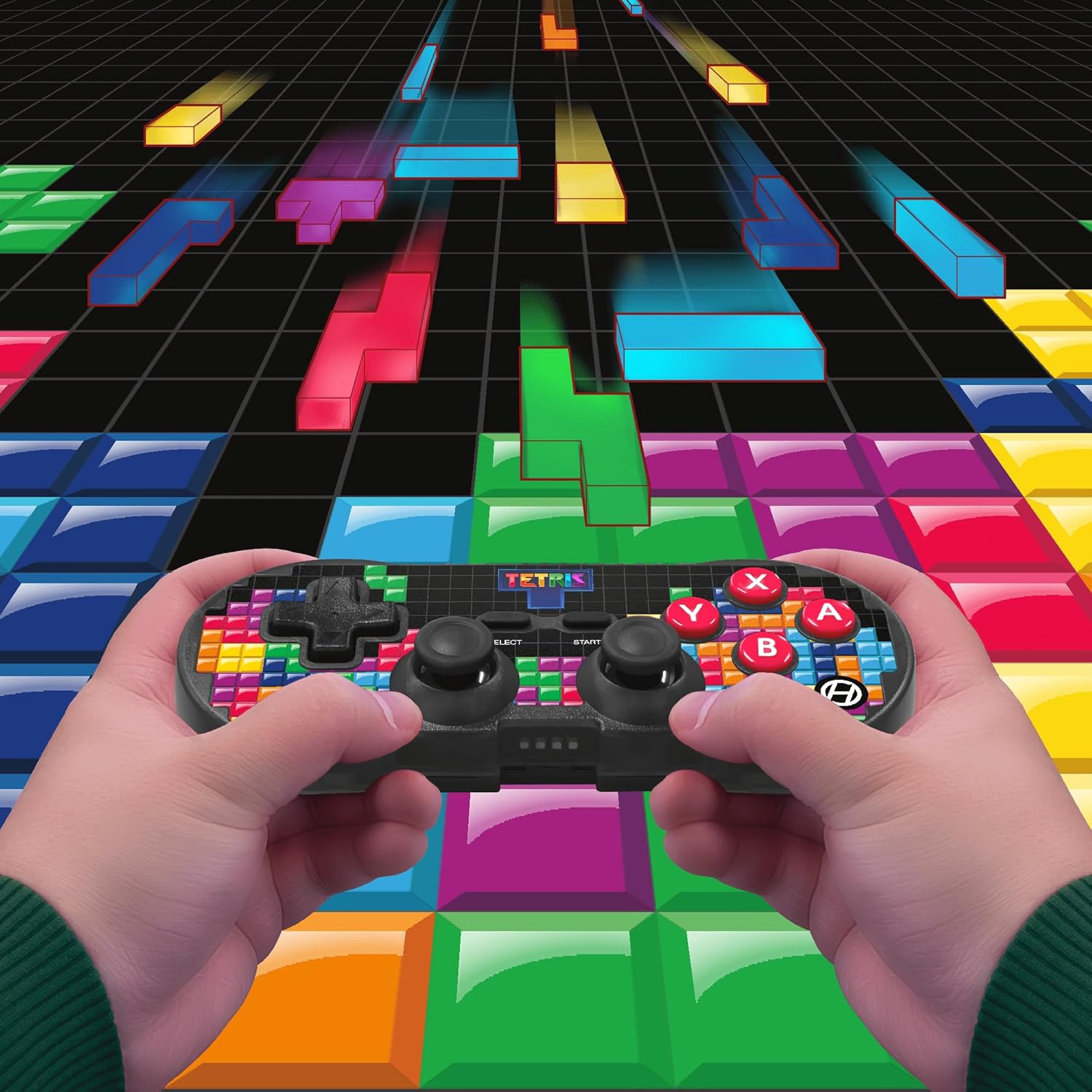
Image 5.1: A user holding the controller, illustrating its use during gameplay.
5.2. Funzjoni Turbo
The controller features a turbo function for rapid button presses. To activate or deactivate turbo for a specific button:
- Agħfas u żomm il- Buttuna Turbo.
- While holding the Turbo button, press the desired buttuna ta' azzjoni (A, B, X, Y, L1, R1, L2, R2) you wish to apply turbo to.
- Release both buttons. The selected action button will now have turbo enabled.
- To disable turbo for that button, repeat the process.
6. Kompatibilità
The Hyperkin Pixel Art Bluetooth Controller is compatible with a wide range of platforms:
- Nintendo Switch
- Nintendo Switch OLED Model
- Windows 10/11 PC
- Mac
- Apparat Android
- Apparat iOS
- Fwar
- Lampun Pi
- Amazon Games
- Luna tal-Amażonja
- Tesla

Image 6.1: Visual representation of the controller's broad compatibility across multiple gaming and computing platforms.
7. Manutenzjoni
To ensure the longevity and optimal performance of your controller:
- Tindif: Uża drapp artab u niexef biex tnaddaf il-kontrollur. Evita prodotti tat-tindif jew solventi li joborxu.
- Ħażna: Aħżen il-kontrollur f'post frisk u niexef 'il bogħod mix-xemx diretta u minn temperaturi estremi.
- Kura tal-batterija: Do not attempt to replace the internal Lithium Polymer battery. Avoid fully discharging the battery for extended periods.
- Evita Qtar: Ipproteġi l-kontrollur minn waqgħat u impatti, li jistgħu jagħmlu ħsara lill-komponenti interni.
8 Issolvi l-problemi
If you encounter issues with your Hyperkin Pixel Art Bluetooth Controller, refer to the following common problems and solutions:
| Problema | Soluzzjoni Possibbli |
|---|---|
| Il-kontrollur ma jixgħelx. | Kun żgur li l-kontrollur huwa ċċarġjat kompletament. Qabbad ma' sors ta' enerġija billi tuża l-kejbil USB-C. |
| Controller does not pair via Bluetooth. |
|
| Dewmien fl-input jew konnessjoni mitlufa. |
|
| Il-buttuni ma jirrispondux jew huma mwaħħlin. | Clean around the buttons with a soft, dry cloth. Avoid liquid cleaners. If the issue persists, contact support. |
9. Speċifikazzjonijiet
| Karatteristika | Dettall |
|---|---|
| Numru tal-Mudell | M01328-TETS |
| Konnettività | Bluetooth (Wireless up to 30 ft.), USB-C (Wired) |
| Kompatibilità | Nintendo Switch/OLED, Windows 10/11 PC, Mac, Android, iOS, Steam, Raspberry Pi, Amazon Games, Amazon Luna, Tesla |
| Karatteristiċi Speċjali | Turbo function, Retro design with modern ergonomics, High-quality symmetrical sticks, Responsive action buttons, Reliable triggers |
| Tip ta 'batterija | 1 Lithium Polymer battery (internal) |
| Dimensjonijiet tal-Pakkett | 7.24 x 5 x 2.48 pulzieri |
| Piż tal-oġġett | 9.9 uqija |
| Manifattur | Hyperkin |
10. Garanzija u Appoġġ
For warranty information and technical support, please visit the official Hyperkin webis-sit jew ikkuntattja lid-dipartiment tas-servizz tal-konsumatur tagħhom. Żomm il-prova tax-xiri tiegħek għal talbiet ta’ garanzija.
Hyperkin Official Websit: www.hyperkin.com


