1. Introduzzjoni
This manual provides comprehensive instructions for the setup, operation, and maintenance of your Macally BTBLERGO2A Backlit Bluetooth Ergonomic Keyboard. Designed for Mac and iOS users, this keyboard combines ergonomic comfort with versatile connectivity and practical features.
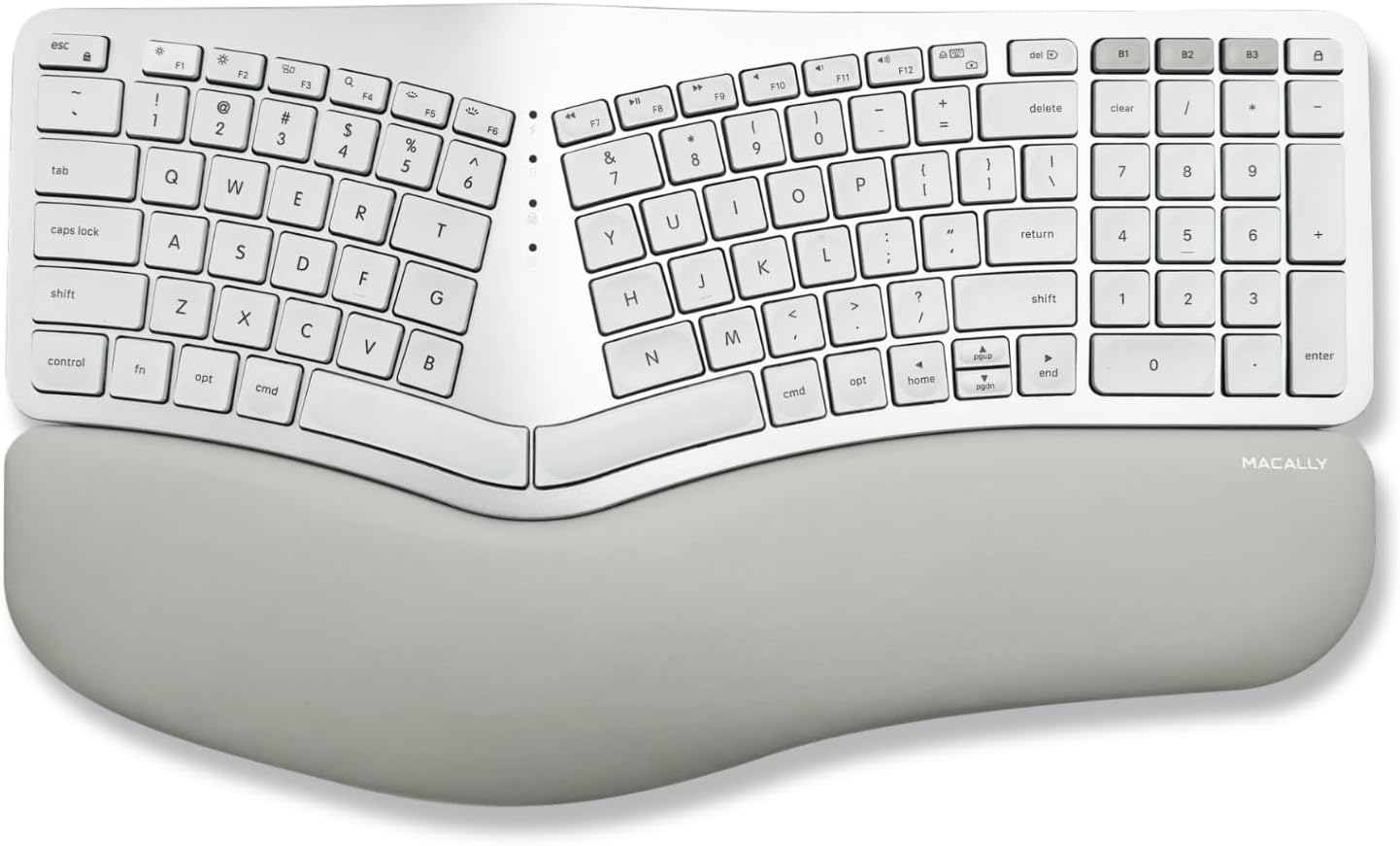
Image: The Macally BTBLERGO2A Backlit Bluetooth Ergonomic Keyboard, featuring a split design and integrated wrist rest.
2. Karatteristiċi ewlenin
- Disinn Ergonomiku Maqsum: Features a posture-friendly shape, split key layout, and padded wrist support to promote natural typing posture and reduce strain.
- Kickstands Aġġustabbli: Equipped with 4 adjustable kickstands to customize the keyboard angle for optimal comfort.
- Clear Backlit Keys: White LED backlighting with 3 brightness settings (Off, Low, Mid, High) for visibility in various lighting conditions.
- Multi-Sync Bluetooth Connectivity: Seamlessly pair and switch between up to 3 Apple Bluetooth devices, including MacBook, iPad, iMac, and iPhone.
- Mac-Specific Layout: 100-key MacOS layout with 13 dedicated shortcuts for enhanced productivity.
- Batterija rikarikabbli: Built-in 2000 mAh rechargeable battery for extended use, with a USB-C charging cable included.
- Ċwievet tas-Swiċċ tal-Imqass: Provides a tactile and responsive typing experience similar to a MacBook.
Vidjo: Overview of the Macally BTBLERGO2A keyboard, highlighting its ergonomic design, multi-device connectivity, and backlit keys. This video demonstrates the keyboard's features and how it integrates into a Mac ecosystem.

Image: The keyboard's design is centered around user comfort, promoting proper typing posture.

Image: Illustration of the sloped 2-zone configuration, designed to allow arms to type in a more natural position.

Image: Close-up of the integrated padded wrist cushion, designed to help alleviate wrist strain and pressure during typing.
3. Gwida ta' Setup
3.1 Iċċarġjar tat-Tastiera
Before initial use, fully charge your keyboard. Connect the included USB-C charging cable to the keyboard's charging port and to a USB power source (e.g., computer USB port, USB wall adapter). The charging indicator light will show charging status.

Image: The USB-C charging port located on the side of the keyboard, with a charging cable connected.

Image: Illustration indicating the keyboard's rechargeable battery and USB-C charging capability.
3.2 Tqabbil tal-Bluetooth
- Kun żgur li t-tastiera hija ċċarġjata u mixgħula. Is-swiċċ tal-enerġija tipikament ikun jinsab fuq il-ġenb jew wara tat-tastiera.
- On your Mac or iOS device, go to Issettjar tas-Sistema (jew Preferenzi tas-Sistema) > Bluetooth u kun żgur li l-Bluetooth huwa attivat.
- Press and hold one of the Bluetooth channel keys (B1, B2, or B3) on the keyboard for 3-5 seconds until its indicator light starts blinking rapidly. This indicates pairing mode.
- On your device, select "Macally BTBLERGO2A" from the list of available Bluetooth devices.
- Segwi kwalunkwe struzzjonijiet fuq l-iskrin biex tlesti l-proċess ta' tqabbil. Id-dawl indikatur fuq it-tastiera se jixgħel b'mod solidu meta jkun imqabbad b'suċċess.
- Repeat for up to two additional devices using the other Bluetooth channel keys (B2, B3).

Image: Visual representation of the keyboard connecting via Bluetooth to a MacBook, iPad, and iPhone, demonstrating its multi-device capability.
3.3 Aġġustament tal-Angolu tat-Tastiera
The keyboard features 4 adjustable kickstands on its underside. Gently pull out the desired kickstands to raise the keyboard to your preferred typing angle. Ensure all four kickstands are extended for stability if you choose to use them.

Image: The underside of the keyboard showing the four adjustable kickstands that allow users to customize the typing angle.
4. Istruzzjonijiet Operattivi
4.1 Tibdil bejn Apparati
To switch between paired Bluetooth devices, simply press the corresponding Bluetooth channel key (B1, B2, or B3). The keyboard will automatically connect to the selected device within a few seconds.
4.2 Adjusting Backlight Brightness
The keyboard features adjustable backlighting. Use the dedicated backlight control keys (usually F5 and F6 or similar icons) to cycle through the brightness levels: Off, Low, Mid, and High. Refer to the keyboard's function row for specific key assignments.

Image: The keyboard with its clear white backlighting illuminated in a dark environment, showcasinviżibilità g.

Image: Close-up of the clear white backlit keys, illustrating the three brightness settings for various lighting conditions.
4.3 MacOS Shortcut Keys
The keyboard includes 13 dedicated MacOS shortcut keys for quick access to common functions such as brightness control, volume control, media playback, and Mission Control. These keys are designed to integrate seamlessly with your Apple ecosystem.

Image: The keyboard layout highlighting its Mac-specific keys and 13 Apple shortcuts for improved workflow.
5. Manutenzjoni
- Tindif: Use a soft, lint-free cloth to wipe the keyboard surface. For stubborn dirt, slightly dampLaħlaħ id-drapp bl-ilma jew b'tindif ħafif u mhux abrażiv. Evita umdità eċċessiva.
- Ħażna: Aħżen it-tastiera f'post frisk u niexef 'il bogħod mix-xemx diretta u minn temperaturi estremi.
- Kura tal-batterija: To prolong battery life, avoid fully discharging the keyboard frequently. Charge it regularly, especially if not used for extended periods.
- Evita t-tixrid: Żomm il-likwidi 'l bogħod mit-tastiera biex tevita ħsara lill-komponenti interni.
6 Issolvi l-problemi
| Problema | Kawża Possibbli | Soluzzjoni |
|---|---|---|
| It-tastiera mhux qed tikkonnettja/tqabbad. | Bluetooth is off on device; keyboard battery low; keyboard not in pairing mode; interference. | Ensure Bluetooth is on. Charge keyboard. Put keyboard into pairing mode (hold B1/B2/B3). Move closer to device. Turn off other Bluetooth devices. |
| Keys not responding or delayed input. | Low battery; out of range; software issue; physical obstruction. | Charge keyboard. Move closer to device. Restart device and keyboard. Check for debris under keys. |
| Id-dawl ta' wara mhux qed jaħdem. | Backlight turned off; low battery. | Press backlight control keys (F5/F6) to increase brightness. Charge keyboard. |
| Ma nistax naqleb bejn apparati. | L-apparati mhux imqabbda sew mal-kanali rispettivi. | Re-pair devices to the correct B1, B2, B3 channels. Ensure devices' Bluetooth is active. |
7. Speċifikazzjonijiet
- Mudell: BTBLERGO2A
- Konnettività: Bluetooth
- Apparati Kompatibbli: 3 Mac and iOS/iPadOS devices
- Disinn ewlieni: 100-key MacOS Layout with 13 shortcuts
- Tip ta 'ċavetta: Swiċċ imqass
- Dawl ta' wara: White LED, 3 brightness levels
- Batterija: 2000 mAh Lithium-ion rikarikabbli
- Port tal-Iċċarġjar: USB-C
- Dimensjonijiet: 17.95 x 12.17 x 1.97 pulzieri (Pakkett)
- Piż: 3.14 liri (Oġġett)
- Manifattur: Mace Group Inc / Macally Peripherals
8. Garanzija u Appoġġ
Macally products are designed for reliability and performance. For warranty information and technical support, please refer to the official Macally webis-sit jew ikkuntattja lis-servizz tal-konsumatur tagħhom direttament. Żomm l-irċevuta tax-xiri tiegħek għal talbiet ta' garanzija.
Appoġġ onlajn: www.macally.com/support


