1. Introduzzjoni
This manual provides instructions for the installation, configuration, and operation of your TP-Link EC220-G5 AC1200 Wireless Dual Band Gigabit Router. Please read this manual carefully before using the device to ensure proper functionality and safety.
The EC220-G5 is designed to provide high-speed dual-band Wi-Fi connectivity, supporting both 2.4 GHz and 5 GHz frequencies for optimal performance across various devices.
2. Kontenut tal-Pakkett
Ivverifika li l-pakkett tiegħek fih l-oġġetti li ġejjin:
- TP-Link EC220-G5 AC1200 Wireless Dual Band Gigabit Router
- Adapter tal-Enerġija
- Cable Ethernet
- Gwida ta 'Installazzjoni Mgħaġġla
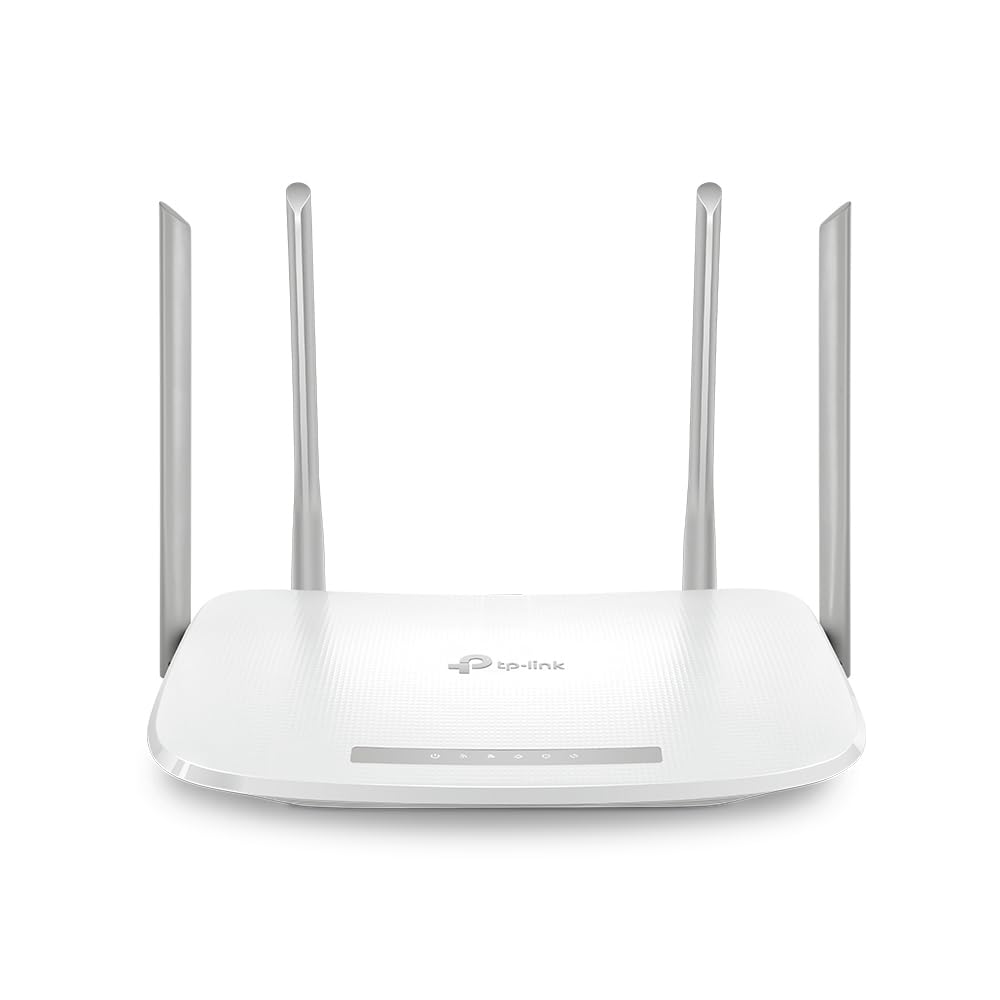
Figura 1: Quddiem view of the TP-Link EC220-G5 router, showing its four external antennas and LED indicators.
3. Hardware Matulview
3.1 Panel ta 'Quddiem
The front panel features LED indicators for power, internet status, Wi-Fi activity, and LAN port status.
3.2 Panel ta 'wara
The rear panel includes various ports and buttons for connectivity and control.
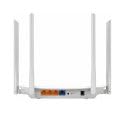
Figura 2: Wara view of the TP-Link EC220-G5 router, displaying the WAN port, LAN ports, power input, and reset button.
- Port WAN: Jikkonnettja mal-modem jew man-netwerk tal-fornitur tas-servizz tal-internet (ISP) tiegħek.
- Portijiet LAN (1-4): Connect to wired devices such as computers, gaming consoles, or smart TVs.
- Port tal-Enerġija: Jikkonnettja mal-adapter tal-enerġija pprovdut.
- Buttuna Irrisettja: Użat biex jirrestawra r-router għas-settings default tal-fabbrika.
- Buttuna WPS/Wi-Fi: Press to enable/disable Wi-Fi or initiate WPS (Wi-Fi Protected Setup).
4. Setup
4.1 Konnessjoni tal-Ħardwer
- Itfi: Skonnettja l-provvista tal-enerġija mill-modem u r-router tiegħek (jekk applikabbli).
- Qabbad il-Modem: Connect your modem to the router's WAN port using an Ethernet cable.
- Qabbad l-Enerġija: Qabbad l-adapter tal-enerġija mal-port tal-enerġija tar-router u daħħalha f'sokit elettriku.
- Qawwa Mixgħul: Power on your modem first, then power on the router. Wait for the LED indicators to stabilize.
- Qabbad Apparat: Connect your computer or other devices to the router via an Ethernet cable to a LAN port, or wirelessly using the default Wi-Fi network name (SSID) and password found on the router's label.
4.2 Konfigurazzjoni Inizjali
- Router tal-Aċċess: Iftaħ a web browser on a connected device and enter the default access address (e.g.,
http://tplinkwifi.netor192.168.0.1). - Idħol: Daħħal l-isem tal-utent u l-password awtomatiċi (ġeneralment
adminfor both, or as specified on the router's label). - Mexxi s-Setup Mgħaġġel: Follow the on-screen instructions of the Quick Setup wizard to configure your internet connection and wireless settings.
- Ibdel il-Kredenzjali Predefiniti: For security, change the default login password for the router's management interface.
5. Tħaddim tar-Router
5.1 Settings bla fili
To modify your Wi-Fi network name (SSID) or password:
- Idħol fir-router web interface ta 'ġestjoni.
- Innaviga lejn Wireless > Settings bla fili.
- Change the SSID and password for both 2.4 GHz and 5 GHz bands.
- Issejvja l-bidliet tiegħek.
5.2 Netwerk Mistieden
The router supports a guest network feature, allowing visitors to access the internet without sharing your main network resources. This enhances security.
- Idħol fir-router web interface ta 'ġestjoni.
- Mur fuq Netwerk tal-Mistieden.
- Enable the guest network and configure its settings (e.g., password, access duration).
5.3 Kontrolli tal-Ġenituri
Manage internet access for specific devices or users on your network.
- Aċċess Kontrolli tal-Ġenituri fil- web interface.
- Configure time limits or website restrictions for designated devices.
5.4 Kwalità tas-Servizz (QoS)
Prioritize network traffic for specific applications or devices to ensure smooth performance for critical tasks like gaming or video streaming.
- Innaviga lejn QoS settings fil- web interface.
- Enable QoS and configure bandwidth priorities as needed.
6. Manutenzjoni
6.1 Aġġornament tal-Firmware
Regularly update your router's firmware to ensure optimal performance, security, and access to new features.
- Żur l-appoġġ uffiċjali ta' TP-Link website for the EC220-G5 model.
- Niżżel l-aħħar firmware file.
- Idħol fir-router web interface ta 'ġestjoni.
- Mur fuq Għodod tas-Sistema > Firmware Upgrade.
- Tella l-firmware mniżżel file u segwi l-istruzzjonijiet. Do not power off the router during the upgrade process.
6.2 Konfigurazzjoni tal-Backup u r-Restawr
It is recommended to back up your router's configuration settings before performing major changes or firmware updates.
- Fil- web interface, innaviga lejn Għodod tas-Sistema > Backup u Restore.
- Ikklikkja Backup to save your current configuration.
- To restore, upload a previously saved configuration file.
6.3 Irrisettja l-Fabbrika
If the router is not functioning correctly or you forget the login password, you can perform a factory reset.
- Method 1 (Software): Idħol fil- web interface, mur Għodod tas-Sistema > Defaults tal-Fabbrika, u kklikkja Irrestawra.
- Method 2 (Hardware): With the router powered on, press and hold the Reset button on the rear panel for approximately 5-10 seconds until the system LED blinks rapidly. Release the button and wait for the router to restart.
7 Issolvi l-problemi
7.1 Ebda Aċċess għall-Internet
- Iċċekkja l-konnessjonijiet kollha tal-kejbil bejn il-modem, ir-router, u l-apparati tiegħek.
- Verify that the WAN LED on the router is lit. If not, check the connection to your modem.
- Ibda mill-ġdid il-modem u r-router tiegħek.
- Ikkuntattja lill-Fornitur tas-Servizz tal-Internet (ISP) tiegħek biex tikkonferma l-istatus tas-servizz.
7.2 Unable to Access Router's Web Paġna ta 'Ġestjoni
- Kun żgur li l-apparat tiegħek huwa konness sew mar-router (bil-fili jew mingħajr fili).
- Verify the router's IP address (default is usually
192.168.0.1or192.168.1.1) and ensure your device is on the same subnet. - Neħħi l-cache tal-brawżer tiegħek jew ipprova brawżer ieħor.
- If you forgot the login password, perform a factory reset (refer to Section 6.3).
7.3 Slow Wireless Speed
- Ensure your devices are connected to the 5 GHz band if supported, as it offers higher speeds and less interference.
- Reduce the distance between your devices and the router.
- Minimize obstacles (walls, large metal objects) between the router and devices.
- Check for interference from other wireless devices (cordless phones, microwaves).
- Update your router's firmware and your device's wireless adapter drivers.
8. Speċifikazzjonijiet
| Karatteristika | Dettall |
|---|---|
| Mudell | EC220-G5 |
| Standard Wireless | IEEE 802.11ac/n/a 5 GHz, IEEE 802.11n/b/g 2.4 GHz |
| Veloċità Wi-Fi | AC1200 (300 Mbps fuq 2.4 GHz, 867 Mbps fuq 5 GHz) |
| Antenni | 4 Antenni Esterni |
| Portijiet Ethernet | 1x Port tal-WAN Gigabit, 4x Portijiet tal-LAN Gigabit |
| Dimensjonijiet (L x W x H) | 28.8 x 6 x 31 ċm |
| Sistema Operattiva | RouterOS (TP-Link Custom) |
| Input tal-Enerġija | 12V |
| Karatteristiċi Speċjali | QoS, Parental Controls, Guest Network |
9. Garanzija u Appoġġ
9.1 Informazzjoni dwar Garanzija
TP-Link provides a limited warranty for this product. Please refer to the warranty card included in your package or visit the official TP-Link websit għal termini u kundizzjonijiet dettaljati tal-garanzija speċifiċi għar-reġjun tiegħek.
9.2 Appoġġ Tekniku
For technical assistance, firmware updates, or additional product information, please visit the TP-Link support webis-sit jew ikkuntattja lis-servizz tal-klijenti tagħhom:
- Websit: www.tp-link.com/in/support/
- Kuntatt: Refer to the contact information available on the official support page for your region.


