1. Introduzzjoni
The BrosTrend AX3000 WiFi 6 Range Extender is designed to expand your existing wireless network coverage, eliminate Wi-Fi dead zones, and provide high-speed internet access throughout your home or office. This dual-band extender supports the latest Wi-Fi 6 (802.11ax) standard, offering speeds up to 3000Mbps (2402Mbps on 5GHz and 574Mbps on 2.4GHz). It also features a Gigabit Ethernet port, allowing you to connect wired devices or convert a wired connection into a Wi-Fi 6 access point.

Immaġni: Quddiem view of the BrosTrend AX3000 WiFi 6 Range Extender.
2. X'hemm fil-Kaxxa
Ivverifika li l-oġġetti kollha huma preżenti fil-pakkett tiegħek:
- 1 x BrosTrend 3000Mbps WiFi 6 Extender
- 1 x Gwida ta 'Installazzjoni Mgħaġġla
- 1 x Ethernet Cable (5 Feet)
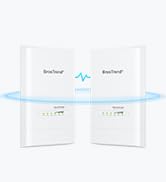
Image: The BrosTrend AX3000 WiFi 6 Extender and its included accessories.
3. Istruzzjonijiet ta' Setup
The BrosTrend AX3000 WiFi 6 Extender offers two primary setup methods: Web UI and WPS. Choose the method that best suits your needs.
3.1. Web Metodu UI
This method involves connecting to the extender's Wi-Fi network and configuring it through a web browser.
- Qawwa Mixgħul: Plug the WiFi extender into a power outlet in the same room as your existing WiFi router. Wait until the LED indicator blinks red slowly.
- Qabbad mal-Wi-Fi tal-Extender: On your wireless device (phone, tablet, or computer), connect to the Wi-Fi network named "BrosTrend_EXT".
- Paġna tas-Setup tal-Aċċess: Once connected, your device should automatically direct you to the quick setup page. If not, open a web browser u daħħal http://brostrendwifi.com fil-bar tal-indirizz.
- Oħloq Password tal-Login: Create a login password for future access to the extender's settings.
- Choose Working Mode: Select "Extender Mode / WiFi to Ethernet Adapter Mode".
- Select Networks: Select your existing 2.4GHz and 5GHz networks that you want to extend and enter their correct passwords.
- Customize Extended Network: Customize the extended Wi-Fi network name and password. Click "Extend".
- Relocate and Verify: Once the extension is complete, relocate the extender to a suitable location within the WiFi range of your router. Wait until the LED indicator turns solid blue or yellow, which indicates a successful connection.
Video: Step-by-step guide on setting up the BrosTrend AX3000 WiFi 6 Extender using the Web UI method.
3.2. WPS Method
This method is a quick and easy way to connect your extender if your router supports WPS (Wi-Fi Protected Setup).
- Qawwa Mixgħul: Plug the WiFi extender into a power outlet in the same room as your existing WiFi router. Wait until the LED indicator blinks red slowly.
- Attiva l-WPS fuq ir-Router: Press the WPS button on your WiFi router. The WPS LED status on your router should change.
- Attiva l-WPS fuq l-Estensur: Within 2 minutes, press the WPS button on the BrosTrend extender (located on the side, near the Ethernet port).
- Ivverifika l-Konnessjoni: Wait until the LED indicator on the extender turns solid blue or yellow, which indicates a successful connection with your existing WiFi router.
- Relocate and Connect Devices: Once connected, relocate the extender to a suitable location. You can now connect your WiFi devices to the extended networks.
Video: Step-by-step guide on setting up the BrosTrend AX3000 WiFi 6 Extender using the WPS method.
4. Istruzzjonijiet Operattivi
The BrosTrend AX3000 WiFi 6 Extender enhances your network with advanced features:
- Konnettività b'Veloċità Għolja: Experience blazing-fast speeds of 2402Mbps on the 5GHz band and 574Mbps on the 2.4GHz band, ideal for responsive gaming, 4K/8K streaming, and seamless video conferencing.
- Extensive WiFi Range: Expands wireless coverage up to 2,200 sq. ft., eliminating dead zones.
- Exceptional WiFi Signals: Utilizes Beamforming technology, 2 high-power Front-End Modules (FEM), and 2 high-gain antennas to concentrate signal strength towards your devices.
- Cutting-Edge Processing: Powered by Broadcom’s powerful chip and 1.7 GHz Quad-Core CPU for enhanced performance and lower latency.
- Kapaċità Għolja: Supports up to 45 devices simultaneously, making it suitable for multi-device households.
- Encryption WPA3: Provides stronger protection for your privacy and data transmitted over Wi-Fi.
- Ħin ta' Qawmien fil-Mira (TWT): Integrates TWT technology to optimize power consumption and improve battery life for connected devices.
Video: Learn more about the features and benefits of the BrosTrend AX3000 WiFi Extender.

Image: Illustrates the blazing-fast 3000Mbps WiFi 6 speeds of the extender.

Image: Diagram showing how the extender expands WiFi coverage up to 2,200 sq. ft.

Image: Visual representation of 3 levels of signal boosting technologies: 5dBi High-Gain Antennas, High-Power Front-End Modules (FEM), and Beamforming.

Image: Close-up of the Broadcom chip and 1.7 GHz Quad-Core CPU, highlighting cutting-edge processing.

Image: Shows compatibility with up to 45 devices including smartphones, TVs, computers, game consoles, tablets, cameras, speakers, smart bulbs, and video doorbells.
5. Manutenzjoni
- Poġġiment ottimali: For best performance, ensure the extender is placed within the optimal range of your main router. The LED indicator (blue or yellow) helps determine the best location. Avoid placing it near large metal objects, concrete walls, or other electronic devices that may cause interference.
- Aġġornamenti tal-Firmware: Regularly check the BrosTrend websit (www.brostrend.com) for firmware updates. Keeping your device's firmware up-to-date ensures optimal performance, security, and compatibility.
- Tindif: Keep the extender clean and free from dust. Use a soft, dry cloth to wipe the device. Do not use liquid cleaners or aerosols.
- Ventilazzjoni: Ensure the extender's ventilation slots are not blocked to prevent overheating.

Image: Explains the LED indicator colors for optimal placement: Solid Blue (Best Location), Solid Yellow (Fair Location), Solid Red (Too Far From Router).
6 Issolvi l-problemi
| Problema | Possible Cause / LED Indicator | Soluzzjoni |
|---|---|---|
| No Internet connection after setup. | LED indicator is solid red or blinking red slowly. | Relocate the extender closer to your router. Ensure the extender is within the WiFi range of your router. If the LED indicator still does not turn solid on, reset it to default factory settings and set it up again. |
| Veloċitajiet baxxi fuq netwerk estiż. | LED indicator is solid yellow (fair signal). | Move the extender closer to your router to achieve a solid blue LED indicator (strong signal). Ensure there are no major obstructions between the router and extender. |
| Ma jistax jaċċessa l- web paġna tal-ġestjoni. | Device not connected to extender's network or incorrect URL. | Ensure your device is connected to the extender's Wi-Fi network (e.g., "BrosTrend_EXT"). Verify you are entering http://brostrendwifi.com correctly in the browser's address bar. Try a different browser. |
| Is-setup tal-WPS falla. | WPS timeout or incompatibility. | Ensure you press the WPS button on both the router and extender within 2 minutes. If it continues to fail, try the Web UI setup method. |
7. Speċifikazzjonijiet
| Karatteristika | Dettall |
|---|---|
| Numru tal-Mudell | BrosTrend 3000Mbps WiFi 6 Extender (E3/AX3) |
| Komunikazzjoni mingħajr fili Standard | 802.11a/b/g/n/ac, 802.11ax |
| Rata ta' Trasferiment tad-Data | 3000 Megabits Per Second (2402Mbps on 5GHz, 574Mbps on 2.4GHz) |
| Klassi ta' Banda ta' Frekwenza | Doppju-Band |
| Antenni | 2 x 5dBi high-gain antennas |
| Port Ethernet | 1 x Port Ethernet Gigabit |
| Proċessur | Broadcom's powerful chip and 1.7 GHz Quad-Core CPU |
| Sigurtà | WPA3/WPA2/WPA Wi-Fi encryption |
| Dimensjonijiet | 2.6 x 3.5 x 8.4 pulzieri |
| Piż tal-oġġett | 8.8 uqija |
| Pajjiż ta' Oriġini | Iċ-Ċina |
8. Garanzija u Appoġġ
BrosTrend Technology LLC provides a 2-year warranty for this product. For technical support or any inquiries, please contact BrosTrend directly:
- Email ta' Appoġġ Tekniku: support@brostrend.com
- Websit: www.brostrend.com
- Telefon: +86-17796126768
- Authorized U.K. Representative: SPEĊJALISTE APEX CE LIMITED
- U.K. Address: 89 Princess Street, Manchester, M1 4HT, UK
- U.K. Phone: 00441616371080
- U.K. Email: info@apex-ce.com
BrosTrend aims to reply to support inquiries within 24 hours.

Image: BrosTrend 2-Year Warranty information.
9. Informazzjoni Importanti dwar is-Sigurtà
- Tesponix l-apparat għall-ilma jew l-umdità.
- Tippruvax iżarma jew isewwi l-apparat lilek innifsek.
- Uża biss l-adapter tal-enerġija pprovdut jew rakkomandat mill-manifattur.
- Żomm l-apparat 'il bogħod minn sorsi ta' sħana u dawl tax-xemx dirett.
- Żgura ventilazzjoni xierqa biex tevita sħana żejda.
- Dan l-apparat huwa għal użu fuq ġewwa biss.


