1. Prodott Aktarview
The BrosTrend AX300 Nano USB WiFi 6 Adapter is designed to upgrade your desktop PC or laptop to the latest WiFi 6 (802.11ax) standard, providing enhanced network efficiency and faster speeds on the 2.4GHz band. Its ultra-small, nano design ensures portability and convenience.

Image: The BrosTrend AX300 Nano USB WiFi 6 Adapter, a compact black USB dongle.
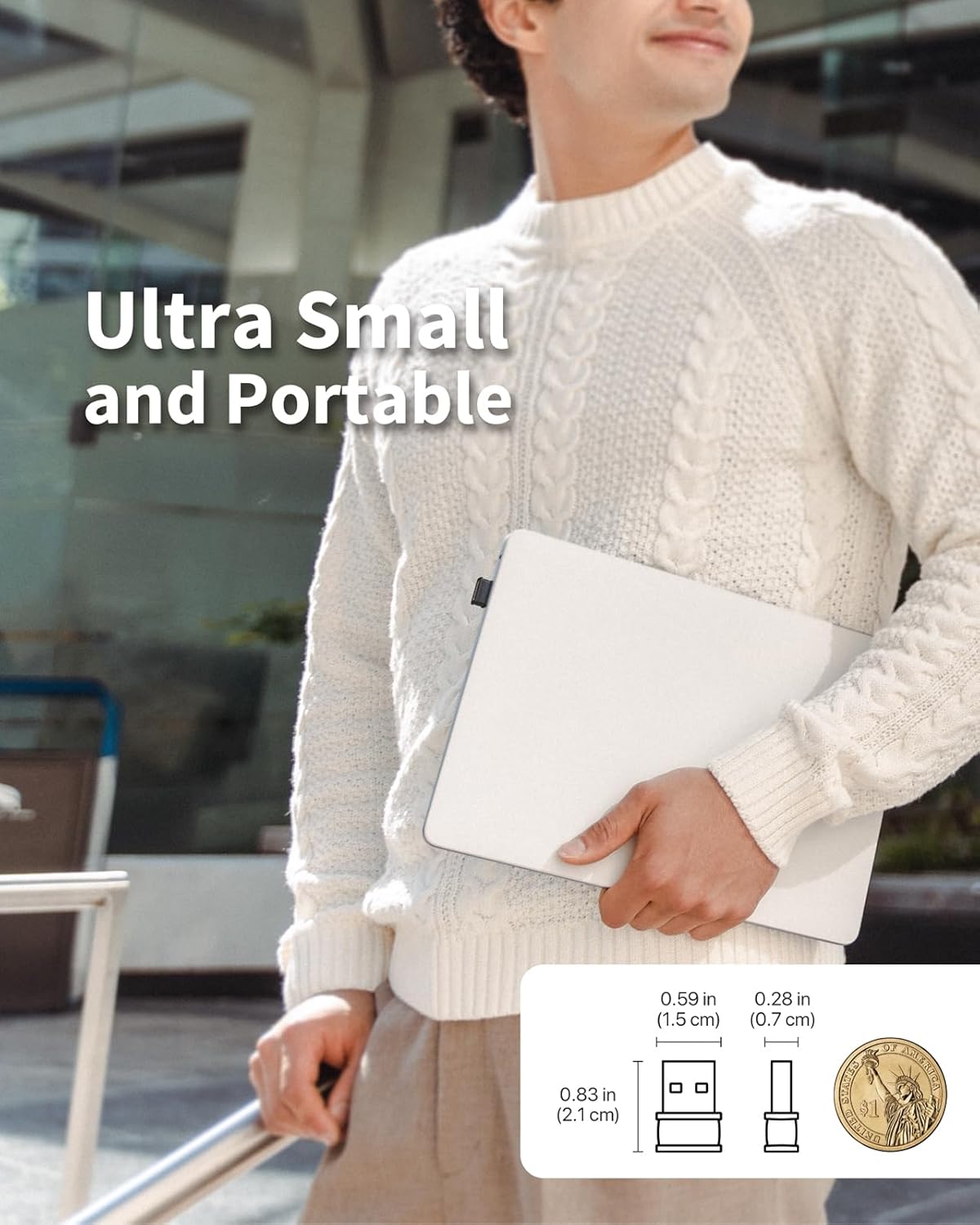
Image: A person holding a laptop with the BrosTrend AX300 Nano USB WiFi 6 Adapter plugged into a USB port, highlighting its ultra-small and portable design. Dimensions are shown as 0.83 × 0.59 × 0.28 inches.
2. Kontenut tal-Pakkett
- 1 x BrosTrend AX300 Nano USB WiFi 6 Adapter
- 1 x Gwida ta 'Installazzjoni Mgħaġġla
3. Gwida ta' Setup
Follow these steps to set up your BrosTrend AX300 Nano USB WiFi 6 Adapter.
Video: Official setup guide for the BrosTrend AX300 Nano USB WiFi 6 Adapter, demonstrating the installation process.
3.1. Qabbad l-Adapter
- Insert the USB WiFi 6 adapter into an available USB port on your computer.
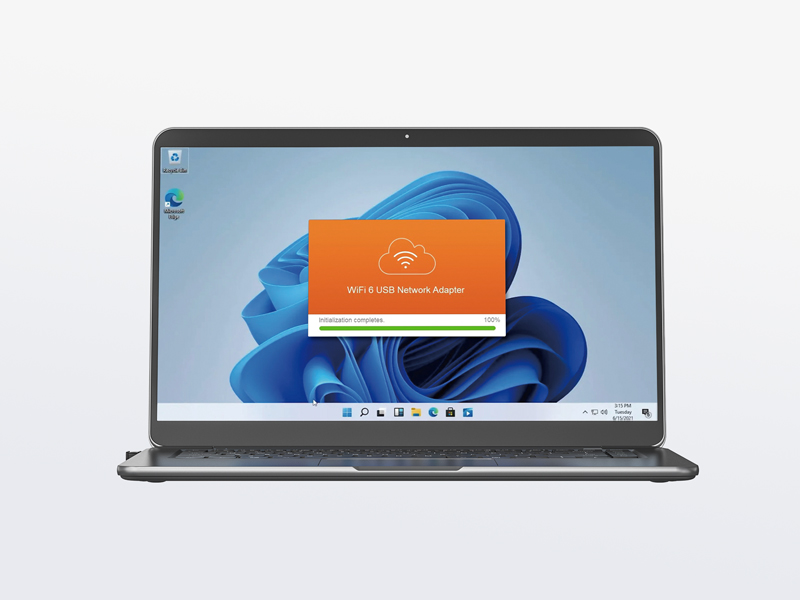
Image: A hand inserting the BrosTrend AX300 Nano USB WiFi 6 Adapter into a laptop's USB port.
3.2. Install the Driver
Driver software for Windows 11/10/7 is pre-loaded in the USB WiFi 6 adapter. A CD-ROM reader is not needed.
- After inserting the adapter, open "This PC" or "My Computer" and locate the drive associated with the WiFi 6 USB adapter.
- Double-click the "Setup.exe" file to begin the driver installation.
- Segwi l-istruzzjonijiet fuq l-iskrin biex tlesti l-installazzjoni.
- After successful installation, please restart your computer.
The latest driver is also available for download from the official BrosTrend websit: https://www.brostrend.com/pages/download-center
Image: A laptop screen displaying the driver installation progress for the WiFi 6 USB Network Adapter.
3.3. Join Your WiFi Network
- Once your computer has restarted, click the network icon on the taskbar (usually in the bottom-right corner).
- Select the WiFi network you wish to join from the list of available networks and click "Connect".
- Enter the WiFi password (network security key) when prompted.
- After a short while, the network status will change to "Connected, secured".
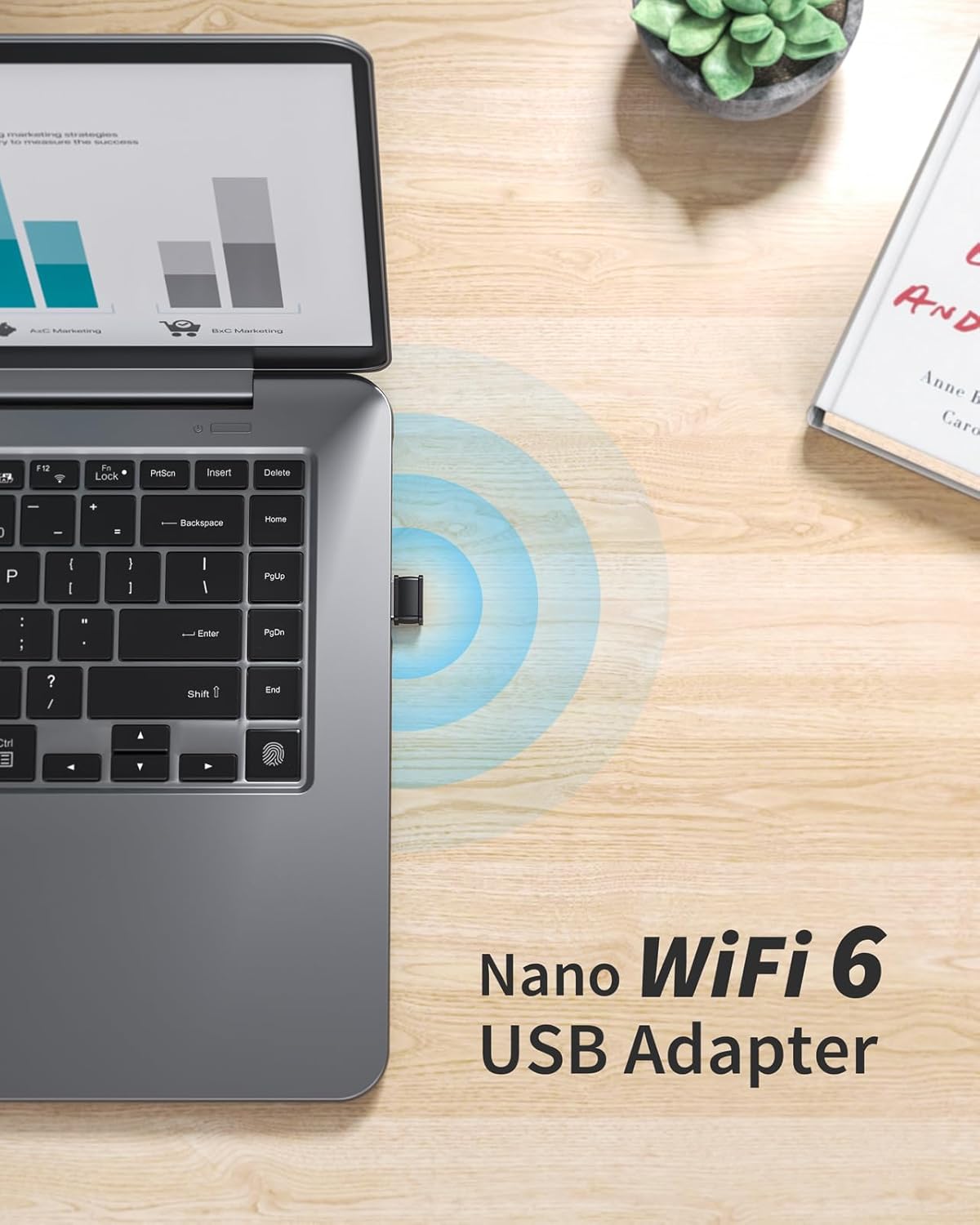
Image: A laptop with the BrosTrend AX300 Nano USB WiFi 6 Adapter plugged in, showing WiFi signals emanating from the adapter, indicating a successful connection.
4. Istruzzjonijiet Operattivi
The BrosTrend AX300 Nano USB WiFi 6 Adapter provides a stable and efficient wireless connection for your computer. It operates on the 2.4GHz wireless band, delivering speeds up to 286Mbps.
- WiFi 6 Technologies: This adapter utilizes advanced WiFi 6 features such as OFDMA, Beamforming, and BSS Color to improve network efficiency and signal strength, especially in busy network environments.
- Konnessjoni Stabbli: Enjoy reliable performance for web browsing, online work, and streaming content.
- Kompatibilità: Compatible with Windows 11, Windows 10, and Windows 7. Please note that Mac and Linux operating systems are NOT supported.

Image: A laptop screen displaying icons for email, web browsing, and video playback, with WiFi signals indicating a stable connection at 286 Mbps on the 2.4GHz band.

Image: Illustrations of various computer types (Traditional Laptop, Convertible Laptop, Mini Desktop, Tower PC) and logos for Windows 11, Windows 10, and Windows 7, indicating compatibility. A note states that Mac OS is not supported.
5. Manutenzjoni
To ensure the longevity and optimal performance of your BrosTrend AX300 Nano USB WiFi 6 Adapter, consider the following maintenance tips:
- Żomm Nadif: Regularly clean the adapter with a soft, dry cloth to remove dust and debris. Avoid using liquid cleaners.
- Ħażna xierqa: Meta ma tkunx qed tuża, aħżen l-adapter f'post frisk u niexef 'il bogħod mid-dawl tax-xemx dirett u temperaturi estremi.
- Immaniġġja b'Kura: Avoid dropping the adapter or subjecting it to physical shock.
- Kura tal-Port USB: Ensure the USB port on your computer is clean and free of obstructions before inserting the adapter.
6 Issolvi l-problemi
If you encounter issues with your BrosTrend AX300 Nano USB WiFi 6 Adapter, refer to the following common problems and solutions:
- Problema: The adapter is not recognized by the computer or no WiFi networks are found.
Soluzzjoni: Ensure the adapter is fully inserted into a working USB port. Verify that the driver has been correctly installed. If necessary, reinstall the driver from the pre-loaded software on the adapter or download the latest version from the BrosTrend websit. - Problema: Slow WiFi speeds or unstable connection.
Soluzzjoni: Ensure your router supports WiFi 6 (802.11ax) for optimal performance. While the adapter is compatible with older standards, WiFi 6 routers maximize its speed capabilities. Check for potential interference from other electronic devices. Ensure your computer is within a reasonable range of your WiFi router. - Problema: Cannot connect to a 5GHz WiFi network.
Soluzzjoni: This adapter only supports the 2.4GHz wireless band. It does not support 5GHz networks. Please ensure you are attempting to connect to a 2.4GHz network. - Problema: Adapter not working on Mac or Linux.
Soluzzjoni: The BrosTrend AX300 Nano USB WiFi 6 Adapter is designed for Windows 11/10/7 operating systems only. Mac and Linux are not supported.
7. Speċifikazzjonijiet
| Karatteristika | Dettall |
|---|---|
| Dimensjonijiet tal-Prodott | 0.8 x 0.6 x 0.3 pulzieri (2.1 x 1.5 x 0.7 ċm) |
| Piż tal-oġġett | 0.071 uqija (2 Grammi) |
| Interface tal-Ħardwer | USB 2.0 |
| Kulur | Black - AX300 WiFi Adapter |
| Apparati Kompatibbli | PC, Computer, Desktop, Laptop |
| Protokoll tal-Kollegament tad-Data | IEEE 802.11ax/n/g/b 2.4GHz |
| Rata ta' Trasferiment tad-Data | 286 Megabits Kull Sekonda |
| Familja ta' Sistemi Operattivi Kompatibbli | Windows 11/10/7 (Mac and Linux NOT supported) |
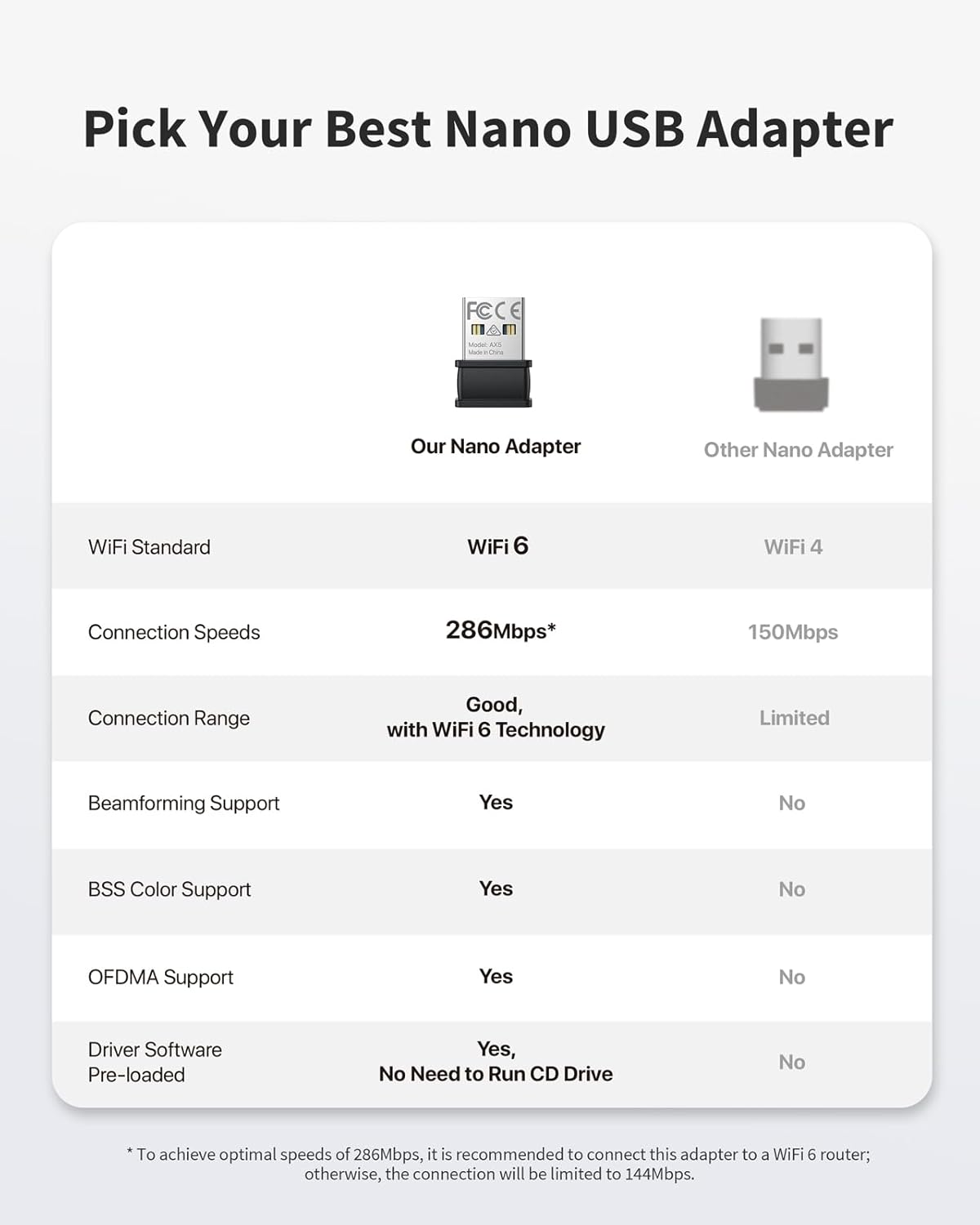
Image: A comparison table highlighting the BrosTrend Nano Adapter's features (WiFi 6, 286Mbps, Beamforming, BSS Color, OFDMA, Pre-loaded Driver) against other Nano Adapters (WiFi 4, 150Mbps, no advanced features).
8. Garanzija u Appoġġ
Warranty information for your BrosTrend AX300 Nano USB WiFi 6 Adapter is typically provided with your purchase documentation. Please refer to the packaging or the quick installation guide for specific warranty terms and conditions.
For technical support or any inquiries, please contact BrosTrend customer service:
- Email: support@brostrend.com
- BrosTrend aims to reply to all inquiries within 24 hours.


