Introduzzjoni
This manual provides instructions for the Alienware AW520H Wired Gaming Headset. It covers setup, operation, maintenance, and troubleshooting to ensure optimal performance and longevity of your device.
The Alienware AW520H headset is designed to deliver precision audio with Hi-Res certified drivers and Dolby Atmos spatial audio support, integrated into a comfortable and adjustable design.
X'hemm fil-Kaxxa
Ivverifika li l-komponenti kollha huma preżenti fil-pakkett:
- Alienware AW520H Wired Gaming Headset
- Dokumentazzjoni (Manwal tal-Utent, Informazzjoni dwar il-Garanzija)
Prodott Overview
Familiarize yourself with the key components and features of your Alienware AW520H headset.
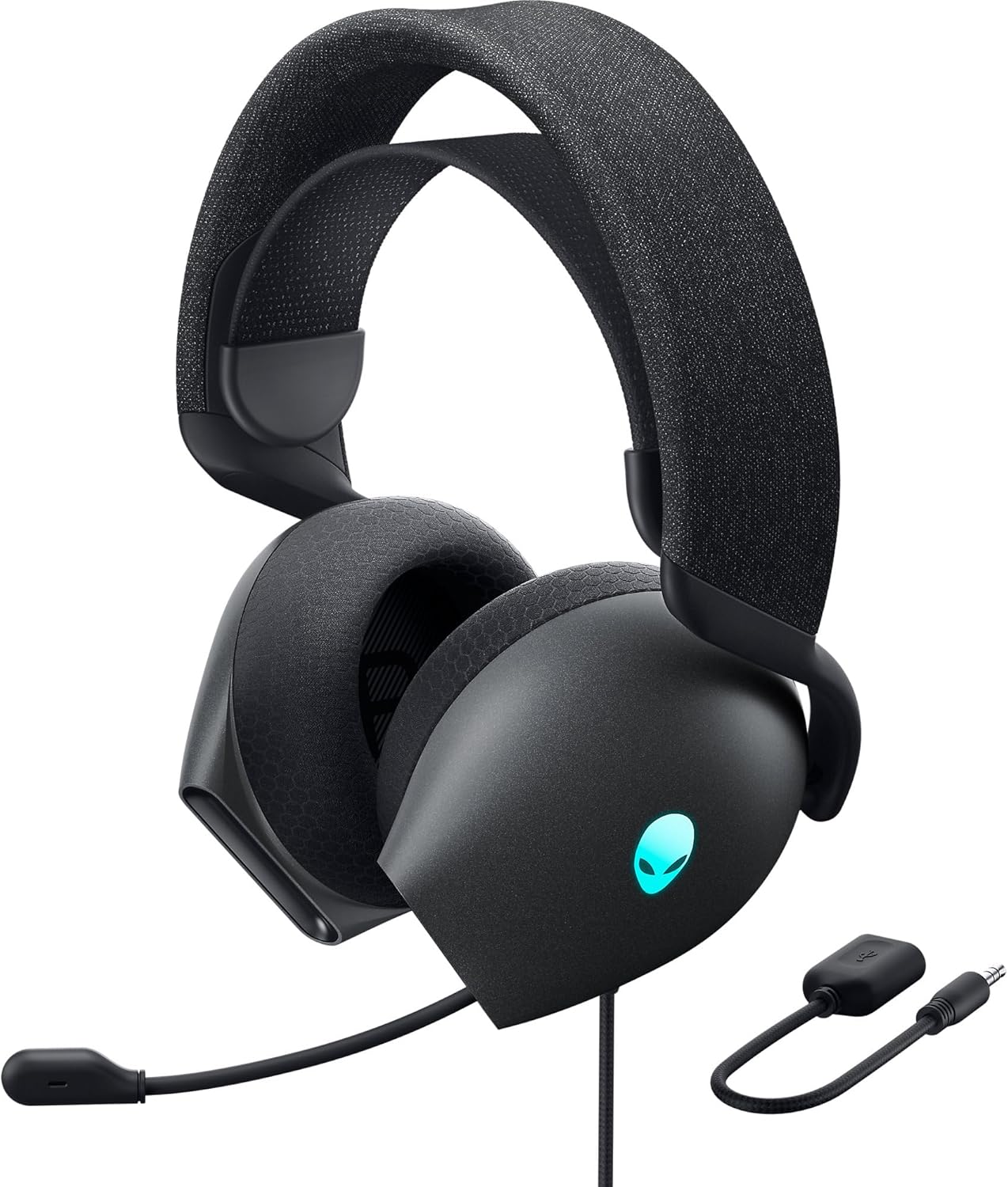

Karatteristiċi ewlenin:
- Hi-Res Certified Drivers: Delivers clear and rich sound across a wide frequency range.
- Dolby Atmos Spatial Audio: Provides precise positional audio for an immersive experience.
- AI-Driven Noise Cancellation Microphone: Retractable boom mic focuses on your voice, reducing ambient noise.
- Disinn komdu: Features soft memory foam ear pads with breathable fabric and an adjustable suspension headband for extended wear.
- AlienFX RGB Lighting: Customizable RGB lighting on the earcups, controllable via Alienware Command Center.
- Konnettività versatili: Supports both USB and 3.5mm connections for broad compatibility.
Setup
Follow these steps to set up your Alienware AW520H headset.
1. Tqabbad il-Headset
The AW520H offers flexible connectivity options:
- Jack Awdjo 3.5mm: Connect the 3.5mm cable directly to your PC, gaming console controller, or any other compatible device with a 3.5mm audio port. This provides basic audio and microphone functionality.
- Konnessjoni USB: For full functionality, including Dolby Atmos spatial audio and AlienFX RGB lighting customization, connect the headset via USB to your PC. This typically involves using a 3.5mm to USB adapter if your PC does not have a combined audio jack.


2. Software Installation (Optional, for full features)
To unlock the full potential of your headset, including Dolby Atmos and AlienFX RGB lighting customization, install the Alienware Command Center software on your PC. This software allows for personalized audio profiles u l-effetti tad-dawl.
- Download the latest version of Alienware Command Center from the official Alienware support websit.
- Segwi l-istruzzjonijiet fuq l-iskrin biex tlesti l-installazzjoni.
- Connect your headset via USB to ensure it is recognized by the software.
Istruzzjonijiet Operattivi
Kontrolli tal-Awdjo
The headset features integrated controls for convenient audio management:
- Rota tal-Volum: Located on the earcup, rotate the wheel to increase or decrease the audio volume.
- Buttuna Mute tal-Mikrofonu: Press the button on the earcup to mute or unmute the microphone.

Użu tal-mikrofonu
The AW520H features an AI-driven noise-canceling retractable boom microphone:
- Estendi/Irtira: Gently pull the microphone boom out from the earcup to extend it for use. Push it back into the earcup to retract it when not needed.
- Pożizzjonament: Għal ċarezza ottimali tal-vuċi, poġġi l-mikrofonu madwar 1-2 pulzieri 'l bogħod minn ħalqek.
- Kanċellazzjoni tal-Istorbju: The AI-driven noise cancellation automatically works to filter out ambient sounds, focusing on your voice.

Aġġustament għall-Kumdità
The headset is designed for comfort during long gaming sessions:
- Suspension Headband: Slide the suspension headband up or down to find the ideal fit for your head size.
- Earcup Rotation: The earcups can slightly pivot to conform to the shape of your ears.
- Memory Foam Ear Pads: The soft memory foam ear pads with breathable fabric provide cushioning and ventilation.

AlienFX RGB Lighting
Customize the RGB lighting on your headset using the Alienware Command Center software:
- Iftaħ iċ-Ċentru ta' Kmand ta' Alienware.
- Navigate to the lighting settings for your AW520H headset.
- Select desired colors, effects, and brightness levels.
- Ensure the headset is connected via USB for lighting customization.
Manutenzjoni
Manutenzjoni xierqa tiżgura l-lonġevità u l-prestazzjoni tal-headset tiegħek.
- Tindif: Uża drapp artab u niexef biex timsaħ il-earcups u l-headband. Għal ħmieġ iebes, neħħi ftit.amp Ċarruta tista' tintuża, iżda evita umdità eċċessiva. Tużax kimiċi ħarxa jew prodotti tat-tindif li joborxu.
- Ħażna: Store the headset in a clean, dry place away from extreme temperatures and direct sunlight. Retract the microphone when not in use to protect it.
- Kura tal-Cable: Avoid sharp bends or kinks in the audio cable. Do not pull on the cable to disconnect the headset.
- Kuxxinetti tal-widnejn: The ear pads are made of breathable fabric and memory foam. While durable, they are not designed for frequent removal. If replacement is needed, consult Alienware support.
Issolvi l-problemi
If you encounter issues with your Alienware AW520H headset, refer to the following common solutions:
Ebda Awdjo jew Volum Baxx
- Iċċekkja l-Konnessjonijiet: Ensure the 3.5mm cable or USB connection is securely plugged into both the headset and your device.
- Livelli tal-Volum: Verify that the volume wheel on the headset is turned up. Check the audio output settings on your PC or console to ensure the headset is selected as the default output device and volume is not muted.
- Softwer/Sewwieqa: If connected via USB, ensure Alienware Command Center is installed and updated. Check your operating system's sound settings for driver issues.
- Test fuq Apparat Ieħor: Connect the headset to a different device (e.g., smartphone, another PC) to determine if the issue is with the headset or the original device.
Mikrofonu Mhux Taħdim
- Iċċekkja l-Buttuna Mute: Kun żgur li l-buttuna tal-mute tal-mikrofonu fuq il-headset mhix attivata.
- Pożizzjoni tal-mikrofonu: Verify the microphone boom is fully extended and positioned correctly.
- Settings tal-Input: Check your PC or console's sound input settings to ensure the headset microphone is selected as the default input device. Adjust microphone volume levels.
- Settings tal-Applikazzjoni: Some applications (e.g., Discord, Zoom) have their own microphone settings. Verify the correct microphone is selected within these applications.
- Softwer/Sewwieqa: If connected via USB, ensure Alienware Command Center is installed and updated.
AlienFX RGB Lighting Not Working
- Konnessjoni USB: Ensure the headset is connected via USB to your PC. RGB lighting functionality requires a USB connection.
- Ċentru tal-Kmand ta' Alienware: Verify that Alienware Command Center is installed and running. Check the lighting settings within the software for the headset.
- Aġġornament tas-Software: Ensure Alienware Command Center and headset firmware are up to date.
Speċifikazzjonijiet
| Karatteristika | Dettall |
|---|---|
| Isem tal-Mudell | AW520H |
| Teknoloġija tal-Konnettività | Wired (USB, 3.5 mm Jack) |
| Tip ta' Sewwieq Awdjo | Sewwieq Dinamika |
| Rispons ta' Frekwenza | 40 KHz (40,000 Hz) |
| Impedenza | 32 Ohm |
| Kontroll tal-Ħoss | Active Noise Cancellation (AI-driven for mic) |
| Mikrofonu | Retractable, Unidirectional |
| Kontrolli | Volume Control, Microphone Mute (On-headset) |
| Tqegħid tal-widnejn | Fuq il-widnejn |
| Fattur tal-Formola | Fuq Widnejn |
| Materjal | Memory foam, breathable fabric |
| Kulur | Dark Side of the Moon |
| Dimensjonijiet tal-Prodott | 7.28 x 4.35 x 8.46 pulzieri |
| Piż tal-oġġett | 11.8 uqija |
| Manifattur | Dell |
| Apparati Kompatibbli | Windows, wired devices |
Garanzija u Appoġġ
For warranty information and technical support, please refer to the documentation included with your product or visit the official Alienware support websit.
Manifattur: Dell
Numru tal-Mudell: AW520H
Data L-Ewwel Disponibbli: 30 ta’ Ġunju 2023
For further assistance, please contact Alienware customer support through their official channels.


