1. Introduction to Your Google Pixel 7a
This manual provides essential information for setting up, operating, and maintaining your Google Pixel 7a 5G smartphone. The Pixel 7a is designed to offer a seamless and intelligent user experience, powered by the Google Tensor G2 chip and advanced camera capabilities.
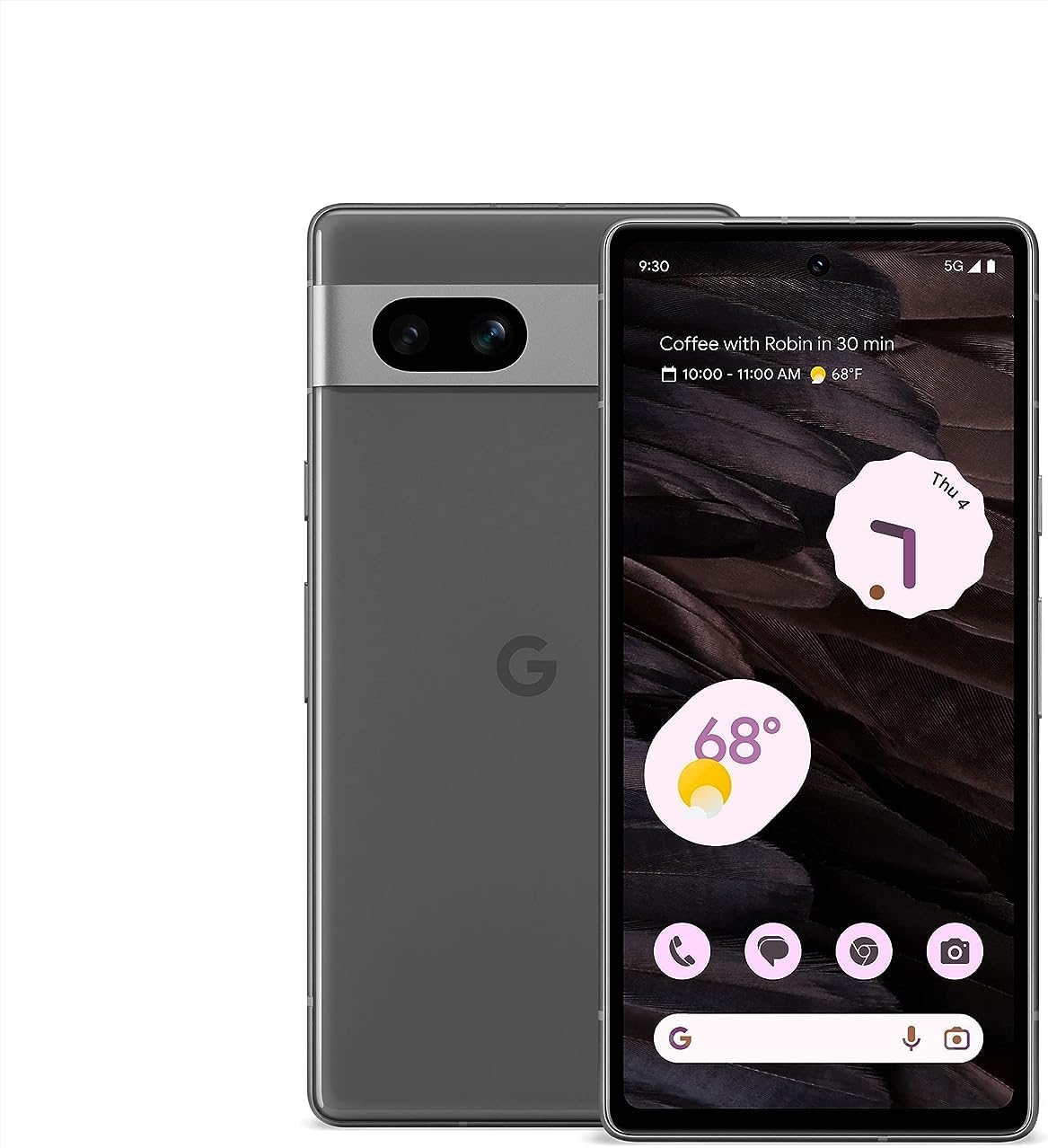
Immaġni 1.1: Minn quddiem u minn wara view of the Google Pixel 7a 5G smartphone. The device features a sleek design with a prominent camera bar on the rear.
Your Pixel 7a comes equipped with features like advanced image processing for clear photos, enhanced security, and intelligent call management. This guide will help you get the most out of your device.
2. Setup Inizjali
Follow these steps to set up your new Google Pixel 7a.
2.1. Unboxing and Device Overview
Carefully remove all items from the packaging. The box typically contains the Pixel 7a smartphone and a USB-C to USB-C cable. Other accessories may vary.
2.2. Id-Daħħal tas-SIM Card Tiegħek
- Sib it-trej tal-kard SIM fuq il-ġenb tal-Pixel 7a tiegħek.
- Insert the SIM ejector tool (if provided, or a small paperclip) into the small hole on the SIM tray. Press firmly until the tray pops out.
- Place your nano-SIM card into the tray with the gold contacts facing down. Ensure it fits securely.
- Imbotta bil-mod it-trej tas-SIM lura fit-telefon sakemm tikklikkja f'postu.
2.3. Tixgħel u Konfigurazzjoni Inizjali
- Agħfas u żomm il-buttuna tal-Qawwa (li tinsab fuq in-naħa tal-lemin) sakemm jidher il-logo tal-Google.
- Follow the on-screen prompts to select your language, connect to a Wi-Fi network, and copy data from an old device (optional).
- Idħol bil-Kont tal-Google tiegħek jew oħloq wieħed ġdid. Dan huwa essenzjali biex taċċessa s-servizzi tal-Google u l-Play Store.
- Set up a screen lock (PIN, pattern, password, fingerprint, or face unlock) for security.
3. Kif Tħaddem il-Pixel 7a Tiegħek
This section covers the primary functions and features of your smartphone.
3.1. Nagħmlu Telefonati u Nibagħtu Messaġġi
- App tat-Telefon: Tektek l-ikona tat-Telefon biex tagħmel telefonati. Uża t-tastiera tan-numri jew agħżel kuntatt.
- App tal-Messaġġi: Tap the Messages icon to send and receive text messages.
- Assistenza għas-Sejħiet: The Google Assistant can screen calls from unknown numbers, show optimal times to call businesses, and wait on hold for you. This feature enhances call management.

Image 3.1: Illustration of the Call Assist feature, highlighting its ability to screen calls, suggest optimal call times, and wait on hold.
3.2. Karatteristiċi tal-Kamera
The Pixel 7a camera system offers advanced capabilities for capturing high-quality photos and videos, even in challenging conditions.
- Tneħħija tat-Tċajpir tar-Ritratti: Improves the clarity of blurry images.
- Gomma Maġika: Removes unwanted objects or distractions from your photos.
- Vista bil-Lejl: Enhances photos taken in low-light environments, capturing more detail and color.

Immaġni 3.2: Eżempju viżwaliamples of Photo Unblur, Magic Eraser, and Night Sight features in action, demonstrating their effects on images.
3.3. Sigurtà u Privatezza
Your Pixel 7a integrates multiple layers of security to protect your data and online activity.
- Google Tensor G2 & Titan M2: The custom Google Tensor G2 chip and the dedicated Titan M2 security chip work together to provide robust hardware-level security.
- VPN minn Google One: Helps secure your internet connection across various apps and browsers.
- Security & Privacy Hub: Access and manage all your security settings from one central location.

Image 3.3: Screenshot of the Pixel 7a's Security & privacy settings, showing options for app security, device lock, Google Security Checkup, and Find My Device.
3.4. Live Translate
The Live Translate feature allows for real-time language translation, facilitating communication across different languages.
- Face-to-face conversations: Translate spoken language in real-time.
- Messaging apps: Translate text within your messaging applications.
- Traduzzjoni bil-kamera: Use your camera to translate text from signs, menus, and documents.

Image 3.4: A person using the Google Pixel 7a to translate a conversation in real-time, demonstrating the Live Translate feature.
4. Manutenzjoni u Kura
Proper care ensures the longevity and optimal performance of your Pixel 7a.
4.1. Ġestjoni u Iċċarġjar tal-Batterija
- Batterija Adattiva: Your Pixel 7a's battery is designed to last over 24 hours with typical usage.
- Iffrankar Estrem tal-Batterija: Activate this mode to extend battery life up to 72 hours by limiting app activity and features.
- Iċċarġjar bla fili: The device supports wireless charging for convenience. Place the phone on a compatible wireless charger.
- Iċċarġjar bil-Wajer: Use the provided USB-C cable and a compatible power adapter for wired charging.

Image 4.1: The Google Pixel 7a being charged wirelessly on a charging stand, illustrating its wireless charging capability.
4.2. Aġġornamenti tas-Software
Google regularly releases software updates that include security patches, bug fixes, and new features. Ensure your device is updated to maintain optimal performance and security.
- Biex tiċċekkja għal aġġornamenti: Mur fuq Settings > Sistema > Aġġornament tas-sistema.
- It is recommended to perform updates over a Wi-Fi connection and with sufficient battery charge.
4.3. Tindif tal-Apparat Tiegħek
Uża drapp artab u mingħajr suf biex tnaddaf l-iskrin u l-qafas tat-telefon tiegħek. Evita materjali li joborxu jew kimiċi ħarxa.
5. Issolvi l-problemi ta' Kwistjonijiet Komuni
This section addresses common problems you might encounter with your Pixel 7a.
- Apparat mhux qed jixgħel: Kun żgur li l-batterija hija ċċarġjata. Qabbad it-telefon ma' ċarġer għal mill-inqas 15-il minuta, imbagħad erġa' pprova ixgħelu.
- L-apps jiġġarraf jew jiffriża:
- Agħlaq u erġa 'ibda l-app.
- Clear the app's cache and data (Settings > Apps > See all apps > [App Name] > Storage & cache).
- Aġġorna l-app mill-Google Play Store.
- Ħajja fqira tal-batterija:
- Iċċekkja l-użu tal-batterija fis-Settings biex tidentifika apps li jikkunsmaw ħafna enerġija.
- Naqqas il-luminożità tal-iskrin u l-ħin tal-iskadenza tal-iskrin.
- Iddiżattiva karatteristiċi mhux meħtieġa bħall-GPS, il-Bluetooth, jew il-Wi-Fi meta ma tkunx qed tużahom.
- Enable Adaptive Battery or Extreme Battery Saver.
- Problemi ta' konnettività tan-netwerk (Wi-Fi/Ċellulari):
- Toggle Wi-Fi or cellular data off and on.
- Ibda mill-ġdid it-telefon tiegħek.
- Irrisettja s-settings tan-netwerk (Settings > Sistema > Għażliet ta' reset > Irrisettja Wi-Fi, mobbli u Bluetooth).
- Sensur tal-marki tas-swaba' mhux qed jaħdem:
- Kun żgur li subgħajk ikun nadif u niexef.
- Re-register your fingerprints in Settings > Security & privacy > Device unlock > Fingerprint Unlock.
If issues persist, consider performing a factory reset (back up your data first) or contacting Google Support.
6. Speċifikazzjonijiet Tekniċi
Key technical specifications for the Google Pixel 7a:
| Karatteristika | Speċifikazzjoni |
|---|---|
| Isem tal-Mudell | Pixel 7a |
| Sistema Operattiva | Android |
| Mudell tas-CPU | Google Tensor G2 |
| RAM | 8 GB |
| Kapaċità tal-Ħżin tal-Memorja | 128 GB |
| Daqs tal-Iskrin | 6.1 Pulzier |
| Riżoluzzjoni | 1080 x 2400 pixel |
| Kapaċità tal-batterija | 4385 Milliamp Sigħat |
| Piż tal-oġġett | 6.7 uqija |
| Dimensjonijiet tal-Prodott | 5.89 x 2.87 x 0.35 pulzieri |
| Karatteristiċi Speċjali | Always On Display, Wireless Charging |
| Trasportatur Wireless | Jinfetaħ |

Image 6.1: Diagram illustrating the Google Tensor G2 chip, the core processor of the Pixel 7a, emphasizing its role in efficiency, security, and media quality.
7. Garanzija u Appoġġ
For information regarding your device's warranty, please refer to the warranty card included with your purchase or visit the official Google support website. As this is a renewed product, warranty terms may differ from new devices. Please consult your seller for specific warranty details.
For technical assistance, troubleshooting, or further inquiries, please visit the official Google Pixel Support page or contact your retailer.
- Appoġġ ta' Google: support.google.com/pixelphone
- Appoġġ għall-Bejjiegħ: Contact the seller from whom you purchased this renewed device for specific support related to your purchase.


