1. Prodott Aktarview
The Poly Voyager 4320 UC is a wireless stereo headset designed for professionals requiring seamless connectivity and productivity in various work environments. It features a noise-canceling boom microphone with Acoustic Fence technology, ensuring clear audio transmission by blocking background noise. The headset connects to PC/Mac via a BT700 USB-C Bluetooth adapter (with an included USB-C to USB-A adapter) and to mobile devices via Bluetooth 5.2. It offers up to 24 hours of talk time and includes a desktop charging stand for convenient power management. This model is Microsoft Teams certified and integrates with other communication platforms like Zoom.

Image 1.1: The Poly Voyager 4320 UC Wireless Headset shown on its included desktop charging stand. The headset features over-the-head stereo design with a flexible boom microphone.
2. Karatteristiċi ewlenin
- Kwalità Awdjo Ċara: Features a noise-canceling dual microphone with Acoustic Fence technology to minimize background noise, ensuring your voice is heard clearly.
- Konnettività flessibbli: Connects wirelessly to computers (PC/Mac) via the included BT700 USB-C Bluetooth adapter (with USB-C to USB-A adapter) and to mobile phones via Bluetooth 5.2.
- Extended Mobility: Offers a wireless range of up to 164 feet (50 meters) from your computer, allowing freedom of movement during calls.
- Ħajja twila tal-batterija: Provides up to 24 hours of talk time on a single charge. Can also be used as a wired headset via audio-over-USB mode.
- Disinn komdu: Equipped with an adjustable padded headband and memory foam ear cushions for comfortable extended wear.
- Buttuna Dedikata ta' Microsoft Teams: Instant access to the Microsoft Teams app for seamless collaboration. Also compatible with Zoom and other platforms.
- Desktop Charging Stand: Simplifies charging and provides a convenient storage solution.
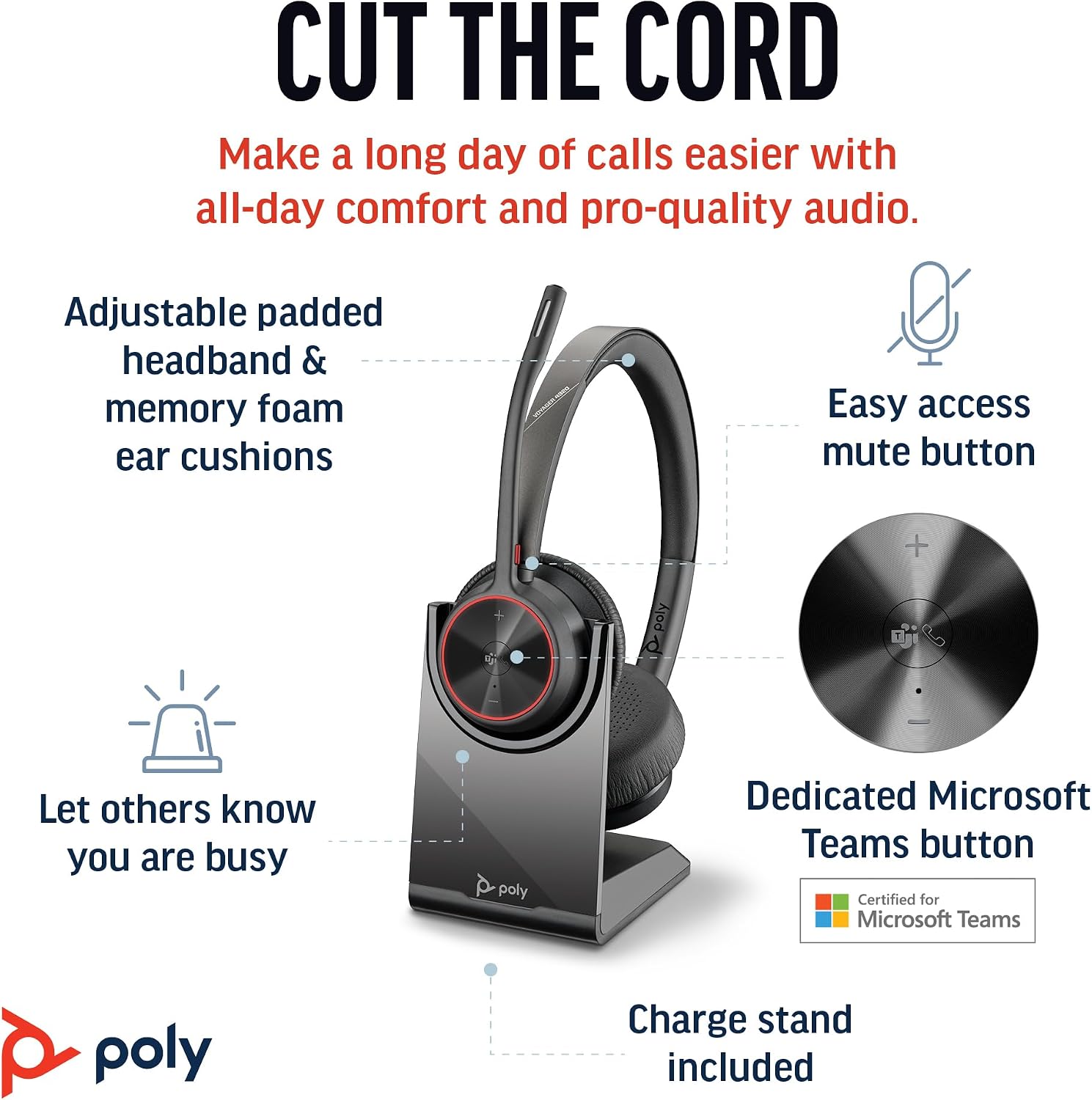
Image 2.1: The Poly Voyager 4320 UC Headset highlighting its adjustable padded headband, memory foam ear cushions, easy access mute button, dedicated Microsoft Teams button, and included charge stand.

Image 2.2: Illustration demonstrating the noise-canceling dual microphone with Acoustic Fence technology, which filters out background noise for clear communication.
3. Gwida ta' Setup
3.1 Kontenut tal-Pakkett
Ivverifika li l-oġġetti kollha huma preżenti fil-pakkett tiegħek:
- Headset bla fili Poly Voyager 4320 UC
- Stand tal-Iċċarġjar tad-Desktop
- Adapter tal-Bluetooth BT700 USB-C
- Adapter USB-C għal USB-A
- Cable tal-Iċċarġjar tal-USB
- Travel Pouch (may be included with some versions)
3.2 Iċċarġjar tal-Headset
Before first use, fully charge your headset. The headset can be charged using the included desktop charging stand or directly via the USB charging cable.
- Bl-użu tal-Iċċarġjar Stand: Connect the USB charging cable to the charging stand and then to a powered USB port (e.g., computer, wall adapter). Place the headset onto the charging stand. The headset's LED indicator will show charging status.
- Iċċarġjar Dirett tal-USB: Connect the USB charging cable directly to the headset's USB-C port and then to a powered USB port.
A full charge takes approximately 1.5 hours. The headset provides up to 24 hours of talk time and 47 hours of listening time.
3.3 Konnessjoni ma 'Tagħmir
The Voyager 4320 UC headset offers multiple connection options:
3.3.1 Connecting to PC/Mac (via USB Adapter)
- Insert the BT700 USB-C Bluetooth adapter into an available USB-C port on your computer. If your computer only has USB-A ports, use the included USB-C to USB-A adapter.
- L-LED tal-adapter se jteptep blu, u dan jindika li qed ifittex il-headset.
- Power on your headset. The headset and adapter are pre-paired and should connect automatically. The adapter's LED will turn solid blue when connected.
- Agħżel il-Poly Voyager 4320 UC bħala l-apparat tad-dħul u l-ħruġ tal-awdjo tiegħek fis-settings tal-ħoss u l-applikazzjonijiet tal-komunikazzjoni tal-kompjuter tiegħek (eż., Microsoft Teams, Zoom).
3.3.2 Connecting to Mobile Phone (via Bluetooth)
- With the headset powered on, press and hold the Bluetooth pairing button on the headset until the headset's LED flashes red and blue, indicating pairing mode.
- Fuq il-mowbajl tiegħek, mur fis-settings tal-Bluetooth u attiva l-Bluetooth.
- Select "Poly Voyager 4320 UC" from the list of available devices.
- Once paired, the headset's LED will stop flashing and remain solid blue.

Image 3.1: Diagram illustrating the multiple connection options for the Poly Voyager 4320 UC headset, including connection to a PC/Mac via the USB-C BT700 Bluetooth adapter (with USB-A adapter option) and direct Bluetooth connection to a mobile device.
4. Istruzzjonijiet Operattivi
4.1 L-Ilbies tal-Headset
The headset can be worn with the microphone boom on either the right or left side. Rotate the boom up and over to align with the desired side. For optimal microphone performance, position the boom approximately two finger-widths from the corner of your mouth.
4.2 Kontrolli tal-Headset
- Volum 'il fuq/Niżżel (+/-): Adjusts listening volume.
- Buttuna Sejħa: Agħfas biex twieġeb jew ittemm sejħa.
- Buttuna Mute: Located on the microphone boom. Press to mute/unmute your microphone. A dynamic mute alert will notify you if you speak while muted.
- Buttuna tat-Timijiet tal-Microsoft: Dedicated button for instant access to the Microsoft Teams application.
- Buttuna tal-Qawwa: Slide to power on/off.
4.3 Indikaturi LED
The headset and USB adapter feature LED indicators to provide status information:
- LED tal-headset:
- Solid Blue: Connected/In call
- Flashing Red/Blue: Pairing mode
- Aħmar Solidu: Siekta
- Ambra solida: Iċċarġjar
- Flashing Red: Low battery
- USB Adapter LED (BT700):
- Solid Blue: Connected/In call
- Flashing Blue: Searching for headset
- Aħmar Solidu: Siekta
5. Manutenzjoni
5.1 Tindif
To maintain the headset's performance and hygiene:
- Imsaħ il-kuxxini tal-widnejn u l-faxxa tar-ras b'ċarruta ratba uamp drapp. Evita li tuża kimiċi ħarxa jew materjali li joborxu.
- Do not immerse the headset in water or any liquids.
- Keep the charging contacts on the headset and stand clean and free of debris.
5.2 Ħażna
When not in use, store the headset on its charging stand or in the included travel pouch to protect it from dust and damage. Avoid storing in extreme temperatures.
6 Issolvi l-problemi
6.1 Ebda Awdjo jew Kwalità Awdjo Fqira
- Iċċekkja l-Konnessjoni: Ensure the headset is properly connected to your device (solid blue LED on headset and adapter).
- Livelli tal-Volum: Verify that headset, computer, and application volume levels are not muted or set too low.
- Apparat Default: Confirm that the Poly Voyager 4320 UC is selected as the default playback and recording device in your computer's sound settings and communication software.
- Firxa: Ensure you are within the wireless range (up to 50 meters) of your connected device.
- Interferenza: Move away from other wireless devices that may cause interference.
6.2 Il-Mikrofonu Mhux Jaħdem
- Iċċekkja l-Mute: Ensure the microphone is not muted (headset LED should not be solid red).
- Pożizzjoni tal-mikrofonu: Adjust the microphone boom to be two finger-widths from your mouth.
- Apparat Default: Confirm the headset is selected as the default recording device in your computer's sound settings and communication software.
- Issettjar tas-softwer: Iċċekkja s-settings tal-privatezza tal-mikrofonu fis-sistema operattiva tiegħek.
6.3 Headset Not Pairing/Connecting
- Ċiklu tal-Enerġija: Itfi u erġa 'itfi l-widna.
- Erġa 'par: Follow the pairing instructions in Section 3.3 to re-pair the headset with your device or USB adapter.
- Adapter Reset: If using the USB adapter, try unplugging and re-inserting it.
- Clear Device List: On your mobile device, forget the headset from the Bluetooth device list and attempt to pair again.
7. Speċifikazzjonijiet
| Karatteristika | Speċifikazzjoni |
|---|---|
| Isem tal-Mudell | Voyager 4320 Teams Version with Charge Stand, USB-C BT700 with USB-C to USB-A Adapter |
| Teknoloġija tal-Konnettività | Mingħajr fili (Bluetooth 5.2) |
| Firxa Wireless | Sa 50 metri (164 pied) |
| Ħin tat-Tkellem | Sa 24 sigħat |
| Ħin tas-Smigħ | Sa 47 sigħat |
| Ħin tal-Iċċarġjar | Appross. 1.5 sigħat għal ħlas sħiħ |
| Mikrofonu | Noise-canceling dual mic with Acoustic Fence technology |
| Apparati Kompatibbli | Mowbajls, Desktops, Laptops, Tablets |
| Tip ta' Kontroll | Kontroll tal-Midja, Mess |
| Piż tal-oġġett | 162 Gram (5.7 uqija) |
| Dimensjonijiet tal-Prodott | 3.94 x 0.79 x 1.06 pulzieri |
| Tip ta 'batterija | 1 batterija tal-jone tal-litju (inkluża) |
| UPC | 017229196667, 196548548736 |
8. Garanzija u Appoġġ
Għal informazzjoni dwar il-garanzija u appoġġ tekniku, jekk jogħġbok irreferi għall-websajt uffiċjali ta' Poly. webis-sit jew ikkuntattja s-servizz tal-konsumatur tagħhom. Żomm il-prova tax-xiri tiegħek għal talbiet ta’ garanzija.


