1. Introduzzjoni
Il-Magna tat-Tikketti MARKLIFE P50 hija printer termali tat-tikketti Bluetooth portabbli żgħira ddisinjata għal firxa wiesgħa ta' bżonnijiet ta' tikkettar. Tutilizza teknoloġija tal-istampar termali, tappoġġja l-istampar bl-abjad u bl-iswed, u hija ideali għall-ħolqien ta' tikketti għal indirizzi, ħwejjeġ, ġojjellerija, barcodes tal-bejgħ bl-imnut, negozji żgħar, organizzazzjoni tad-dar, u użu fl-uffiċċju. Dan il-manwal jipprovdi struzzjonijiet komprensivi għat-twaqqif, it-tħaddim, u l-manutenzjoni tal-magna tat-tikketti P50 tiegħek.

Immaġni: Il-magna tat-tikketti MARKLIFE P50 murija b'tipi differenti ta' tikketti, inkluż tikketta "Grazzi", tikketta "Meraq tal-Grejpfrut", u rombli ta' tikketti b'gap abjad, b'gap ċirkolari, u b'gap trasparenti. EżempjuampIt-tikketta turi "Wireless Printer Built-in firewall SUPPORT WDS,WPS 123456".
2. X'hemm fil-Kaxxa
Meta tiftaħ il-kaxxa tal-MARKLIFE P50 Label Maker tiegħek, ivverifika li l-komponenti kollha huma preżenti:
- MARKLIFE P50 Label Maker Machine
- Tikketti (tipikament jinkludu 3 tejps: tikketti b'distakk abjad ta' 1.57"x1.18", ċirku ta' 2"x2", u tikketti b'distakk trasparenti ta' 1.57"x0.79")
- Cable tal-Iċċarġjar tal-USB-C
3. Gwida ta' Setup
3.1 Iċċarġjar tal-Apparat
Il-magna tat-tikketti P50 għandha batterija rikarikabbli integrata ta' 1200mAh għal użu portabbli. Qabel l-ewwel użu, kun żgur li l-apparat ikun iċċarġjat kompletament.
- Qabbad il-kejbil tal-iċċarġjar USB-C ipprovdut mal-port tal-iċċarġjar fuq il-magna tat-tikketti.
- Qabbad it-tarf l-ieħor tal-kejbil ma' adapter tal-enerġija USB kompatibbli (mhux inkluż) jew mal-port USB tal-kompjuter.
- Id-dawl indikatur tal-iċċarġjar se juri l-istatus tal-iċċarġjar. Irreferi għall-gwida tal-indikatur LED tal-apparat għal imġieba speċifika tad-dawl (eż., dawl solidu għall-iċċarġjar, mitfi meta jkun iċċarġjat kompletament).
Immaġni: Persuna tpoġġi l-magna tat-tikketti kompatta MARKLIFE P50 f'handbag, u tenfasizza l-portabbiltà tagħha. L-ikoni jindikaw "Portabbli", "Batterija Inkorporata ta' 1200mAh", u "Ċarġjar tat-Tip C".
3.2 It-Tagħbija tat-Tikketti
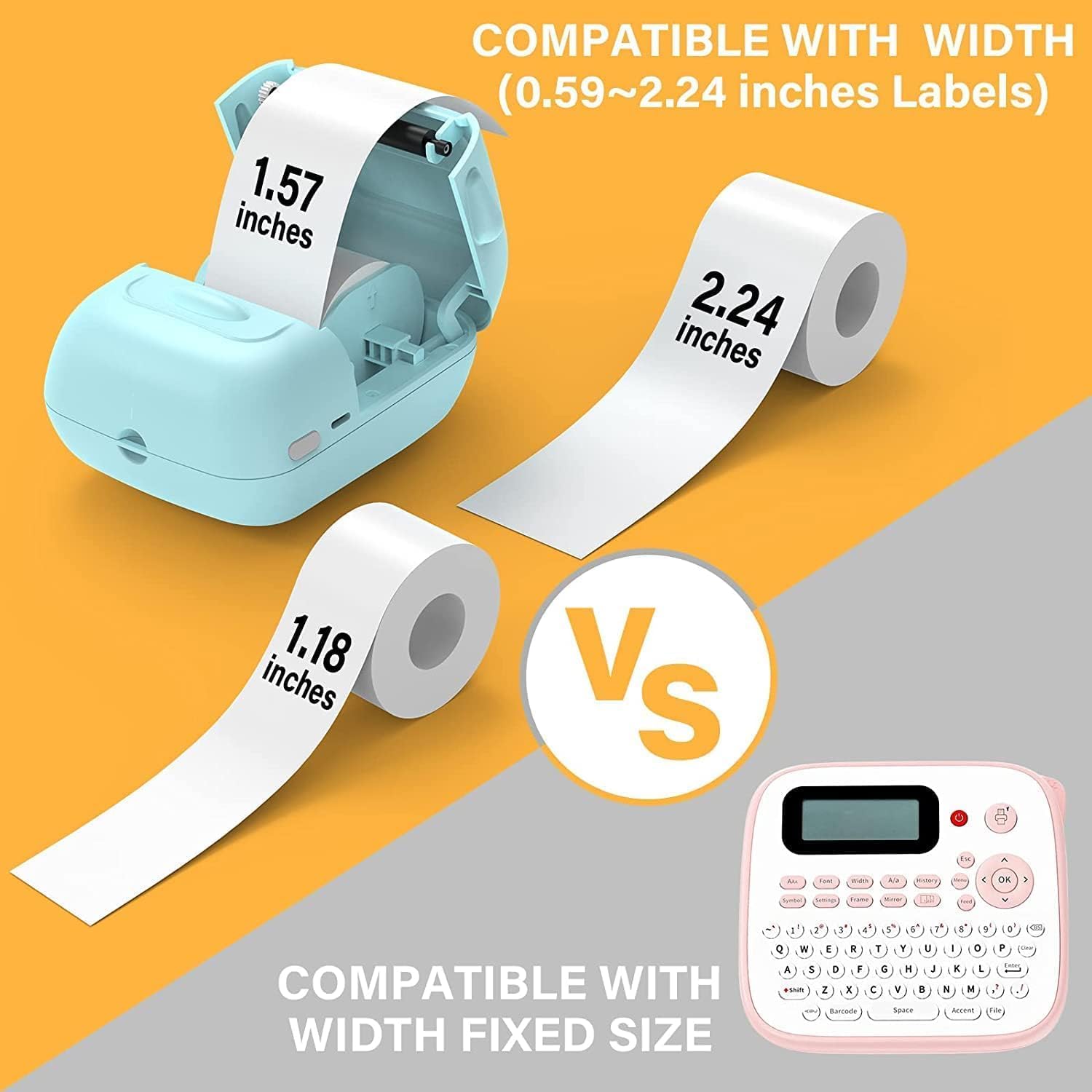
Il-magna tat-tikketti P50 tappoġġja tikketti b'wisa' li jvarjaw minn 0.59 pulzieri sa 2.24 pulzieri. Kun żgur li tuża tikketti termali kompatibbli.
- Iftaħ l-għatu tal-kompartiment tat-tikketti fuq l-apparat.
- Daħħal ir-romblu tat-tikketti bil-wiċċ tal-istampar iħares 'il fuq, waqt li tiżgura li r-romblu jkun imqiegħed sew fil-kompartiment.
- Iġbed porzjon żgħir mill-karta tat-tikketti 'l barra mill-islott, billi testendih ftit lil hinn mit-tarf tat-tqattigħ.
- Agħlaq l-għatu tal-kompartiment tat-tikketti sew sakemm tikklikkja f'postu. Il-printer awtomatikament jinduna d-daqs tat-tikketta.

Immaġni: Jintwerew tliet rombli ta’ tikketti, li juru d-daqsijiet differenti disponibbli: tikketti b’distakk ċar ta’ 1.57"x0.78" (40x20mm), tikketti b’distakk abjad ta’ 1.57"x1.18" (40x30mm), u tikketti b’distakk ċirkolari ta’ 2"x2" (50x50mm). L-immaġni tenfasizza li dawn ir-rombli "Jilħqu Aktar Bżonnijiet".
Immaġni: Il-magna tat-tikketti MARKLIFE P50 tidher b'romblu ta' tikketti, li jindika kompatibilità ma' wisa' minn 0.59 sa 2.24 pulzieri. Din tikkuntrasta ma' magna tat-tikketti tradizzjonali li għandha daqs fiss tat-tikketta.
3.3 Konnessjoni mat-Tagħmir Tiegħek (Smartphone/PC)
Il-magna tat-tikketti P50 toffri konnettività mingħajr fili permezz tal-Bluetooth għal smartphones u konnessjoni USB għal PCs bil-Windows.
3.3.1 Konnessjoni tal-Ismartphone (Bluetooth)
- Niżżel l-applikazzjoni "Marklife" mill-app store tal-ismartphone tiegħek (disponibbli għal Android u iOS).
- Kun żgur li l-Bluetooth huwa attivat fuq l-ismartphone tiegħek.
- Ixgħel il-magna tat-tikketti P50.
- Iftaħ l-app Marklife. L-app awtomatikament tfittex u tikkonnettja mal-magna tat-tikketti permezz tal-Bluetooth 4.0 f'distanza ta' madwar 33 pied.
3.3.2 Konnessjoni tal-PC (USB)
Għall-utenti tal-PC tal-Windows, hemm softwer disponibbli online. Irreferi għall-MARKLIFE uffiċjali webis-sit jew it-taqsima tal-għajnuna tal-app għal struzzjonijiet dwar it-tniżżil u l-installazzjoni tas-softwer tal-PC.
4. Istruzzjonijiet Operattivi
4.1 Karatteristiċi tal-App Marklife
L-app Marklife tipprovdi interface qawwija u faċli biex tużaha għall-ħolqien ta' tikketti:
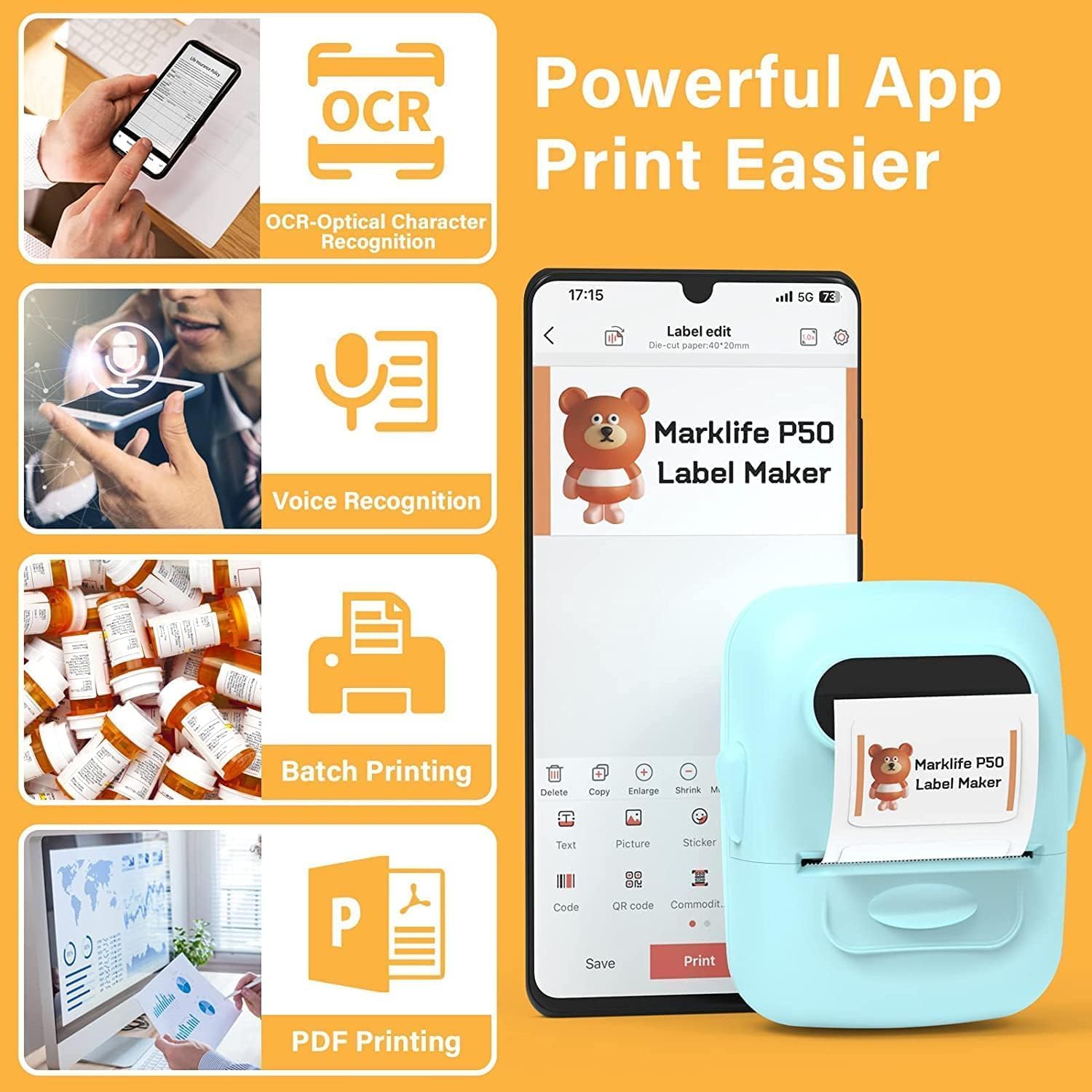
- OCR (Rikonoxximent Ottiku tal-Karattri): Skennja t-test mill-immaġnijiet biex tikkonvertih f'test li tista' teditja għat-tikketti tiegħek.
- Rikonoxximent tal-Vuċi: Ikkonverti l-kliem mitkellem f'test għal input ta' tikketti malajr.
- Stampar tal-lott: Ipprintja kopji multipli tal-istess tikketta b'mod effiċjenti.
- Stampar PDF: Ipprintja tikketti direttament minn dokumenti PDF.
- Inserzjoni ta' Immaġni: Daħħal ir-ritratti jew l-immaġnijiet tiegħek stess fuq it-tikketti.
- Ġenerazzjoni ta' Barcode/QR Code: Skennja l-barcodes eżistenti biex tiġġenera oħrajn ġodda jew toħloq kodiċijiet QR personalizzati.
- Mudelli: Aċċessa varjetà ta' mudelli ddisinjati minn qabel għal tipi differenti ta' tikketti (ħwejjeġ, prezz, kejbil, ġojjellerija, indirizz, ingredjenti, eċċ.).

Immaġni: Il-magna tat-tikketti MARKLIFE P50 tidher tipprintja strixxa twila ta’ tikketti tal-barcode, u turi l-kapaċità tagħha ta’ “Stampar f’lottijiet”.ampIl-barcode muri huwa "123456".

Immaġni: Skrin ta' smartphone juri l-interfaċċja tal-app Marklife, li tenfasizza karatteristiċi bħal OCR (Rikonoxximent Ottiku tal-Karattri), Rikonoxximent tal-Vuċi, Stampar f'lottijiet, u Stampar PDF. Il-magna tat-tikketti P50 tidher ħdejn it-telefon, tipprintja tikketta.
4.2 Il-Ħolqien u l-Istampar ta' Tikketti
- Iddisinja t-Tikketta Tiegħek: Iftaħ l-app Marklife u agħżel template jew ibda disinn ġdid. Uża d-diversi għodod tal-editjar biex iżżid test, stampi, barcodes, u elementi oħra.
- Aġġusta Settings: Qabel ma tipprintja, tista' taġġusta d-densità tal-istampar u s-settings tal-kwalità tar-ritratti fl-app biex ittejjeb ix-xogħol tal-istampar.
- Stampa: Ladarba d-disinn tiegħek ikun lest, agħfas il-buttuna "Ipprintja" fl-app. Il-magna tat-tikketti se tipprintja t-tikketta tiegħek malajr.
- Tikketta maqtugħa: Aqta’ jew aqta’ manwalment it-tikketta stampata mill-islott tal-ħruġ tal-istampatur.

Immaġni: Il-magna tat-tikketti MARKLIFE P50 tidher tipprintja tikketta tal-ħwejjeġ tag b’“ISEM DAQS TAL-ILBIES: 16S/64A PREZZ: $7.00” u barcode “0123456789005”. Eż. oħraampIl-les jinkludu tikketti fuq sapun magħmul bl-idejn u oġġetti tal-forn, li juru applikazzjonijiet diversi.
5. Manutenzjoni
Manutenzjoni xierqa tiżgura l-lonġevità u l-prestazzjoni ottimali tal-MARKLIFE P50 Label Maker tiegħek.
- Tindif tar-ras tal-istampar: Naddaf ir-ras tal-istampar termali regolarment b'ċarruta ratba u mingħajr suf.ampImxarrab bl-alkoħol isopropiliku. Kun żgur li l-apparat ikun mitfi u berred qabel ma tnaddaf.
- Tindif ta' barra: Imsaħ il-barra tal-apparat b'ċarruta ratba u niexfa. Evita li tuża prodotti tat-tindif jew solventi li joborxu.
- Ħażna tat-Tikketti: Aħżen it-tikketti termali f'post frisk u niexef 'il bogħod mix-xemx diretta u mis-sħana biex tevita li jisparixxu jew jagħmlu ħsara qabel iż-żmien.
- Kura tal-batterija: Għal ħażna fit-tul, iċċarġja l-batterija sa madwar 50% u aħżenha f'post frisk u niexef. Erġa' iċċarġjaha kull ftit xhur biex iżżomm il-batterija f'saħħitha.
6 Issolvi l-problemi
Jekk tiltaqa' ma' problemi bil-magna tat-tikketti P50 tiegħek, irreferi għall-problemi u s-soluzzjonijiet komuni li ġejjin:
| Problema | Kawża Possibbli | Soluzzjoni |
|---|---|---|
| Il-printer ma jixgħelx. | Batterija baxxa jew xejn ċarġ. | Qabbad l-apparat ma' sors ta' enerġija billi tuża l-kejbil USB-C u ċċarġjah. |
| Ma nistax nikkonnettja permezz tal-Bluetooth. | Il-Bluetooth mitfi fuq it-telefon, l-app mhux miftuħa, jew il-printer huwa 'l bogħod wisq. | Kun żgur li l-Bluetooth huwa attivat fuq it-telefon tiegħek, l-app Marklife hija miftuħa, u l-istampatur huwa fi żmien 33 pied 'il bogħod. Erġa' ibda ż-żewġ apparati jekk meħtieġ. |
| It-tikketti huma vojta jew sfumati. | Ir-romblu tat-tikketti mdaħħal ħażin (ta’ taħt fuq) jew ir-ras tal-istampar hija maħmuġa. | Erġa’ daħħal ir-romblu tat-tikketti bil-wiċċ tal-istampar iħares ’il fuq. Naddaf ir-ras tal-istampar termali kif deskritt fit-taqsima tal-Manutenzjoni. |
| It-tikketti mhumiex allinjati sew jew stampati parzjalment. | Ir-romblu tat-tikketti mhux imqiegħed sew jew mhux qed jiżżerżaq fil-kompartiment. | Iftaħ il-kompartiment tat-tikketti, kun żgur li r-romblu huwa mbuttat lejn il-lemin u mwaħħal sew. Agħlaq l-għatu. Il-printer għandu jikkalibra awtomatikament. Jekk il-problemi jippersistu, ipprova tikkalibra mill-ġdid permezz tal-app jekk disponibbli. |
| L-app tiġġarraf jew teħtieġ li terġa' tibda spiss biex tipprintja. | Problema fis-softwer jew fil-cache tal-app. | Agħlaq l-app Marklife bil-forza u erġa' iftaħha. Neħħi l-cache tal-app jew erġa' installa l-app jekk il-problema tippersisti. Kun żgur li s-sistema operattiva tat-telefon tiegħek hija aġġornata. |
7. Speċifikazzjonijiet
| Karatteristika | Dettall |
|---|---|
| Brand | MARKLIFE |
| Isem tal-Mudell | PRINTER TAT-TIKKETTI P50 |
| Teknoloġija tal-Istampar | Termali |
| Teknoloġija tal-Konnettività | Bluetooth, USB |
| Daqs Massimu tal-Midja | 2 pulzieri (kompatibbli ma' tikketti b'wisa' ta' 0.59" - 2.24") |
| Riżoluzzjoni Massima tal-Istampar bl-Iswed u l-Abjad | 300 dpi |
| Output Printer | Monokromu (Iswed u Abjad) |
| Metodu ta' Kontroll | App (Android, iOS) |
| Karatteristika Speċjali | Ħafif, Portabbli, Funzjoni ta' skennjar permezz tal-app |
| Piż tal-oġġett | 1.39 liri |
| Dimensjonijiet tal-Prodott | 4"D x 3"W x 2"H |
| Batterija | 1200mAh integrata (rikarikabbli permezz ta' USB-C) |
8. Garanzija u Appoġġ
Il-prodotti MARKLIFE huma manifatturati skont standards ta’ kwalità għolja. Għal informazzjoni dwar il-garanzija, appoġġ tekniku, jew mistoqsijiet dwar is-servizz, jekk jogħġbok ikkuntattja direttament lis-servizz tal-klijenti ta’ MARKLIFE. Id-dettalji tipikament jistgħu jinstabu fuq il-websajt uffiċjali ta’ MARKLIFE. webis-sit jew fit-taqsima tal-għajnuna tal-applikazzjoni Marklife.
Jekk jogħġbok żomm il-prova tax-xiri tiegħek għal kwalunkwe talba ta' garanzija.


