1. Prodott Aktarview
The Matbip Wireless Controller is designed for an enhanced gaming experience, offering broad compatibility with PS4, PS4 Pro, PS4 Slim, PS3, and PC (Windows 7/8/10 systems). It features advanced wireless technology for stable connections, dual vibration motors, a 6-axis gyro sensor, and customizable macro programming.

Image: Matbip Wireless Controller, white and black design with textured grips.

Image: Diagram illustrating the controller's compatibility with PS4, PS4 Pro, PS4 Slim, and PC Windows systems.
2. Karatteristiċi ewlenin
- Vibrazzjoni Doppja: Built-in motors provide tactile feedback for an immersive gaming experience.
- Sensur tal-Ġiroskopju ta' 6 Assi: Enables intuitive motion control in supported games.
- Funzjoni Turbo: Allows for continuous firing in shooting games by setting a turbo button.
- Ipprogrammar Makro: Customizable back buttons (M1/M2) can be programmed to map any desired button for personalized gameplay styles.
- Ħajja twila tal-batterija: Equipped with a 600mAh rechargeable battery, offering 8-10 hours of gaming time on a 1-2 hour charge.
- Clickable Touchpad: Supports multi-point simultaneous input, sliding touch, and flicking.
- Jack Awdjo 3.5mm: Compatible with CTIA standard headsets for audio and communication (note: product does not have a built-in speaker function).
- Bar tad-Dawl LED: Provides visual feedback on connection status and charging.
- Port tat-Tip-C: Modern USB-C charging port for convenience.

Image: Visual representation of Turbo function, Dual Vibration, and 6-Axis Motion Sensor features.

Image: Illustrates the dual motor vibration and 6-axis motion sensor capabilities, showing controller movement.
3. It-Tqassim tal-Kontrollur
Familiarize yourself with the buttons and features of your Matbip Wireless Controller:

Immaġni: Quddiem u wara view of the controller with labels for Share button, Touchpad, Option button, L1/L2 Triggers, D-Pad, Action buttons, Left stick, Right stick, LED light bar, Home button, Reset button, M1/M2 Programming keys, and Stereo headset jack.
- Buttuna Share: Użat għall-qsim ta' kontenut tal-logħob.
- Buttuna tal-Għażla: Access in-game menus and options.
- Touchpad: Interactive surface for various game inputs.
- Triggers ta' L1/L2 & R1/R2: Shoulder buttons and analog triggers.
- D-Pad: Kuxxinett direzzjonali għal moviment preċiż.
- Buttuni ta' Azzjoni (Triangolu, Ċirku, Salib, Kwadru): Buttuni ta' azzjoni standard tal-PlayStation.
- Sticks tax-Xellug/Lemin: Analog joysticks for 360-degree control.
- Buttuna tad-dar: Powers on the controller, accesses system menus.
- Bar tad-Dawl LED: Indicates player number, charging status, and other game-specific information.
- Ċwievet tal-Programmazzjoni M1/M2: Buttuni ta' wara li jistgħu jiġu personalizzati.
- Jack tal-Headset Stereo: Port ta' 3.5mm għall-konnessjoni tal-headphones.
- Buttuna Irrisettja: Small pinhole button on the back for resetting the controller.
4. Konfigurazzjoni Inizjali u Konnettività
Connecting to PS4 Console (First Time)
- Kun żgur li l-console tal-PS4 tiegħek hija mixgħula.
- Connect the controller to the PS4 console using the provided Type-C USB charging cable.
- Agħfas il- Buttuna tad-dar on the controller. The LED light bar will flash and then stay lit, indicating a successful connection.
- Once connected, you can unplug the USB-C cable to use the controller wirelessly.

Image: Step-by-step visual guide showing how to connect the controller to a PS4 console using a USB cable and pressing the Home button.
Connecting to PC (Windows 7/8/10)
To connect the controller wirelessly to a PC:
- On the controller, simultaneously press and hold the Buttuna tad-dar u l- Buttuna SHARE for approximately 5 seconds. The LED light bar will begin to flash rapidly.
- On your PC, go to Bluetooth settings and add a new Bluetooth device.
- Select the Matbip controller from the list of available devices to pair.
Note: Up to 4 Matbip controllers can be used simultaneously on each console. If you need to connect a new controller and have reached the limit, you may need to remove an existing device from your console's connected devices list.
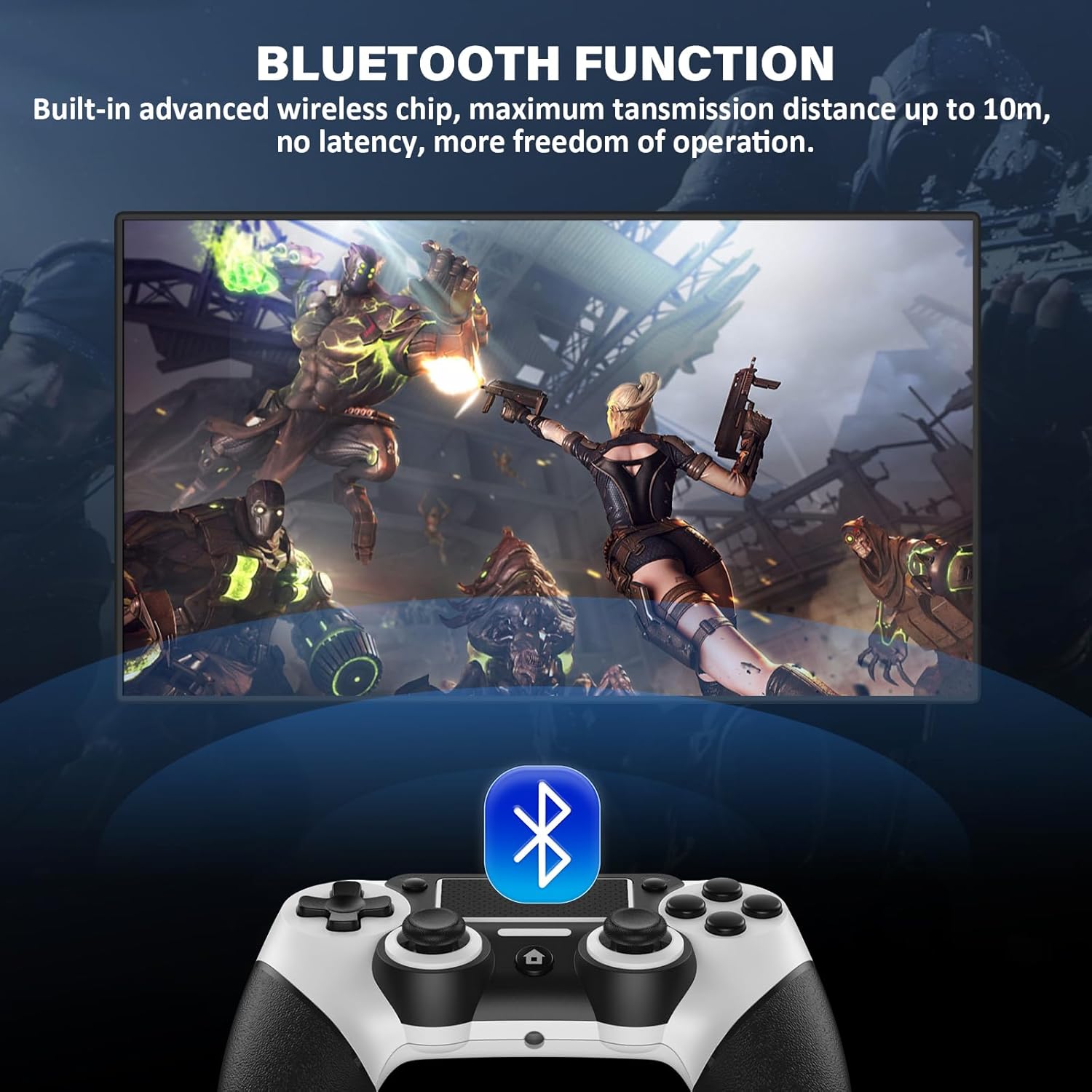
Image: Depicts the controller's Bluetooth function, highlighting its wireless capability with a range of up to 10 meters (33 feet).
5. Iċċarġjar tal-Kontrollur
The controller is equipped with a 600mAh high-capacity rechargeable battery.
- Ħin tal-Iċċarġjar: Madwar 1-2 sigħat għal ċarġ sħiħ.
- Ħin tax-Xogħol: Provides up to 8-10 hours of uninterrupted gaming.
- Port tal-Iċċarġjar: Tip-Ċ.
LED Light Bar Status during Charging:
- Waqt il-ħlas: LED light is orange.
- Meta l-iċċarġjar ikun lest: Id-dawl LED huwa mitfi.
- In standby: Id-dawl LED jteptep.
- When not connected: LED light is white.
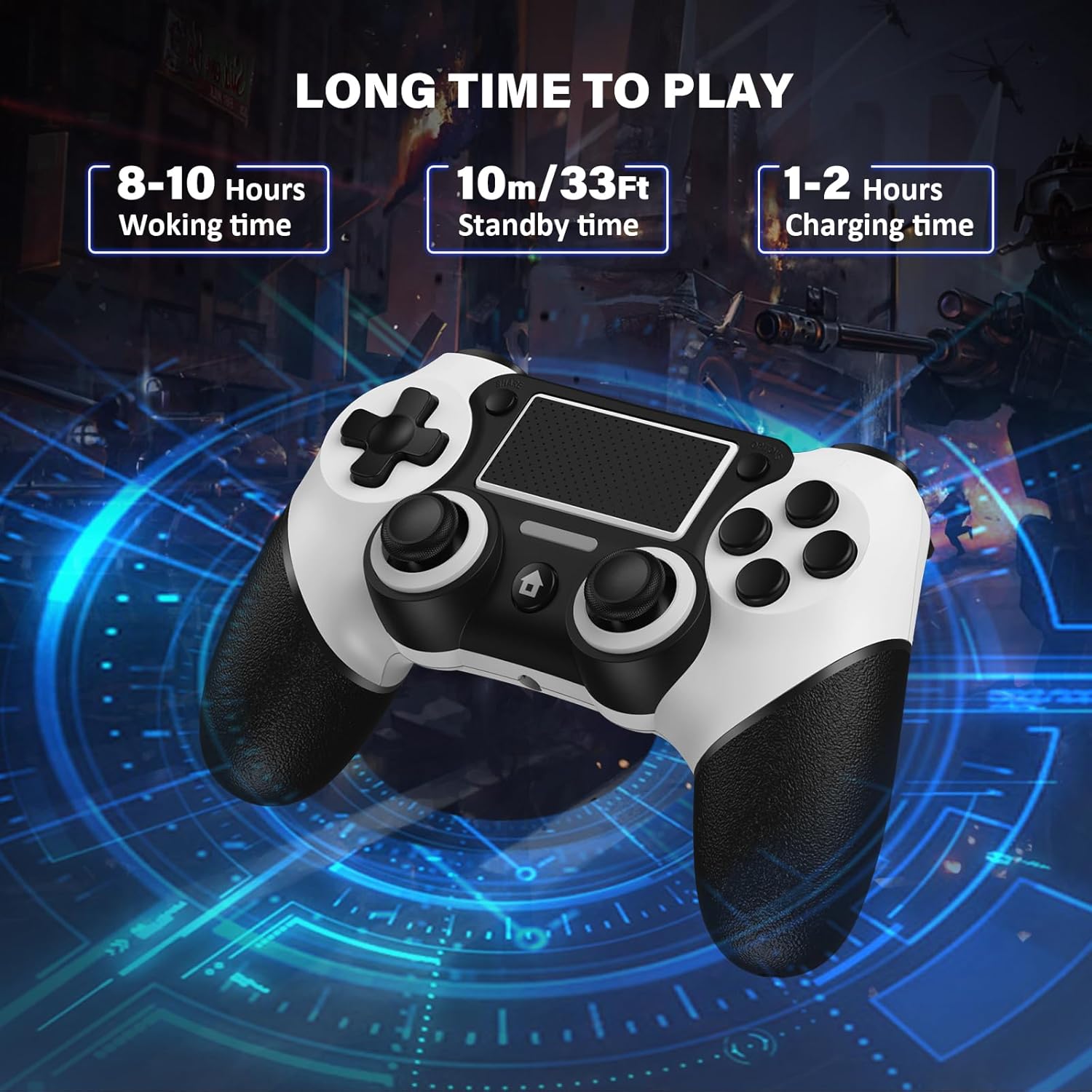
Image: Displays the controller's battery life metrics: 8-10 hours working time, 10m/33ft standby time, and 1-2 hours charging time.

Image: Highlights the controller's built-in 600mAh rechargeable battery, showing charging and working times.
6. Advanced Functions: Turbo and Macro Programming
Funzjoni Turbo
The Turbo function allows for continuous rapid input of a button press, useful in games requiring fast repetitive actions.
- How to Set TURBO: Press the desired function button (e.g., Triangle, Circle, Cross, Square, R1, R2, L1, L2) + the Buttuna SHARE fl-istess ħin.
- How to Cancel TURBO: Press the button with the continuous fire setting + the Buttuna SHARE fl-istess ħin.
- Adjusting Turbo Rate: Żomm il- Buttuna SHARE and move the right stick up or down to switch between 6 times/second, 12 times/second, and 18 times/second.
Programmazzjoni Makro
The M1 and M2 back buttons can be programmed to execute complex sequences or map any standard button, providing a competitive edge.
- The extra multi-function buttons on the back of this controller can be programmed for custom gameplay styles.
- You can map any button you want to set to M1 or M2.

Image: Illustrates the Macro Programming Features with M1 and M2 buttons on the back, showing customization options for up to 16 buttons.
7. Troubleshooting & Reset
Irrisettjar il-Kontrollur
If the product is not working properly due to a malfunction, you can perform a reset:
- Locate the small reset hole on the back of the controller (refer to the Controller Layout image).
- Use a thin, pointed object (like a paperclip) to press the reset button inside the hole.
- After resetting, re-pair the controller with your device following the initial setup instructions.
Kwistjonijiet Komuni
- Kwistjonijiet ta' Tqabbil: Ensure no other buttons or joysticks on the controller are pressed during the initial pairing process. This can prevent proper connection.
- Skonnettjar: If the controller frequently disconnects, ensure it is fully charged and within the 33ft (10m) Bluetooth range. Interference from other wireless devices can also affect connection stability.
- Dewmien fl-Input/Nuqqas ta' Rispons: Check battery level. If wired, ensure the USB cable is securely connected. For wireless, try re-pairing the controller.
8. Speċifikazzjonijiet tal-Prodott
| Speċifikazzjoni | Dettall |
|---|---|
| Dimensjonijiet tal-Prodott | 6.6 x 4.45 x 2.69 pulzieri |
| Piż tal-oġġett | 10.8 uqija |
| ASIN | B0C1VMH1T8 |
| Manifattur | Matbip |
| Isem tal-Mudell | P4 |
| Apparati Kompatibbli | Playstation 3, PC, Playstation 4 |
| Tip ta' Kontrollur | Gamepad |
| Teknoloġija tal-Konnettività | Bluetooth, USB C |
| Kapaċità tal-batterija | 600mAh |
9. Vidjo Uffiċjali tal-Prodott
Video: An official product video from Matbip showcasing the Wireless Controller for PS4, highlighting its features and design. This video demonstrates the controller's appearance and some of its functionalities.
10. Garanzija u Appoġġ għall-Klijent
Matbip specializes in providing customized controllers for game lovers. If you encounter any problems or have questions regarding your Matbip Wireless Controller, please do not hesitate to contact us. We are committed to providing prompt assistance and will reply to your inquiries within 24 hours.
For support, please refer to the contact information provided with your product packaging or visit the official Matbip store on Amazon.


