1. Introduzzjoni
This manual provides comprehensive instructions for the setup, operation, and maintenance of your Tibuta 15.6 Inch WiFi Digital Photo Frame. Please read this manual thoroughly before using the device to ensure proper functionality and to maximize your user experience.

Image 1.1: Tibuta 15.6 Inch WiFi Digital Photo Frame in use, showing its touchscreen capabilities and companion app integration.
2. Informazzjoni dwar is-Sigurtà
Observe the following safety precautions to prevent damage to the device or personal injury:
- Tesponix l-apparat għall-ilma jew għal umdità eċċessiva.
- Evita li tpoġġi l-apparat ħdejn sorsi ta’ sħana jew fix-xemx diretta għal perjodi twal.
- Uża biss l-adapter tal-enerġija pprovdut.
- Tippruvax iżarma jew isewwi l-apparat lilek innifsek. Ikkuntattja l-appoġġ tal-klijent għall-assistenza.
- Żomm l-apparat 'il bogħod mit-tfal u l-annimali domestiċi.
3. Kontenut tal-Pakkett
Ivverifika li l-oġġetti kollha huma preżenti fil-pakkett:
- Tibuta 15.6 Inch WiFi Digital Photo Frame
- Adapter tal-Enerġija
- Manwal għall-Utent (dan id-dokument)
- Stand
4. Prodott Aktarview
Familiarize yourself with the components of your digital photo frame.
4.1 Quddiem View

Stampa 4.1: Quddiem view and key features of the Tibuta 15.6 Inch Digital Photo Frame.
- 15.6 Inch HD Touch Screen: High-definition display with 1280x800 resolution and IPS technology for wide viewangoli.
- Interface touchscreen: Allows for direct interaction with the frame's menus and settings.
4.2 Wara View u l-Portijiet

Stampa 4.2: Wara view of the Tibuta Digital Photo Frame with labeled ports and features.
- Swiċċ tal-Enerġija: Ixgħel jew jitfi l-apparat.
- Immuntat mal-Ħajt: Mounting points for wall installation.
- Ampliifikaturi: Integrated speakers for audio playback.
- Slott tal-Karta Mikro SD: Supports Micro SD cards up to 128GB for expanded storage.
- Jack tal-headphones: Għall-konnessjoni ta 'apparati awdjo esterni.
- Type-A USB Port: Għall-konnessjoni ta' USB drives jew periferali oħra.
- Port Mini USB: For data transfer (if applicable).
- Port tal-Enerġija DC: Tqabbad mal-adapter tal-enerġija.
- Stand: Attachable stand for desktop placement.
5. Setup
5.1 Qawwa Inizjali
- Attach the stand to the back of the photo frame for stable placement on a flat surface.
- Connect the power adapter to the DC Power Port on the back of the frame.
- Ipplaggja l-adapter tal-enerġija f'iżbokk tal-ħajt.
- Press the Power Switch to turn on the device.
- Segwi l-istruzzjonijiet fuq l-iskrin biex tagħżel il-lingwa tiegħek, iż-żona tal-ħin, u tikkonnettja ma' netwerk Wi-Fi.
5.2 Konnessjoni mal-Wi-Fi
- From the main menu, navigate to "Settings" and then "Wi-Fi".
- Agħżel in-netwerk Wi-Fi mixtieq tiegħek mil-lista.
- Daħħal il-password tal-Wi-Fi billi tuża t-tastiera fuq l-iskrin.
- Tap "Connect". Once connected, a Wi-Fi icon will appear on the screen.
5.3 Installazzjoni tal-Applikazzjoni ta' Kumpann
To share photos and videos remotely, download the dedicated companion app.

Image 5.1: Download the Uhale App from Google Play or the App Store.
- On your smartphone or tablet, open the Google Play Store (for Android devices) or the Apple App Store (for iOS devices).
- Fittex għal "Uhale App" (or the specified app name in your frame's instructions).
- Niżżel u installa l-app.
- Follow the in-app instructions to pair your device with the digital photo frame. This typically involves entering a unique code displayed on your photo frame.
6. Istruzzjonijiet Operattivi
6.1 Sharing Photos and Videos via App
Once the frame is connected to Wi-Fi and paired with the app:
- Iftaħ l-app anëillari fuq l-ismartphone tiegħek.
- Select the photos or videos you wish to share.
- Tap the "Send" or "Share" button within the app.
- The selected media will be transferred to your digital photo frame and displayed.
The frame supports various display modes, including timing, zooming, and cropping, which can often be adjusted via the app or directly on the frame's settings.
6.2 Using External Storage (Micro SD Card)
The frame has 16GB of built-in storage and supports Micro SD cards up to 128GB.
- Insert a Micro SD card into the designated slot on the back of the frame.
- The frame will automatically detect the card.
- Navigate to the "Gallery" or "Files" section on the frame to access content from the Micro SD card.
- Tista' tikkopja files from the Micro SD card to the internal storage or play them directly.
6.3 Automatic Rotation (Gravity Sensing)
The frame features gravity sensing for automatic rotation, adjusting the display orientation based on how the frame is positioned (landscape or portrait).
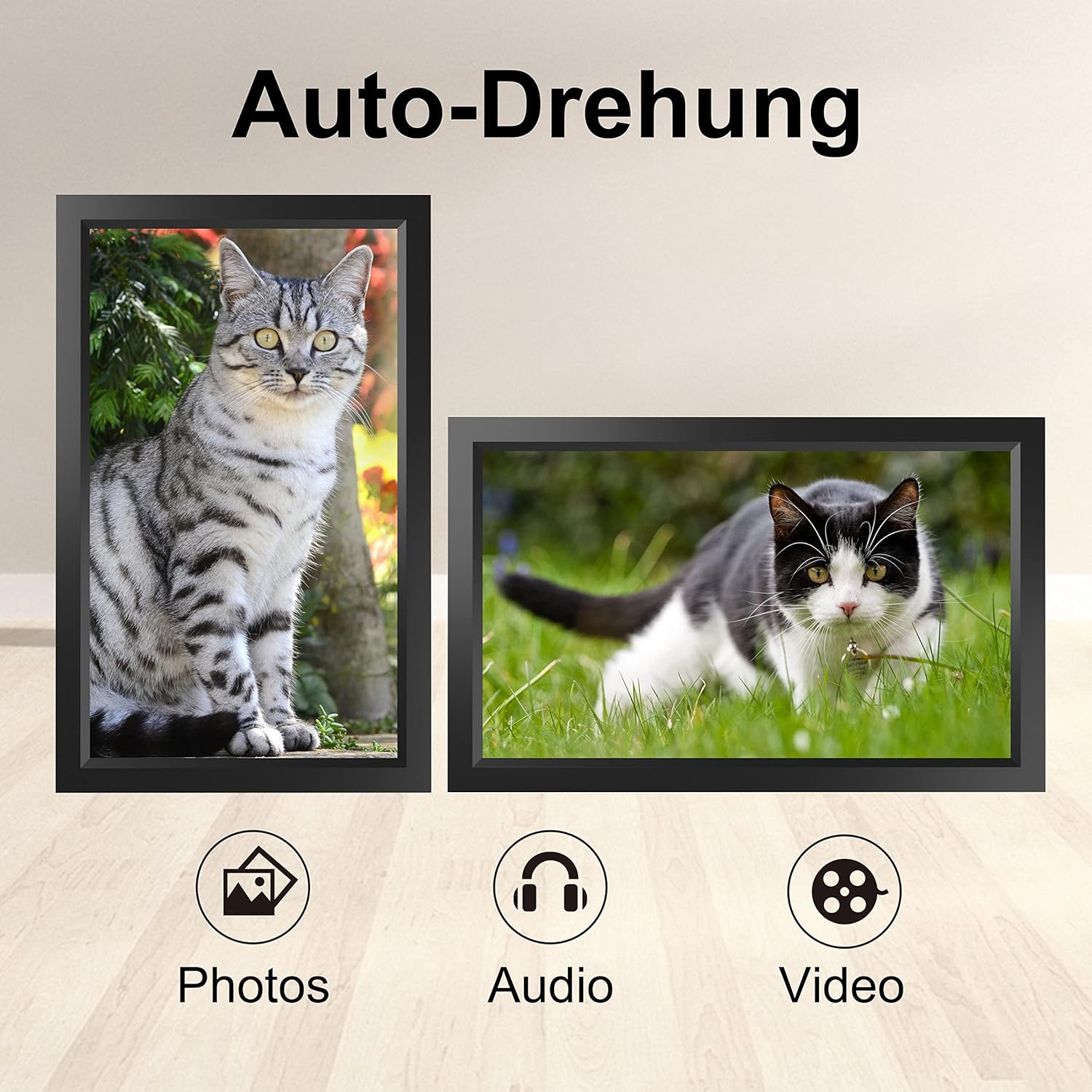
Image 6.1: Automatic display rotation based on frame orientation.
Ensure the gravity sensing feature is enabled in the frame's settings if you wish to utilize this functionality.
6.4 Settings tal-wiri
Ippersonalizza tiegħek viewing experience through the frame's settings menu:
- Intervall ta' Wirja: Adjust how long each photo is displayed.
- Transition Effects: Choose different effects between photos.
- Luminożità: Aġġusta l-luminożità tal-iskrin.
- Sleep Mode/Timer: Set schedules for the frame to turn on/off automatically.
- Zoom/Crop: Options to adjust how photos fit the screen.
7. Manutenzjoni
7.1 Tindif tal-Iskrin
Biex tnaddaf it-touchscreen, imsaħ bil-mod b'ċarruta ratba u mingħajr suf. Għal tbajja' persistenti, imsaħ ftit.ampLaħlaħ id-drapp bl-ilma jew b'soluzzjoni għat-tindif tal-iskrin. Evita li tuża kimiċi ħarxa jew materjali li joborxu.
7.2 Kura Ġenerali
- Keep the frame in a dry environment.
- Protect it from dust by occasionally wiping the frame's body with a soft cloth.
- Evita li twaqqa 'l-apparat jew suġġett għal impatti qawwija.
8 Issolvi l-problemi
| Problema | Kawża Possibbli | Soluzzjoni |
|---|---|---|
| Il-qafas ma jixgħelx. | L-adapter tal-enerġija mhux imqabbad jew difettuż. | Kun żgur li l-adapter tal-enerġija huwa konness sew kemm mal-qafas kif ukoll ma' sokit tal-enerġija li jaħdem. Ipprova sokit differenti. |
| Ma tistax tikkonnettja mal-Wi-Fi. | Password mhux korretta, barra mill-firxa, jew problema tan-netwerk. | Verify the Wi-Fi password. Move the frame closer to the router. Restart your router. |
| Ritratti/vidjows mhux qed jidhru. | App not paired, incorrect file format, or storage issue. | Ensure the app is correctly paired. Check if the media files are in a supported format. Verify sufficient storage space on the frame or SD card. |
| It-touchscreen ma jirrispondix. | Problema temporanju tas-softwer. | Restart the frame by holding the power button or unplugging and replugging the power adapter. |
| Automatic rotation not working. | Karatteristika diżattivata jew problema bis-sensor. | Check the frame's settings to ensure gravity sensing/auto-rotation is enabled. |
9. Speċifikazzjonijiet
| Karatteristika | Dettall |
|---|---|
| Numru tal-Mudell | TID15.6 |
| Daqs tal-Iskrin | 15.6 Pulzier |
| Tip ta 'Wiri | IPS touch screen |
| Riżoluzzjoni | 1280x800 |
| Ħażna Interna | 16GB (approx. 20,000 photos) |
| Ħażna Esterna | Mikro SD card sa 128GB |
| Konnettività | Wi-Fi |
| Karatteristiċi Speċjali | Gravity Sensing Automatic Rotation, Touchscreen |
| Dimensjonijiet (L x W x H) | 39.12 x 24.64 x 2.51 ċm |
| Piż | 1.48 kg |
| Sors tal-Enerġija | Battery Powered (includes 1 Lithium Ion battery) |
Nota: L-ispeċifikazzjonijiet huma soġġetti għal tibdil mingħajr avviż minn qabel.
10. Garanzija u Appoġġ
10.1 Garanzija tal-Prodott
The Tibuta Digital Photo Frame comes with a one-year product warranty. This warranty covers manufacturing defects and operational issues arising from normal use. If any issues arise during this period, please contact our after-sales support team for assistance.
10.2 Appoġġ għall-Klijent
For technical support, warranty claims, or any other inquiries, please refer to the contact information provided on the Tibuta official website or your purchase documentation. When contacting support, please have your model number (TID15.6) and purchase date available.


