1. Introduzzjoni
Thank you for choosing the JOOAN 2K Outdoor PTZ Security Camera. This manual provides detailed instructions to help you install, operate, and maintain your camera effectively. This camera is designed for outdoor surveillance, offering 2K resolution, 360° pan/tilt functionality, two-way audio, motion detection, and various night vision modes to enhance your home security.
2. X'hemm fil-Kaxxa
- 1x JOOAN 2K Outdoor PTZ Security Camera
- 1x Power Adapter & 1x USB Cable
- 1x Manwal għall-Utent
- 1x Borża bil-viti (għall-immuntar)
3. Prodott Aktarview
The JOOAN 2K Outdoor PTZ Security Camera features a robust design suitable for outdoor environments. It includes dual antennas for stable 2.4G Wi-Fi connectivity, a high-resolution lens, IR lights, and floodlights for enhanced night vision. The camera's pan and tilt mechanism allows for extensive coverage.
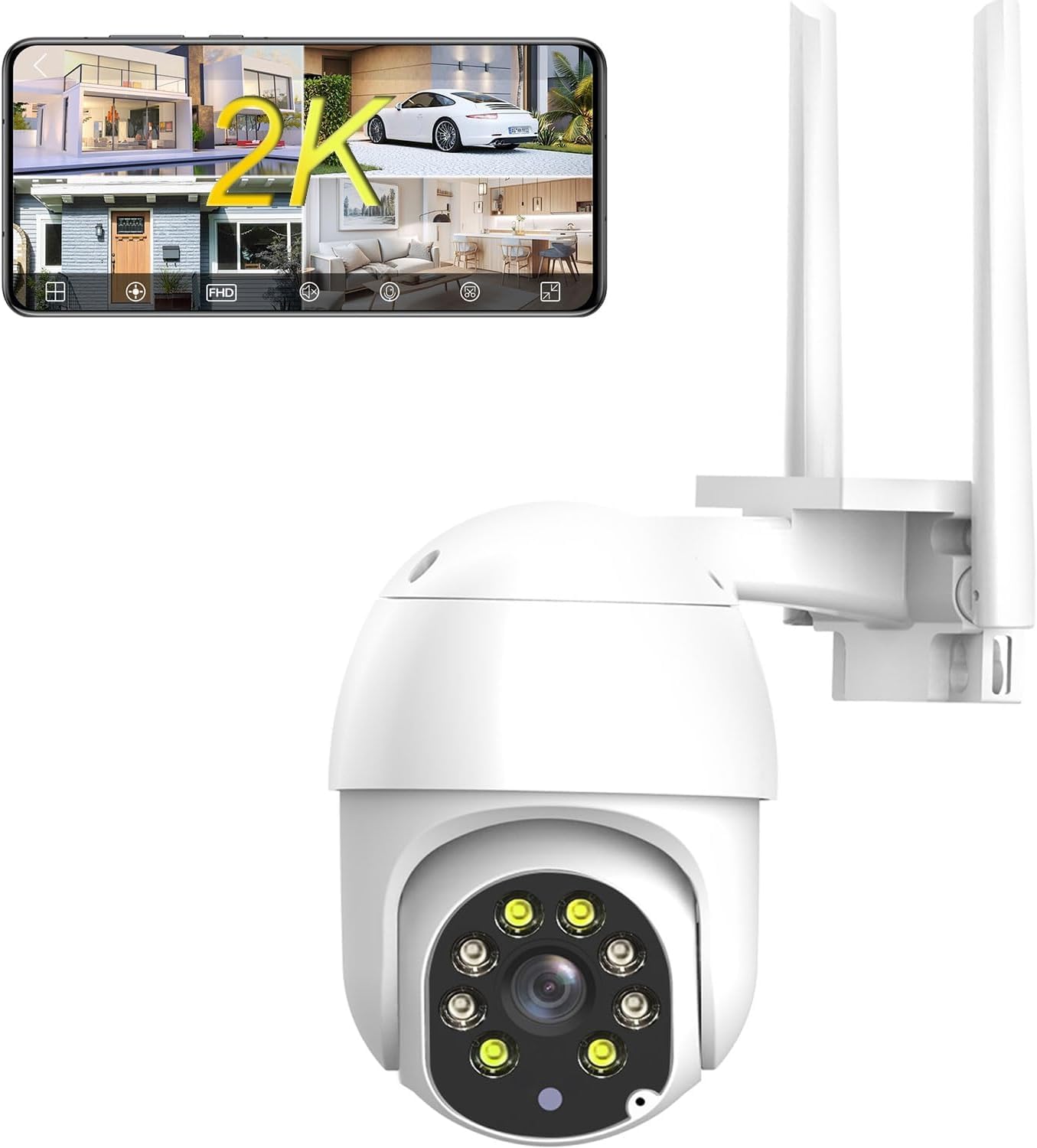
Figura 3.1: Quddiem view of the JOOAN 2K Outdoor PTZ Security Camera with dual antennas.

Figura 3.2: Lura view of the camera, showing the model number Q8T-U and power input.
4. Setup
4.1 Tniżżil u Reġistrazzjoni tal-App
To control your camera, download the 'cam720' app from the App Store (iOS) or Google Play (Android). Register an account using your email address. A verification code will be sent to your email for account activation.

Figure 4.1: Scan the QR code to download the 'cam720' app.
4.2 Power On and Reset
- Connect the camera to power using the provided adapter and USB cable.
- Stenna li l-kamera tixgħel.
- Locate the reset button (usually a small pinhole) on the camera. Use a pin or paperclip to press and hold the reset button until you hear a 'Di' sound. Continue holding until you hear 'Di-Di-'. This indicates the camera has been reset and is ready for connection.
Nota: For initial setup, place the camera close to your phone and Wi-Fi router.
Video 4.1: Official guide demonstrating the Wi-Fi connection steps, including app download, power-on, and reset procedures for the JOOAN security camera.
4.3 Konnessjoni Wi-Fi
- Open the 'cam720' app and tap the '+' icon to add a device.
- Follow the on-screen prompts to select your Wi-Fi network (2.4G only) and enter the password.
- The app will guide you through connecting the camera to your network. Ensure your phone is connected to the same 2.4G Wi-Fi network.

Figure 4.2: The camera connects to your 2.4GHz Wi-Fi network via its dual antennas.
4.4 Għażliet ta 'Immuntar
The camera supports both wall and ceiling installation. Use the provided screw bag to securely mount the camera in your desired location. Ensure the mounting surface is stable and can support the camera's weight.

Figure 4.3: Illustration of wall mount and ceiling mount installation methods.
4.5 Installazzjoni tal-Kard SD
The camera supports up to a 256GB SD card (not included) for local storage. Locate the SD card slot, typically under a protective cover on the camera body. Insert the SD card with the contacts facing the correct direction until it clicks into place. Ensure the cover is properly sealed after installation to maintain weather resistance.

Figure 4.4: The camera supports local storage via an SD card and optional cloud storage.
5. Istruzzjonijiet Operattivi
5.1 Remote Control via App (PTZ & Digital Zoom)
Use the 'cam720' app to remotely control the camera's pan (355°) and tilt (90°) movements, providing 360° coverage. The app also allows for 5x digital zoom to view details more closely.

Figure 5.1: Control camera movement and zoom directly from your smartphone app.
5.2 Awdjo b'żewġ direzzjonijiet
The camera features a built-in microphone and speaker, enabling two-way audio communication. Through the app, you can listen to the camera's surroundings and speak through the camera to visitors or deter intruders.

Figure 5.2: Two-way audio allows for real-time communication through the camera.
Video 5.1: Official demonstration of the 2K security camera's two-way audio feature, showing interaction with a person at the door.
5.3 Smart Motion Detection and Alerts
The camera features smart motion detection. When a moving object enters the monitoring area, the camera will trigger an alarm sound and send a message push notification to your phone. You can customize detection sensitivity (high, medium, low) to minimize false alarms.

Figure 5.3: Motion detection activates an alarm and sends alerts to your mobile device.
5.4 Modi ta' Viżjoni bil-Lejl
The camera supports both IR (infrared) night vision for black and white footage in low light, and full-color night vision using its integrated floodlights for clearer, more detailed nighttime surveillance.

Figure 5.4: Day vision compared to black and white night vision.
5.5 Reġistrazzjoni u Ħażna
Recordings can be stored locally on an SD card (up to 256GB) or via optional cloud storage. Cloud storage offers up to 30 days of video history, ensuring your data is secure even if the camera is compromised.

Figure 5.5: The camera supports 24/7 recording with H.265 compression, SD card, and cloud storage options.
5.6 Qsim ta' Multi-Utent
The camera supports multi-user sharing, allowing administrators to share real-time video access with family and friends through the app.

Figure 5.6: Share live camera feeds with authorized users.
6. Manutenzjoni
6.1 Reżistenza għat-Temp
The camera is IP66 weatherproof, designed to withstand various outdoor conditions including rain, snow, and storms. Ensure all connections are properly sealed during installation to maintain its waterproof rating.

Figure 6.1: The camera is built to withstand harsh weather conditions.
6.2 Tindif
Naddaf il-lenti u l-kaxxa tal-kamera perjodikament b'drapp artab u dryer.amp cloth to ensure clear image quality. Avoid using harsh chemicals or abrasive materials that could damage the camera.
7 Issolvi l-problemi
| Problema | Kawża Possibbli | Soluzzjoni |
|---|---|---|
| Il-kamera ma tirnexxilhiex tikkonnettja mal-Wi-Fi | Incorrect Wi-Fi password; 5G Wi-Fi network; Camera too far from router; Incorrect reset procedure. | Ensure correct 2.4G Wi-Fi password. Confirm router is 2.4G compatible. Move camera closer to router. Perform reset again until 'Di-Di-' sound. |
| L-ebda immaġni jew skrin iswed fl-app | Camera not powered on; Network connection issue; App malfunction. | Check power connection. Verify Wi-Fi signal strength. Restart camera and app. |
| Twissijiet ta' skoperta ta' moviment mhux riċevuti | Motion detection disabled; App notifications off; Low sensitivity setting. | Enable motion detection in app settings. Check phone notification settings. Adjust sensitivity to medium or high. |
| Il-karta SD mhux qed tirrekordja | SD card full or faulty; Incorrect format; SD card not inserted correctly. | Check SD card status in app. Format SD card via app. Reinsert SD card. Replace if faulty. |
8. Speċifikazzjonijiet
- Mudell: Q8T-U
- Riżoluzzjoni tal-Qbid tal-Vidjo: 1296p (3MP Effective Still Resolution)
- Konnettività: 2.4G Wi-Fi (Powerline; only 2.4g wifi), Bluetooth
- Pan/Mejjel: 355° Pan, 90° Mejjel
- Żum diġitali: 5X
- Viżjoni bil-lejl: IR Night Vision, Color Night Vision (with floodlights)
- Awdjo: 2-Way Audio (Built-in microphone and speaker)
- Ħażna: Karta Mikro SD (sa 256GB), Ħażna fis-Sħab
- Reżistenza għat-temp: IP66 Waterproof
- Sors tal-Enerġija: Elettriku bil-Fili (5-il Volt, 7.5-il watts)
- Dimensjonijiet: 5.4 x 4.7 x 4 pulzieri
- Piż: 1.26 liri
- Metodu ta' Kontroll: App, Remote
- Apparati Kompatibbli: Phone (Android, iOS)
9. Garanzija u Appoġġ
Għal informazzjoni dwar il-garanzija u appoġġ tekniku, jekk jogħġbok irreferi għall-websajt uffiċjali tal-manifattur. webis-sit jew ikkuntattja lis-servizz tal-konsumatur tagħhom direttament. Żomm l-irċevuta tax-xiri tiegħek bħala prova tax-xiri.
Manufacturer: JOOAN
Għal aktar għajnuna, żur il- JOOAN Store on Amazon.


