1. Introduzzjoni
This manual provides detailed instructions for the VENTION USB C Hub, Model TOPHB. This 7-in-1 multiport adapter is designed to expand the connectivity of your USB-C enabled devices, offering a range of ports for data transfer, video output, and power delivery. Please read this manual carefully before using the product to ensure proper operation and longevity.
2. Prodott Aktarview
The VENTION USB C Hub (Model TOPHB) is a versatile 7-in-1 adapter that integrates essential ports into a compact design. It is compatible with various USB-C devices, including laptops, tablets, and smartphones.
Kontenut tal-Pakkett:
- VENTION USB C Hub (Model TOPHB)
- Manwal għall-Utent
Karatteristiċi ewlenin:
- Port HDMI: Supports 4K@30Hz video output for external displays.
- Port USB-C PD: Provides up to 100W Power Delivery for fast charging.
- Portijiet USB 3.0 (x3): Offers high-speed data transfer up to 5Gbps.
- SD Card Reader: Supports standard SD cards.
- TF (Micro SD) Card Reader: Supports Micro SD cards.
- Simultaneous SD/TF card reading and writing.
- Durable aluminum alloy casing għal dissipazzjoni effiċjenti tas-sħana.
- Blue LED indicator for operational status.

Image: The VENTION USB C Hub connected to a laptop, showcasing its multiple ports including HDMI, USB-C PD, USB 3.0, and SD/TF card slots, with various peripherals like a USB drive and memory cards.
3. Istruzzjonijiet ta' Setup
The VENTION USB C Hub is designed for plug-and-play functionality, requiring no additional drivers for most operating systems.
Konnessjoni tal-Hub:
- Locate an available USB-C port on your host device (laptop, tablet, or smartphone).
- Insert the USB-C connector of the VENTION hub firmly into the USB-C port of your device.
- A blue LED indicator on the hub will illuminate, confirming that the hub is powered on and ready for use.

Image: The VENTION USB C Hub with its blue LED indicator glowing, indicating that it is successfully connected and operational.
4. Istruzzjonijiet Operattivi
Ħruġ tal-Vidjo HDMI 4.1
Connect an external monitor or TV to the hub's HDMI port for high-definition video output.
- Supports resolutions up to 4K (3840x2160) at 30Hz.
- Your device's display settings can be configured for mirror mode (duplicate display) or extend mode (separate display).

Image: A visual representation of connecting a laptop to an external monitor using the hub, showing options for mirroring the display or extending it.
Trasferiment tad-Data 4.2 USB 3.0
The three USB 3.0 ports allow you to connect various USB peripherals and transfer data at high speeds.
- Connect USB flash drives, external hard drives, keyboards, mice, and other USB devices.
- Data transfer speeds up to 5Gbps.
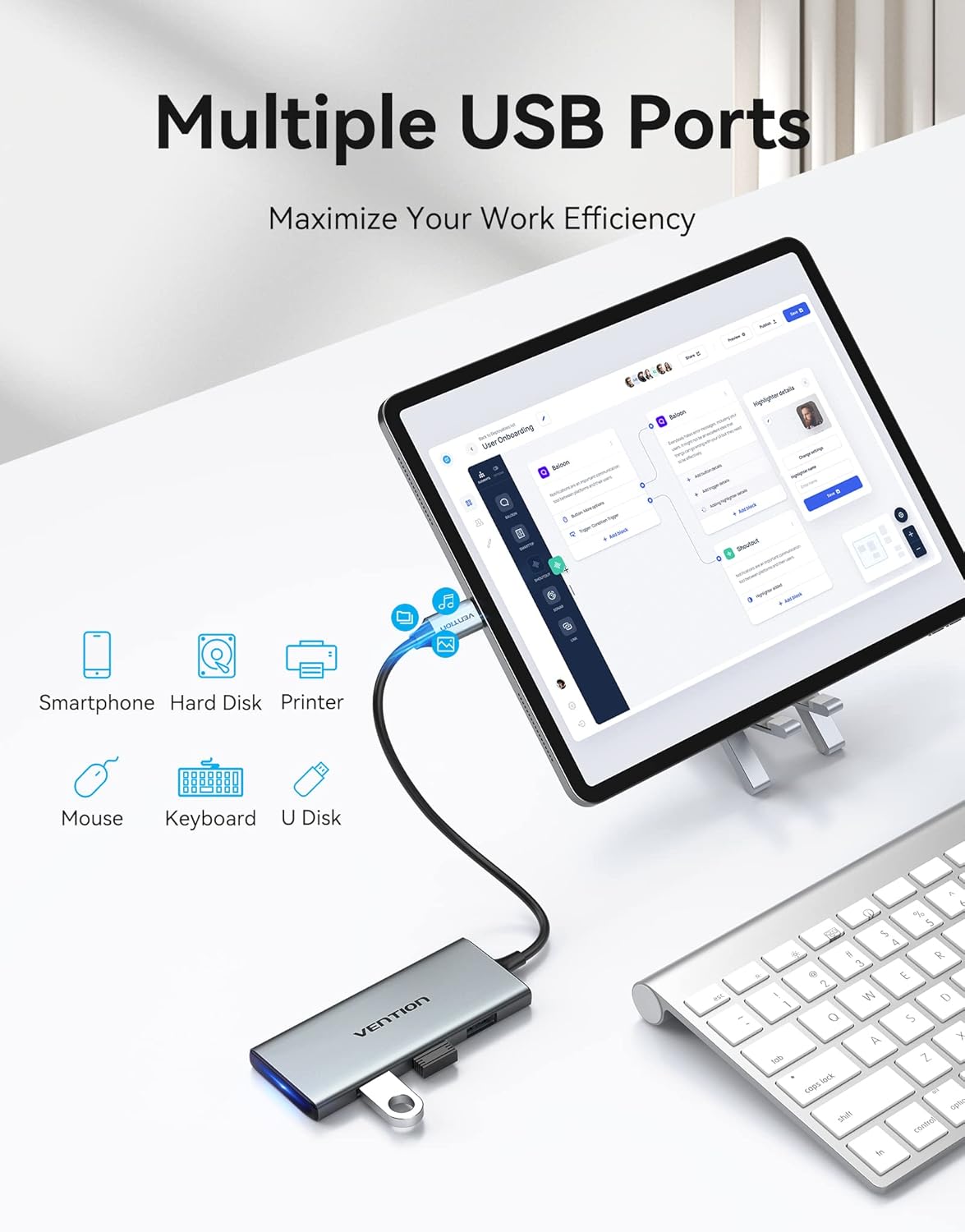
Image: A tablet connected to the VENTION USB C Hub, demonstrating the use of multiple USB ports for connecting a keyboard and a USB drive, enhancing productivity.
Qarrej tal-Kards SD/TF 4.3
The integrated card readers support both standard SD and Micro SD (TF) cards, allowing for quick access to media files.
- Insert SD or TF cards into their respective slots.
- Supports simultaneous reading and writing for both card types.
- Reading/writing speed up to 70MB/s.

Image: A VENTION USB C Hub connected to a laptop, with an SD card inserted into its slot, illustrating the card reader functionality for transferring photos and videos from a camera.
4.4 Iċċarġjar tal-Kunsinna tal-Enerġija (PD)
Il-port USB-C PD jippermettilek tiċċarġja t-tagħmir ospitanti tiegħek waqt li tuża l-hub.
- Connect your original USB-C power adapter to the hub's USB-C PD port.
- Supports up to 100W power delivery to your host device.

Image: The VENTION USB C Hub connected to a laptop and a power adapter, demonstrating its 100W Power Delivery charging capability.
4.5 Vidjo Uffiċjali tal-Prodott
Video: An official product video from Vention showcasing the features and usage of the 7-in-1 USB-C Docking Station, including its compact design, various ports, and connectivity options.
5. Manutenzjoni
To ensure the longevity and optimal performance of your VENTION USB C Hub, follow these maintenance guidelines:
- Tindif: Uża drapp artab u niexef biex tnaddaf il-hub. Evita prodotti tat-tindif likwidi jew materjali li joborxu.
- Ħażna: Aħżen il-hub f'post frisk u niexef 'il bogħod mix-xemx diretta u minn temperaturi estremi.
- Immaniġġjar: Evita li twaqqa' l-hub jew li tissottomettih għal impatti qawwija.
- Dissipazzjoni tas-Sħana: Il-liga tal-aluminju casing is designed for efficient heat dissipation. Ensure the hub is placed in a well-ventilated area during prolonged use.
6 Issolvi l-problemi
If you encounter issues with your VENTION USB C Hub, refer to the following common problems and solutions:
| Problema | Kawża Possibbli | Soluzzjoni |
|---|---|---|
| L-ebda wiri fuq monitor estern. | Incorrect cable connection; incompatible resolution; host device not configured for external display. | Ensure HDMI cable is securely connected. Check display settings on your host device (e.g., Windows Display Settings, macOS System Preferences > Displays) to detect and configure the external monitor. Try a different HDMI cable. |
| Apparati USB mhux rikonoxxuti. | Loose connection; insufficient power; device driver issue. | Ensure USB devices are firmly plugged into the hub. If using a high-power device, connect a power adapter to the hub's PD port. Try connecting the USB device directly to your host device to rule out device-specific issues. |
| Slow charging via PD port. | Power adapter not sufficient; cable issue. | Ensure you are using a power adapter capable of delivering sufficient wattage (e.g., 100W for maximum speed). Use a high-quality USB-C to USB-C cable that supports Power Delivery. |
| SD/TF cards not detected. | Card not fully inserted; card format issue. | Ensure the card is fully and correctly inserted into the slot. Try the card in another device to check if the card itself is faulty. |
If the problem persists after trying these solutions, please contact VENTION customer support for further assistance.
7. Speċifikazzjonijiet
| Karatteristika | Dettall |
|---|---|
| Numru tal-Mudell | TOPHB |
| Interface tal-Ħardwer | HDMI, MicroSD, Thunderbolt, USB 3.0 |
| Ħruġ HDMI | 4K@30Hz |
| Port USB-C PD | Sa 100W Enerġija Kunsinna |
| Portijiet USB 3.0 | 3 ports, 5Gbps data transfer |
| Qarrej tal-Kard | SD and TF (Micro SD) slots, simultaneous read/write |
| Apparati Kompatibbli | Hard Disk Drive, Keyboards, Laptops, Monitors, Smartphones |
| Karatteristiċi Speċjali | Fast Charging, Fast Data Transfer, Heat Resistant, Indicator Light, Lightweight |
| Piż tal-oġġett | 2.46 uqija |
| Dimensjonijiet tal-Pakkett | 7.09 x 3.58 x 1.02 pulzieri |
8. Garanzija u Appoġġ
For warranty information, technical support, or any inquiries regarding your VENTION USB C Hub, please refer to VENTION's official webis-sit jew ikkuntattja lis-servizz tal-konsumatur tagħhom direttament. Żomm l-irċevuta tax-xiri tiegħek għal talbiet ta' garanzija.
You can visit the VENTION Store for more information: Ħanut Uffiċjali VENTION


