1. Introduzzjoni
This manual provides comprehensive instructions for the setup, operation, maintenance, and troubleshooting of your AJAZZ AK992 Wireless Mechanical Keyboard. Please read this manual thoroughly before using the product to ensure proper function and longevity.

Image 1.1: The AJAZZ AK992 Wireless Mechanical Keyboard, showcasing its full layout and coiled cable.
2. Kontenut tal-Pakkett
Ivverifika li l-oġġetti kollha huma preżenti fil-pakkett:
- 1 x AJAZZ AK992 Mechanical Keyboard
- 1 x 2.4GHz USB Riċevitur
- 1 x Custom Coiled USB-C Cable
- 1 x Keycap Puller
- 1 x Puller tas-Swiċċ
- 4 x Replacement Switches
- 8 x Replacement Keycaps
- 1 x Manwal tal-Utent (dan id-dokument)
3. Speċifikazzjonijiet
| Karatteristika | Dettall |
|---|---|
| Mudell | AK992 |
| Konnettività | Bluetooth 5.0, Wireless 2.4GHz, USB-C bil-wajer |
| Ċwievet | 99 Ċwievet (98% Tqassim) |
| Swiċċijiet | Jista' jinbidel bis-sħana (kompatibbli ma' 3-pin/5-pin) |
| Tappijiet ewlenin | PBT OEM Keycaps |
| Backlighting | RGB (18+ effects) |
| Kapaċità tal-batterija | 4000mAh |
| Dimensjonijiet | 16.5 x 2.2 x 2.8 pulzieri |
| Piż | 2.48 liri |
| Manifattur | MAGIC-REFINER |
4. Setup
4.1 Iċċarġjar tat-Tastiera
Before initial use, fully charge the keyboard using the provided USB-C cable. Connect the USB-C end to the keyboard and the USB-A end to a power source (e.g., computer USB port, wall adapter).
- The keyboard features a 4000mAh battery, providing extended usage time.
- To check battery level, press FN + Back (Delete Key). The number keys 1-0 will light up to indicate the power proportion.
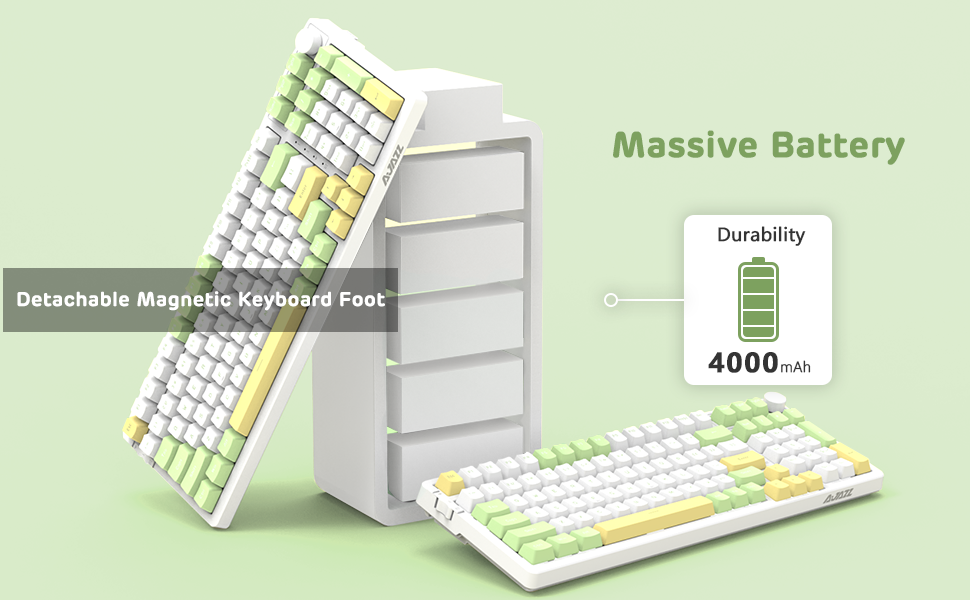
Image 4.1: Visual representation of checking the keyboard's battery level by pressing FN + Back (Delete Key).
4.2 Connecting the Keyboard (Three Modes)
The AK992 keyboard supports three connection modes: Bluetooth 5.0, 2.4GHz Wireless, and USB-C Wired. Use the sliding switch on the left side of the keyboard to select your desired mode.
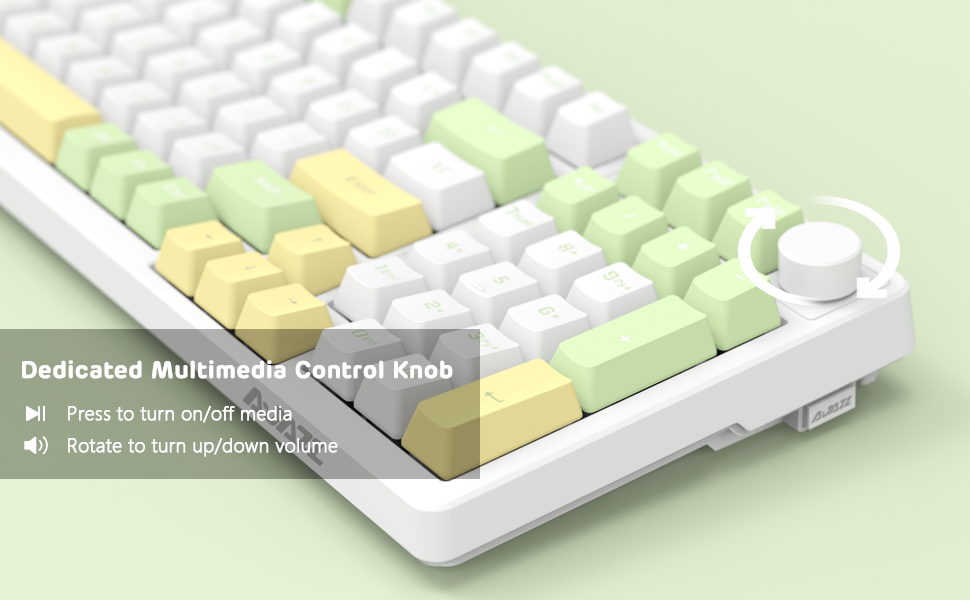
Image 4.2: Illustration of the three connection modes: USB-C, 2.4GHz, and Bluetooth 5.0, connecting to various devices.
Konnessjoni bla fili 4.2.1 2.4GHz
- Locate the 2.4GHz USB receiver, typically stored in a compartment on the side of the keyboard.
- Ipplaggja r-riċevitur USB f'port USB disponibbli fuq il-kompjuter tiegħek.
- Slide the connection switch on the keyboard to the "2.4G" position.
- It-tastiera għandha tikkonnettja awtomatikament.
4.2.2 Konnessjoni Bluetooth 5.0
The keyboard can store up to 3 Bluetooth devices.
- Slide the connection switch on the keyboard to the "BT" position.
- Agħfas u żomm FN + 1, FN + 2, jew FN + 3 for 3-5 seconds to enter pairing mode for the desired profile. The indicator light will flash rapidly.
- On your device (PC, Mac, tablet, smartphone), enable Bluetooth and search for "AK992".
- Select "AK992" to pair. The indicator light on the keyboard will stop flashing once connected.
- Biex taqleb bejn apparati Bluetooth imqabbdin, agħfas FN + 1/2/3 fil-qosor.
4.2.3 Konnessjoni bil-Wajer USB-C
- Connect the provided USB-C coiled cable to the keyboard's USB-C port.
- Qabbad it-tarf l-ieħor tal-kejbil ma 'port USB fuq il-kompjuter tiegħek.
- Slide the connection switch on the keyboard to the "Wired" position.
- The keyboard will be recognized as a standard USB keyboard.

Image 4.3: The custom coiled USB-C cable with a metal aviation connector, designed for durability and stable data transmission.
5. Istruzzjonijiet Operattivi
5.1 Multimedia Control Knob
The knob located in the upper right corner provides convenient multimedia control:
- Dawwar lejn l-arloġġ: Żid il-Volum
- Rotate Counter-Clockwise: Naqqas il-Volum
- Agħfas: Play/Pause Media or Mute/Unmute Audio

Image 5.1: Close-up of the metal knob, illustrating its functions for volume control and media play/pause/mute.
5.2 Kontroll tad-Dawl ta' Wara RGB
The AK992 features dynamic RGB backlighting with multiple effects.
- FN + \| (Backslash/Pipe key): Cycle through 18+ RGB lighting effects.
- FN + ↑ / ↓: Aġġusta l-luminożità tad-dawl ta 'wara.
- FN + ← / →: Aġġusta l-veloċità/direzzjoni tad-dawl ta' wara.
- FN + 1/2/3: Customize three sets of game or office lighting effects (requires software for full customization).
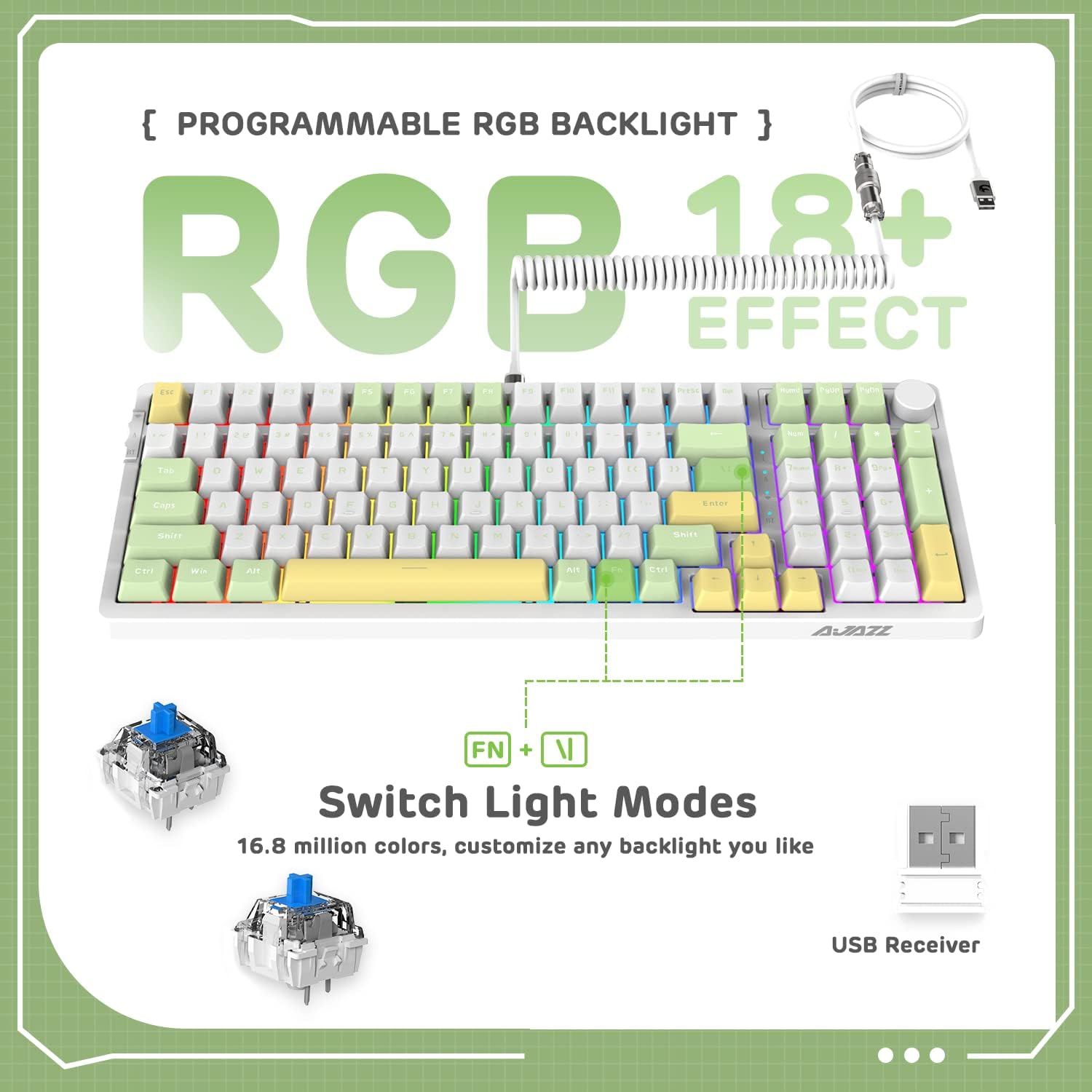
Image 5.2: The keyboard displaying various RGB lighting effects, highlighting the FN + \| key combination for switching modes.
5.3 Swiċċijiet li jistgħu jinbidlu bis-sħana
The AK992 keyboard features a hot-swappable PCB, allowing users to change mechanical switches without soldering. It supports both 3-pin and 5-pin switches.
- Uża l-puller tal-keycap provdut biex tneħħi bir-reqqa l-keycap mixtieq.
- Use the provided switch puller to gently grip the switch and pull it straight up to remove it from the PCB.
- Allinja l-labar tas-swiċċ il-ġdid mat-toqob fuq il-PCB. Kun żgur li l-labar huma dritti.
- Agħfas is-swiċċ il-ġdid sew f'postu sakemm jikklikkja.
- Ibdel il-għatu taċ-ċwievet.

Immaġni 5.3: Stampa dettaljata view of the keyboard's hot-swappable PCB, showing removed keycaps and switches, along with replacement components.
5.4 Disinn Ergonomiku
The keyboard is designed with a two-stage tripod foot system, allowing adjustment of the typing angle to 5° or 8° for improved comfort and reduced hand fatigue.

Image 5.4: The keyboard's two-stage tripod design, illustrating the 5° and 8° adjustable typing angles.
6. Manutenzjoni
6.1 Tindif
- Skonnettja t-tastiera mis-sorsi u l-apparati kollha tal-enerġija qabel ma tnaddafha.
- Uża drapp ratba u mingħajr ħelu ftit dampImlaħlaħ bl-ilma jew b'soluzzjoni ħafifa tat-tindif biex timsaħ il-keycaps u x-chassis.
- Għal tindif aktar fil-fond, uża l-puller tal-keycaps ipprovdut biex tneħħi l-keycaps u naddaf taħthom b'arja kkompressata jew pinzell żgħir.
- Avoid using harsh chemicals, abrasives, or solvents, as these may damage the keyboard's finish or components.
6.2 Ħażna
Store the keyboard in a cool, dry place away from direct sunlight and extreme temperatures. If storing for an extended period, ensure the battery is partially charged (around 50%) to preserve battery health.
7 Issolvi l-problemi
| Problema | Kawża Possibbli | Soluzzjoni |
|---|---|---|
| It-tastiera ma tirrispondix fil-modalità mingħajr fili. | Low battery, incorrect mode selected, receiver not plugged in (2.4G), not paired (Bluetooth). | Charge the keyboard. Ensure the mode switch is set correctly. Re-insert the 2.4G receiver. Re-pair Bluetooth device. |
| RGB backlight not working or dim. | Backlight turned off, brightness set too low, low battery. | Agħfas FN + \| to cycle modes. Adjust brightness with FN + ↑. Charge the keyboard. |
| Iċ-ċwievet mhux qed jirreġistraw jew qed jittajpjaw darbtejn. | Faulty switch, debris under keycap, software issue. | Remove keycap and clean. Replace the switch using the provided tools and spare switches. Test on another device. Update keyboard firmware if available. |
| It-tastiera tiskonnettja spiss. | Interference, distance from receiver/device, low battery. | Reduce distance to receiver/device. Ensure no strong interference sources. Charge the keyboard. Try wired mode. |
8. Garanzija u Appoġġ
8.1 Informazzjoni dwar Garanzija
The AJAZZ AK992 Wireless Mechanical Keyboard is covered by a limited warranty against manufacturing defects. Please refer to the warranty card included in your package or contact your retailer for specific warranty terms and conditions. Keep your proof of purchase for warranty claims.
Nota: The warranty typically covers defects in materials and workmanship under normal use. It does not cover damage caused by misuse, accidents, unauthorized modifications, or normal wear and tear.
8.2 Appoġġ għall-Klijent
For technical assistance, troubleshooting, or general inquiries, please contact the manufacturer or your point of purchase. You may also visit the official AJAZZ or MAGIC-REFINER websit għal FAQs, downloads ta' sewwieqa, u riżorsi ta' appoġġ addizzjonali.
Manufacturer: MAGIC-REFINER
Mudell: AK992
9. Vidjo Uffiċjali tal-Prodott
Vidjo 9.1: Wirja uffiċjali tal-vidjo tal-prodottasing the AK992 99 Keys Gasket Wireless Mechanical Gaming Keyboard in use, demonstrating its features and RGB lighting. This video is provided by MAGIC-REFINER Direct.


