1. Introduzzjoni
This manual provides comprehensive instructions for the setup, operation, and maintenance of your iDPRT 320E Thermal Label Printer. Please read this manual thoroughly before using the device to ensure proper functionality and to prevent damage. The iDPRT 320E is designed for efficient label printing in various environments, supporting multiple operating systems and connectivity options.
2. X'hemm fil-Kaxxa
Ivverifika li l-komponenti kollha huma preżenti meta tiftaħ il-pakkett:
- iDPRT 320E Thermal Label Printer
- Manwal ta' Istruzzjoni
- USB Data Cable
- Adapter tal-Enerġija
- Sample Tikketti
3. Prodott Aktarview
The iDPRT 320E Thermal Label Printer is a compact device designed for high-speed, high-resolution label printing. It features a simple design with essential ports for connectivity and an intuitive LED indicator for operational status.
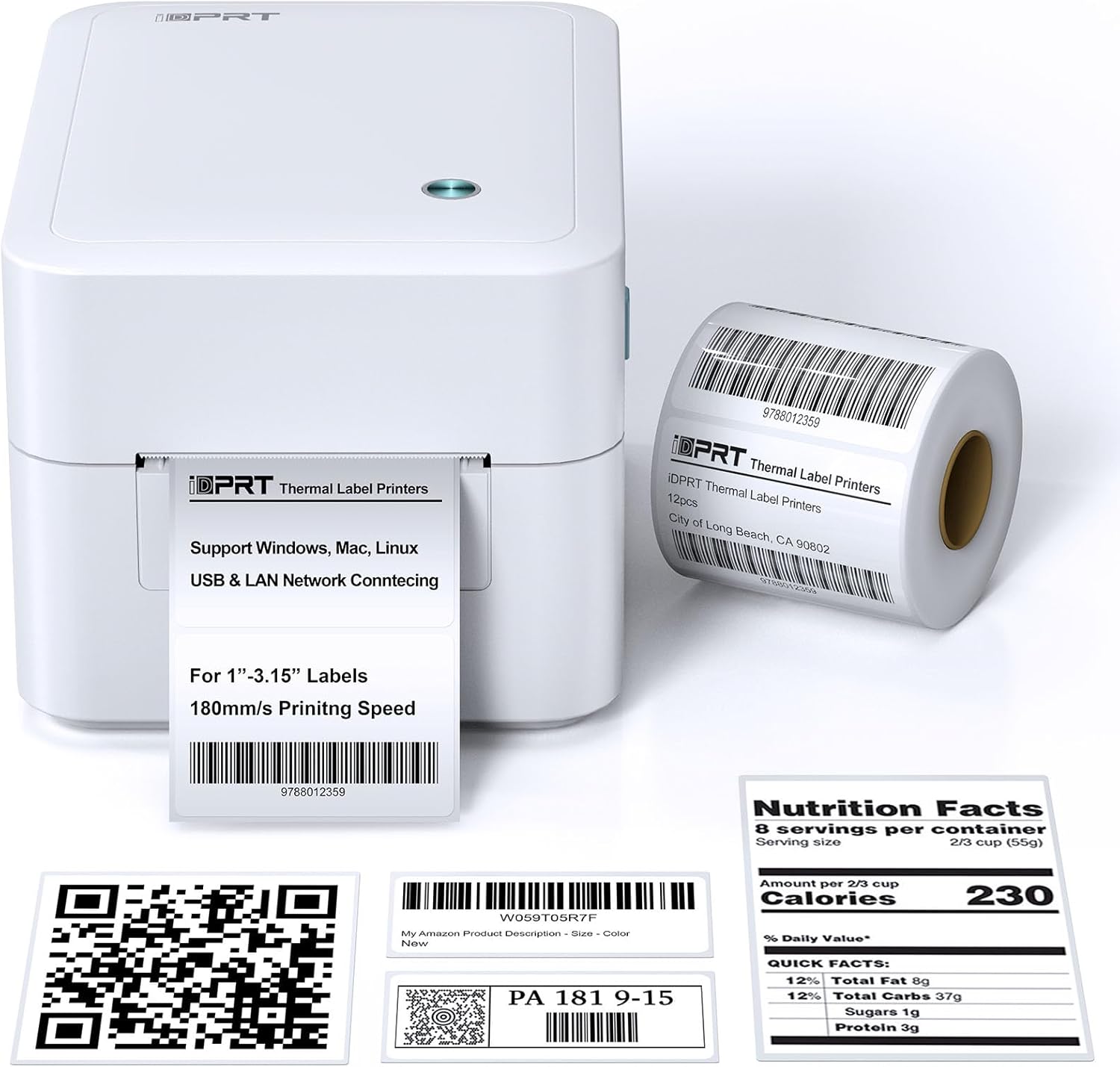
Figura 3.1: Quddiem view of the iDPRT 320E Thermal Label Printer with samptikketti.
Komponenti Ewlenin:
- Slott tal-Ħruġ tat-Tikketta: Fejn joħorġu tikketti stampati.
- Cover Release Latches: Used to open the printer cover for label loading.
- Port tal-Enerġija: Tqabbad mal-adapter tal-enerġija.
- Port USB: For direct connection to a computer.
- Port tal-LAN: Għall-konnettività tan-netwerk.
- Indikatur LED: Juri l-istatus tal-istampatur.
4. Istruzzjonijiet ta' Setup
4.1 Konnessjoni tal-Enerġija
- Qabbad l-adapter tal-enerġija mal-port tal-enerġija tal-istampatur.
- Ipplaggja l-adapter tal-enerġija fi żbokk tal-elettriku adattat.
4.2 It-Tagħbija tat-Tikketti
The printer supports thermal labels with widths between 1 and 3.15 inches.
- Gently press the cover release latches on both sides of the printer to open the top cover.
- Place the roll of thermal labels into the label compartment, ensuring the labels feed from the bottom of the roll and the printable side faces upwards.
- Aġġusta l-gwidi tat-tikketti biex jaqblu sew mal-wisa' tat-tikketti tiegħek, mingħajr ma toħloq ħoss.asinġilhom.
- Pull a few labels past the print head and out through the label exit slot.
- Agħlaq l-għatu ta’ fuq sew sakemm jikklikkja f’postu.

Figure 4.1: Correct method for loading thermal labels into the printer.
4.3 Installazzjoni tas-Sewwieq u s-Softwer
To use the printer with your computer, you must install the appropriate drivers and the Label Designer software.
- Żur l-iDPRT uffiċjali website to download the latest drivers for your operating system (Windows, Mac, or Linux).
- Download and install the free Label Designer software from the official website. This software is available for Windows and as an online editor for Mac users.
- Follow the on-screen instructions to complete the installation process for both the drivers and the software.

Figure 4.2: The iDPRT 320E printer supports multiple operating systems.
4.4 Għażliet ta' Konnettività
The iDPRT 320E offers flexible connectivity:
- Konnessjoni USB: Connect the printer directly to your computer using the provided USB cable.
- LAN Network Connection: Connect the printer to your local area network using an Ethernet cable for shared access.
- App mobbli: For direct printing from your smartphone, download the iDPRT mobile application.

Figure 4.3: USB and LAN network connectivity options.
5. Istruzzjonijiet Operattivi
5.1 Creating Labels with Label Designer Software
The Label Designer software allows you to create and customize various label types.
- Launch the Label Designer software on your computer.
- Agħżel template jew ibda disinn ġdid tat-tikketta.
- Customize your labels with text, barcodes, QR codes, images, and various fonts. The software supports different label sizes and layouts.
- Ensure the label dimensions in the software match the physical labels loaded in the printer.

Figure 5.1: Designing labels using the Label Designer software.
5.2 Stampar ta' Tikketti
Once your label design is complete and labels are loaded:
- In the Label Designer software, click the 'Print' button.
- Select the iDPRT 320E printer from the list of available printers.
- Adjust print settings such as quantity and print speed if necessary. The printer supports speeds up to 180mm/s and a resolution of 203 DPI.
- Confirm the settings and initiate printing.

Figure 5.2: The printer delivers high-quality 203 DPI resolution for clear labels.
Figure 5.3: The printer is capable of high-speed printing up to 180mm/s.
5.3 Tifsira tal-Indikatur LED
The LED indicator on the printer provides visual feedback on its status:
- Green (Solid On): The printer is currently printing.
- Red (Solid On): The printer cover is not properly closed, or there is a paper jam/error.
- Blue (Solid On): L-istampatur huwa lest għat-tħaddim.
6. Manutenzjoni
6.1 Tindif tal-Istampatur
Tindif regolari jgħin biex tinżamm il-kwalità tal-istampar u jtawwal il-ħajja tal-istampatur.
- Kun żgur li l-istampatur ikun mitfi u skonnettjat qabel ma tnaddaf.
- Uża drapp ratba u mingħajr ħelu dampened with isopropyl alcohol to gently wipe the print head. Avoid touching the print head with bare hands.
- Clean the exterior of the printer with a dry, soft cloth. Do not use abrasive cleaners or solvents.
- Remove any dust or label debris from the label compartment.
7 Issolvi l-problemi
If you encounter issues with your iDPRT 320E printer, refer to the following common problems and solutions:
| Problema | Kawża Possibbli | Soluzzjoni |
|---|---|---|
| Il-printer mhux qed jixgħel | Kejbil tal-enerġija skonnettjat; Sokit tal-enerġija difettuż | Check power connections; Try a different outlet. |
| Tikketti mhux qed jiġu stampati | Labels loaded incorrectly; Printer cover open; No drivers installed; Incorrect printer selected | Reload labels correctly; Close cover firmly; Install drivers; Select iDPRT 320E in print dialog. |
| Poor print quality (faded, blurry) | Print head dirty; Low-quality labels; Incorrect print density settings | Clean the print head; Use recommended thermal labels; Adjust print density in software settings. |
| Cannot connect via USB/LAN | Cable faulty; Driver issue; Network configuration problem | Try a different cable; Reinstall drivers; Verify network settings (for LAN). |
| Cannot connect via mobile app | App not installed; Printer not discoverable; Network issue | Ensure app is installed and updated; Check printer's network connection; Restart printer and app. |
| Mac Bluetooth connectivity issues | Direct Bluetooth printing to Mac is not supported; Driver limitations | Connect via USB or LAN for Mac systems. Mobile app connectivity is available for smartphones. |
8. Speċifikazzjonijiet
Detailed technical specifications for the iDPRT 320E Thermal Label Printer:
| Karatteristika | Speċifikazzjoni |
|---|---|
| Isem tal-Mudell | 320E |
| Teknoloġija tal-Istampar | Termali |
| Veloċità Massima tal-Istampar | 180 mm/s (Monochrome) |
| Riżoluzzjoni massima tal-istampar | 203 DPI |
| Daqs Massimu tal-Midja | 1"-3.15" inches width |
| Teknoloġija tal-Konnettività | USB, LAN |
| Apparati Kompatibbli | PC (Windows, Mac, Linux), Mobile (iOS/Android via App) |
| Metodu ta' Kontroll | App, Software |
| Dimensjonijiet tal-Prodott | 8.11"D x 6.1"W x 5.28"H |
| Piż tal-oġġett | 3.78 liri |
| Karatteristiċi Speċjali | Automatic Label Recognition, LAN Network Connectivity |
9. Garanzija u Appoġġ
9.1 Informazzjoni dwar Garanzija
The iDPRT 320E Thermal Label Printer comes with a limited warranty. Please refer to the warranty card included in your product packaging or visit the official iDPRT websit għal termini u kundizzjonijiet dettaljati.
9.2 Appoġġ għall-Klijent
For technical assistance, troubleshooting, or any inquiries regarding your iDPRT 320E printer, please contact our customer service team. You can reach us via the Amazon messaging system or through the contact information provided on the official iDPRT website. Our team is available to assist you with any pre-sales or after-sales support needs.


