1. Introduzzjoni
This manual provides detailed instructions for the Phomemo PM241BT Bluetooth Thermal Label Printer. Please read this guide thoroughly before using the printer to ensure proper operation and to maximize its lifespan. This printer is designed for efficient label printing for various applications, including shipping, addressing, and product labeling.

Image 1.1: Phomemo PM241BT printer in operation, connected via Bluetooth to a smartphone.
2. Informazzjoni dwar is-Sigurtà
Osserva l-prekawzjonijiet ta' sigurtà li ġejjin biex tevita li tagħmel ħsara lill-istampatur jew li tweġġa' lilek innifsek:
- Do not disassemble or modify the printer.
- Keep the printer away from water, moisture, and direct sunlight.
- Uża biss l-adapter tal-enerġija u l-kejbils ipprovduti.
- Kun żgur li l-istampatur jitqiegħed fuq wiċċ stabbli u ċatt.
- Evita li tmiss ir-ras tal-istampar immedjatament wara l-istampar, għax tista' tkun sħuna.
3. Kontenut tal-Pakkett
Ivverifika li l-oġġetti kollha huma preżenti fil-pakkett:
- Phomemo PM241BT Thermal Label Printer
- Adapter tal-Enerġija
- Cable USB
- Adapter USB-C
- Korda tal-Enerġija
- Gwida Quick Start
- 10 x 4x6 inch Labels
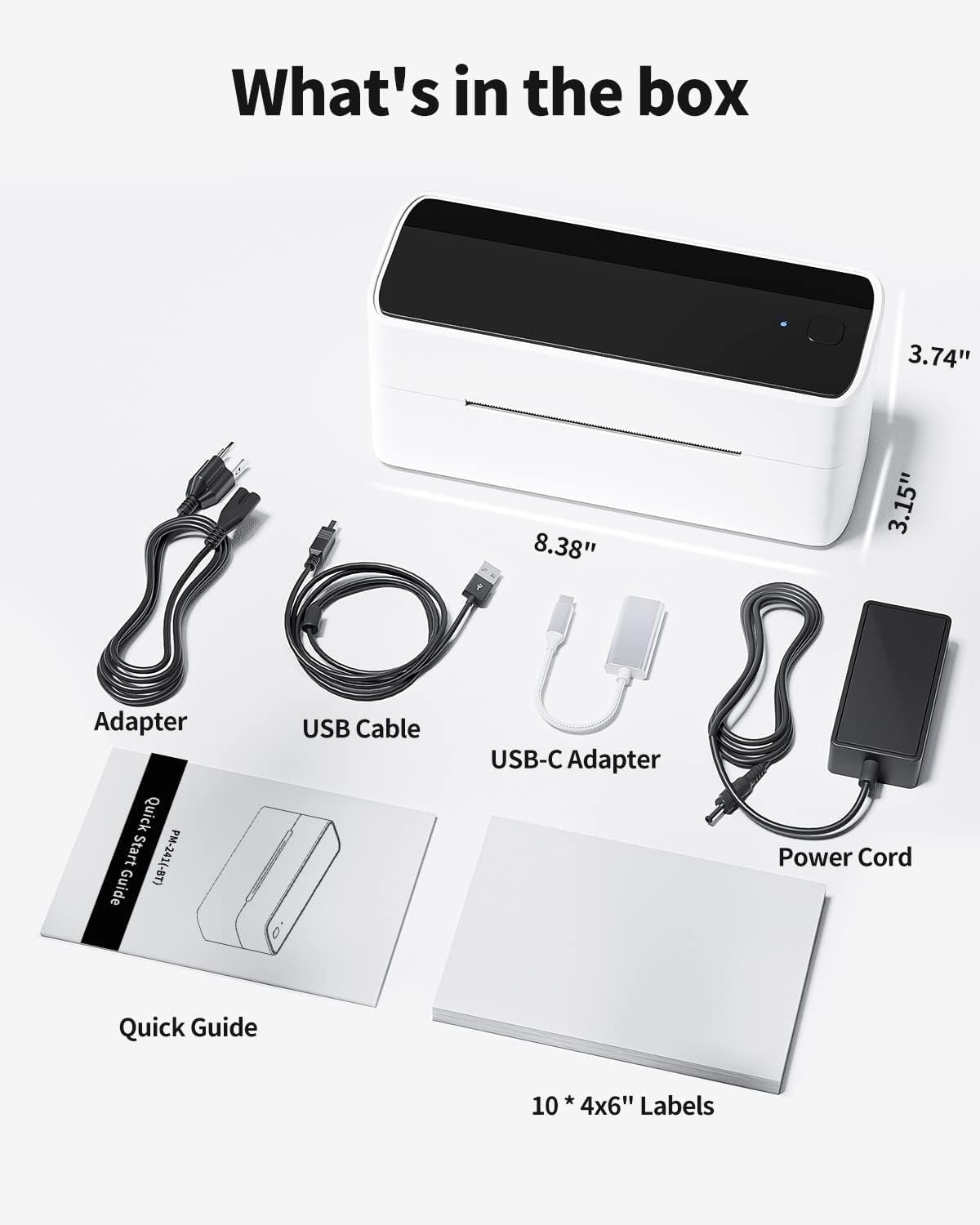
Image 3.1: All components included in the Phomemo PM241BT product package.
4. Setup
4.1. Konnessjoni tal-Ħardwer
- Connect the power cord to the power adapter, then plug the adapter into the printer's power port.
- Ipplaggja l-korda tad-dawl ġo żbokk tal-ħajt.
- If connecting via USB, connect the USB cable from the printer to your computer. Use the USB-C adapter if necessary.
4.2. It-Tagħbija tat-Tikketti
The printer supports thermal labels with a width of 1 inch (25.4 mm) to 4.6 inches (116 mm).
- Kun żgur li l-istampatur huwa mixgħul.
- Gently open the top cover of the printer.
- Insert the thermal labels into the feed slot, ensuring the print side faces upwards.
- Adjust the label guides to fit the label width snugly.
- Close the top cover. The printer will automatically detect and calibrate the label size.
4.3. Installazzjoni u Konnettività tas-Softwer
The Phomemo PM241BT offers both Bluetooth and USB connectivity.
4.3.1. Bluetooth Connection (Mobile Devices & Computers)
For Bluetooth connectivity, download the "Labelife" application or software.
- For Mobile (iOS/Android):
- Scan the QR code in the Quick Start Guide or search for "Labelife" in your device's app store to download the app.
- Ippermetti Bluetooth fuq it-tagħmir mobbli tiegħek.
- Open the Labelife app and follow the on-screen instructions to connect to the PM241BT printer.
- For Computers (macOS/Windows/ChromeOS/Linux):
- Download the Labelife software from the official Phomemo website or the provided link in the Quick Start Guide.
- Install the software and ensure your computer's Bluetooth is enabled.
- Open Labelife and pair with the PM241BT printer.

Image 4.1: Bluetooth connection steps for mobile devices using the Labelife app.
4.3.2. USB Connection (Computers Only)
For USB connection, you will need to install the printer driver.
- Qabbad l-istampatur mal-kompjuter tiegħek billi tuża l-kejbil USB.
- Żur labelife.net/#/pm246sbt to download the appropriate printer driver for your operating system (macOS, Windows, ChromeOS, Linux).
- Installa s-sewwieq wara l-istruzzjonijiet fuq l-iskrin.
- Once installed, your computer should recognize the PM241BT as a standard printer.

Image 4.2: USB connection and driver installation for PC.
5. It-Tħaddim tal-Printer
5.1. Printing via Bluetooth
After connecting your device via Bluetooth using the Labelife app:
- Open the Labelife app on your smartphone or computer.
- Select or create the label you wish to print. The app offers various templates for shipping, address, circular, and barcode labels.
- Ikkonferma s-settings tal-istampar (eż., in-numru ta' kopji).
- Initiate the print command from the app.

Image 5.1: Wireless printing from a smartphone using Bluetooth.
5.2. Printing via USB
Once the USB driver is installed, you can print from any application on your computer that supports printing.
- Open the document or label file you want to print (e.g., PDF, image, or a label created in Labelife software).
- Go to 'File' > 'Print' or use the print shortcut (Ctrl+P or Cmd+P).
- Select "Phomemo PM241BT" from the list of available printers.
- Adjust print settings as needed (e.g., paper size, orientation). Ensure the label size matches the loaded labels.
- Ikklikkja fuq 'Ipprintja'.

Image 5.2: Printing from a laptop using a USB connection.
5.3. Supported Label Types and Platforms
The PM241BT printer is compatible with various thermal label types and major e-commerce/shipping platforms:
- Tipi ta' Tikketti: Shipping labels (4x6 inches), address labels, circular labels, barcode labels, FBA labels, Amazon Warehouse labels, price labels.
- Pjattaformi: Shopify, Etsy, eBay, Amazon, Hermes, Royal Mail Click & Drop, Parcelforce, DPD, UPS, DHL, FedEx, and others.

Immaġni 5.3: Eż.amples of various label types and sizes supported by the printer.
6. Manutenzjoni
Regular maintenance ensures optimal performance and extends the printer's life.
6.1. Tindif tar-Ras tal-Istampar
Clean the print head if print quality degrades or after every few rolls of labels.
- Itfi l-istampatur u aqla l-korda tad-dawl.
- Iftaħ il-qoxra ta 'fuq.
- Use an alcohol swab (70% isopropyl alcohol) to gently wipe the print head.
- Ħalli r-ras tal-istampar tinxef kompletament qabel ma tagħlaq l-għatu u tixgħel il-printer.
6.2. Tindif tar-Roller tal-Platena
Clean the platen roller if labels are not feeding smoothly.
- Itfi l-istampatur u aqla l-korda tad-dawl.
- Iftaħ il-qoxra ta 'fuq.
- Use an alcohol swab to clean the platen roller, rotating it manually to clean the entire surface.
- Allow it to dry completely before use.
7 Issolvi l-problemi
Irreferi għat-tabella li ġejja għal kwistjonijiet komuni u s-soluzzjonijiet tagħhom:
| Problema | Kawża Possibbli | Soluzzjoni |
|---|---|---|
| Il-printer mhux qed jixgħel | Power cable not connected; power outlet issue | Iċċekkja l-konnessjonijiet tal-enerġija; ipprova sokit differenti. |
| Kwalità fqira tal-istampar | Dirty print head; incorrect label type; low print density setting | Clean the print head; ensure thermal labels are used; adjust print density in software. |
| It-tikketti mhux qed jitimgħu sew | Labels loaded incorrectly; label guides not adjusted; dirty platen roller | Reload labels correctly; adjust label guides; clean platen roller. |
| Ħsara fil-konnessjoni Bluetooth | Bluetooth off; incorrect pairing; app issue | Ensure Bluetooth is on; re-pair device in Labelife app; restart app/device. |
| Il-printer mhux rikonoxxut mill-PC permezz tal-USB | Driver not installed; faulty USB cable | Install or reinstall the printer driver; try a different USB cable or port. |
8. Speċifikazzjonijiet
- Mudell: PM241BT
- Teknoloġija tal-Istampar: Termali
- Konnettività: Bluetooth (iOS, Android, macOS, Windows, ChromeOS, Linux via Labelife app), USB (macOS, Windows, ChromeOS, Linux)
- Riżoluzzjoni tal-Istampar: 203 dpi
- Max Print Speed: 150 mm/s (72 pages per minute)
- Supported Label Width: 1 inch (25.4 mm) to 4.6 inches (116 mm)
- Dimensjonijiet: 11 x 22 x 16 ċm (4.3 x 8.7 x 6.3 pulzieri)
- Piż: 1.05 kg (2.3 lbs)
- Kompatibilità tas-Sistema Operattiva: iOS, Android, macOS, Windows, ChromeOS, Linux

Immaġni 8.1: Fuqview of connectivity options and compatible operating systems.
9. Garanzija u Appoġġ
Phomemo offers a limited warranty for the PM241BT printer. For specific warranty terms, please refer to the documentation included with your purchase or contact customer support.
9.1. Appoġġ għall-Klijent
For technical assistance, troubleshooting, or warranty claims, please contact Phomemo customer service. Support is available 24 hours a day. You may also be eligible for free returns within 30 days of purchase.
Please visit the official Phomemo website for contact information or refer to your Quick Start Guide.


