1. Introduzzjoni
Grazzi tax-xiriasing the Yifeng Wireless Keyboard. This keyboard offers versatile connectivity options, supporting both 2.4 GHz USB wireless and Bluetooth connections. It is designed for multi-device use, allowing simultaneous pairing with up to four devices and quick switching between them. Featuring a comfortable scissor-switch mechanism and an integrated stand, it enhances productivity across various platforms including Windows, iOS, and Android devices.
2. Informazzjoni dwar is-Sigurtà
- Tesponix it-tastiera għal likwidi jew temperaturi estremi.
- Avoid disassembling or attempting to repair the device yourself.
- Żomm fejn ma jintlaħaqx mit-tfal.
- Uża biss il-kejbil USB ipprovdut għall-iċċarġjar.
3. Kontenut tal-Pakkett
Jekk jogħġbok iċċekkja li l-oġġetti kollha huma preżenti:
- Yifeng Wireless Keyboard
- Cable tal-Iċċarġjar tal-USB
- 2.4 GHz USB Receiver (may be stored in the keyboard's battery compartment)
- Manwal għall-Utent (dan id-dokument)
4. Setup
4.1. 2.4 GHz USB Wireless Connection
- Locate the 2.4 GHz USB receiver. It is often stored in a dedicated slot on the keyboard.
- Ipplaggja r-riċevitur USB f'port USB disponibbli fuq il-kompjuter jew l-apparat tiegħek.
- Ixgħel it-tastiera billi tuża s-swiċċ tal-enerġija (ġeneralment ikun jinsab fuq il-ġenb jew fuq wara).
- The keyboard should automatically connect to your device. If not, press the dedicated 2.4GHz connection key (often labeled with a '4' or '2.4G' icon) to activate pairing mode.
4.2. Konnessjoni Bluetooth
- Kun żgur li t-tastiera hija ċċarġjata u mixgħula.
- Press and hold one of the Bluetooth channel keys (e.g., Bluetooth 1, Bluetooth 2, jew Bluetooth 3) għal 3-5 sekondi sakemm id-dawl indikatur jteptep, u dan jindika l-modalità ta' tqabbil.
- Fuq it-tagħmir tiegħek (tablet, smartphone, PC), mur fis-settings tal-Bluetooth u attiva l-Bluetooth.
- Fittex għal available devices. The keyboard should appear as "Yifeng Keyboard" or similar.
- Select the keyboard to pair. Follow any on-screen prompts, such as entering a pairing code.
- Once paired, the indicator light will stop flashing and remain solid for a few seconds.
4.3. Tqabbil ta' Apparati Multipli
This keyboard supports connecting up to 4 devices simultaneously: one via 2.4 GHz USB and three via Bluetooth. Follow the steps above to pair each device to a different channel (2.4GHz, Bluetooth 1, Bluetooth 2, Bluetooth 3).
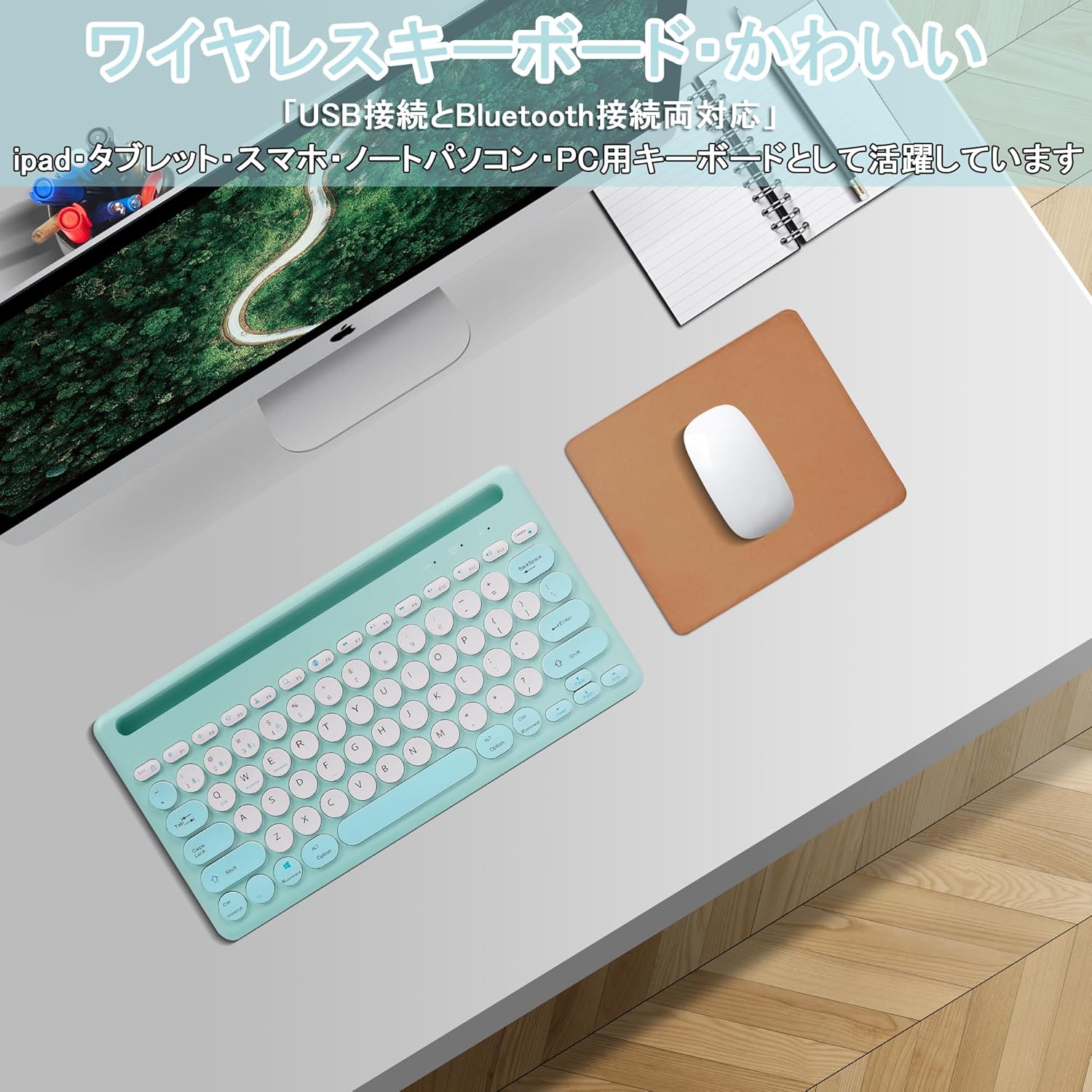
Image: The Yifeng Wireless Keyboard connected to a tablet, smartphone, and laptop, demonstrating its multi-device pairing capability.
5. Istruzzjonijiet Operattivi
5.1. Tibdil bejn Apparati Konnessi
To switch between your paired devices, simply press the corresponding connection key:
- Agħfas Bluetooth 1 to switch to the first Bluetooth device.
- Agħfas Bluetooth 2 to switch to the second Bluetooth device.
- Agħfas Bluetooth 3 to switch to the third Bluetooth device.
- Agħfas il- 2.4GHz key (often labeled with a '4' or '2.4G' icon) to switch to the USB wireless device.
5.2. System Compatibility Switching
The keyboard supports Windows, iOS, and Android operating systems. Use the dedicated system keys to optimize key functions for your current device:
- Agħfas Fn+Q għall-iOS.
- Agħfas Fn + W għal Android.
- Agħfas Fn+E għall-Windows.
5.3. Iċċarġjar tat-Tastiera
The keyboard features a built-in rechargeable lithium-ion battery. A single full charge provides approximately 30 days of continuous use.
- Connect the included USB charging cable to the charging port on the keyboard.
- Ipplaggja t-tarf l-ieħor tal-kejbil USB ma' sors ta' enerġija USB (eż., port USB tal-kompjuter, adapter tal-ħajt USB).
- Id-dawl indikatur tal-iċċarġjar jixgħel waqt l-iċċarġjar u jintefa meta jkun iċċarġjat kompletament.

Image: The Yifeng Wireless Keyboard connected to a power strip via its USB charging cable, indicating the rechargeable feature.
5.4. Using the Integrated Stand
The keyboard includes an integrated stand slot at the top, designed to hold your tablet or smartphone upright. This allows for comfortable viewing and typing, making it ideal for document creation, chatting, or watching media while commenting.
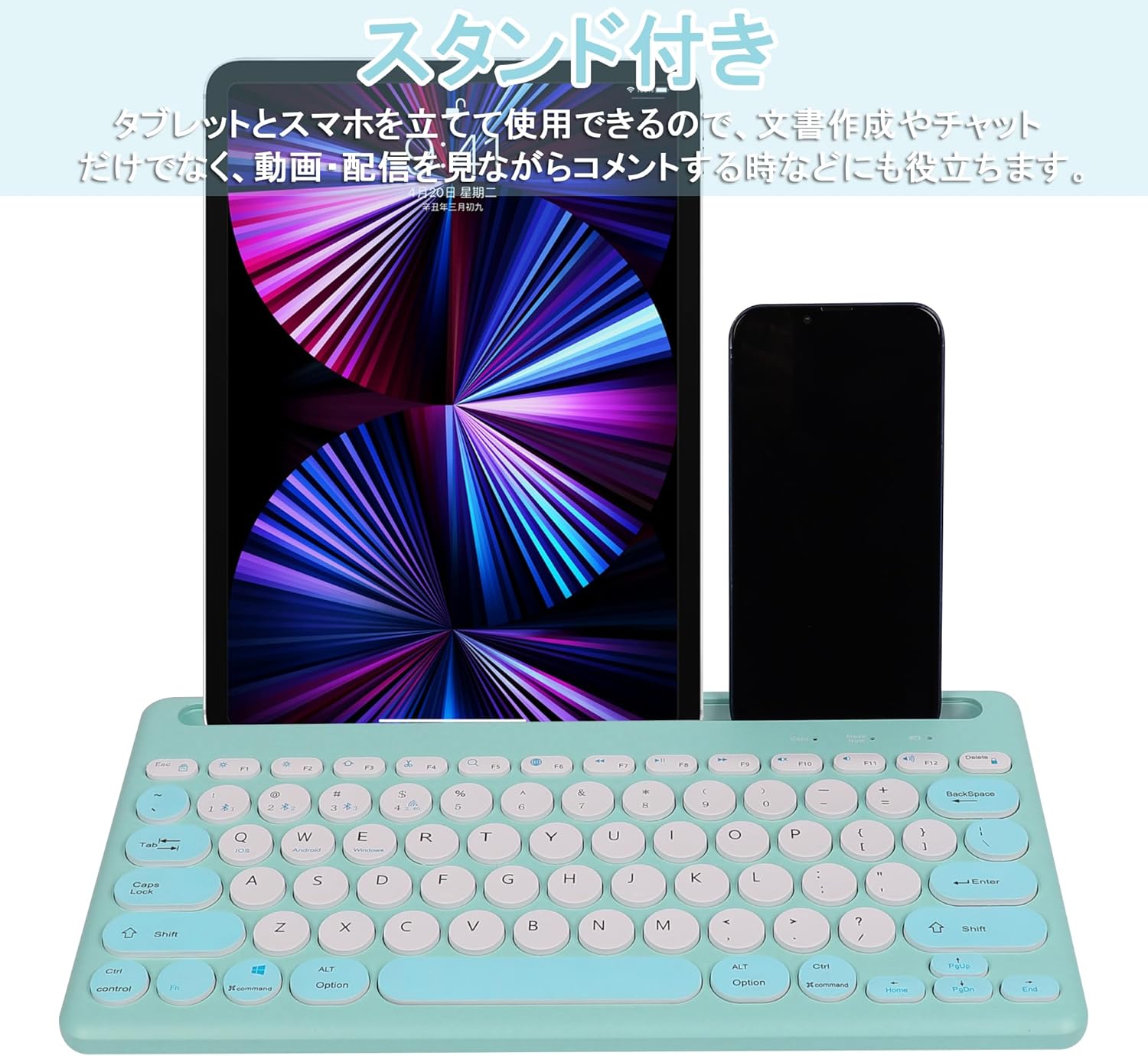
Image: The Yifeng Wireless Keyboard with a tablet and smartphone securely positioned in its integrated stand, demonstrating its utility for multi-device setups.
6. Manutenzjoni
- Naddaf it-tastiera regolarment b'ċarruta ratba u niexfa. Għal ħmieġ iebes, neħħi ftitamp Jista' jintuża drapp, biex jiżgura li ma tidħolx umdità fit-tastiera.
- Evita li tuża kimiċi ħarxa jew tindif li joborxu.
- Store the keyboard in a cool, dry place when not in use.
- The keyboard features anti-slip pads on the back for stable use. Ensure these pads are clean and intact for optimal stability.

Image: The underside of the Yifeng Wireless Keyboard, highlighting the four anti-slip pads designed for stable placement on various surfaces.
7 Issolvi l-problemi
7.1. It-Tastiera Mhux Qed Tikkonnettja
- Iċċekkja l-Enerġija: Kun żgur li t-tastiera hija mixgħula u għandha biżżejjed ċarġ tal-batterija.
- Erġa 'par: For Bluetooth, delete the keyboard from your device's Bluetooth list and attempt to pair again. For 2.4 GHz USB, try plugging the receiver into a different USB port.
- Aqleb il-Kanali: Ensure you have selected the correct channel (Bluetooth 1/2/3 or 2.4GHz) for your device.
- Apparat Bluetooth: Ivverifika li l-Bluetooth huwa attivat fuq l-apparat tiegħek u li jista' jiġi skopert.
7.2. Iċ-Ċwievet Ma Jirrispondux
- Livell tal-batterija: Erġa' ċċarġja t-tastiera jekk il-batterija tkun baxxa.
- Modalità tas-Sistema: Ensure the keyboard is set to the correct operating system mode (Windows, iOS, Android) using Fn + Q/W/E.
- Interferenza: Mexxi t-tastiera eqreb lejn l-apparat tiegħek u 'l bogħod minn apparati oħra mingħajr fili li jistgħu jikkawżaw interferenza.
7.3. Kwistjonijiet ta' Iċċarġjar
- Iċċekkja tal-Cable: Ensure the USB charging cable is securely connected to both the keyboard and the power source.
- Sors tal-Enerġija: Ipprova port USB jew adapter tal-ħajt differenti.
- Dawl Indikatur: If the charging indicator light does not turn on, the cable or power source may be faulty.
8. Speċifikazzjonijiet
| Brand | Yifeng |
| Numru tal-Mudell | AMWS0584A-L |
| Teknoloġija tal-Konnettività | Bluetooth, 2.4 GHz Wireless (USB) |
| Apparati Kompatibbli | Tablets, Smartphones, PCs, Laptops (Windows, iOS, Android) |
| Layout tat-Tastiera | QWERTY (US Layout) |
| Mekkaniżmu Ewlieni | Swiċċ tal-imqass |
| Karatteristika Speċjali | Rechargeable, Integrated Stand, Multi-Pairing (4 devices) |
| Tip ta 'batterija | Batterija tal-jone tal-litju waħda (inkluża) |
| Ħajja tal-batterija | Approx. 30 days (per charge) |
| Dimensjonijiet | 33.7 x 16.7 x 2.9 ċm |
| Piż | 820 g |
| Komponenti Inklużi | Cable USB |
9. Garanzija u Appoġġ
Dan il-prodott jiġi ma 'a Garanzija ta 'kwalità ta' 1 snin from the date of purchase. In case of initial defects or malfunctions occurring within the warranty period, we offer return or exchange services.
Should you encounter any issues or require assistance, please contact us directly through your purchase platform:
- Mur tiegħek Storja tal-Ordni.
- Select the order for this product.
- Ikklikkja fuq Ikkuntattja lil Bejjiegħ.
Our support team will be happy to assist you.


