1. Introduzzjoni
Thank you for choosing the Cherry KW 9100 Slim Wireless Keyboard. This manual provides essential information for setting up, operating, and maintaining your new keyboard. The KW 9100 Slim is designed for both work and home office environments, offering flexible connectivity options and a comfortable typing experience with its silent SX Scissor Mechanism.

Figura 1.1: Minn fuq għal isfel view of the Cherry KW 9100 Slim Wireless Keyboard, showcasing its full layout and sleek design.
2. Kontenut tal-Pakkett
Jekk jogħġbok ivverifika li l-oġġetti kollha huma preżenti fil-pakkett tiegħek:
- Cherry KW 9100 Slim Wireless Keyboard
- Kejbil tal-USB (USB-A għal USB-C)
- USB Receiver (2.4 GHz RF dongle)
- Manwal ta 'Istruzzjoni (dan id-dokument)
- Magnetic Support Bar (pre-attached or separate)
3. Karatteristiċi ewlenin
- Konnettività Doppju: Seamlessly switch between wireless RF (2.4 GHz) and Bluetooth transmission modes.
- Batterija rikarikabbli: Built-in lithium rechargeable battery with USB-C connection for convenient charging.
- SX Scissor Mechanism: Cherry's proprietary low-profile scissor technology ensures a quiet and precise typing experience.
- Slim and Stable Design: Jinkludi pro irqiqfile with a built-in metal plate for maximum stability and rigidity.
- Angolu tat-tajping aġġustabbli: Includes a removable magnetic support bar for a steeper typing angle preference.
- LEDs tal-istatus: Integrated LEDs for CAPS LOCK, NUM, and SCROLL keys.
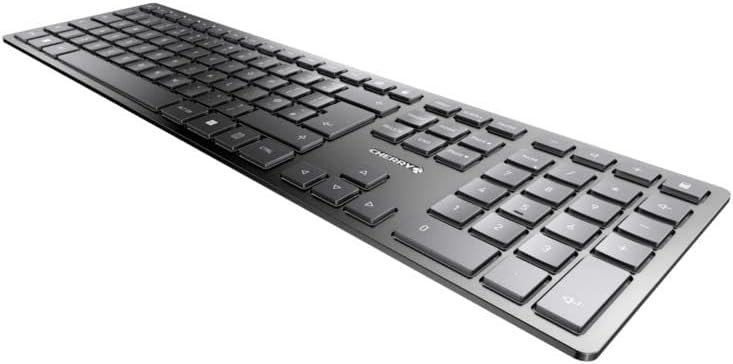
Figura 3.1: Angolat view highlighting the slim profile and key layout of the keyboard.

Figura 3.2: Close-up view of the keys, illustrating the low-profile design and quiet SX Scissor Mechanism.
4. Setup u Konnessjoni
4.1 Iċċarġjar tat-Tastiera
Qabel l-ewwel użu, huwa rakkomandat li tiċċarġja t-tastiera kompletament.
- Connect the supplied USB-A to USB-C cable to the USB-C port on the keyboard.
- Connect the other end of the cable to a USB-A port on your computer or a compatible USB power adapter.
- The charging indicator LED will illuminate. The keyboard can be used while charging.

Figure 4.1: Location of the USB-C charging port on the Cherry KW 9100 Slim keyboard.
4.2 Connecting via 2.4 GHz RF Wireless
For a stable and fast wireless connection, use the included USB receiver.
- Locate the USB receiver (dongle) in the package.
- Ipplaggja r-riċevitur USB f'port USB-A disponibbli fuq il-kompjuter tiegħek.
- On the keyboard, locate the connectivity switch (usually on the back or side) and set it to the "RF" or 2.4 GHz icon position.
- It-tastiera għandha tikkonnettja awtomatikament mal-kompjuter tiegħek.
4.3 Konnessjoni permezz tal-Bluetooth
The keyboard supports Bluetooth connectivity for devices with Bluetooth capabilities.
- On the keyboard, set the connectivity switch to the "Bluetooth" icon position.
- The Bluetooth indicator LED on the keyboard will start blinking, indicating it's in pairing mode.
- Fuq il-kompjuter jew l-apparat tiegħek, iftaħ is-settings tal-Bluetooth.
- Fittex għal new devices and select "Cherry KW 9100 Slim" from the list.
- Segwi kwalunkwe prompts fuq l-iskrin biex tlesti l-proċess ta 'tqabbil.
4.4 Attaching the Magnetic Support Bar
The keyboard comes with a magnetic support bar that can be attached to adjust the typing angle.
- Locate the magnetic support bar.
- Align the bar with the magnetic strip on the underside of the keyboard.
- The magnets will snap the bar into place, providing an elevated typing angle.
- To remove, simply pull the bar away from the keyboard.

Figura 4.2: Ġenb view of the keyboard demonstrating the elevated angle with the magnetic support bar attached.

Figure 4.3: Illustration of how the magnetic support bar attaches to the keyboard's underside.
5. Operazzjoni
5.1 Użu Bażiku
Once connected, the Cherry KW 9100 Slim functions as a standard keyboard. Type as you normally would.

Figure 5.1: A user demonstrating typing on the Cherry KW 9100 Slim keyboard in an office setting.
5.2 Function Keys (F-Keys)
The F-keys (F1-F12) on the top row may have secondary functions accessible by pressing the Fn key simultaneously. Refer to the keycap legends for specific functions such as media control, volume adjustment, or brightness control.
5.3 LEDs tal-Istatus
The keyboard features indicator LEDs for:
- CAPS LOCK: Jixgħel meta l-Caps Lock ikun attiv.
- NUM: Illuminates when Num Lock is active.
- SCROLL: Illuminates when Scroll Lock is active.
- Battery/Charging: Indicates charging status or low battery.
6. Manutenzjoni
6.1 Tindif tat-Tastiera
Biex iżżomm id-dehra u l-funzjonalità tat-tastiera:
- Skonnettja t-tastiera mill-kompjuter tiegħek qabel ma tnaddafha.
- Uża drapp ratba u mingħajr ħelu ftit dampimdaħħla bl-ilma jew soluzzjoni ħafifa għat-tindif.
- Evita umdità eċċessiva u tisprejjax prodotti tat-tindif direttament fuq it-tastiera.
- Għat-trab u l-fdalijiet bejn iċ-ċwievet, uża arja kkompressata.
6.2 Kura tal-Batterija
The built-in rechargeable battery is designed for long life.
- Recharge the keyboard when the battery indicator shows low power.
- Evita li tiċċarġja l-batterija kompletament ta' spiss biex ittawwal il-ħajja tagħha.
- Aħżen it-tastiera f'post frisk u niexef jekk ma tużahiex għal perjodi twal.
7 Issolvi l-problemi
| Problema | Kawża Possibbli | Soluzzjoni |
|---|---|---|
| Keyboard not responding (RF) | USB receiver not plugged in; keyboard not in RF mode; low battery. | Ensure USB receiver is securely plugged in. Set keyboard switch to RF mode. Charge the keyboard. Try a different USB port. |
| It-tastiera ma tirrispondix (Bluetooth) | Keyboard not in Bluetooth mode; not paired; out of range; low battery. | Set keyboard switch to Bluetooth mode. Ensure keyboard is paired with the device. Move keyboard closer to the device. Charge the keyboard. |
| Iċ-ċwievet huma mwaħħlin jew ma jirrispondux | Debris under keys; liquid spill. | Clean the keyboard using compressed air. If liquid spill, disconnect immediately and allow to dry completely before use. Do not attempt to disassemble. |
| Il-batterija mhix qed tiċċarġja | Faulty USB cable or port; power source issue. | Try a different USB cable and/or USB port. Ensure the power source is active. |
8. Speċifikazzjonijiet
| Karatteristika | Dettall |
|---|---|
| Numru tal-Mudell | JK-9100US-2 |
| Konnettività | Bluetooth, 2.4 GHz RF (with USB receiver), USB-C (for charging) |
| Deskrizzjoni tat-Tastiera | Wireless, Full-size |
| Mekkaniżmu Ewlieni | SX Scissor Mechanism |
| Numru ta' Ċwievet | 108 |
| Kulur | Iswed |
| Materjal | Metal (built-in plate) |
| Piż tal-oġġett | 1.49 liri (madwar 676 gramma) |
| Dimensjonijiet tal-Pakkett | 18.19 x 6.69 x 1.26 pulzieri |
| Manifattur | ĊIRASA |
| Apparati Kompatibbli | PC |
| Użi Rakkomandati | Gaming, Office, Work |
9. Garanzija u Appoġġ
Għal informazzjoni dwar il-garanzija u appoġġ tekniku, jekk jogħġbok irreferi għas-sit uffiċjali ta' Cherry webis-sit jew ikkuntattja s-servizz tal-klijenti ta' Cherry. Żomm il-prova tax-xiri tiegħek għal talbiet ta' garanzija.
Official Cherry Websit: www.cherry.de/en/
Servizz tal-Klijent: Irreferi għat-taqsima tal-kuntatt fuq il-paġna uffiċjali websit għal dettalji ta' appoġġ reġjonali.


