Introduzzjoni
This manual provides comprehensive instructions for setting up, operating, maintaining, and troubleshooting your TP-Link Archer AX10000 WiFi 6 Tri-Band Gaming Router. Designed for large homes, this router offers advanced wireless capabilities, high-speed connectivity, and robust security features to ensure an optimal network experience.
Kontenut tal-Pakkett
Ivverifika li l-oġġetti kollha huma preżenti fil-pakkett tiegħek:
- WiFi 6 Gaming Router Archer AX10000
- Adapter tal-Enerġija
- Kejbil Ethernet RJ45
- Gwida ta 'Installazzjoni Mgħaġġla
Prodott Overview
The TP-Link Archer AX10000 is a high-performance router featuring a distinctive design with multiple antennas for enhanced coverage. It is equipped with various ports for wired connections and advanced internal components for efficient data handling.

Figura 1: Minn fuq għal isfel view of the TP-Link Archer AX10000 router, showcasing its eight extended antennas and central design.
Konnessjonijiet Fiżiċi
The rear panel of the router provides multiple connectivity options for both internet and local network devices.
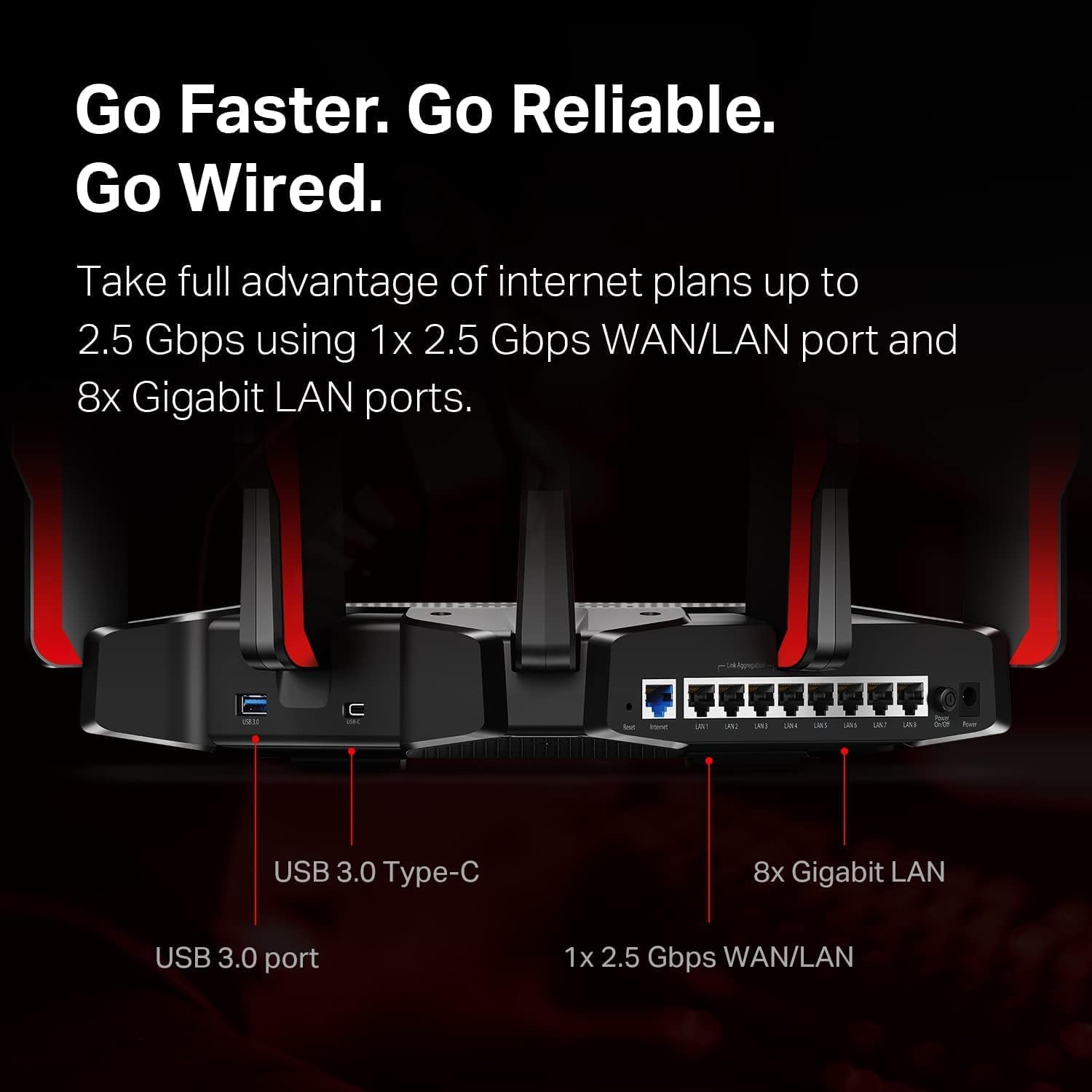
Figura 2: Rear panel of the router, highlighting the USB 3.0 Type-C port, USB 3.0 port, 1x 2.5 Gbps WAN/LAN port, and 8x Gigabit LAN ports.
The bottom label contains essential information for initial setup and network access.
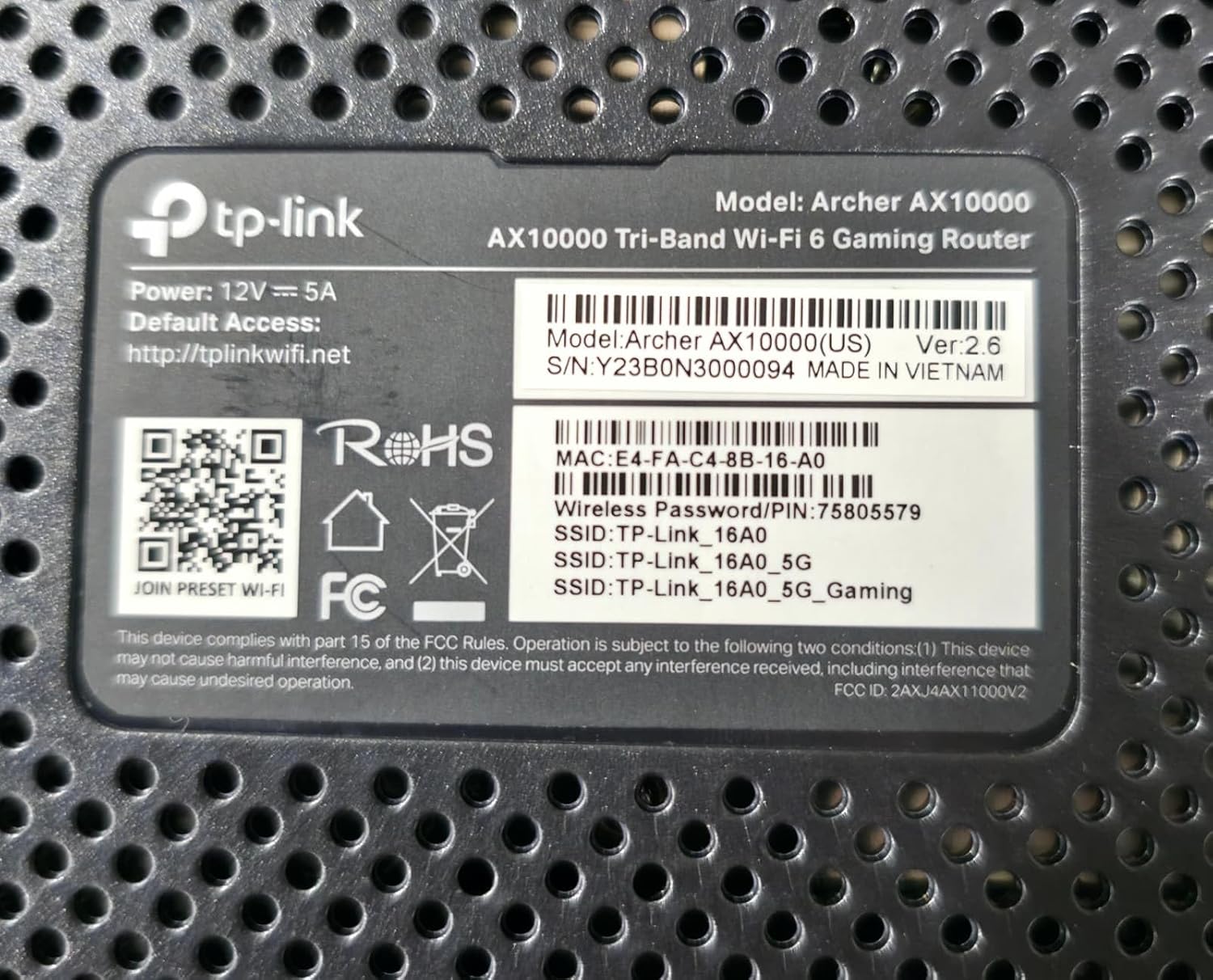
Figura 3: Product label on the bottom of the router, displaying model number, default access information, and wireless password/PIN.
Setup
Follow these steps to set up your TP-Link Archer AX10000 router:
- Iftaħ ir-Router mill-pakkett: Oħroġ bir-reqqa r-router u l-aċċessorji kollha mill-imballaġġ.
- Pożizzjona r-Router: Place the router in a central location in your home, away from obstructions and devices that may cause interference. Ensure antennas are oriented for optimal signal.
- Qabbad il-Ħardwer:
- Connect your modem's Ethernet cable to the router's 2.5G WAN/LAN port.
- Qabbad l-adapter tal-enerġija mar-router u plaggha fi żbokk tad-dawl.
- Power on the router. Wait for the LED indicators to stabilize, typically indicating a successful boot-up and internet connection.
- Qabbad mar-Router:
- Wireless: Connect to the default Wi-Fi network (SSID) printed on the router's label using the provided password.
- Wajer: Connect a computer to one of the router's Gigabit LAN ports using an Ethernet cable.
- Ikkonfigura r-router:
- Iftaħ a web browser u daħħal l-indirizz tal-aċċess awtomatiku (eż., http://tplinkwifi.net) or use the TP-Link Tether app.
- Follow the on-screen instructions to create a new password, set up your Wi-Fi network name (SSID) and password, and complete the initial setup.
Vidjo 1: A user demonstrating the unboxing and initial setup of a TP-Link Tri-Band Wi-Fi 6 Router, highlighting its components and connectivity options.
Istruzzjonijiet Operattivi
Once your router is set up, you can optimize its performance and utilize its features:
- Aċċess għall- Web Interface ta' Ġestjoni: Iftaħ a web browser u naviga għal http://tplinkwifi.net. Log in with your router password to access advanced settings.
- Using the TP-Link Tether App: Download the TP-Link Tether app from your mobile app store. The app allows for easy management of your network, including device prioritization, parental controls, and guest network setup.
- Optimizing for Gaming: The Archer AX10000 features a dedicated gaming band. Ensure your gaming devices are connected to this band for reduced latency and improved performance. Utilize the router's Quality of Service (QoS) settings to prioritize gaming traffic.
- Expansive Coverage: The router's 8 high-performance antennas and Beamforming technology ensure strong and stable Wi-Fi signals throughout your home.
- Kontrolli tal-Ġenituri: Configure parental controls through the web interface or Tether app to manage internet access times and filter content for specific devices.
- Netwerk tal-Mistiedna: Create a separate guest Wi-Fi network to provide internet access to visitors without sharing your main network password.
- Server VPN: The router supports VPN functionality, allowing you to securely access your home network from remote locations.
- Sigurtà Mtejba: Your security is a priority with features like Game Protector and WPA3 encryption.
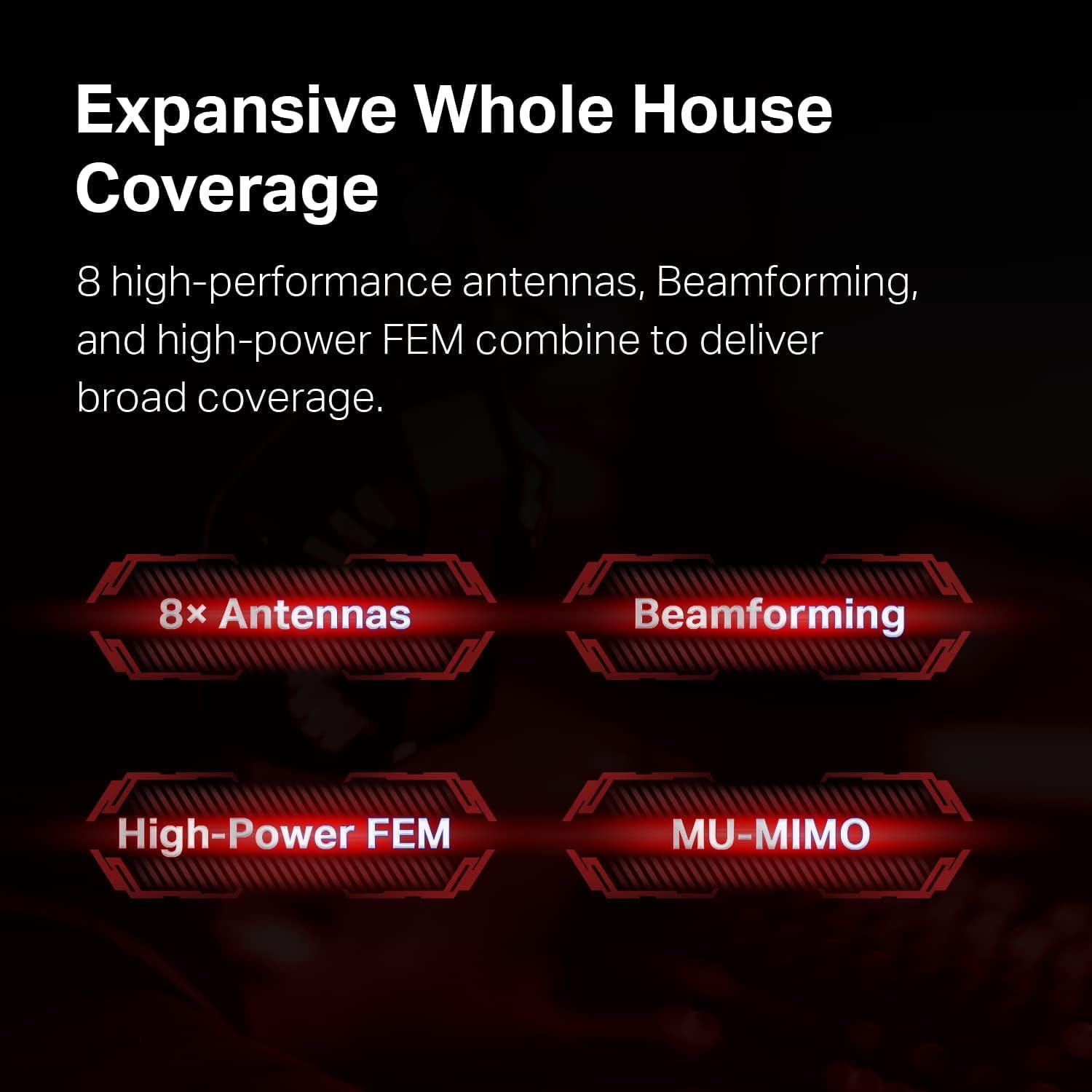
Figura 4: Illustration of the router's features contributing to expansive whole house coverage, including 8 antennas, Beamforming, High-Power FEM, and MU-MIMO.

Figura 5: Visual representation of the router's security features, HomeCare and WPA3, safeguarding connected devices.
Manutenzjoni
Regular maintenance ensures optimal performance and longevity of your router:
- Aġġornamenti tal-Firmware: Iċċekkja u installa aġġornamenti tal-firmware perjodikament permezz tar-router web management interface or the Tether app. Updates often include performance improvements and security patches.
- Reboot Regolari: Rebooting your router every few weeks can help clear its memory and resolve minor performance issues.
- Poġġiment ottimali: Ensure the router remains in an open, central location, free from physical obstructions or electronic devices that could cause interference.
- Tindif: Keep the router clean and free of dust to prevent overheating. Use a soft, dry cloth for cleaning.
Issolvi l-problemi
If you encounter issues with your router, try the following solutions:
- Ebda Aċċess għall-Internet:
- Check all cable connections between the router, modem, and power source.
- Reboot il-modem u r-router tiegħek.
- Iċċekkja li l-konnessjoni tal-fornitur tas-servizz tal-internet tiegħek (ISP) hija attiva.
- Veloċità baxxa tal-Wi-Fi:
- Ensure your devices are connected to the appropriate Wi-Fi band (5 GHz for faster speeds, 2.4 GHz for wider coverage).
- Naqqas l-interferenza billi tmexxi r-router 'il bogħod minn apparati elettroniċi oħra.
- Check for bandwidth-intensive applications running in the background.
- Update router firmware and device drivers.
- Skonnettjar Frekwenti:
- Ensure the router is placed optimally and not obstructed.
- Check for conflicting Wi-Fi channels and adjust if necessary via the router settings.
- Aġġorna l-firmware tar-router.
- Ma nistax naċċessa l-paġna tal-ġestjoni tar-router:
- Iċċekkja li t-tagħmir tiegħek huwa konness man-netwerk tar-router.
- Ensure you are using the correct default access address (http://tplinkwifi.net) u password.
- Ipprova neħħi l-cache tal-browser tiegħek jew uża browser ieħor.
Speċifikazzjonijiet
Detailed technical specifications for the TP-Link Archer AX10000 router:

Figura 6: Internal hardware specifications, highlighting the 1.8 GHz Quad-Core CPU and 1 GB RAM for robust performance.
| Karatteristika | Dettall |
|---|---|
| Dimensjonijiet tal-Prodott | 12 x 10 x 4 pulzieri |
| Piż tal-oġġett | 5.7 liri |
| Numru tal-Mudell tal-Oġġett | Archer AX10000 |
| Brand | TP-Link |
| Isem tal-Mudell | Archer AX10000 |
| Karatteristika Speċjali | WPS |
| Klassi ta' Banda ta' Frekwenza | Tri-Band |
| Komunikazzjoni mingħajr fili Standard | 2.4 GHz Radio Frequency, 5 GHz Radio Frequency, 802.11ax |
| Apparati Kompatibbli | Kompjuter Personali |
| Użi Rakkomandati Għall-Prodott | Logħob |
| Komponenti Inklużi | Power Adapter, Quick Installation Guide, RJ45 Ethernet Cable, WiFi 6 Gaming Router Archer AX10000 |
| Teknoloġija tal-Konnettività | Ethernet, USB, Wi-Fi |
| Kulur | Iswed u Aħmar |
Garanzija u Appoġġ
For warranty information and technical support, please refer to the following:
- Politika ta' Ritorn: This product is eligible for a 90-day refund/replacement return policy.
- Manifattur: TP-Link. For detailed warranty terms and technical assistance, please visit the official TP-Link support websit jew ikkuntattja lis-servizz tal-konsumatur tagħhom.


