Introduzzjoni
The AQIRYS Mira is a compact 65% mechanical keyboard designed for versatility and performance. It offers triple connectivity options: wired USB-C, 2.4GHz wireless, and Bluetooth, making it compatible with PC, Mac, mobile devices, and consoles. Featuring Outemu Red mechanical switches, N-key rollover, full anti-ghosting, and dynamic RGB backlighting, the Mira keyboard provides a responsive and customizable typing and gaming experience. Its hot-swap design allows for easy switch replacement.
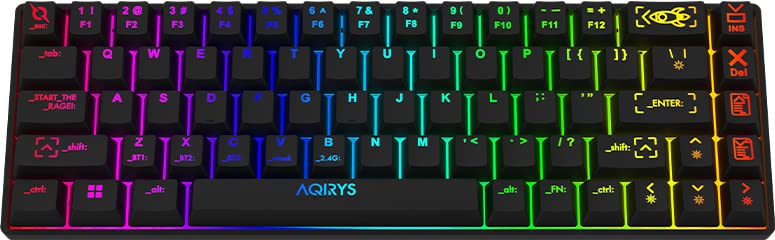
Image: The AQIRYS Mira 65% Mechanical Keyboard, showcasing id-disinn kompatt tiegħu u d-dawl ta' wara RGB vibranti.
Setup
Kontenut tal-Pakkett
- AQIRYS Mira 65% Mechanical Keyboard
- USB-C għal USB-A Cable
- 2.4GHz Wireless Dongle (typically stored in the keyboard's battery compartment or a dedicated slot)
- Keycap Puller (optional, for maintenance)
- Switch Puller (optional, for maintenance)
Iċċarġjar tat-Tastiera
Before initial use, ensure the keyboard is fully charged. Connect the provided USB-C cable to the keyboard's USB-C port and the other end to a powered USB port on your computer or a USB wall adapter. The charging indicator will show the charging status.
Modi ta' Konnettività
The AQIRYS Mira keyboard supports three connection modes: Wired, 2.4GHz Wireless, and Bluetooth. A switch on the keyboard (usually on the back or side) allows you to select the desired mode.
1. Konnessjoni bil-fili
- Set the mode switch on the keyboard to the 'Wired' or 'USB' position.
- Qabbad il-kejbil USB-C mat-tastiera u t-tarf USB-A mal-kompjuter tiegħek.
- The keyboard will be recognized automatically by your operating system.
2. Konnessjoni bla fili ta' 2.4GHz
- Locate the 2.4GHz USB dongle.
- Plug the USB dongle into an available USB port on your computer or device.
- Set the mode switch on the keyboard to the '2.4G' position.
- It-tastiera għandha tikkonnettja awtomatikament. Jekk le, agħfas Fn+P għal 3 sekondi biex tibda tqabbil.
3. Konnessjoni Bluetooth
The keyboard can pair with up to three different Bluetooth devices.
- Set the mode switch on the keyboard to the 'BT' position.
- To enter pairing mode for a specific slot (BT1, BT2, or BT3), press and hold Fn+Q (għal BT1), Fn + W (għal BT2), jew Fn+E (for BT3) for 3-5 seconds. The corresponding key (Q, W, or E) will flash rapidly, indicating pairing mode.
- On your device (PC, Mac, mobile), enable Bluetooth and search for new devices. Select "AQIRYS Mira" from the list.
- Once paired, the flashing light will become solid for a few seconds and then turn off.
- Biex taqleb bejn apparati Bluetooth imqabbdin, agħfas qasir Fn+Q, Fn + W, jew Fn+E.

Immaġni: Ġenb view of the AQIRYS Mira keyboard, highlighting the USB-C port for wired connection and charging.
Istruzzjonijiet Operattivi
Funzjonijiet u Kombinazzjonijiet Ewlenin
The AQIRYS Mira keyboard features a 68-key US layout. Many functions are accessed via the Fn ċavetta flimkien ma' ċwievet oħra.
- Fn + 1/2/3: Aqleb bejn apparati Bluetooth (BT1, BT2, BT3).
- Fn + P: Initiate 2.4GHz pairing (hold for 3 seconds).
- Fn + Backspace: Ħassar iċ-ċavetta.
- Fn + \|: Ixgħel l-effetti tad-dawl ta' wara.
- Fn + [{: Naqqas il-luminożità tad-dawl ta' wara.
- Fn + ]}: Żid il-luminożità tad-dawl ta' wara.
- Fn + ;:: Naqqas il-veloċità tad-dawl ta 'wara.
- Fn + '"': Żid il-veloċità tad-dawl ta' wara.
- Fn + ,<: Decrease backlight color (for static modes).
- Fn + .>: Increase backlight color (for static modes).
- Fn + Vleġġa tax-Xellug: Track preċedenti.
- Fn + Vleġġa tal-Lemin: Binarju li jmiss.
- Fn + Vleġġa 'l fuq: Volum up.
- Fn + Vleġġa 'l isfel: Volum 'l isfel.
- Fn + Enter: Play/Pawsa.
- Fn + Irbaħ: Ċavetta tal-illokkjar/ftuħ tal-Windows.
Customization Backlight
The keyboard features full RGB dynamic backlighting. Basic adjustments can be made using Fn key combinations as listed above. For in-depth customization, including per-key lighting and advanced effects, connect the keyboard in wired mode and use the dedicated AQIRYS software (available for download from the official AQIRYS websit).
N-Key Rollover and Anti-Ghosting
The Mira keyboard supports N-key rollover and full anti-ghosting, ensuring that every keystroke is registered accurately, even when multiple keys are pressed simultaneously. This is particularly beneficial for fast typing and gaming.
Hot-Swap Switch Design
The keyboard's hot-swap design allows you to change mechanical switches without soldering. It is compatible with Outemu 3-pin switches. This feature enables customization of typing feel and easy replacement of faulty switches.
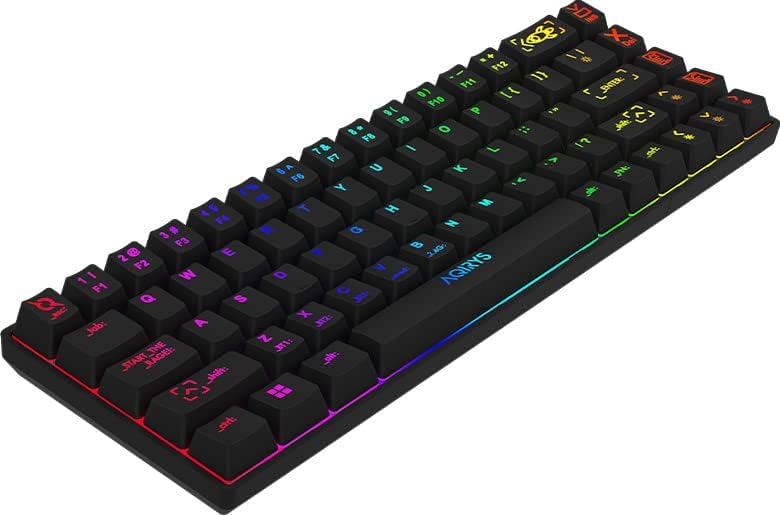
Image: Close-up of the AQIRYS Mira keyboard's keycaps, illustrating the US layout and RGB backlighting.
Manutenzjoni
Tindif tat-Tastiera
- Tneħħija tat-Trab: Uża bott ta' arja kkompressata biex tneħħi t-trab u l-fdalijiet minn bejn il-keycaps.
- Tindif tal-wiċċ: Gently wipe the keycaps and chassis with a soft, lint-free cloth dampLaħlaħ b'ammont żgħir ta' ilma jew b'soluzzjoni tat-tindif ħafifa u mhux abrażiva. Evita umdità eċċessiva.
- Tindif fil-Fond: For thorough cleaning, you may use a keycap puller to remove keycaps and clean the switches and plate underneath. Ensure the keyboard is powered off and disconnected before removing keycaps.
Switch Replacement (Hot-Swap)
The AQIRYS Mira keyboard features hot-swappable switches, allowing for easy replacement without soldering.
- Itfi: Ensure the keyboard is disconnected from power and turned off.
- Neħħi l-Keycap: Use a keycap puller to carefully remove the keycap from the switch you wish to replace.
- Neħħi s-Swiċċ: Use a switch puller to grasp the top and bottom clips of the switch. Gently pull the switch straight up and out of the PCB.
- Daħħal Swiċċ Ġdid: Align the pins of the new Outemu 3-pin compatible switch with the holes on the PCB. Press the switch firmly until it clicks into place. Ensure the pins are not bent.
- Ibdel il-Keycap: Poġġi l-għatu taċ-ċwievet lura fuq is-swiċċ il-ġdid.

Immaġni: Alternattiva view of the AQIRYS Mira keyboard, highlighting the keycap profiles and overall design.
Issolvi l-problemi
- It-tastiera ma tirrispondix (Wajer):
- Kun żgur li l-kejbil USB-C huwa konness sew kemm mat-tastiera kif ukoll mal-kompjuter.
- Ipprova port USB differenti fuq il-kompjuter tiegħek.
- Ensure the keyboard mode switch is set to 'Wired' or 'USB'.
- Keyboard not responding (2.4GHz Wireless):
- Ensure the 2.4GHz USB dongle is securely plugged into your device.
- Ensure the keyboard mode switch is set to '2.4G'.
- Iċċekkja jekk il-batterija tat-tastiera hijiex iċċarġjata.
- Try re-pairing by holding Fn+P għal 3 sekondi.
- Problemi ta' tqabbil bil-Bluetooth:
- Ensure the keyboard mode switch is set to 'BT'.
- Kun żgur li l-Bluetooth tat-tagħmir tiegħek huwa attivat u jista' jinstab.
- Make sure the keyboard is in pairing mode (e.g., Fn+Q held for 3-5 seconds, with the key flashing).
- Forget the device from your computer's Bluetooth settings and try pairing again.
- Try pairing to a different Bluetooth slot (BT1, BT2, BT3).
- Ċwievet mhux qed jirreġistraw jew qed jittajpjaw darbtejn:
- Iċċekkja għal xi debris taħt il-keycap jew madwar is-swiċċ.
- If a specific switch is faulty, consider replacing it using the hot-swap feature.
- Id-dawl ta' wara mhux qed jaħdem jew huwa mċajpar:
- Kun żgur li l-batterija tat-tastiera hija ċċarġjata.
- Aġġusta l-luminożità billi tuża Fn + [{ u Fn + ]}.
- Cycle through backlight effects using Fn + \|.
- If using software, ensure settings are correctly applied.
Speċifikazzjonijiet
| Brand | AQIRYS |
| Mudell | Mira |
| Konnettività | 2.4GHz bla fili, Bluetooth, USB-C bil-wajer |
| Tqassim | US Layout, 68 Keys (65% Form Factor) |
| Swiċċijiet | Outemu Red Mechanical (Linear, 4mm travel, 47gF actuation) |
| Kontra l-Ghosting | N-Key Rollover, Full Anti-Ghosting |
| Dawl ta' wara | Full RGB Dynamic Backlight |
| Batterija | Batterija tal-litju 1300 mAh |
| Kompatibilità | PC (Windows 10), Mac, Mobile (Smartphone, Tablet), Console |
| Dimensjonijiet tal-Prodott | 30.8 x 10.1 x 3.9 ċm |
| Piż tal-oġġett | 900 g |
| Materjal | Plastik, Lastiku |
| Komponenti Inklużi | Cable USB |
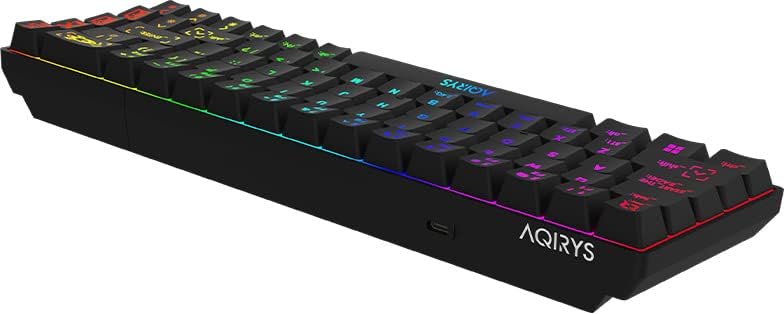
Image: A low-angle view of the AQIRYS Mira keyboard, highlighting the chassis design and rubber coating.
Informazzjoni dwar Garanzija
For detailed warranty terms and conditions, please refer to the warranty card included with your product or visit the official AQIRYS websit. Il-kopertura tal-garanzija tipikament tinkludi difetti fil-manifattura għal perjodu speċifikat mid-data tax-xiri. Żomm il-prova tax-xiri tiegħek għal talbiet ta' garanzija.
Appoġġ għall-Klijent
If you encounter any issues not covered in this manual or require further assistance, please visit the AQIRYS official website for support resources, FAQs, and contact information for customer service. You may also reach out to your retailer for product support.


