Prodott Overview
The XPLORA X6 Play is a watch phone designed for children, offering a safe and controlled introduction to mobile communication. It features 4G connectivity, enabling voice calls, messages, GPS tracking, and various other functions, all managed through a parent-controlled application.

Figure 1: The XPLORA X6 Play Watch Phone, showcasing its intuitive interface for incoming calls.
This device prioritizes child safety with features like pre-saved contact lists, an SOS button, and customizable safety zones. It encourages physical activity with a built-in pedometer and offers a range of useful tools for daily use.
X'hemm fil-Kaxxa
- XPLORA X6 Play Watch Phone (Black)
- Kejbil USB (għall-iċċarġjar)
- Pre-installed Xplora Connect SIM card (subscription required)
Gwida ta' Setup
1. SIM Card Activation
The XPLORA X6 Play comes with a pre-installed Xplora Connect SIM card. To activate the watch's cellular functions, a minimum 12-month subscription is required. Prices start from $9.99 per month (excluding sales tax). Activation is performed via a dedicated website, not directly on the watch. You will receive necessary information for activation from the cellular network provider.
After completing the online activation, allow approximately 60 minutes for the cellular service to become active on your watch. During this waiting period, you can proceed with setting up the XPLORA app on your smartphone.
2. XPLORA App Setup
Download the official XPLORA app from your smartphone's app store. This app is essential for managing all features and settings of the X6 Play watch phone.
- Create a parent account within the app.
- Pair your X6 Play watch with the app by following the on-screen instructions. This typically involves scanning a QR code displayed on the watch.

Figure 2: Screenshot of the XPLORA companion app, used for managing watch settings and monitoring activity.
3. Adding Contacts
The XPLORA X6 Play is designed for parent-controlled communication. All contacts must be added and approved through the XPLORA app on your smartphone. Only contacts you add will be able to call or be called by the watch.
- Open the XPLORA app and navigate to the 'Contacts' section.
- Add new contacts by entering their name and phone number.
- Once added, these contacts will appear on the watch's contact list.
4. School Mode
To prevent distractions during school hours, activate 'School Mode' via the XPLORA app. In this mode, the watch will only display the time and will not allow calls or messages, ensuring your child can focus on their studies. You can set specific time intervals for School Mode to automatically activate and deactivate.
Istruzzjonijiet Operattivi
Voice Calls and Messaging
The X6 Play allows your child to make and receive calls from pre-saved numbers. They can also receive text, emoji, image, and voice messages, and reply with images, emojis, and voice messages. All communication is managed and monitored through the parent app.

Figure 3: The XPLORA X6 Play on a child's wrist, demonstrating its call functionality.
Funzjoni SOS
In an emergency, your child can press the SOS button on the watch. This action will immediately notify pre-selected emergency contacts of their location, providing an added layer of safety.
GPS and Safety Zones
The XPLORA X6 Play utilizes multiple services to accurately show the device's location. Through the app, you can set up 'Safety Zones' around key locations such as home or school. You will receive notifications when your child enters or exits these designated areas.

Figure 4: The location pin icon, indicating the watch's GPS tracking capability.
Camera and Pedometer
The watch includes a built-in camera for capturing photos. It also features a pedometer to track your child's steps, encouraging physical activity and allowing you to monitor their daily movement goals.
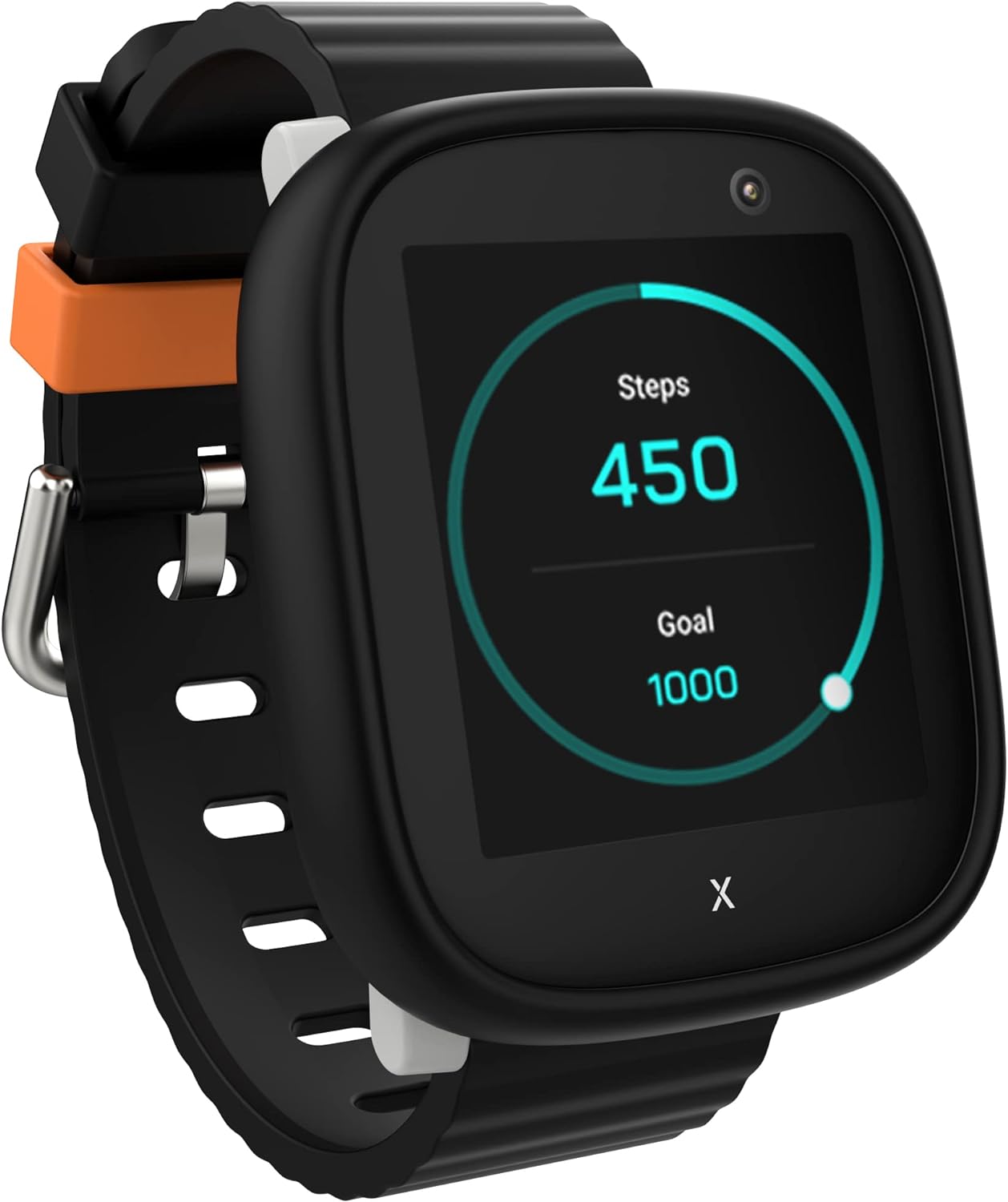
Figure 5: The XPLORA X6 Play's pedometer feature, showing steps taken and a daily goal.
Watch Face Customization
The X6 Play offers various customizable watch faces. Your child can easily swipe through different designs to personalize their watch display, showing time, date, weather, and step count.
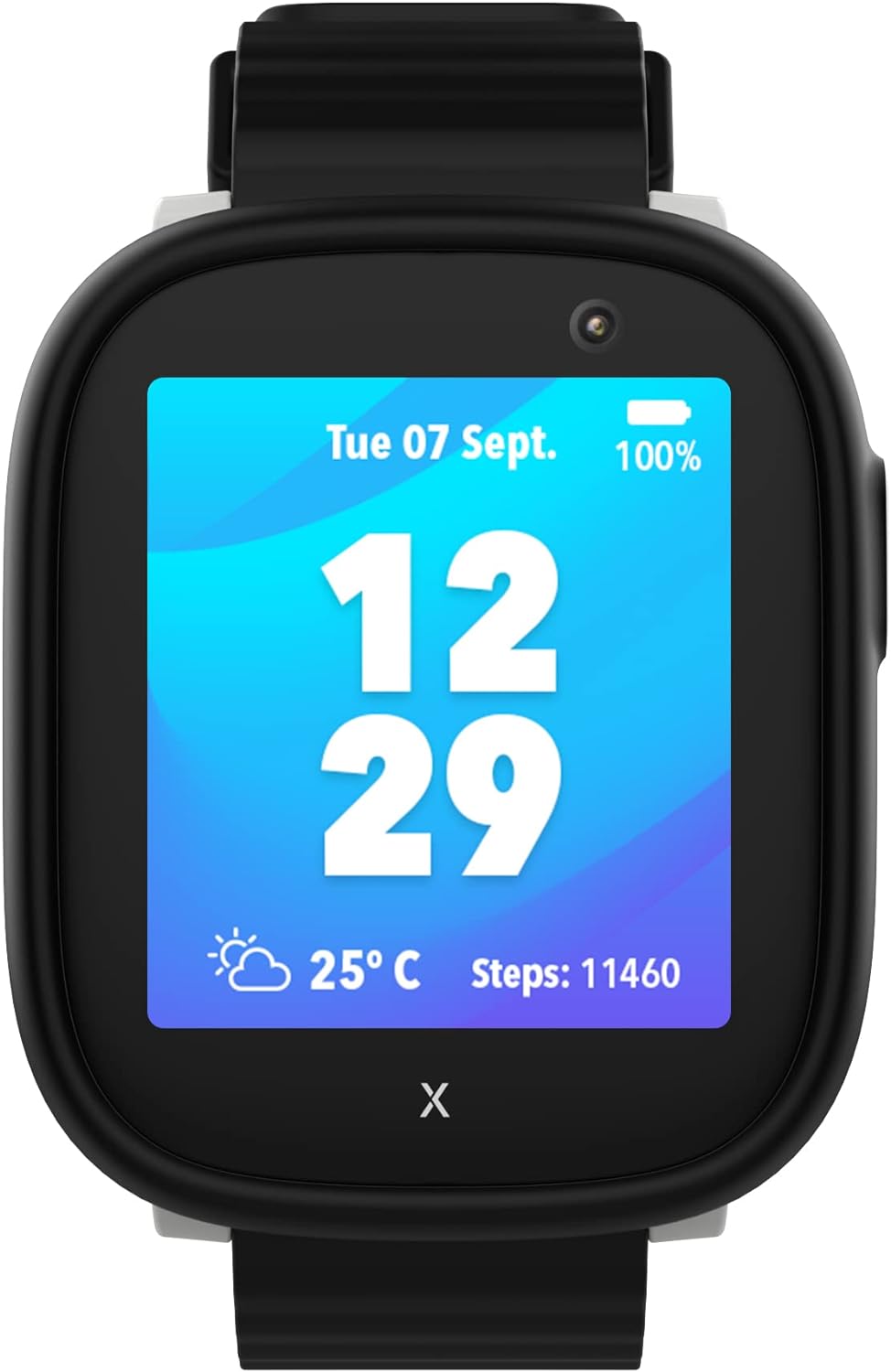
Figure 6: A digital watch face on the XPLORA X6 Play, showing essential information at a glance.
Vidjo Uffiċjali tal-Prodott
Vidjo 1: Wirja uffiċjali tal-vidjo tal-prodottasing the key features and benefits of the XPLORA X6 Play watch phone.
Manutenzjoni
Batterija u Iċċarġjar
The X6 Play is equipped with a Lithium Ion battery (880 mAh). To charge the watch, use the provided USB cable and connect it to the magnetic charging pins on the back of the watch. Ensure the pins align correctly for proper charging.
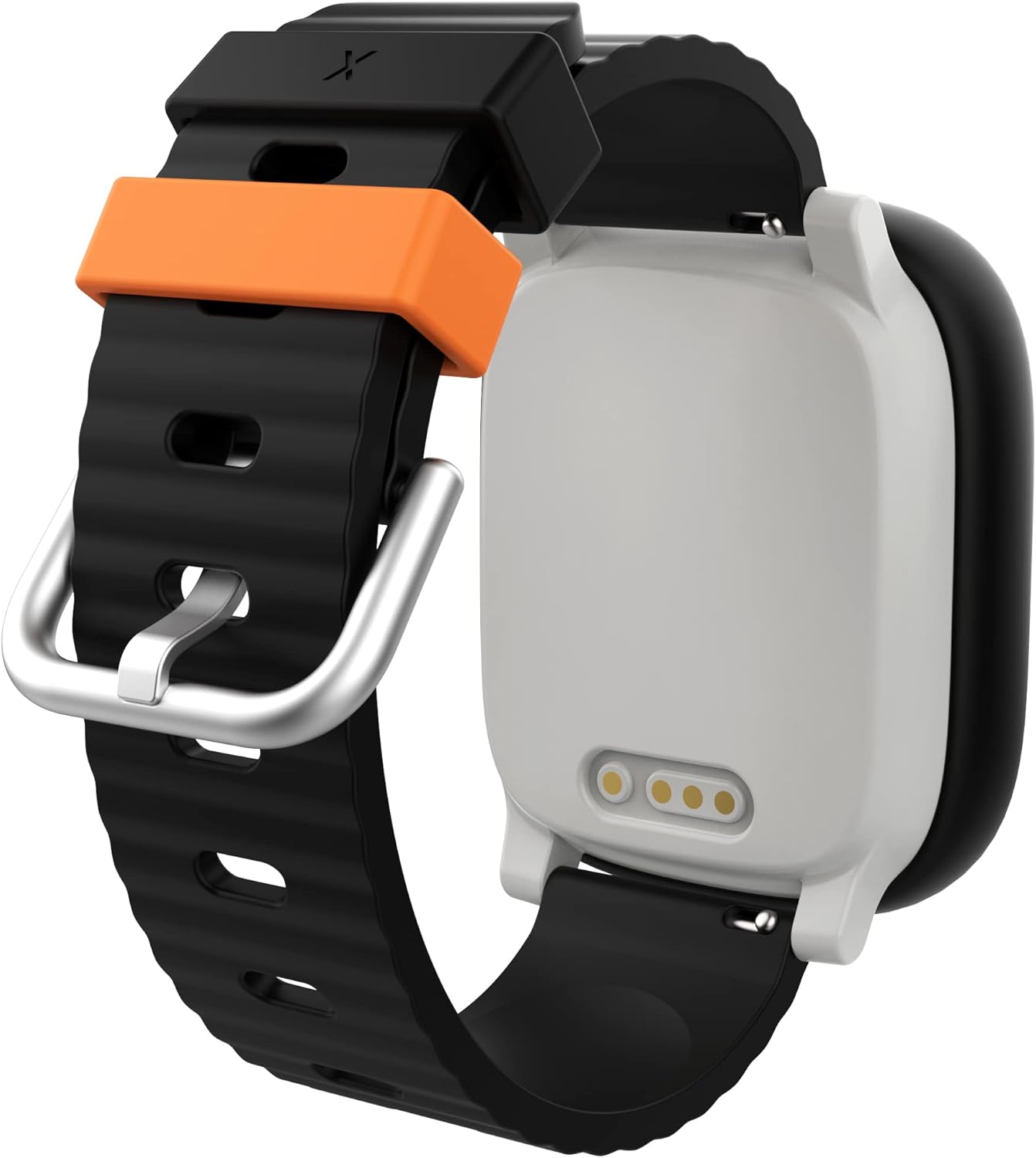
Figura 7: In-naħa ta' wara view of the XPLORA X6 Play, highlighting the magnetic charging contacts.
Reżistenza għall-Ilma
The XPLORA X6 Play is IP68 water-resistant, meaning it can withstand submersion in water up to 1.5 meters for up to 30 minutes. While it is resistant to splashes and brief immersion, it is not recommended for swimming or prolonged water activities.

Figure 8: The XPLORA X6 Play demonstrating its water resistance, suitable for everyday splashes.
Ċineg interkambjabbli
The X6 Play features interchangeable straps, allowing for personalization and easy replacement if needed. Ensure straps are securely attached to prevent accidental detachment.
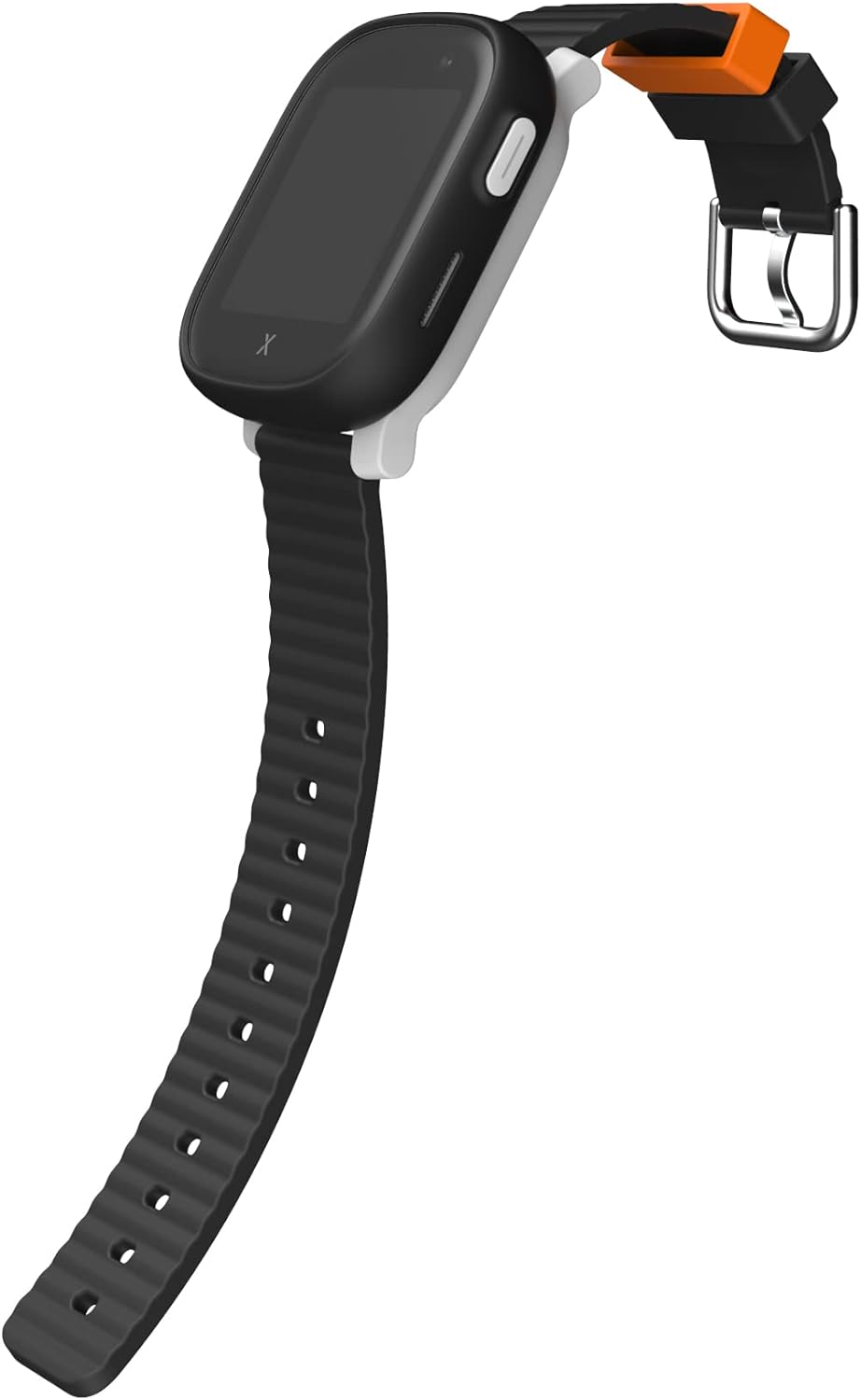
Figure 9: The XPLORA X6 Play with its strap unbuckled, highlighting the strap's design and attachment points.
Issolvi l-problemi
SIM Card Not Detected / No Service
- Ensure the SIM card has been properly activated through the XPLORA website and that the required subscription is active.
- Allow up to 60 minutes after activation for the service to register on the watch.
- Restart the watch. A simple reboot can often resolve connectivity issues.
- Verify that the SIM card is correctly seated in its slot.
Inaccurate or Delayed GPS Tracking
- GPS accuracy can be affected by environmental factors (e.g., dense buildings, indoors, heavy tree cover).
- Ensure the watch has a clear line of sight to the sky for optimal GPS signal reception.
- Live tracking may experience minor delays. If the location is not updating, try rebooting the watch.
- Check the XPLORA app for any alerts or status messages regarding the watch's connection.
Communication Issues (Calls/Messages)
- Confirm that the contacts are correctly added and approved in the XPLORA app.
- Ensure the watch is not in 'School Mode' if communication is expected.
- Check the watch's signal strength. Poor cellular reception can affect call and message delivery.
- Verify that the watch's software is up to date.
Speċifikazzjonijiet
| Karatteristika | Dettall |
|---|---|
| Isem tal-Mudell | X6play |
| Brand | XPLORA |
| Daqs tal-Iskrin | 1.52 Inches TFT Display (Full Touch Screen) |
| Sistema Operattiva | Android |
| Teknoloġija tal-Konnettività | Wi-Fi, 4G Ċellulari |
| Karatteristiċi Speċjali | GPS, Pedometer, Camera, SOS Function, School Mode |
| Batterija | Batterija waħda tal-jone tal-litju (inkluża), 880 mAh |
| Reżistenza għall-Ilma | IP68 |
| Dimensjonijiet tal-Prodott | 5.51 x 3.54 x 2.76 pulzieri |
| Piż tal-oġġett | 8.4 uqija (0.24 Kilogrammi) |
Garanzija u Appoġġ
XPLORA products are manufactured by XPLORA Technologies Limited. For any product-related inquiries, technical support, or warranty claims, please contact XPLORA customer service directly. Information regarding specific warranty terms and conditions can typically be found on the official XPLORA webis-sit jew fl-imballaġġ tal-prodott.
Additional protection plans are available for purchase separately to extend coverage beyond the standard manufacturer's warranty. Please refer to the protection plan details for terms and conditions.
Għal aktar assistenza, tista' żżur l-uffiċjal XPLORA Store on Amazon.


