1. Prodott Aktarview
The UNV NVR302-16E2 is a high-performance Network Video Recorder (NVR) designed for advanced surveillance systems. It supports 4K resolution recording and playback, offering robust video management capabilities for up to 32 channels. This NVR is compatible with various camera protocols, including ONVIF, and features Ultra H.265 compression for efficient storage.
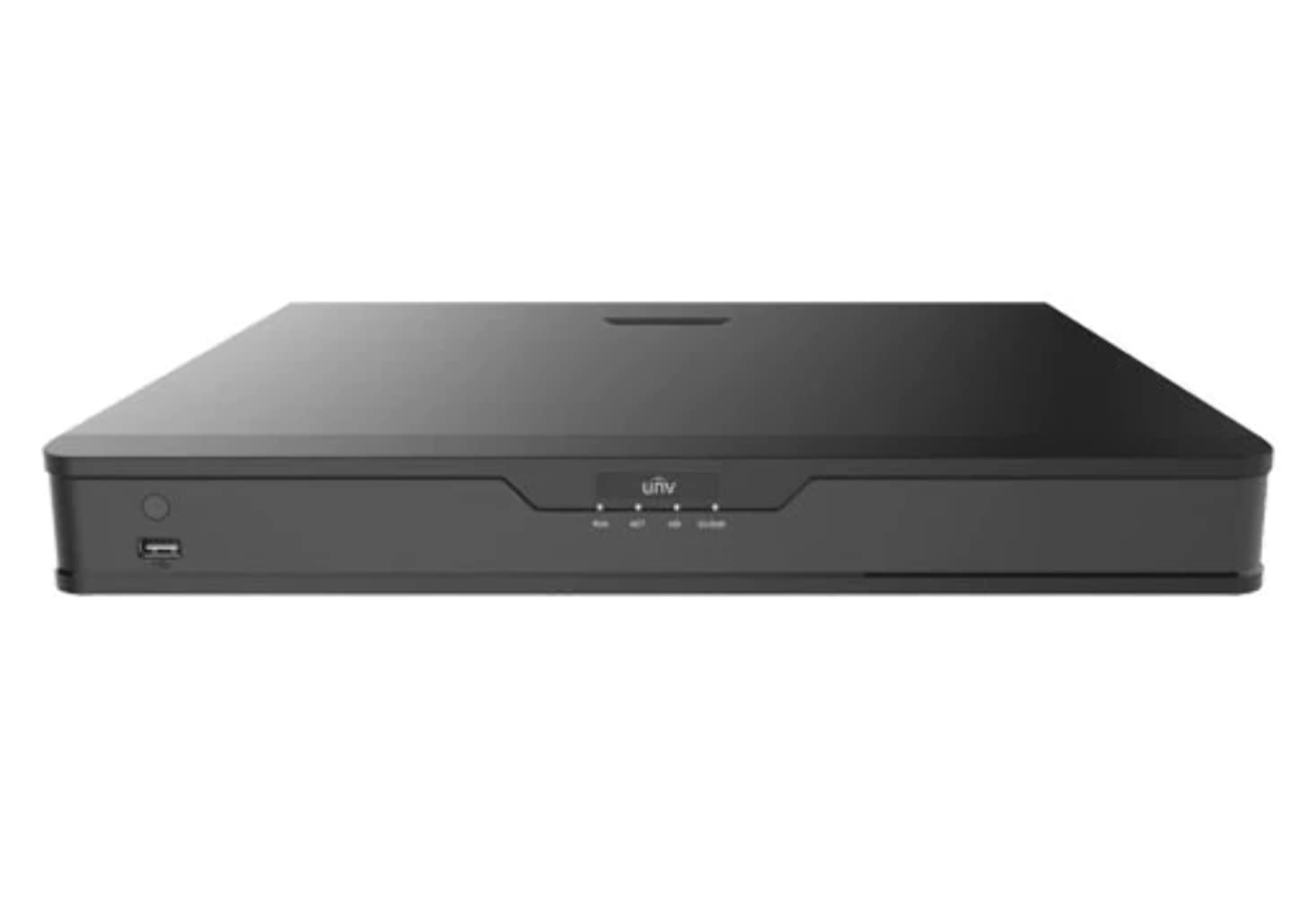
Figura 1: Quddiem view of the UNV NVR302-16E2 4K NVR. The front panel includes a power button, a USB port, and indicator lights for power, HDD activity, network status, and alarm.
2. Karatteristiċi ewlenin
- Supports Ultra H.265/H.265/H.264 video formats for efficient compression.
- 8/16-channel input with Plug & Play functionality via independent PoE network interfaces.
- Compatibility with mainstream cameras supporting ONVIF conformance (Profile S, Profile G, Profile T) u l-protokolli RTSP.
- Equipped with 1-channel HDMI and 1-channel VGA outputs, with HDMI supporting up to 4K (3840x2160) resolution.
- Independent HDMI and VGA outputs for flexible display options.
- Supports recording resolutions up to 12 Megapixels.
- Accommodates 2 SATA HDDs, with support for up to 10TB per HDD.
- Features various fisheye dewarping modes for live view and playback, accessible via both web interface and GUI.
- Incorporates ANR (Automatic Network Replenishment) technology to enhance storage reliability during network disconnections.
- Supports cloud upgrade for convenient firmware updates.
3. Kontenut tal-Pakkett
Please check the package contents upon unboxing. If any items are missing or damaged, contact your vendor immediately.
- UNV NVR302-16E2 NVR Unit
- Adapter tal-Enerġija
- Ġurdien USB
- SATA Data Cables (for HDD installation)
- Viti tal-Immuntar tal-HDD
- Gwida Quick Start
4. Setup
4.1 Installazzjoni Fiżika
- Installazzjoni HDD:
Unscrew and remove the NVR cover. Securely mount the SATA hard disk drives (HDDs) into the designated bays using the provided screws. Connect the SATA data and power cables from the NVR motherboard to the HDDs. Replace the NVR cover and secure it with screws.
- Qabbad id-Displej:
Connect a monitor to the NVR's HDMI or VGA output port using a compatible cable.
- Qabbad il-ġurdien:
Ipplaggja l-maws USB f'wieħed mill-portijiet USB tal-NVR.
- Qabbad in-Netwerk:
Qabbad kejbil Ethernet mill-port LAN tal-NVR mar-router jew is-swiċċ tan-netwerk tiegħek.
- Qabbad il-Kameras:
For PoE cameras, connect them directly to the NVR's independent PoE ports. For non-PoE cameras, ensure they are connected to the same network as the NVR and powered separately.
- Qabbad l-Enerġija:
Qabbad l-adapter tal-enerġija mad-dħul tal-enerġija tal-NVR u mbagħad daħħalha f'sokit tal-enerġija. L-NVR jixgħel awtomatikament.
4.2 Konfigurazzjoni Inizjali
Upon the first boot, the NVR will guide you through an initial setup wizard. Follow the on-screen prompts to configure essential settings.
- Issettja l-Password tal-Amministratur: Create a strong password for the 'admin' user. This is crucial for security.
- Issettjar tan-Netwerk: Configure the NVR's IP address (DHCP or Static IP). Ensure it is on the same network as your cameras for proper communication.
- Data u Ħin: Issettja d-data, il-ħin u ż-żona tal-ħin korretti.
- Inizjalizzazzjoni tal-HDD: The NVR will prompt you to initialize (format) the newly installed HDDs. This step is necessary before recording can begin.
- Camera Search and Add: The NVR will automatically search for connected cameras. Select and add the cameras you wish to manage.
5. It-tħaddim tal-NVR
5.1 Ħaj View
Wara s-setup, l-NVR se juri l-istampi live view ta' kameras konnessi. Tista' taqleb bejn kamera waħda view, grilja b'ħafna kameras view, and customize the display layout.
- Għażla tal-Kanal: Click on a channel window to select it.
- Kontroll PTZ: If using PTZ cameras, use the on-screen controls or joystick (if connected) to pan, tilt, and zoom.
- Daqq Instant: Right-click on a channel and select "Instant Playback" to view reġistrazzjonijiet reċenti.
5.2 Ġestjoni tar-Reġistrazzjoni
The NVR supports various recording modes.
- Reġistrazzjoni Skedata: Configure recording schedules based on time, day, and event (e.g., motion detection).
- Reġistrazzjoni ta 'Sejbien tal-Moviment: Issettja żoni ta' skoperta tal-moviment u sensittività għal kull kamera biex tattiva r-reġistrazzjoni biss meta jiġi skopert moviment.
- Reġistrazzjoni manwali: Start or stop recording manually from the live view interface.
5.3 Daqq
Aċċess irreġistrat footage for review.
- Navigate to the "Playback" menu.
- Select the camera(s) and date/time range for playback.
- Uża l-kronoloġija biex tinnaviga fir-reġistrazzjonijiet.
- Options include fast forward, rewind, pause, and frame-by-frame playback.
5.4 Backup
Export recorded video clips to an external USB drive.
- Insert a USB flash drive into the NVR's USB port.
- Go to the "Backup" menu.
- Select the camera, time range, and desired video format for export.
- Start the backup process.
5.5 Aċċess mill-Bogħod
Access your NVR remotely via a web browser jew applikazzjoni mobbli.
- Web Browser: Daħħal l-indirizz IP tal-NVR f' web browser on a computer connected to the same network. Log in with your credentials.
- App mobbli: Niżżel l-Uni uffiċjaliview mobile application (e.g., EZView). Register an account, add your NVR by scanning the QR code or entering its serial number, and view live feeds or playback remotely.
6. Manutenzjoni
6.1 Aġġornamenti tal-Firmware
Regularly check for and install firmware updates to ensure optimal performance, security, and access to new features. Updates can typically be performed via the NVR's web interface or local GUI, often with cloud upgrade support.
6.2 HDD Management
Monitor the health and status of your hard drives. The NVR provides tools to check HDD status, format drives, and configure overwrite settings when storage is full.
6.3 Logs tas-Sistema
Review system logs for any errors, warnings, or important events. This can assist in troubleshooting and system monitoring.
7 Issolvi l-problemi
| Problema | Kawża Possibbli | Soluzzjoni |
|---|---|---|
| L-ebda output tal-vidjo fuq il-monitor. | Loose cable connection; incorrect display resolution; NVR not powered on. | Check HDMI/VGA cable connections. Ensure NVR is powered. Try a different monitor or cable. Adjust NVR output resolution if possible. |
| Cameras not displaying. | Network issue; incorrect camera IP; camera not powered; camera not added to NVR. | Verify network connectivity. Ensure cameras are powered. Check camera IP addresses and add them to the NVR if not already done. |
| Ma nistax naċċessa l-NVR mill-bogħod. | Network configuration issue (port forwarding, DDNS); NVR offline; incorrect credentials. | Verify NVR's network settings. Ensure necessary ports are forwarded on your router. Check internet connection. Confirm login credentials. |
| L-ebda reġistrazzjoni. | HDD not initialized or full; recording schedule not set; camera not recording. | Initialize the HDD. Check recording schedules and ensure they are active. Verify camera status and ensure it's configured to record. |
8. Speċifikazzjonijiet
| Karatteristika | Dettall |
|---|---|
| Numru tal-Mudell | NVR302-16E2 |
| Formati tal-vidjo appoġġjati | Ultra H.265 / H.265 / H.264 |
| Input tal-Kanal | 8/16-channel (with independent PoE interfaces) |
| Ħruġ HDMI | 1-channel, up to 4K (3840x2160) resolution |
| Produzzjoni VGA | 1-kanali |
| Riżoluzzjoni Max Reġistrazzjoni | Sa 12-il megapixel |
| Appoġġ għall-HDD | 2 SATA HDDs, up to 10TB each (20TB total) |
| Teknoloġija tal-Konnettività | HDMI, VGA, Ethernet, USB |
| Apparati Kompatibbli | IP Cameras (ONVIF Profile S, G, T; RTSP) |
| Dimensjonijiet tal-Prodott | 18 x 14 x 4 pulzieri (45.72 x 35.56 x 10.16 ċm) |
| Piż tal-oġġett | 3.97 liri (1.8 kg) |
| Manifattur | Uniview |
9. Garanzija u Appoġġ
Uniview products typically come with a limited manufacturer's warranty. For specific warranty terms and conditions, please refer to the warranty card included with your product or visit the official Uniview websit.
For technical support, troubleshooting assistance, or service inquiries, please contact Uniview customer support through their official channels. You can usually find contact information, FAQs, and support resources on the Uniview websit (www.uniview.com).
Dokumenti Relatati - NVR302-16E2
 |
Troubleshoot Uniview NVR Two-Way Audio Issues | Uniview Appoġġ Comprehensive guide to troubleshoot and resolve two-way audio problems on Uniview NVRs and cameras. Includes steps for web interface, mobile app, and NVR GUI. |
 |
Uniview Network Video Recorder Quick Guide A quick guide for Uniview Network Video Recorders (NVRs), covering device indicators, interface ports, disk installation for various HDD configurations (1, 2, 4, 8, 9, 16-bay), startup and shutdown procedures, local operations like adding IP devices and playback, UNV-Link mobile app usage, web login, and essential safety warnings, disclaimers, and regulatory compliance information. |
 |
Kif Tibdel l-Universitàview Is-Settings tal-Ħin tal-NVR Gwida pass pass dwar kif taġġusta s-settings tal-ħin u d-data għall-Universitàview Reġistraturi tal-Vidjo tan-Netwerk (NVRs) li jużaw diversi metodi inkluż web interface, aċċess dirett għall-monitor, softwer EZTools, u apps mobbli bħal EZView u l-UNV-Link. |
 |
Uniview XVR301-G3 Series Digital Video Recorder: NDAA Compliant Datasheet Comprehensive datasheet for the Uniview XVR301-G3 Series Digital Video Recorder, including models XVR301-04G3, XVR301-08G3, and XVR301-16G3. Details features, specifications, connectivity, and compliance. |
 |
Uniview 2021 Product Guide: Network Cameras, NVRs, VMS & Security Solutions Discover the comprehensive Uniview 2021 Product Guide, detailing a wide array of professional video surveillance solutions. This guide covers Network Cameras, NVRs, VMS, Professional Storage, Display & Control systems, and Accessories, featuring advanced technologies like LightHunter and PixelSense. Find detailed specifications and model information for Easy, Prime, and Pro series products, suitable for various applications from residential security to large-scale enterprise deployments. |
 |
NVR-B3601.33.45.221212 Release Notes - Zhejiang Uniview Teknoloġiji Official release notes for Zhejiang Uniview Technologies' NVR-B3601.33.45.221212 Network Video Recorder software, detailing version information, new features, changes, and upgrade procedures. |