1. Introduzzjoni
This manual provides detailed instructions for the setup, operation, and maintenance of your KOORUI 27E6QCA 27-inch Curved QHD 180Hz Gaming Monitor. Please read this manual thoroughly before using the product to ensure proper functionality and to prevent damage.
2. Kontenut tal-Pakkett
Iċċekkja li l-oġġetti kollha elenkati hawn taħt huma preżenti fil-pakkett tal-prodott tiegħek:
- 1 x KOORUI 27E6QCA Monitor
- 1 x Kejbil tal-Enerġija
- 1 x Kejbil DisplayPort (DP)
- 1 x Manwal għall-Utent
- 1 x Adapter tal-Enerġija
- 1 x Monitor Stand
- 1 x Monitor Base

Immaġni: Quddiem view of the KOORUI 27E6QCA Curved Gaming Monitor, showcasing its 27-inch curved display and sleek design.
3. Prodott Aktarview
The KOORUI 27E6QCA is a 27-inch curved gaming monitor designed for an immersive visual experience. Key features include:
- Wiri: 27-inch VA Panel with 1500R curvature.
- Riżoluzzjoni: QHD (2560x1440) for clear and detailed images.
- Rata ta' Aġġornar: 180Hz for smooth motion.
- Ħin ta' Rispons: 1ms (MPRT) to minimize motion blur.
- Gamut tal-Kulur: 85% DCI-P3 for rich and accurate colors.
- Sinkronizzazzjoni Adattiva: Compatible with Adaptive Sync technology to reduce screen tearing and stuttering.
- Protezzjoni tal-għajnejn: Features like blue light filter and flicker-free technology for reduced eye strain.
- Konnettività: Multiple HDMI and DisplayPort inputs.
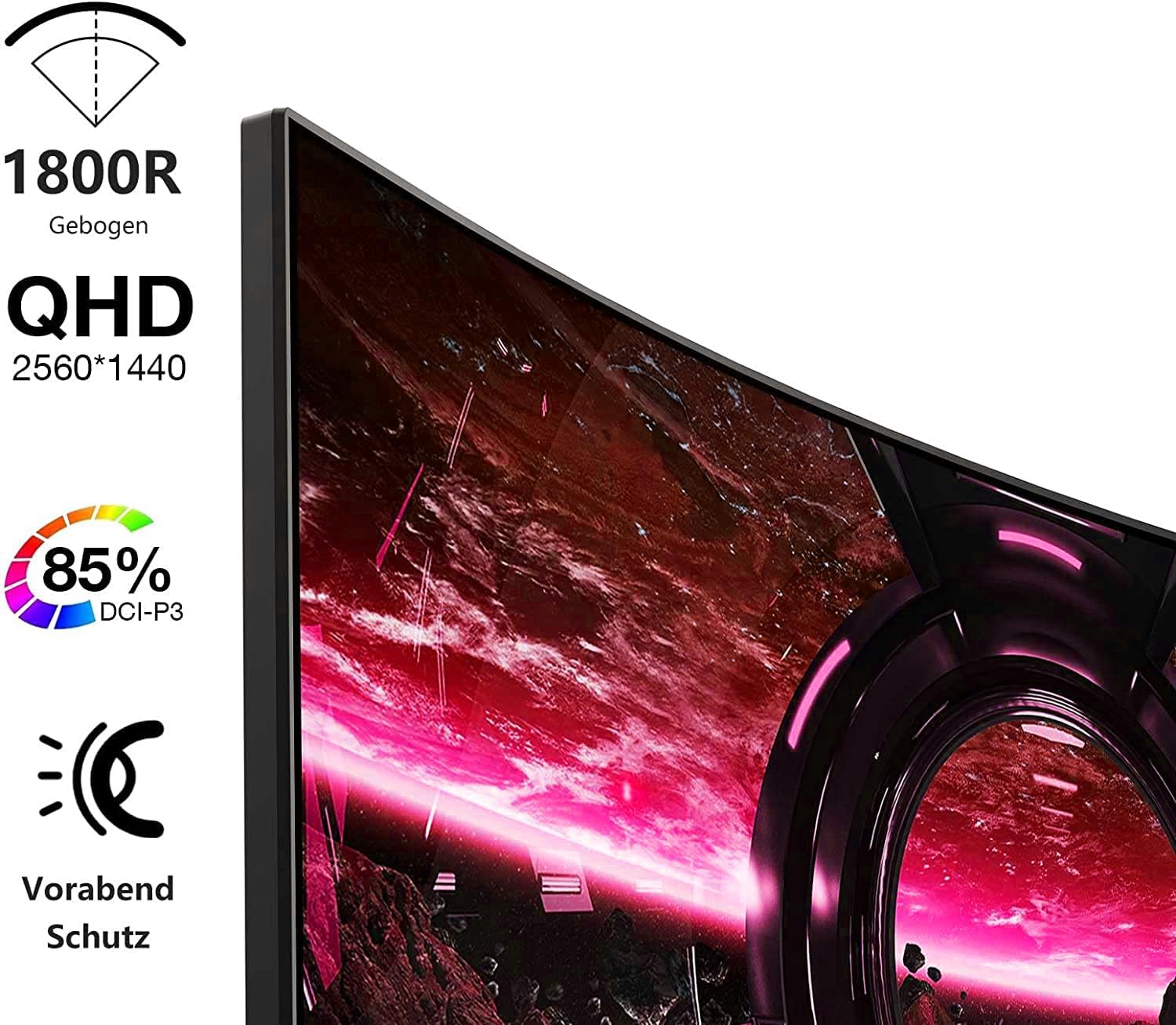
Image: Visual representation of the monitor's key features, including its 1500R curvature, QHD resolution (2560x1440), 85% DCI-P3 color coverage, and eye protection technology.
4. Istruzzjonijiet ta' Setup
4.1 Armar tal-Istand
- Carefully remove the monitor, stand, and base from the packaging.
- Attach the stand to the base, ensuring it clicks securely into place or is fastened with the provided screw.
- Attach the assembled stand to the back of the monitor. Ensure the connection is firm.

Immaġni: Wara view of the KOORUI 27E6QCA monitor, showing the attachment point for the stand and the overall back panel design.
4.2 Konnessjoni ma' Apparat
The monitor supports HDMI and DisplayPort connections. Use the appropriate cable for your device.
- DisplayPort (DP): Connect one end of the DP cable to the DisplayPort output on your computer's graphics card and the other end to the DisplayPort input on the monitor. This connection is recommended for achieving the full 180Hz refresh rate and QHD resolution.
- HDMI: Connect one end of an HDMI cable (version 1.4 or higher recommended) to the HDMI output on your device and the other end to one of the HDMI inputs on the monitor.
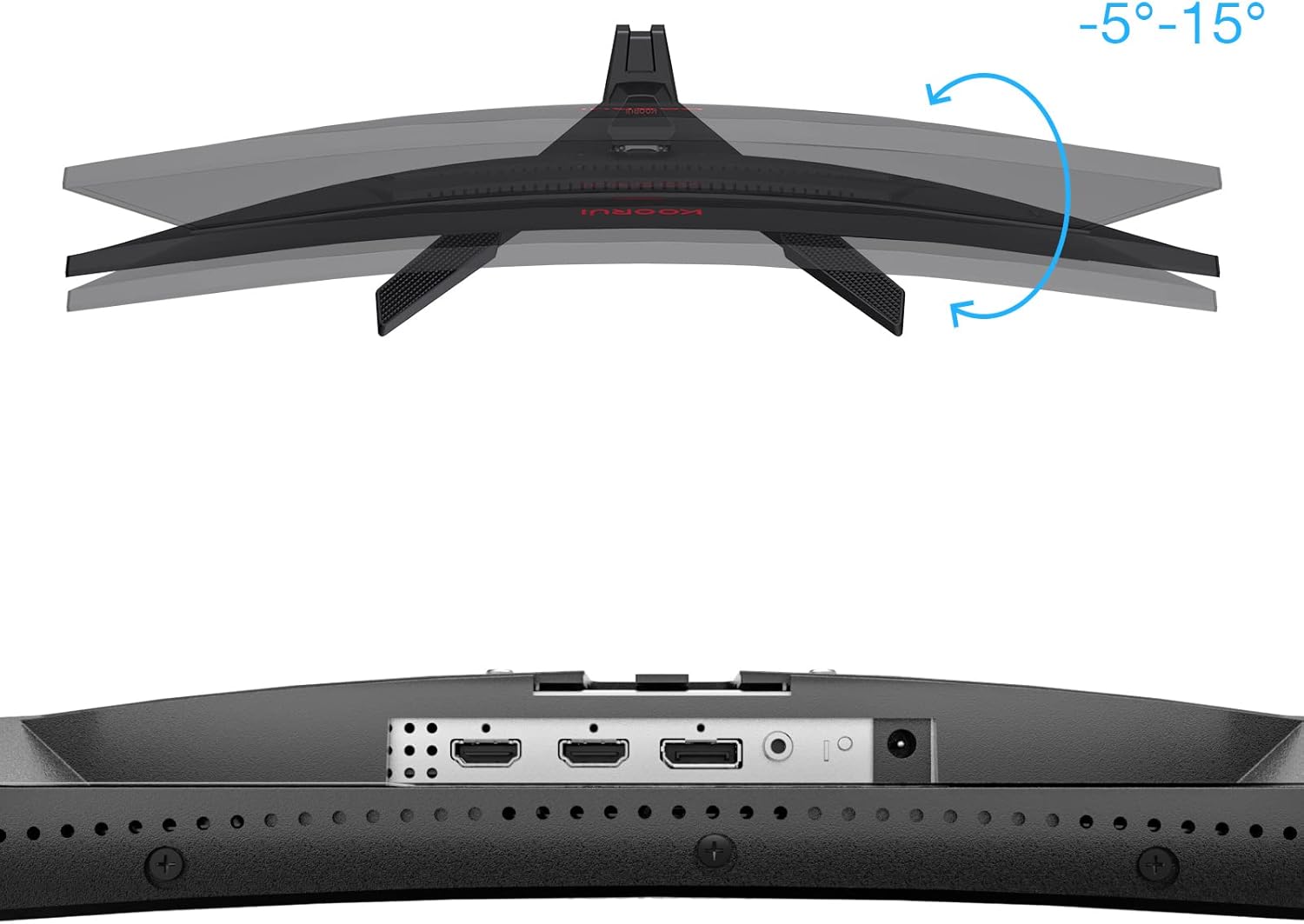
Immaġni: Close-up view of the monitor's rear ports, including HDMI and DisplayPort inputs, along with an illustration of the monitor's tilt adjustment range (-5° to 15°).

Image: Diagram illustrating the monitor's compatibility with various devices such as PS5, Xbox, Laptops, and Nintendo Switch via its multiple connection interfaces.
4.3 Konnessjoni tal-Enerġija
- Qabbad l-adapter tal-enerġija mad-dħul tal-enerġija tal-monitor.
- Plug the power cable into the power adapter, then plug the other end of the power cable into a wall outlet.
5. Istruzzjonijiet Operattivi
5.1 Power On/Off
- Qawwa Mixgħul: Short press the multi-function joystick button located on the back of the monitor.
- Itfi: Long press the multi-function joystick button for a few seconds.
5.2 Navigazzjoni tal-Menu
The monitor features a single multi-function joystick button for navigating the On-Screen Display (OSD) menu.
- Access OSD: Short press the joystick button when the monitor is on.
- Innaviga: Push the joystick left/right/up/down to move through menu options.
- Ikkonferma: Press the joystick button to confirm a selection.
- Ritorn: Push the joystick up to go back to the previous menu or exit the OSD.

Image: Diagram illustrating the functions of the multi-function joystick button on the rear of the monitor: long press for power off, short press for power on, push left for minus, push right for plus, push up for return, and press for confirm.
5.3 Settings tal-wiri
Adjust various display settings through the OSD menu:
- Luminożità/Kuntrast: Aġġusta l-luminanza u d-distinzjoni tal-immaġni.
- Settings tal-Kulur: Modify color temperature, gamma, and saturation.
- Modalità Stampa: Agħżel minn modi predefiniti (eż., Standard, Logħba, Film, Test).
- Settings tal-Logħob:
- Sinkronizzazzjoni Adattiva: Enable this feature to synchronize the monitor's refresh rate with your graphics card, reducing screen tearing and stuttering. Ensure your graphics card supports Adaptive Sync.
- Response Time (Overdrive): Adjust for faster pixel response, reducing ghosting.
- Modi tal-Logħob: Specific modes like RTS, FPS, Reticle, and Timer are available to optimize visuals for different game genres.
- Sors tad-dħul: Agħżel manwalment bejn l-inputs HDMI u DisplayPort.
For optimal gaming performance, ensure your operating system's display settings are configured to the monitor's native resolution (2560x1440) and highest refresh rate (180Hz).
6. Manutenzjoni
Manutenzjoni xierqa tiżgura l-lonġevità u l-prestazzjoni tal-monitor tiegħek.
- Tindif tal-Iskrin:
- Dejjem itfi l-monitor u aqla’ l-kejbil tal-enerġija qabel ma tnaddaf.
- Uża drapp ratba u mingħajr ħelu ftit dampmaħsul bl-ilma jew b'prodott speċjalizzat għat-tindif tal-iskrin.
- Tisprejjax it-tindif direttament fuq l-iskrin.
- Evita li tuża prodotti tat-tindif li joborxu, alkoħol, jew soluzzjonijiet ibbażati fuq l-ammonja.
- Tindif tas-Casing: Uża drapp artab u niexef biex timsaħ il-monitor casing.
- Ventilazzjoni: Kun żgur li l-fetħiet tal-ventilazzjoni tal-monitor mhumiex imblukkati biex tevita li jisħon iżżejjed.
7 Issolvi l-problemi
Jekk tiltaqa' ma' problemi bil-monitor tiegħek, irreferi għall-passi komuni li ġejjin għas-soluzzjoni tal-problemi:
7.1 Ebda Qawwa
- Kun żgur li l-kejbil tal-enerġija huwa konness sew mal-monitor u mas-sokit tal-enerġija.
- Ivverifika li s-sokit tal-enerġija qed jaħdem billi tqabbad apparat ieħor.
- Iċċekkja jekk l-adapter tal-enerġija huwiex konness sew.
7.2 Ebda Sinjal / Skrin Vojt
- Confirm that the video cable (DP or HDMI) is securely connected to both the monitor and your computer/device.
- Kun żgur li s-sors tad-dħul korrett huwa magħżul fil-menù OSD tal-monitor.
- Check if your computer/device is powered on and not in sleep mode.
- Ipprova kejbil jew port tal-vidjo differenti jekk disponibbli.
7.3 Image Flickering or Tearing
- Enable Adaptive Sync in the monitor's OSD menu and ensure it is enabled in your graphics card settings.
- Verify that your graphics drivers are up to date.
- Check the refresh rate setting in your operating system's display settings. It should be set to 180Hz.
7.4 Ghosting or Motion Blur
- Adjust the "Response Time" or "Overdrive" setting in the OSD menu. Experiment with different levels to find the optimal balance.
- Ensure Adaptive Sync is enabled.
7.5 Riżoluzzjoni jew Rata ta' Aġġornament Mhux Korretta
- Go to your operating system's display settings and set the resolution to 2560x1440 and the refresh rate to 180Hz.
- Ensure you are using a DisplayPort cable or an HDMI cable that supports these specifications.
8. Speċifikazzjonijiet
| Karatteristika | Speċifikazzjoni |
|---|---|
| Brand | KOORUI |
| Numru tal-Mudell | 27E6QCA |
| Daqs tal-Iskrin | 27 Pulzier |
| Tip ta' Panel | VA |
| Kurvatura | 1500R |
| Riżoluzzjoni | QHD (2560 x 1440 Pixel) |
| Proporzjon ta' l-aspett | 16:9 |
| Riffriskar Rata | 180 Hz |
| Ħin ta' Rispons | 1 millisecond (MPRT) |
| Gamut tal-Kulur | 85% DCI-P3 |
| Proporzjon ta' Kuntrast | 2000:1 |
| Konnettività | HDMI (x1), DisplayPort (x1) |
| Aġġustament tal-Mejjel | -5° sa 15° |
| Konsum tal-Enerġija | 78 Watt |
| Dimensjonijiet (L x W x H) | 61.2 x 45.2 x 18.5 ċm |
| Piż | 5.1 Kilogrammi |
| Karatteristiċi Speċjali | Blue Light Filter, Curved, Flicker-Free, Adaptive Sync |

Image: Diagram showing the approximate dimensions of the KOORUI 27E6QCA monitor, including height (40cm), width (50cm), and depth (30cm).
9. Garanzija u Appoġġ
For warranty information and technical support, please refer to the warranty card included in your product package or visit the official KOORUI websit. Żomm l-irċevuta tax-xiri tiegħek bħala prova tax-xiri għal talbiet ta' garanzija.


