1. Introduzzjoni
The AeroCool Blade is an ATX semi-tower PC case designed for optimal airflow and aesthetic appeal. It features an RGB front panel with preset lighting modes, a full tempered glass side window, and ample space for component installation. This manual provides essential information for the proper setup, operation, and maintenance of your PC case.
Informazzjoni dwar is-Sigurtà: Always disconnect power from your system before performing any installation or maintenance. Handle components with care to avoid damage. Refer to individual component manuals for specific installation instructions.
2. Kontenut tal-Pakkett
- AeroCool Blade ATX Semi-Tower PC Case
- 1 x 120mm RGB Rear Fan (pre-installed)
- 3 x 120mm Front Fans (pre-installed)
- Kit ta' Aċċessorji (viti, standoffs, rabtiet tal-kejbil)
3. Setup u Installazzjoni
3.1 Tħejjija tal-Każ
Carefully remove the case from its packaging. Place it on a stable, flat surface. Remove the tempered glass side panel by unscrewing the thumb screws at the rear of the case and gently pulling the panel away.

Figura 3.1: Intern view of the AeroCool Blade PC case, illustrating the layout for component installation.
3.2 Installazzjoni tal-Motherboard
- Install the necessary motherboard standoffs into the motherboard tray according to your motherboard's form factor (ATX, Micro-ATX, Mini-ITX).
- Installa l-ilqugħ tal-I/O fil-ftuħ ta' wara tal-kaxxa.
- Poġġi l-motherboard tiegħek bir-reqqa fuq l-istandoffs, billi tallinja t-toqob tal-viti.
- Waħħal il-motherboard bil-viti pprovduti.
3.3 Installazzjoni tal-Unità tal-Provvista tal-Enerġija (PSU).
The AeroCool Blade supports bottom-mounted PSUs. Slide your PSU into the dedicated compartment at the bottom rear of the case. Secure it with screws from the rear of the case.
3.4 Installazzjoni tad-Drive tal-Ħażna
- HDDs ta' 3.5": Install 3.5" hard drives into the drive cage located beneath the PSU shroud.
- SSDs/HDDs ta' 2.5": Install 2.5" drives onto the dedicated mounting points on the motherboard tray or behind it.

Figura 3.2: Interna ta' wara view, highlighting cable management routes and 2.5-inch drive mounting locations.
3.5 Expansion Card (GPU) Installation
Remove the necessary expansion slot covers from the rear of the case. Insert your graphics card or other expansion cards into the PCIe slots on your motherboard and secure them with screws.
3.6 Installazzjoni tal-Fann u t-Tkessiħ
The case comes with one 120mm RGB fan pre-installed at the rear and three 120mm fans pre-installed at the front. Ensure all fan cables are connected to appropriate headers on your motherboard or fan controller.

Figure 3.3: A 120mm RGB fan, similar to those pre-installed in the AeroCool Blade case.
3.7 Konnessjonijiet tal-I/O tal-Pannell ta' Quddiem
Connect the front panel cables (USB 3.0, USB 2.0, HD Audio, Power Switch, Reset Switch, LED Switch, Power LED, HDD LED) to the corresponding headers on your motherboard. Refer to your motherboard manual for exact pin configurations.
4. Istruzzjonijiet Operattivi
4.1 Tixgħel
Once all components are installed and connected, replace the side panel. Connect your monitor, keyboard, mouse, and power cable to the PSU. Press the Power button located on the top panel of the case to turn on your system.

Figura 4.1: Minn fuq 'il quddiem view of the case, indicating the location of the power button and front I/O ports.
4.2 Kontroll tad-Dawl RGB
The AeroCool Blade features an RGB front panel. Use the dedicated LED button on the top panel to cycle through various preset lighting modes and effects. Pressing the button will change the lighting pattern or color.

Figura 4.2: Quddiem view of the AeroCool Blade case with its distinctive RGB lighting.
4.3 Front Panel Ports
Il-pannell ta' fuq jipprovdi aċċess konvenjenti għal:
- 1 x USB 3.0 port
- 2 x portijiet USB 2.0
- HD Audio output
- Input tal-mikrofonu
Connect your USB devices, headphones, and microphone to these ports as needed.
5. Manutenzjoni
5.1 Tindif tal-Filtru tat-Trab
Regularly check and clean the dust filters to maintain optimal airflow and prevent dust buildup inside the case. Dust filters are typically located at the top, front, and bottom (under the PSU). Gently remove them and clean with compressed air or rinse with water (ensure they are completely dry before re-installation).
5.2 Tindif ta' barra
Imsaħ l-uċuħ ta' barra tal-kaxxa b'ċarruta ratba u damp drapp. Evita li tuża kimiċi ħarxa jew materjali li joborxu li jistgħu jagħmlu ħsara lill-finitura jew lill-ħġieġ ittemprat.
6 Issolvi l-problemi
- Is-Sistema Ma Tixgħelx:
Ensure the PSU is switched on and properly connected to the wall outlet. Verify all power cables from the PSU are correctly connected to the motherboard and components. Check the front panel power switch connection to the motherboard. - Dawl RGB Mhux Taħdim:
Ensure the RGB controller (if applicable) and fan RGB cables are securely connected. Press the LED button on the top panel to cycle through modes. If connected to a motherboard header, check motherboard software settings. - Fannijiet Mhux Iduru:
Verify that all fan power cables are securely connected to the motherboard fan headers or a fan controller. Check BIOS/UEFI settings for fan speed control. - Il-USB/Awdjo tal-Pannell ta' Quddiem Mhux Jaħdem:
Ensure the USB and HD Audio cables from the front panel are correctly connected to the corresponding headers on your motherboard.
7. Speċifikazzjonijiet
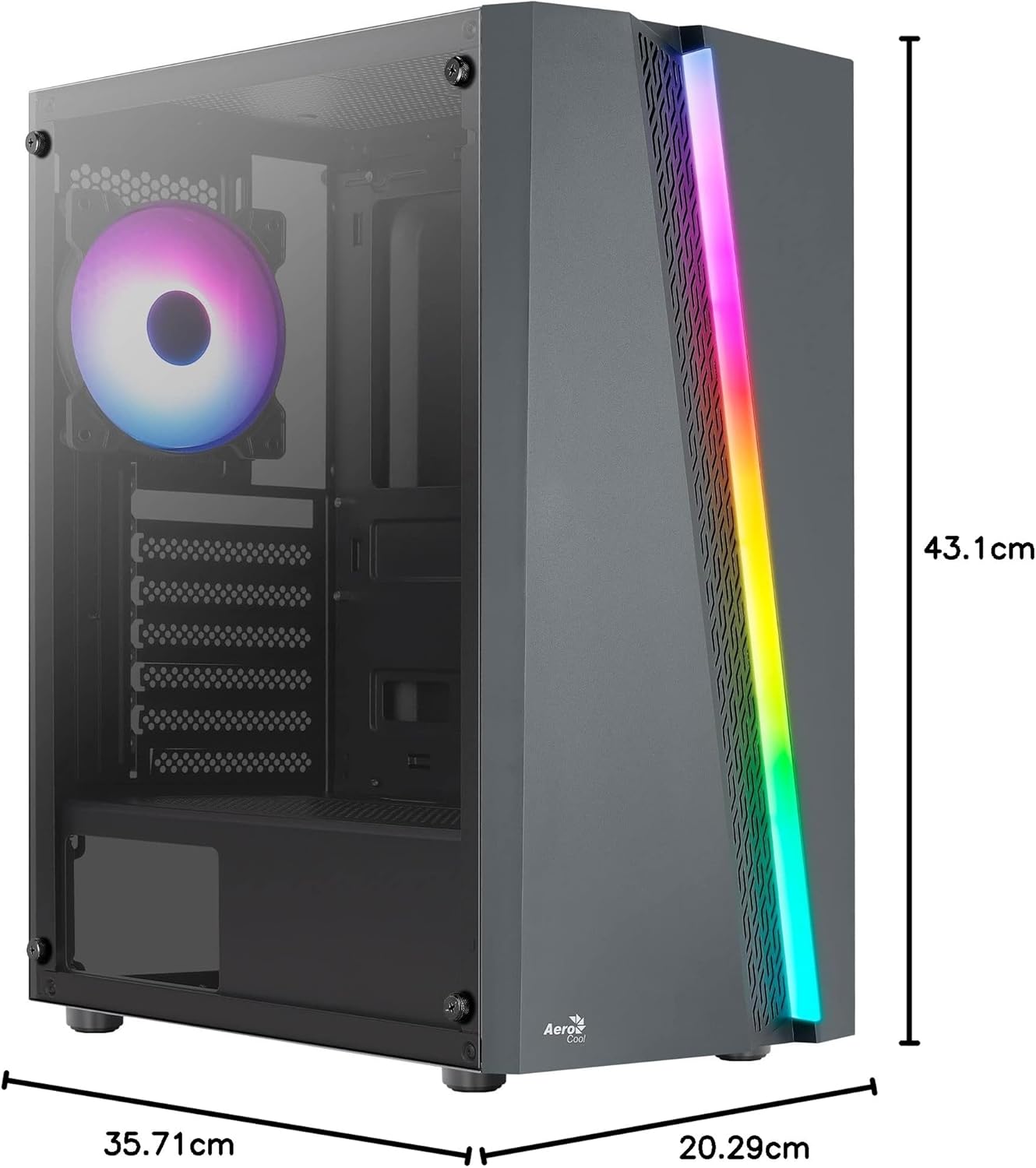
Figure 7.1: Dimensions of the AeroCool Blade PC Case.
| Karatteristika | Speċifikazzjoni |
|---|---|
| Brand | AeroCool |
| Isem tal-Mudell | BLADEBK |
| Tip ta' Każ | Semi-Tower |
| Kompatibbiltà tal-motherboard | ATX, Mikro-ATX, Mini-ITX |
| Materjal | Tempered Glass (Side Panel) |
| Dimensjonijiet tal-Prodott (L x W x H) | 43.1 x 20.3 x 35.7 ċm |
| Piż tal-oġġett | 4 kg |
| Drive Bays | 2 x 3.5", 2 x 2.5" |
| Approvazzjoni tal-GPU | Sa 307mm |
| Għoli tal-CPU Cooler | Sa 155mm |
| Portijiet I / O ta 'quddiem | 1 x USB 3.0, 2 x USB 2.0, HD Audio, Mic, LED Control, Power |
| Fannijiet installati minn qabel | 1 x 120mm RGB Rear, 3 x 120mm Front |
| Metodu tat-tkessiħ | Arja |
8. Garanzija u Appoġġ
Għal informazzjoni dwar il-garanzija u appoġġ tekniku, jekk jogħġbok irreferi għas-sit uffiċjali ta' AeroCool. webis-sit jew ikkuntattja lill-bejjiegħ lokali tiegħek. Żomm il-prova tax-xiri tiegħek għal talbiet ta' garanzija.
Informazzjoni ta' Kuntatt: Għal aktar għajnuna, jekk jogħġbok żur www.aerocool.io.