Introduzzjoni
The SteelSeries Arctis Nova 7P Wireless Multi-Platform Gaming Headset delivers an immersive audio experience with its Nova Acoustic System, featuring custom audio drivers and 360° Spatial Audio. Designed for versatility, it offers simultaneous 2.4GHz wireless and Bluetooth connectivity, allowing seamless switching between PlayStation, PC, Mac, Switch, and mobile devices. This manual provides essential information for setting up, operating, maintaining, and troubleshooting your headset.

The Arctis Nova 7P Wireless Gaming Headset, shown with its accompanying USB-C wireless dongle.
Kontenut tal-Pakkett
- Arctis Nova 7P Wireless Gaming Headset
- Dongle bla fili USB-C
- USB-C għal USB-A Charging Cable
- USB-C to USB-A Extension Cable (for dongle)
Setup
Iċċarġjar Inizjali
Before first use, fully charge your headset. Connect the USB-C to USB-A charging cable to the headset's USB-C port and a powered USB port (e.g., computer, wall adapter). A 15-minute charge provides approximately 6 hours of playtime, while a full charge offers up to 38 hours.

The headset features a USB-C port for convenient charging and fast charge capabilities.
Connecting to Devices (2.4GHz Wireless)
The Arctis Nova 7P uses a 2.4GHz wireless dongle for low-latency audio on compatible platforms.
- For PlayStation, PC, or Switch: Insert the USB-C wireless dongle directly into an available USB-C port on your console or PC. If a USB-C port is not available, use the provided USB-C to USB-A extension cable.
- Ensure the toggle switch on the dongle is set to the correct platform (e.g., "PlayStation" or "PC").
- Power on your headset by pressing and holding the Power button until the LED illuminates.
- Il-headset u d-dongle għandhom jingħaqdu awtomatikament. Dawl solidu fuq id-dongle jindika konnessjoni b'suċċess.
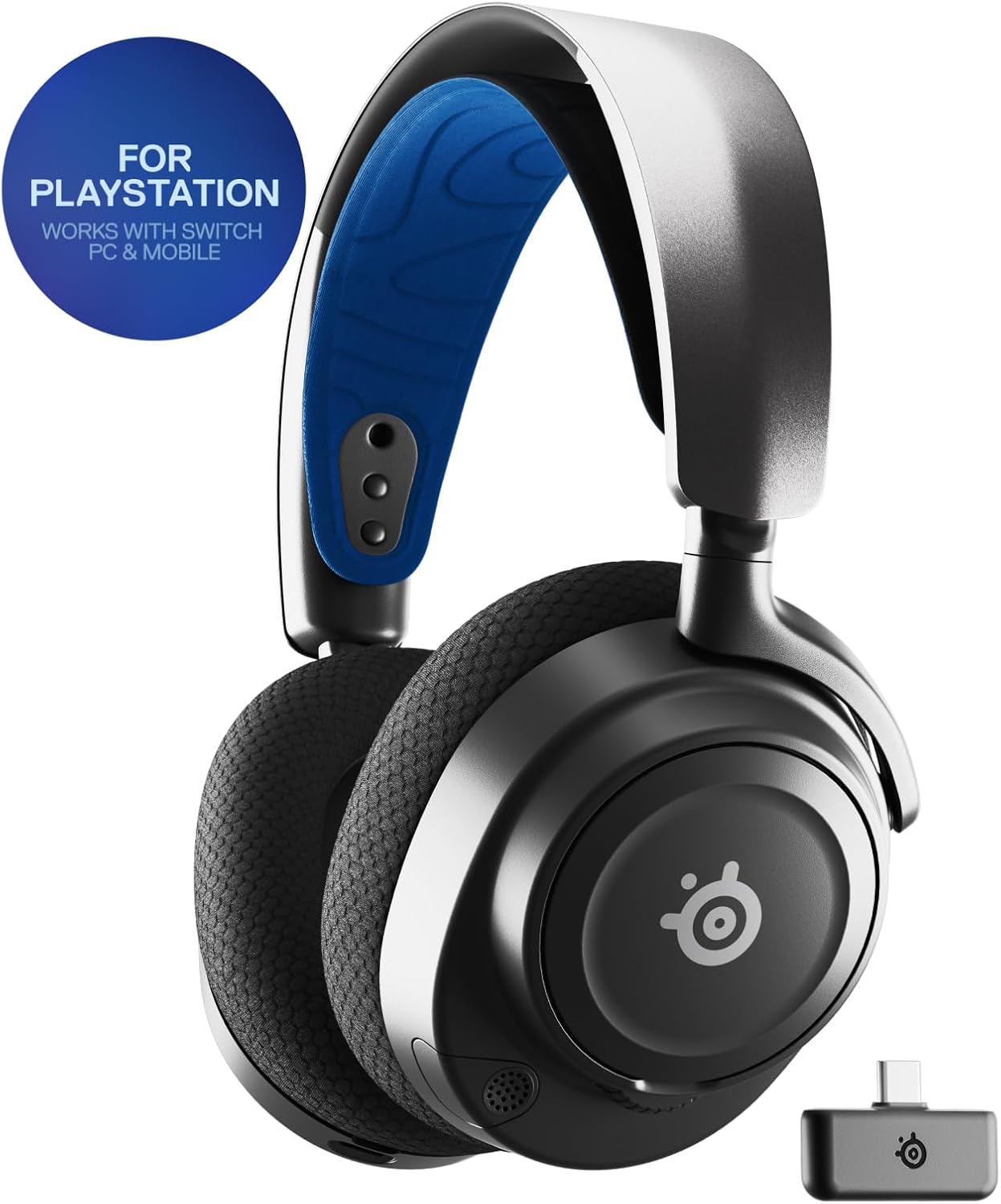
The Arctis Nova 7P is designed for PlayStation but also works seamlessly with PC, Switch, VR, and mobile devices.
Connecting to Devices (Bluetooth)
The headset supports Bluetooth 5.0 for mobile devices and simultaneous audio mixing.
- With the headset powered on, press and hold the Bluetooth button (located on the right earcup) for 5 seconds until the LED flashes blue rapidly. This indicates pairing mode.
- On your mobile device, navigate to Bluetooth settings and select "Arctis Nova 7P" from the list of available devices.
- Once connected, the LED on the headset will turn solid blue.

Simultaneous Bluetooth allows mixing mobile audio with game audio or using the headset on-the-go.
Istruzzjonijiet Operattivi
Kontrolli fuq il-widnejn
The Arctis Nova 7P features intuitive controls located on the earcups for easy access to essential functions.

Easy access controls for volume, sidetone, mute, and Bluetooth pairing.
- Volume Wheel (Left Earcup): Jaġġusta l-volum ewlieni tal-headset.
- Mic Mute Button (Left Earcup): Toggles microphone mute. The microphone LED will illuminate red when muted.
- Bluetooth Button (Right Earcup): Press to play/pause audio, double-press to skip track, press and hold for pairing.
- Sidetone Control (Right Earcup): Adjusts the level of your own voice heard through the headset.
- Power Button (Left Earcup): Press and hold to power on/off. Single press to check battery status.
ClearCast Gen 2 Microphone
The retractable ClearCast Gen 2 microphone offers AI-powered noise cancellation for clear communication.
- Retracting the Mic: Gently push the microphone into the left earcup when not in use for a sleek, integrated look.
- Extending the Mic: Pull the microphone out from the left earcup. Position it close to your mouth for optimal voice pickup.
- Kanċellazzjoni tal-Istorbju: The AI-powered noise cancellation actively reduces background noise, ensuring your voice is heard clearly. For advanced settings and customization, download the SteelSeries GG software.
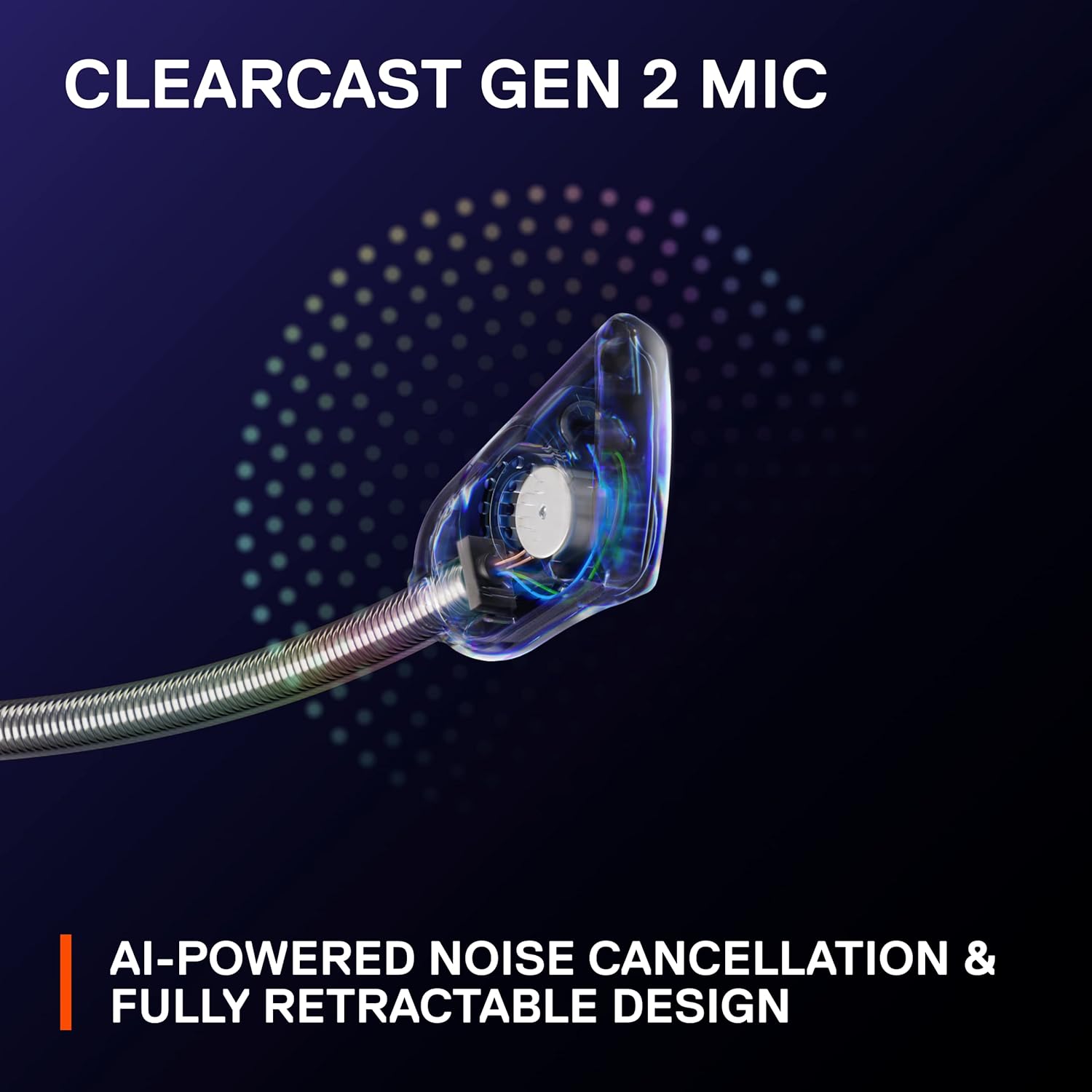
The ClearCast Gen 2 microphone features AI-powered noise cancellation and a fully retractable design.
Nova Acoustic System & Spatial Audio
Experience superior audio quality with Neodymium Magnetic Drivers and 360° Spatial Audio.
- Neodymium Magnetic Drivers: These custom-designed drivers deliver a detailed soundscape with clear highs, precise mids, and deep bass.
- Awdjo Spazjali ta' 360°: Provides immersive audio that allows you to pinpoint sound sources from all directions, enhancing situational awareness in games. Fully compatible with Tempest 3D Audio for PS5 and Microsoft Spatial Sound.
- Sonar Software: For advanced audio customization, including a 10-band Parametric EQ, download the SteelSeries GG software from the official SteelSeries websit.

The headset features fully custom, high-fidelity Neodymium Magnetic Drivers for exceptional sound.
Manutenzjoni
Tindif
- Uża drapp artab u niexef biex tnaddaf l-uċuħ tal-headset.
- Għall-kuxxini tal-widnejn, imsaħ bil-mod b'adamp cloth and mild soap if necessary, then allow to air dry completely before use.
- Evita li tuża kimiċi ħarxa jew materjali li joborxu, għax dawn jistgħu jagħmlu ħsara lill-finitura tal-headset.
Ħażna
- Aħżen il-headset f'post frisk u niexef 'il bogħod mix-xemx diretta u minn temperaturi estremi.
- When not in use, retract the microphone to protect it.
Kura tal-batterija
- To maximize battery lifespan, avoid fully discharging the battery regularly.
- Charge the headset using the provided USB-C cable and a standard USB power source.
Issolvi l-problemi
Ebda Awdjo / Skonnettjar
- Check Dongle Connection: Ensure the USB-C wireless dongle is securely plugged into your device and its toggle switch is set to the correct platform (e.g., "PlayStation" or "PC").
- Ċiklu tal-Enerġija: Turn off both the headset and the dongle, then power them back on.
- Erġa 'par: If the connection is lost, try re-pairing the headset with the dongle. Consult the SteelSeries support website for specific re-pairing instructions if automatic pairing fails.
- Check Device Audio Output: Ensure your device's audio output is set to the "Arctis Nova 7P" headset.
Kwistjonijiet tal-Mikrofonu
- Iċċekkja l-Mute: Ensure the microphone mute button on the headset is not activated (red LED indicates mute).
- Pożizzjoni tal-Mic: Make sure the microphone is fully extended and positioned correctly near your mouth.
- Issettjar tas-softwer: Verify microphone input settings in your device's sound control panel or game/chat application. For PC, check SteelSeries GG Sonar software settings.
Problemi ta 'Konnettività Bluetooth
- Mod ta 'tqabbil: Ensure the headset is in Bluetooth pairing mode (rapidly flashing blue LED).
- Apparat Bluetooth: Itfi u ixgħel il-Bluetooth fuq l-apparat mobbli tiegħek.
- Tinsa l-Apparat: On your mobile device, "forget" or "unpair" the Arctis Nova 7P and then attempt to re-pair.
Speċifikazzjonijiet
| Karatteristika | Dettall |
|---|---|
| Isem tal-Mudell | Arctis Nova 7P Wireless Multi-Platform Gaming Headset |
| Numru tal-Mudell | 61559 |
| Konnettività | 2.4GHz Wireless (USB-C Dongle), Bluetooth 5.0 |
| Ħajja tal-batterija | Sa 38 sigħat |
| Ħlas Mgħaġġel | 15 minutes charge for 6 hours play |
| Sewwieqa tal-Awdjo | Neodymium Magnetic Drivers, Dynamic Driver |
| Awdjo Spazjali | 360° Spatial Audio (compatible with Tempest 3D Audio, Microsoft Spatial Sound) |
| Mikrofonu | ClearCast Gen 2 (AI-powered noise cancellation, retractable) |
| Kontroll tal-Ħoss | Iżolament tal-Ħoss |
| Impedenza | 140 Ohm |
| Tqegħid tal-widnejn | Fuq il-widnejn |
| Materjal | Plastik, Metall |
| Dimensjonijiet | 7.58 x 6.6 x 3.41 pulzieri |
| Piż | 1.59 libbra (721 Gramm) |
Garanzija u Appoġġ
SteelSeries products typically come with a limited manufacturer's warranty. For detailed warranty information, please refer to the warranty card included with your product or visit the official SteelSeries websit.
Appoġġ għall-Klijent
For further assistance, technical support, or to download the latest drivers and software (such as SteelSeries GG with Sonar), please visit the official SteelSeries support page:steelseries.com/support
Tista' ssib ukoll FAQs u fora tal-komunità fuqhom website for common questions and solutions.


