1. Introduzzjoni
This manual provides essential instructions for the installation, operation, and maintenance of your Hikvision DS-7108HQHI-K1(C)(S) Professional Recording Equipment. Please read this manual thoroughly before using the device to ensure proper and safe operation. Keep this manual for future reference.
2. Istruzzjonijiet tas-Sigurtà
- Tiżgura l-provvista tal-enerġija voltage hija fil-medda speċifikata.
- Tesponix l-apparat għax-xita jew għall-umdità biex tevita nar jew xokk elettriku.
- Evita li tpoġġi l-apparat fid-dawl tax-xemx dirett jew ħdejn sorsi tas-sħana.
- Timblokkax il-fetħiet tal-ventilazzjoni. Kun żgur li jkun hemm fluss tal-arja adegwat madwar l-apparat.
- Uża biss aċċessorji speċifikati mill-manifattur.
- Irreferi l-manutenzjoni kollha lil persunal tas-servizz kwalifikat.
3. Kontenut tal-Pakkett
Verify that all items are present and in good condition upon unpacking. If any item is missing or damaged, contact your dealer immediately.
- Hikvision DS-7108HQHI-K1(C)(S) Recording Equipment
- Adapter tal-Enerġija
- Ġurdien USB
- Viti għall-Installazzjoni tal-HDD (jekk applikabbli)
- Gwida Quick Start
4. Prodott Aktarview
The Hikvision DS-7108HQHI-K1(C)(S) is a professional recording device designed for surveillance systems. It features multiple video input channels and various output ports for display and network connectivity.
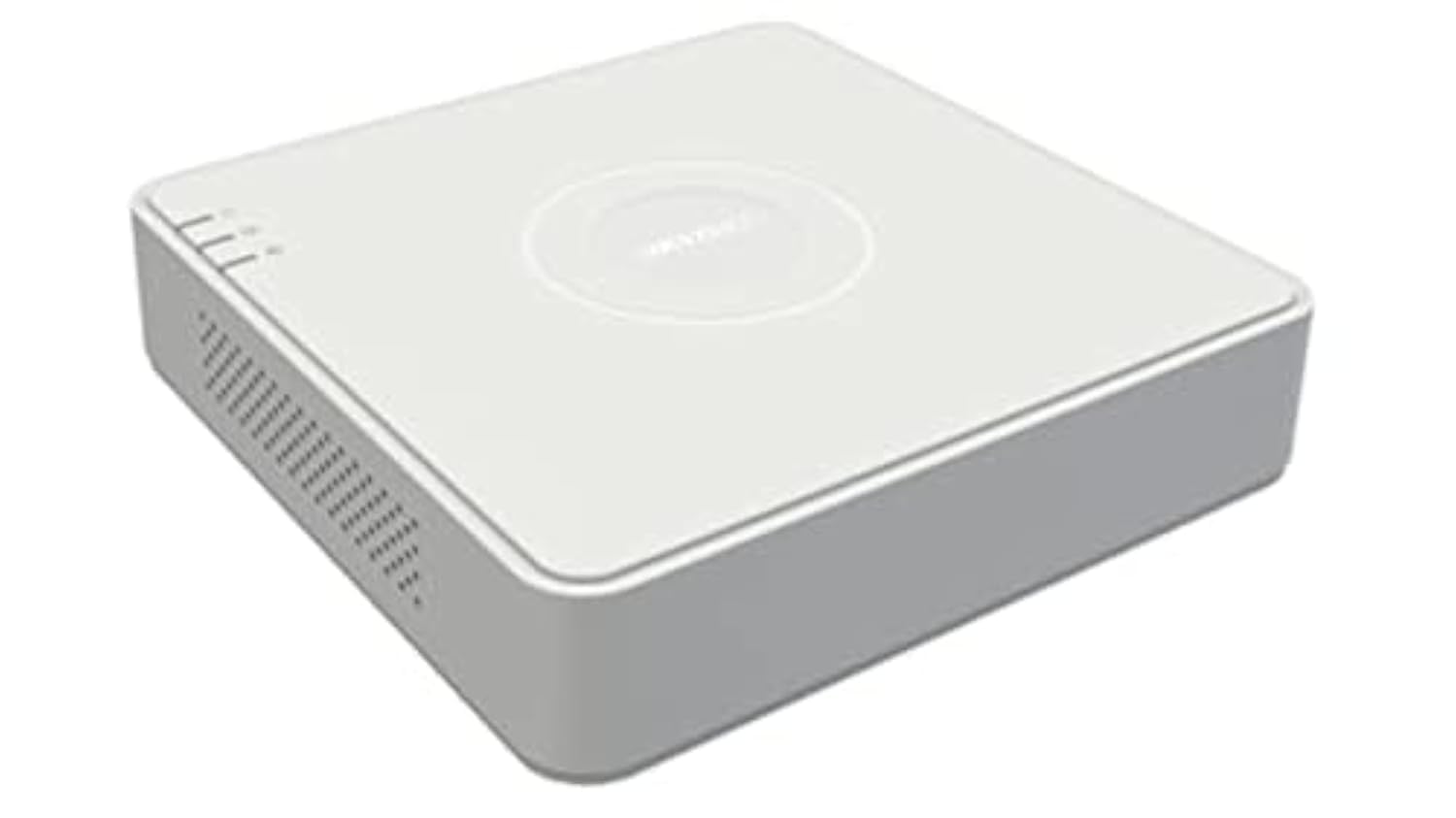
Figura 1: Rear panel of the DS-7108HQHI-K1(C)(S) recording equipment. This image displays the array of BNC video input connectors, a VGA output port, an HDMI output port, audio input and output jacks, a LAN port for network connection, two USB ports for peripherals, and the DC 12V power input.
4.1 Interfaces tal-Panew ta 'wara
- Input tal-Vidjo (BNC): Connect surveillance cameras. This model supports 8 channels.
- Ħruġ VGA: Connect to a VGA monitor for video display.
- Ħruġ HDMI: Connect to an HDMI monitor or TV for high-definition video display.
- Dħul/Ħruġ tal-Awdjo (RCA): Qabbad apparati awdjo esterni.
- Port tal-LAN (RJ45): Connect to your network for remote access and internet connectivity.
- Portijiet USB: Connect a USB mouse for control or a USB flash drive for data backup. This model has 1 USB port.
- Input ta' Enerġija DC 12V: Qabbad l-adapter tal-enerġija pprovdut.
5. Setup
5.1 Installazzjoni tal-Ħardwer
- Qabbad il-Kameras: Attach your surveillance cameras to the BNC video input ports.
- Qabbad il-Monitor: Connect a monitor to either the VGA or HDMI output port.
- Qabbad il-ġurdien: Plug the USB mouse into one of the USB ports.
- Qabbad in-Netwerk (Mhux obbligatorju): Connect an Ethernet cable from the LAN port to your router or network switch.
- Qabbad l-Enerġija: Plug the power adapter into the DC 12V power input and then into a power outlet. The device will power on automatically.
5.2 Konfigurazzjoni Inizjali
Upon first power-on, the device will guide you through an initial setup wizard. Follow the on-screen prompts to set up language, date/time, network settings, and administrator password.
6. Istruzzjonijiet Operattivi
6.1 Ħaj View
After logging in, the device will display the live view of all connected cameras. You can switch between single-channel view and multi-channel view bl-użu tal-kontrolli fuq l-iskrin jew il-maws.
6.2 Konfigurazzjoni tar-Reġistrazzjoni
Access the "Record" menu to configure recording schedules, motion detection settings, and other recording parameters for each camera. Ensure a hard drive is installed and initialized for recording.
6.3 Daqq
Innaviga lejn il-menù "Daqq" biex terġa'view irreġistrat footage. You can search by date, time, and event type. Use the playback controls to fast forward, rewind, and pause.
6.4 Aċċess mill-Bogħod
Għal remoti viewing, ensure the device is connected to the internet. Configure network settings (e.g., port forwarding, P2P cloud service) as per the detailed user manual or Hikvision's online resources. Download the Hik-Connect app or use client software on your computer.
7. Manutenzjoni
- Tindif: Regularly clean the exterior of the device with a soft, dry cloth. Do not use liquid or aerosol cleaners.
- Aġġornamenti tal-Firmware: Check the official Hikvision website periodically for firmware updates. Updating firmware can improve performance and add new features. Follow the instructions provided with the firmware update carefully.
- Ġestjoni tal-Hard Drive: If a hard drive is installed, monitor its health and capacity through the device's menu. Consider setting up automatic overwriting of old footage jekk tkun mixtieqa reġistrazzjoni kontinwa.
- Kundizzjonijiet Ambjentali: Kun żgur li l-apparat jaħdem fil-firxiet speċifikati tat-temperatura u l-umdità biex itawwal il-ħajja tiegħu.
8 Issolvi l-problemi
- Ebda Output tal-Vidjo:
- Check all video cable connections (VGA/HDMI) to the monitor and the recording equipment.
- Kun żgur li l-monitor ikun mixgħul u ssettjat għas-sors tad-dħul korrett.
- Verify cameras are powered and connected correctly.
- L-ebda Konnessjoni man-Netwerk:
- Check the Ethernet cable connection to the LAN port and your router.
- Verify network settings (IP address, gateway, DNS) in the device's configuration menu.
- Kun żgur li r-router tiegħek qed jaħdem sew.
- Cannot Record:
- Ensure a hard drive is installed and properly initialized.
- Iċċekkja l-iskedi tar-reġistrazzjoni u s-settings tad-detezzjoni tal-moviment.
- Verify the hard drive has sufficient free space.
- Insejt il-password:
Refer to Hikvision's official support resources for password reset procedures, which often involve a security code or a reset tool.
9. Speċifikazzjonijiet
| Karatteristika | Dettall |
|---|---|
| Brand | Hikvision |
| Numru tal-Mudell | DS-7108HQHI-K1(C)(S) |
| Numru ta 'Kanali | 8 |
| Teknoloġija tal-Konnettività | VGA |
| Portijiet USB totali | 1 |
| Manifattur | Hikvision |
10. Informazzjoni dwar Garanzija
This product is covered by a limited warranty provided by Hikvision. For detailed warranty terms and conditions, please refer to the warranty card included with your product or visit the official Hikvision websit. Żomm l-irċevuta tax-xiri tiegħek bħala prova tax-xiri għal talbiet ta' garanzija.
11. Appoġġ għall-Klijent
For technical assistance, troubleshooting, or further inquiries, please contact Hikvision customer support. You can find contact information, FAQs, and additional resources on the official Hikvision websit:
Websit: www.hikvision.com
Please have your product model number (DS-7108HQHI-K1(C)(S)) and serial number ready when contacting support.


